
1. Introduction
The J-Tech Digital JTECH-4KSP4 is a high-performance 1x4 HDMI splitter designed to distribute a single HDMI source to four HDMI displays simultaneously. It supports advanced features such as 4K@60Hz resolution, HDR10, Dolby Vision, and Multi-Resolution Output (MRO) for flexible display compatibility. This manual provides detailed instructions for setup, operation, and troubleshooting to ensure optimal performance.
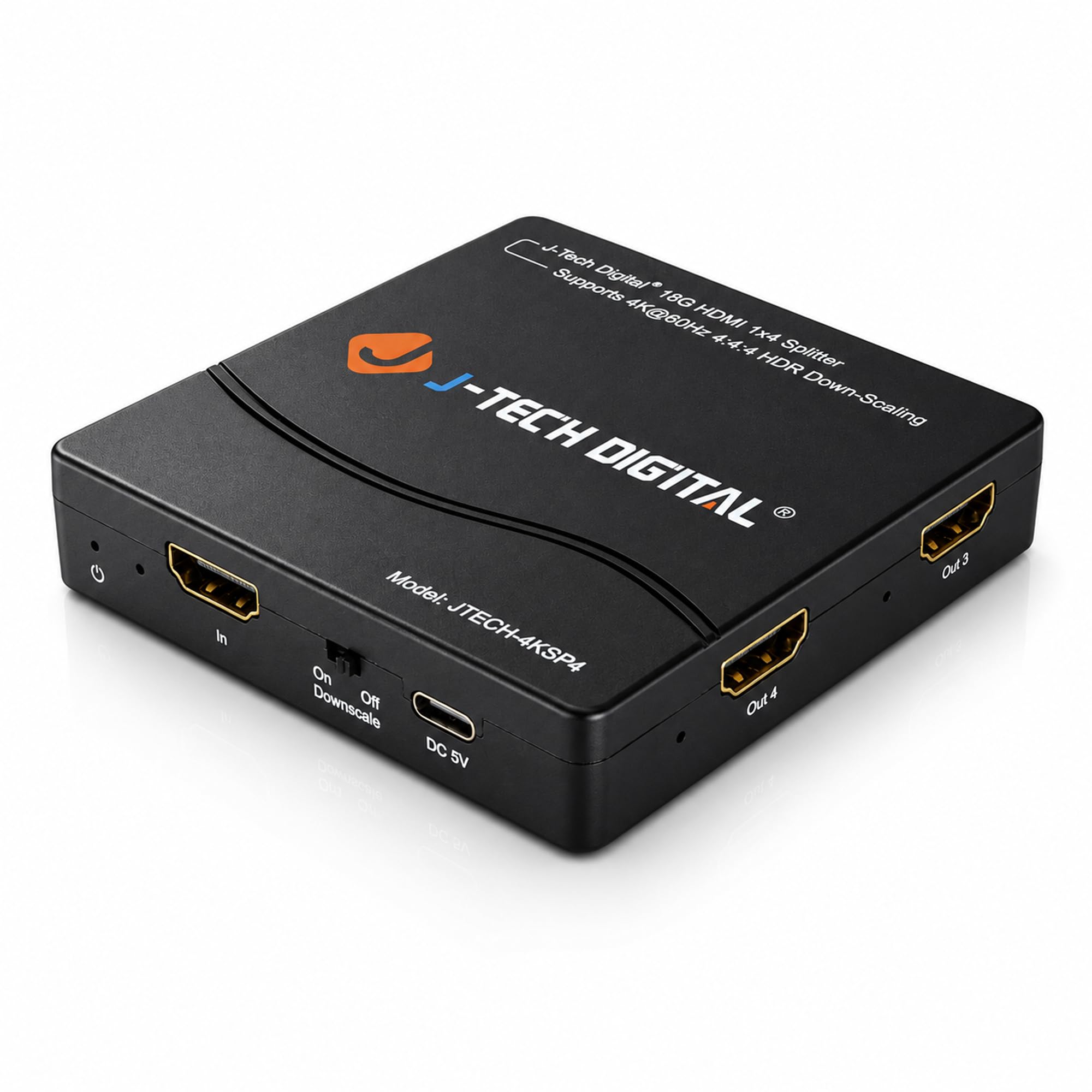
Image 1.1: J-Tech Digital HDMI Splitter JTECH-4KSP4. This compact device efficiently distributes a single HDMI source to four separate displays, supporting high-resolution video and audio.
2. Package Contents
Please verify that all items listed below are included in your package:
- 1x J-Tech Digital JTECH-4KSP4 HDMI Splitter
- 1x Power Adapter
- 1x User Manual

Image 2.1: Package contents for the JTECH-4KSP4 HDMI Splitter. The box includes the main splitter unit, a power adapter for operation, and a user manual for guidance.
3. Product Features
The JTECH-4KSP4 HDMI Splitter offers a range of features for enhanced audio and video distribution:
- 1 HDMI Input to 4 HDMI Outputs: Connect one HDMI source to four displays simultaneously.
- Multi-Resolution Output (MRO): Automatically adjusts output resolution, allowing 4K content to remain 4K on compatible displays while downscaling to 1080p for older screens.
- 4K@60Hz, HDR10 & Dolby Vision Support: Experience crystal-clear performance with full HDMI 2.0 support, 18Gbps bandwidth, HDR10, and Dolby Vision for enhanced contrast and vibrant colors.
- HDCP 2.3/2.2 Compliant: Ensures compatibility with modern streaming devices and gaming consoles.
- Seamless Audio & Smart EDID Copy: Supports HD audio formats like Dolby Atmos, Dolby TrueHD, DTS:X, DTS-HD, and PCM. The plug-and-play EDID copy function automatically detects and applies optimal settings from your primary display (priority: Output 1 > Output 2 > Output 3 > Output 4).

Image 3.1: Key features of the JTECH-4KSP4 HDMI Splitter. This image highlights its capabilities including 4K 60Hz resolution, 1080p downscaling, 1 input to 4 outputs, HDR support, HDMI 2.0, HDCP 2.3 compliance, and advanced audio/EDID management.
4. Unit Interface
Familiarize yourself with the ports and indicators on the JTECH-4KSP4 splitter:

Image 4.1: Unit interface of the JTECH-4KSP4 HDMI Splitter. This diagram shows the front panel with Power LED, HDMI Input LED, HDMI Input port, Downscaling Switch, and DC 5V Power port. The back and right panels display the four HDMI Output ports (Out 1-4) and their corresponding HDMI Output LEDs.
- Power LED: Indicates the device is powered on.
- HDMI Input LED: Illuminates when an active HDMI input signal is detected.
- HDMI Input: Connect your HDMI source device here.
- Downscaling Switch: Toggles the 1080p downscaling function On or Off.
- DC 5V: Power input port.
- HDMI Output 1-4: Connect your HDMI display devices here.
- HDMI Output LEDs: Indicate active connections to displays.
5. Setup Instructions
Follow these steps to set up your JTECH-4KSP4 HDMI Splitter:
- Power Off Devices: Ensure all HDMI source devices and displays are powered off before making connections.
- Connect HDMI Source: Connect an HDMI cable from your source device (e.g., Blu-ray player, gaming console, PC) to the HDMI Input port on the splitter.
- Connect HDMI Displays: Connect HDMI cables from the HDMI Output 1-4 ports on the splitter to your respective display devices (e.g., TVs, monitors, projectors).
- Connect Power: Plug the included power adapter into the DC 5V port on the splitter, then plug the adapter into a power outlet. The Power LED will illuminate.
- Power On Devices: Power on your HDMI displays first, then power on your HDMI source device.
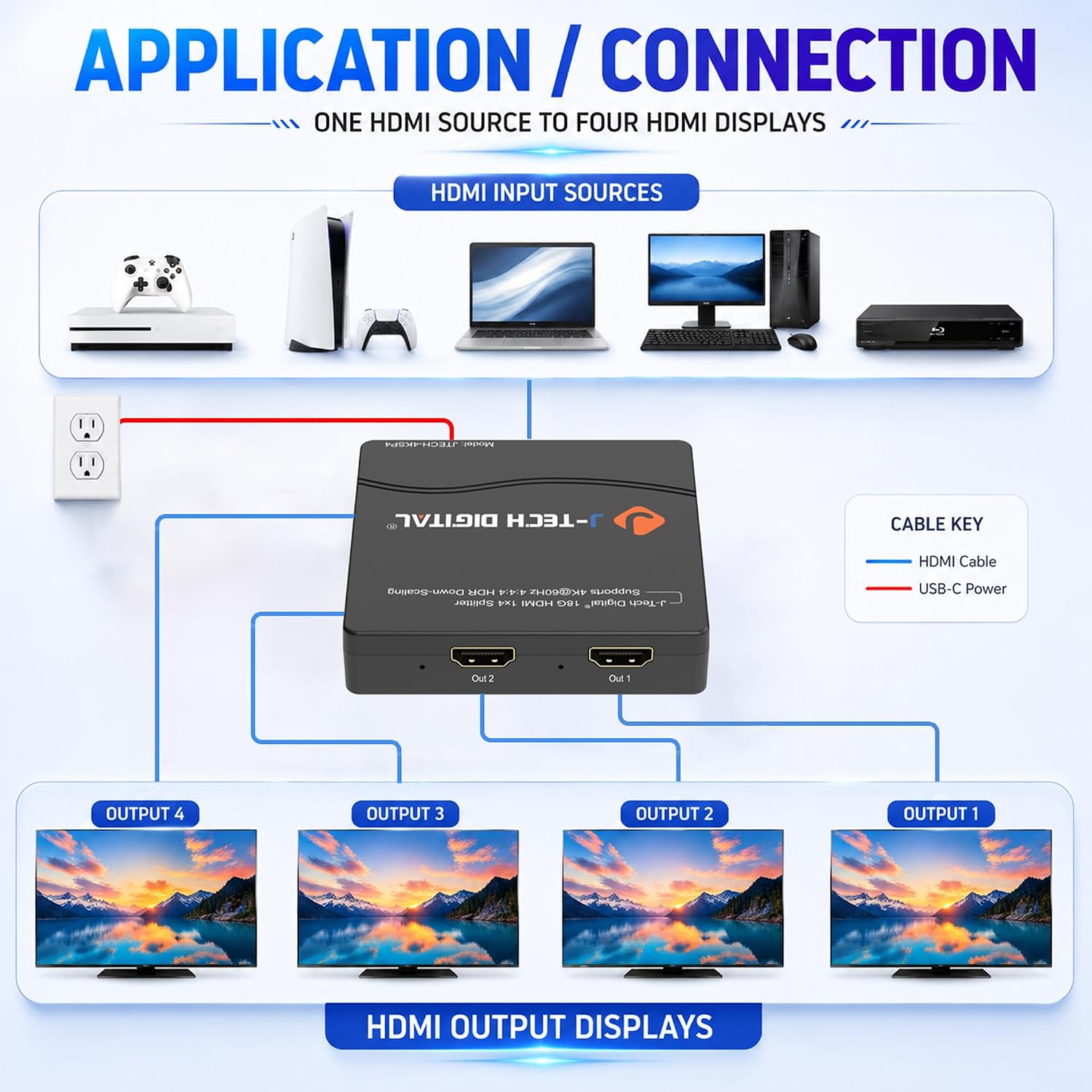
Image 5.1: Application and connection diagram for the JTECH-4KSP4 HDMI Splitter. This visual guide demonstrates how to connect one HDMI input source (such as a gaming console, laptop, or PC) to the splitter, and then connect the splitter's four outputs to individual HDMI displays.
6. Operating Instructions
Once connected, the splitter operates largely automatically. Consider the following for optimal performance:
- Power On/Off: The splitter powers on automatically when connected to power. Disconnect the power adapter to power off.
- Downscaling Function: Use the Downscaling Switch to enable or disable 1080p downscaling. Set to 'On' if you have a mix of 4K and 1080p displays and want all displays to receive a signal. Set to 'Off' if all your displays support 4K resolution or if you prefer the original resolution without downscaling.
- EDID Management: The splitter automatically copies EDID (Extended Display Identification Data) from the connected displays. It prioritizes Output 1, then Output 2, and so on. Ensure your primary display is connected to Output 1 for the best EDID negotiation.

Image 6.1: Multi-Resolution Output (MRO) function of the JTECH-4KSP4. This image demonstrates how the splitter can send a 4K signal to a 4K UHD display and a downscaled 1080p signal to a Full HD display simultaneously, managed by the 'On/Off Downscale' switch.
7. Multi-Resolution Output (MRO) Function
The MRO feature is crucial for environments with mixed display resolutions. When enabled, the splitter intelligently manages output signals:
- If a 4K source is connected and the Downscaling Switch is 'On':
- 4K displays will receive the original 4K signal.
- 1080p displays will receive a downscaled 1080p signal.
- If the Downscaling Switch is 'Off':
- All displays will attempt to receive the highest common resolution supported by the EDID of the primary display. If a 1080p display is connected and the source is 4K, the 1080p display may not show an image unless downscaling is enabled.
Note: The splitter does not downscale to 720p or lower, nor does it downscale HDR metadata.
Video 7.1: Official product video demonstrating the J-Tech Digital 4K HDMI Splitter with 1-In and 4-Out. This video provides a visual overview of the splitter's functionality and how it distributes a single HDMI signal to multiple displays.
8. Specifications
| Model Number | JTECH-4KSP4 |
| Brand | J-Tech Digital |
| Color | Black |
| Connector Type | HDMI |
| Number of Ports | 1 Input, 4 Outputs |
| Max Resolution | 4K@60Hz 4:4:4 |
| Bandwidth | 18Gbps |
| HDR Support | HDR10, Dolby Vision |
| HDCP Compliance | HDCP 2.3/2.2 |
| Downscaling | 4K to 1080p (selectable) |
| Compatible Devices | Television, Monitors, Projectors, Gaming Consoles, Blu-ray Players, PCs |
| Power Supply | DC 5V |
| UPC | 850001567732 |

Image 8.1: Physical dimensions of the JTECH-4KSP4 HDMI Splitter. The image indicates a length of 3.4 inches and a height of 0.8 inches, highlighting its compact design.
9. Troubleshooting
If you encounter issues, please refer to the following common troubleshooting steps:
- No Picture/Signal:
- Ensure all HDMI cables are securely connected.
- Verify the power adapter is correctly connected and the Power LED is on.
- Try connecting the HDMI source directly to a display to confirm the source and cable are working.
- Toggle the Downscaling Switch to 'On' if you are using a 4K source with 1080p displays.
- Try a different HDMI cable.
- Restart all connected devices (source, splitter, displays).
- Flickering or Intermittent Signal:
- Check HDMI cable quality and length. Longer cables may require active or fiber optic HDMI cables for 4K@60Hz.
- Ensure the source device's output resolution is compatible with the displays and splitter.
- Verify the power supply is stable.
- No Audio:
- Confirm audio settings on your source device are correctly configured for HDMI output.
- Check the audio settings on your display device.
- Ensure the HDMI cables support audio transmission.
- Resolution Issues (e.g., 4K source showing 1080p on 4K TV):
- Ensure the Downscaling Switch is 'Off' if all connected displays support 4K.
- Connect the highest resolution display to Output 1 for optimal EDID negotiation.
10. Maintenance
To ensure the longevity and proper functioning of your JTECH-4KSP4 HDMI Splitter:
- Keep the device in a cool, dry place, away from direct sunlight, heat sources, and moisture.
- Avoid placing heavy objects on the splitter.
- Clean the device with a soft, dry cloth. Do not use liquid or aerosol cleaners.
- Ensure proper ventilation around the unit.
- Disconnect power during electrical storms or when unused for long periods.
11. Warranty and Support
J-Tech Digital is committed to providing high-quality audio-video solutions and customer satisfaction. While specific warranty details are not provided in this manual, J-Tech Digital offers knowledgeable support from their team based in Stafford, TX. For technical assistance, troubleshooting, or warranty inquiries, please contact J-Tech Digital customer support through their official website or the retailer where the product was purchased.
For more information and support, visit the J-Tech Digital Store on Amazon.


