
1. Introduction
Thank you for choosing the FENIFOX 2.4G Wireless Keyboard and Mouse Combo. This product is designed to provide a comfortable and efficient input experience for your computer, laptop, or tablet. Featuring a compact, ergonomic design and quiet keys, this combo offers wide compatibility and easy setup.
2. Package Contents
- 1 x FENIFOX Wireless Keyboard
- 1 x FENIFOX Wireless Mouse
- 1 x USB Nano Receiver (stored inside the mouse battery compartment)
- 1 x User Manual
3. Setup Guide
3.1 Battery Installation
The keyboard and mouse require batteries for operation. Please install 2 AAA batteries for the keyboard and 1 AA battery for the mouse (batteries not included).
- Locate the battery compartment on the underside of the keyboard and mouse.
- Open the battery compartment cover.
- Insert the batteries, ensuring correct polarity (+/-).
- Close the battery compartment cover securely.
3.2 Connecting the Devices
The keyboard and mouse share a single USB Nano Receiver for wireless connectivity.
- Remove the USB Nano Receiver from its storage slot inside the mouse battery compartment.
- Plug the USB Nano Receiver into an available USB port on your computer, laptop, or tablet.
- Your operating system will automatically detect and install the necessary drivers. This is a plug-and-play process.
- Once the receiver is recognized, the keyboard and mouse will automatically pair and be ready for use.

Image: The FENIFOX wireless keyboard and mouse set up on a desk, demonstrating a clean, wireless workspace. The image highlights the 2.4G Wireless, Silent keys, Ergonomic Design, Wide compatibility, and Fashion exterior features.
4. Operating Instructions
4.1 Keyboard Usage
The keyboard features a standard QWERTY layout with 102 keys, including a numeric keypad. It is designed for comfortable and quiet typing.
- Function Keys (F1-F12): These keys provide quick access to various functions. For Windows systems, 12 shortcut keys are supported. For other operating systems, some functions may be compatible.
- Indicators: The keyboard includes indicators for Num Lock, Caps Lock, and Power status.

Image: A detailed view of the upper right section of the FENIFOX keyboard, pointing out the NUM indicator, Caps indicator, Power indicator, Silver plate, and Light & Responsive keys.
4.2 Mouse Usage
The wireless mouse provides precise and silent clicking, suitable for various computing tasks.
- Silent Clicks: The mouse buttons are designed to be quiet, reducing noise in shared environments.
- Power Saving: The mouse features an automatic sleep mode to conserve battery life. It will wake up with a click or movement.
5. Product Features
- 2.4G Wireless Connectivity: Provides a stable and reliable connection with a single USB nano receiver.
- Compact Size: The keyboard is designed to be compact, saving desk space while retaining a full numeric keypad.

Image: An overhead view of the FENIFOX wireless keyboard and mouse, displaying their compact dimensions. The keyboard measures 14.5 inches in length and 5.5 inches in width. The mouse measures 2.3 inches in width and 4.33 inches in length. The keyboard's thickness ranges from 0.23 inches to 0.8 inches.
- Ergonomic Design: Features a comfortable slope angle (up to 14°) for reduced fatigue during prolonged use.

Image: A side view illustration of the FENIFOX keyboard highlighting its ergonomic design with a gentle slope angle (Lope Angle ≤14°) for comfortable typing, aimed at reducing user fatigue.
- Whisper-Quiet Keys and Buttons: Scissor-key-switch technology provides smooth typing with sensitive response and low volume. The mouse also features quiet buttons.
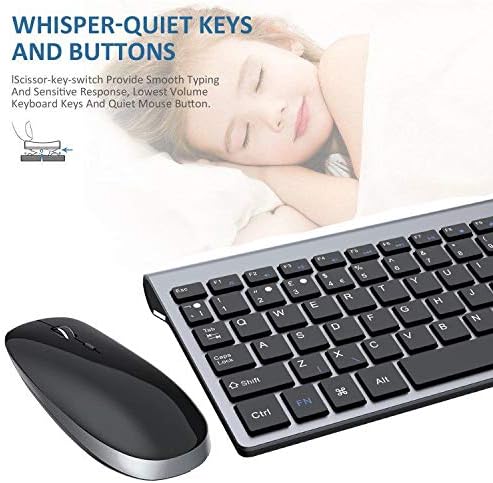
Image: The FENIFOX keyboard and mouse are shown with a graphic of a sleeping child in the background, illustrating the product's whisper-quiet keys and buttons, suitable for silent environments.
- Wide Compatibility: Compatible with Windows, XP, Mac OS, Vista, and Linux systems. Note: Not suitable for iOS systems.

Image: The FENIFOX keyboard and mouse are displayed alongside a laptop screen showing logos for Windows, XP, Mac, MacBook, Vista, and Linux, emphasizing the wide and stable compatibility of the product.
6. Maintenance
- Cleaning: Use a soft, dry cloth to clean the keyboard and mouse. For stubborn dirt, a slightly damp cloth can be used, ensuring no liquid enters the devices.
- Battery Replacement: Replace batteries when performance degrades or the power indicator light signals low battery. Always use fresh batteries of the specified type (AAA for keyboard, AA for mouse).
- Storage: When not in use for extended periods, remove the batteries to prevent leakage. Store in a cool, dry place.
7. Troubleshooting
- No Response from Keyboard/Mouse:
- Ensure batteries are correctly installed and not depleted. Replace if necessary.
- Check if the USB Nano Receiver is securely plugged into a working USB port. Try a different USB port.
- Restart your computer.
- If the devices lose connection, try re-pairing by unplugging and re-plugging the USB receiver.
- Mouse Goes to Sleep Frequently:
- This is a power-saving feature. Move or click the mouse to wake it up.
- Ensure the mouse is on a suitable surface; reflective or uneven surfaces can affect tracking.
- Lag or Intermittent Connectivity:
- Move the keyboard and mouse closer to the USB receiver.
- Avoid placing the receiver near other wireless devices (e.g., Wi-Fi routers, cordless phones) that might cause interference.
- Ensure there are no large metal objects between the devices and the receiver.
8. Specifications
| Feature | Detail |
|---|---|
| Brand | FENIFOX |
| Model Number | SC23BK-UK |
| Color | Black/Grey |
| Connectivity Technology | 2.4G Wireless (USB Receiver) |
| Operating System Compatibility | Windows, XP, Mac OS, Vista, Linux (Not compatible with iOS) |
| Special Features | Ergonomic, Wrist Rest (integrated design), Quiet Keys |
| Recommended Use | General computing tasks on computers, laptops, and tablets |
| Power Source | Battery Powered (AAA for keyboard, AA for mouse) |
9. Warranty and Support
For warranty information and technical support, please refer to the documentation provided with your purchase or contact FENIFOX customer service directly. Contact details can typically be found on the manufacturer's official website or on the product packaging.