
1. Introduction
This manual provides comprehensive instructions for the setup, operation, maintenance, and troubleshooting of your Premier Accessory Group Altec Lansing GM400 Ergonomic RGB Wired Gaming Mouse. Please read this manual thoroughly before using the product to ensure optimal performance and longevity.

A top-down view of the Premier Altec Lansing GM400 Ergonomic RGB Wired Gaming Mouse, showcasing its black finish, RGB lighting accents, and braided USB cable with a cord organizer.
2. Package Contents
Verify that all items are present in the package:
- 1 x Altec Lansing GM400 Ergonomic RGB Wired Gaming Mouse
- 1 x User Manual (this document)
3. Product Features
- High Accuracy Sensor: Engineered for precise tracking and consistent responsiveness.
- Customizable DPI: Two programmable DPI buttons allow adjustment between 1200, 2400, 4800, and 7200 DPI.
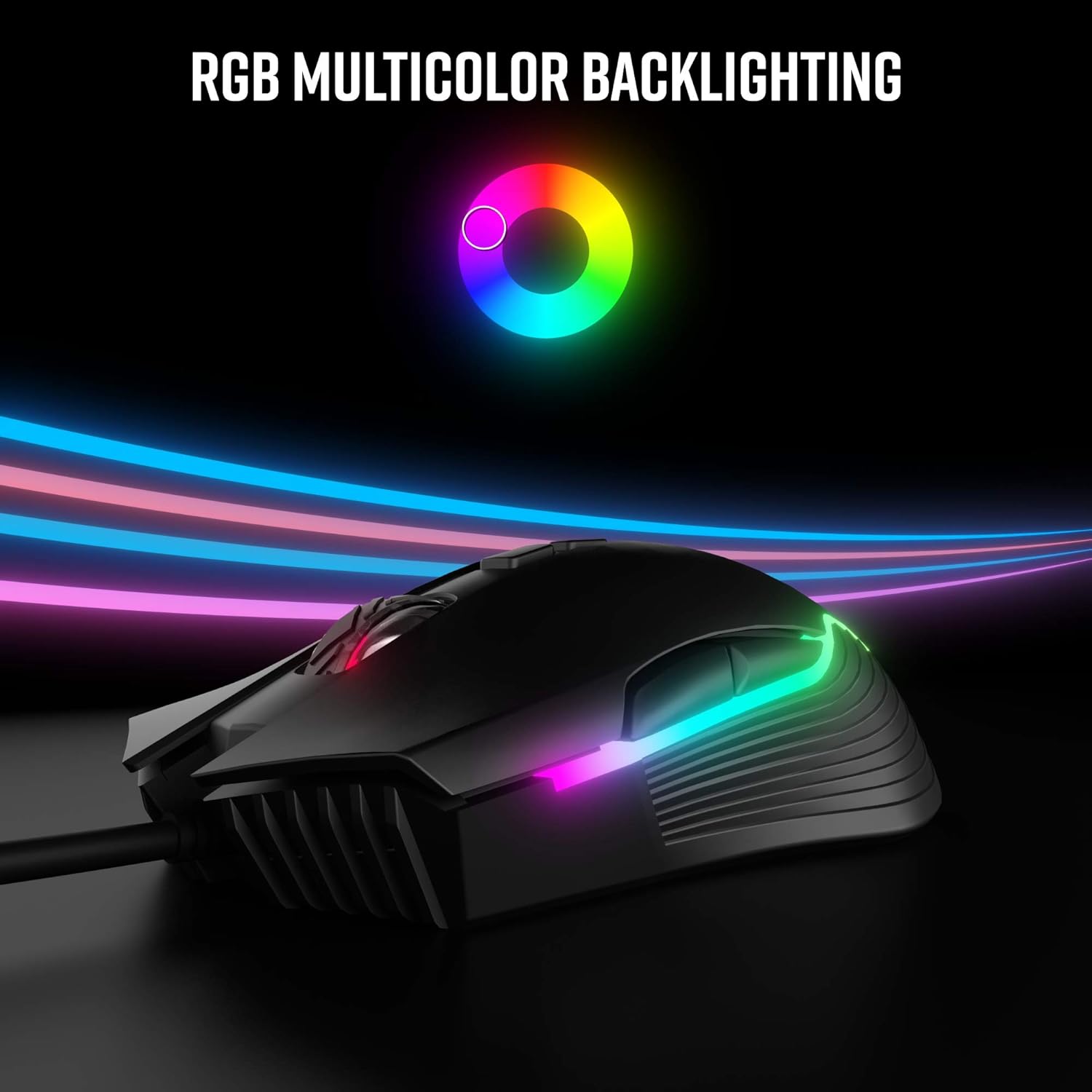
- RGB Lighting: Advanced RGB technology provides dynamic lighting effects.
- Ergonomic Design: Lightweight and comfortable shape for extended use, reducing fatigue.
- Durable Buttons: Features 7 buttons with a 5 million click lifespan.
- Braided Nylon Cable: Designed for minimal drag and enhanced durability.
- Cord Management: Integrated slot for organizing the mouse cable.
An official product video showcasing the features and design of the Altec Lansing GM400 Gaming Mouse, including its ergonomic grip, programmable DPI sensor, RGB LED lighting, and on-board buttons.
4. Setup
Follow these steps to set up your GM400 Gaming Mouse:
- Unpack the Mouse: Carefully remove the mouse and its cable from the packaging.
- Connect to Computer: Plug the USB connector of the mouse into an available USB port on your computer.
- Driver Installation: The mouse is plug-and-play. Your operating system should automatically detect and install the necessary drivers. No additional software installation is typically required.
- Placement: Place the mouse on a flat, clean surface or a mouse pad for optimal tracking performance.
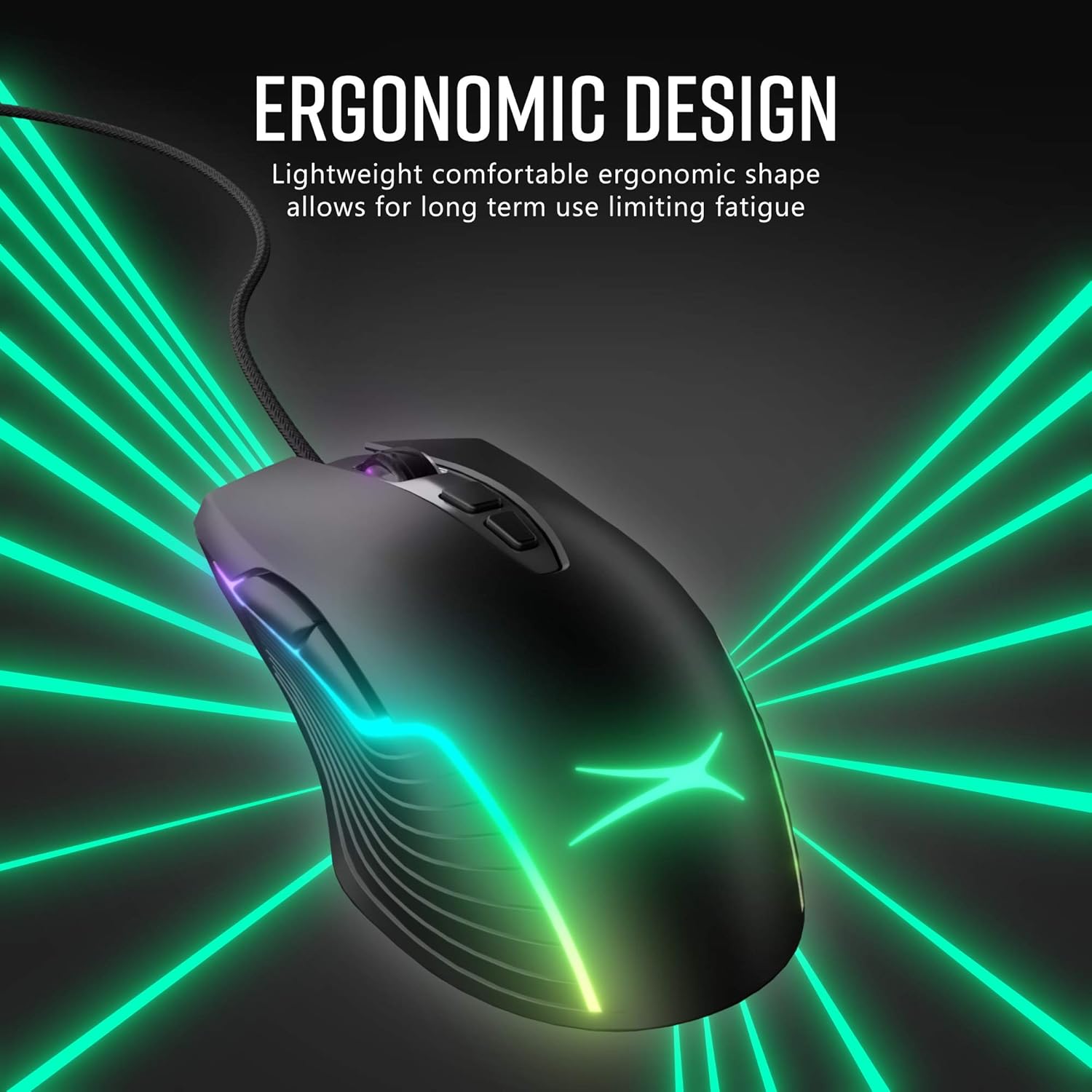
A side view of the mouse emphasizing its ergonomic shape, designed for comfortable long-term use, with vibrant RGB lighting along its contours.
5. Operating Instructions
The GM400 mouse is designed for intuitive use. Here are key operational aspects:
5.1 DPI Adjustment
The mouse features two dedicated DPI buttons, usually located near the scroll wheel, allowing you to cycle through different sensitivity levels on the fly. This enables quick adaptation to various gaming scenarios or productivity tasks.
- Press the DPI Up button to increase sensitivity.
- Press the DPI Down button to decrease sensitivity.
Available DPI settings are: 1200, 2400, 4800, and 7200.

A visual representation of the programmable DPI settings (1200, 2400, 4800, 7200) available on the mouse, with an indicator pointing to the DPI adjustment buttons.
5.2 RGB Lighting
The GM400 mouse features integrated RGB LED lighting that illuminates the mouse's contours and logo. The lighting effects are typically pre-programmed and cycle automatically, enhancing the aesthetic appeal of your setup.

The mouse illuminated with dynamic RGB multicolor backlighting, demonstrating its aesthetic features.
5.3 Compatibility
The GM400 mouse is compatible with a wide range of operating systems, ensuring broad usability across different computer setups.
- Windows XP
- Windows Vista
- Windows 7
- Windows 8
- Windows 10
- Mac OS
- Linux

Icons representing compatibility with various operating systems including Windows XP, 7, 8, 10, Linux, and Mac.
6. Maintenance
Proper care and maintenance will help extend the life of your gaming mouse.
- Cleaning: Use a soft, dry cloth to clean the surface of the mouse. For stubborn dirt, a slightly damp cloth can be used, but ensure no moisture enters the device. Avoid harsh chemicals or abrasive cleaners.
- Sensor Care: Keep the optical sensor on the underside of the mouse clean and free from dust or debris to ensure accurate tracking.
- Cable Management: Utilize the integrated cord organizer to prevent tangles and reduce strain on the cable, which can increase its durability.
An image focusing on the braided nylon cable, designed to minimize drag and enhance durability during use.
7. Troubleshooting
If you encounter issues with your GM400 mouse, refer to the following table for common problems and solutions:
| Problem | Possible Cause | Solution |
|---|---|---|
| Mouse not responding | Loose USB connection, faulty USB port, driver issue | Ensure USB cable is securely plugged in. Try a different USB port. Restart your computer. |
| Cursor movement is erratic or jumpy | Dirty optical sensor, unsuitable surface | Clean the optical sensor on the underside of the mouse. Use a clean, non-reflective mouse pad or surface. |
| RGB lighting is not working | Power issue, software conflict | Ensure the mouse is properly connected. Restart your computer. Check for any conflicting software. |
| DPI buttons not changing sensitivity | Software conflict, button malfunction | Restart your computer. Ensure no other software is overriding mouse settings. |
8. Specifications
Detailed technical specifications for the Altec Lansing GM400 Gaming Mouse:
| Feature | Specification |
|---|---|
| Model Name | GM400 / Gaming Mouse Wired RGB |
| Part Number | AMZ-ALM01 |
| Connectivity Technology | Wired (USB) |
| DPI Settings | 1200 / 2400 / 4800 / 7200 (Programmable) |
| Number of Buttons | 7 |
| Button Lifespan | 5 Million Clicks |
| Lighting | RGB LED Backlighting |
| Ergonomics | Ergonomic Comfort Grip Design |
| Cable Type | Braided Nylon |
| Hand Orientation | Ambidextrous |
| Material | Plastic |
| Item Weight | 8.8 Grams |
| Manufacturer | Premier Accessory Group |
| Model Year | 2020 |
9. Warranty and Support
9.1 Warranty Information
The Premier Accessory Group Altec Lansing GM400 Ergonomic RGB Wired Gaming Mouse is covered by a 1-Year Manufacturer Warranty from the date of purchase. This warranty covers defects in materials and workmanship under normal use. It does not cover damage caused by misuse, accident, unauthorized modification, or external causes.
9.2 Customer Support
For technical assistance, warranty claims, or any questions regarding your product, please contact Premier Accessory Group customer support. Refer to the product packaging or the manufacturer's official website for the most current contact information.