
1. Introduction
This manual provides detailed instructions for the installation, operation, and maintenance of your Imou IPC-G22P 2MP WiFi IP Bullet Camera. This device is designed for reliable surveillance, offering 2-megapixel live monitoring, efficient H.265 video compression, and robust IP67 weather resistance for various environmental conditions.

Image 1.1: The Imou IPC-G22P Bullet Camera, showcasing its weather-resistant design suitable for outdoor use.

Image 1.2: The Imou IPC-G22P camera is suitable for diverse installation environments, including residential and commercial outdoor settings.
2. Safety Information
Please read and follow all safety instructions carefully to prevent damage to the device or injury to yourself. Keep this manual for future reference.
- Power Supply: Use only the power adapter provided with the camera. Ensure the power source meets the camera's voltage requirements.
- Installation: Install the camera securely on a stable surface. Avoid placing it in areas with extreme temperatures, high humidity, or direct exposure to corrosive substances.
- Water Exposure: While the camera is IP67 rated for weather resistance, avoid submerging it in water or exposing it to high-pressure water jets.
- Cleaning: Disconnect power before cleaning. Use a soft, dry cloth. Do not use liquid or aerosol cleaners.
- Servicing: Do not attempt to disassemble or repair the camera yourself. Refer all servicing to qualified personnel.
3. Setup
3.1 Physical Installation
Mount the camera in your desired location using the provided mounting hardware. Ensure the camera has a clear field of view and is within range of your Wi-Fi network or close to an Ethernet port for wired connection.
3.2 Power Connection
Connect the power adapter to the camera's power input and then plug it into a standard electrical outlet. The camera will power on automatically.
3.3 Network Connection
The Imou IPC-G22P supports both Wi-Fi and wired LAN connectivity, offering flexibility for installation.

Image 3.1: The camera supports both wireless (2.4GHz Wi-Fi) and wired (LAN) network connections for flexible installation and stable data transmission.
- Wi-Fi Connection: For wireless setup, ensure your Wi-Fi network is 2.4GHz. The camera features an upgraded 4.5dBi antenna for stronger and more stable signal reception.
- LAN Connection: For a more stable and reliable connection, connect an Ethernet cable from your router to the camera's LAN port.
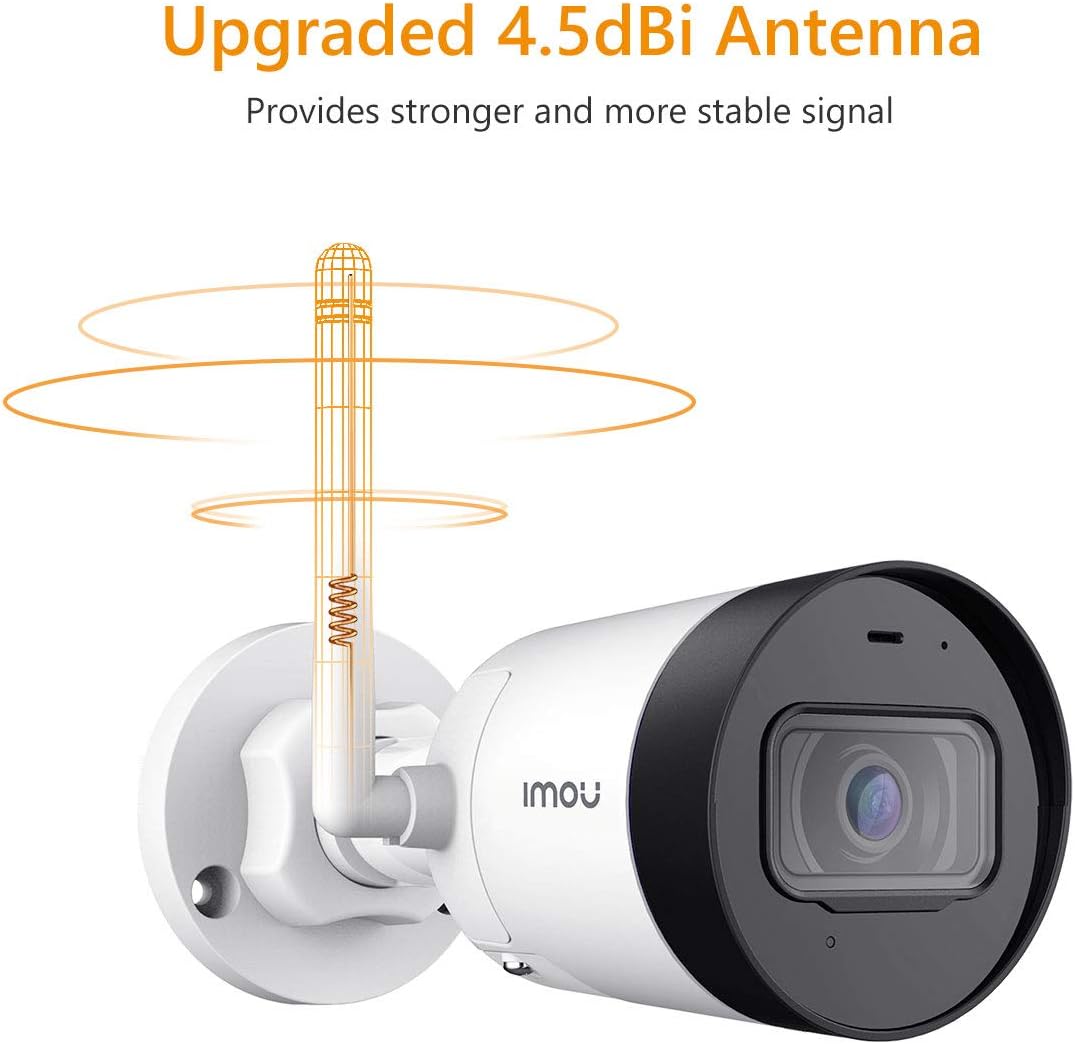
Image 3.2: The camera's 4.5dBi antenna enhances Wi-Fi signal strength and stability.
3.4 App Installation and Device Pairing
- Download the Imou Life app from your smartphone's app store (available for Android and iOS).
- Create an account or log in if you already have one.
- Follow the in-app instructions to add your new camera. This typically involves scanning a QR code on the camera or manually entering its serial number.
- Complete the network configuration within the app.
4. Operating Instructions
4.1 Live View and Recording
Once connected, you can access the live video feed from your camera via the Imou Life app. The camera provides 2-megapixel resolution and utilizes H.265 compression to optimize bandwidth and storage usage while maintaining video quality.
4.2 Motion Detection and Alerts
The camera is equipped with motion detection capabilities. When movement is detected, the camera can send instant alerts to your smartphone, allowing you to monitor activity in real-time.

Image 4.1: The Imou camera provides instant alerts to your smartphone upon detecting movement, enhancing security monitoring.
4.3 Audio Monitoring
The built-in microphone allows you to listen to audio from the camera's vicinity through the Imou Life app.

Image 4.2: The camera includes a built-in microphone for audio monitoring of the surveillance area.
4.4 Night Vision
The camera features integrated night vision functionality, providing clear video monitoring even in low-light or complete darkness conditions.
4.5 Storage Management
The Imou IPC-G22P offers multiple options for video storage:
- Micro SD Card: Supports local storage on a Micro SD card, up to 128GB.
- Imou Cloud: Cloud storage service for secure, remote access to your recordings.
- NVR (Network Video Recorder): Compatible with NVR systems for continuous recording and centralized management.

Image 4.3: The camera provides flexible storage solutions including Micro SD card, Imou Cloud, and NVR compatibility.
5. Maintenance
5.1 Cleaning
To maintain optimal performance, periodically clean the camera lens and housing. Use a soft, lint-free cloth. For stubborn dirt, slightly dampen the cloth with water. Avoid abrasive cleaners or solvents.
5.2 Firmware Updates
Regularly check for and install firmware updates via the Imou Life app. Firmware updates often include performance improvements, new features, and security enhancements.
5.3 Weather Resistance
The Imou IPC-G22P is IP67 certified, meaning it is protected against dust ingress and can withstand immersion in water up to 1 meter for 30 minutes. This rating ensures reliable operation in various outdoor weather conditions, including rain and snow.
6. Troubleshooting
- No Power:
Ensure the power adapter is securely connected to both the camera and a working electrical outlet. Verify the outlet is supplying power. - No Network Connection / Frequent Disconnections:
Check your Wi-Fi signal strength at the camera's location. If using Wi-Fi, ensure the camera is within range of your 2.4GHz router. If using LAN, verify the Ethernet cable is properly connected and functional. Restart your router and the camera. - Imou Life App Issues (Slow Loading, Playback Delays):
Ensure your smartphone has a stable internet connection. Close and reopen the app. Clear the app's cache or reinstall it if issues persist. Network congestion can also affect app performance. - Image Quality Issues:
Clean the camera lens. Ensure there are no obstructions in the camera's field of view. Check network bandwidth, as low bandwidth can affect streaming quality. - Camera Heats Up During Use:
It is normal for electronic devices to generate some heat during operation. If the camera becomes excessively hot to the touch or exhibits abnormal behavior, disconnect power and contact support. - Fixed Lens Viewing Angle:
The Imou IPC-G22P features a fixed lens. The viewing angle cannot be adjusted remotely. Ensure the camera is physically mounted at the desired angle during installation.
7. Specifications
| Feature | Specification |
|---|---|
| Model Name | Imou IPC G22PIMOU (Bullet Lite) |
| Manufacturer Number | IPC-G22P |
| Resolution | 2 Megapixel |
| Connectivity Technology | Wireless (Wi-Fi), Wired (LAN) |
| Wi-Fi Frequency | 2.4 GHz |
| Indoor/Outdoor Usage | Outdoor (IP67 certified) |
| Special Features | Night Vision, Motion Detection, Built-in Microphone |
| Compatible Devices | Smartphone, Tablet |
| Power Source | Corded Electric |
| Product Dimensions | 8.5 x 7 x 16.5 cm |
| Item Weight | 260 g |
| Batteries Required | 1 AA batteries (for remote, not camera operation) |
| Manufacturer | Imou |
8. Warranty and Support
For warranty information and technical support, please refer to the official Imou website or contact your local retailer. Keep your purchase receipt as proof of purchase.
For further assistance, you may visit the Imou support page or contact their customer service directly.


