
Introduction
Thank you for choosing the SENTRY HPXKX50 RGB Gaming Mouse. This high-performance wired gaming mouse is designed to enhance your gaming and computing experience with its precise optical sensor, customizable RGB lighting, and ergonomic design. This manual provides detailed instructions on setting up, operating, maintaining, and troubleshooting your new mouse.
Package Contents
- SENTRY HPXKX50 RGB Gaming Mouse
- User Manual (this document)

Image: The retail packaging for the SENTRY HPXKX50 RGB Gaming Mouse, showing the mouse inside the box with its features highlighted.
Setup
Follow these simple steps to set up your SENTRY HPXKX50 RGB Gaming Mouse:
- Unpack the Mouse: Carefully remove the mouse and its USB cable from the packaging.
- Connect to Your Device: Locate an available USB port on your computer (PC, Laptop, Mac) or compatible gaming console (PS4/PS5). Insert the USB connector of the mouse into the USB port.
- Driver Installation: The SENTRY HPXKX50 is a plug-and-play device. Your operating system (Windows, macOS) will automatically detect and install the necessary drivers. No additional software installation is required for basic functionality.
- Verify Connection: Once connected, the mouse's RGB lighting will illuminate, indicating a successful connection. You can now move the mouse to test cursor movement.

Image: A close-up view of the USB connector of the SENTRY HPXKX50 RGB Gaming Mouse, which is used for connecting to a computer.

Image: Icons illustrating the compatibility of the SENTRY HPXKX50 RGB Gaming Mouse with various devices, including laptops, desktop computers, HDTVs, PS4/PS5 consoles, and Mac computers.
Operating
The SENTRY HPXKX50 RGB Gaming Mouse offers intuitive operation with its standard buttons and advanced features.
Basic Functions
- Left Click: Primary action button.
- Right Click: Secondary action button, typically for context menus.
- Scroll Wheel: Scrolls content up or down. Can also be pressed for middle-click functionality.
- DPI Button: Located behind the scroll wheel, this button allows you to cycle through different DPI (Dots Per Inch) sensitivity settings.
RGB Lighting
The mouse features dynamic RGB lighting that illuminates the edges and scroll wheel. The lighting effects are pre-programmed and will cycle automatically, adding an aesthetic appeal to your setup.
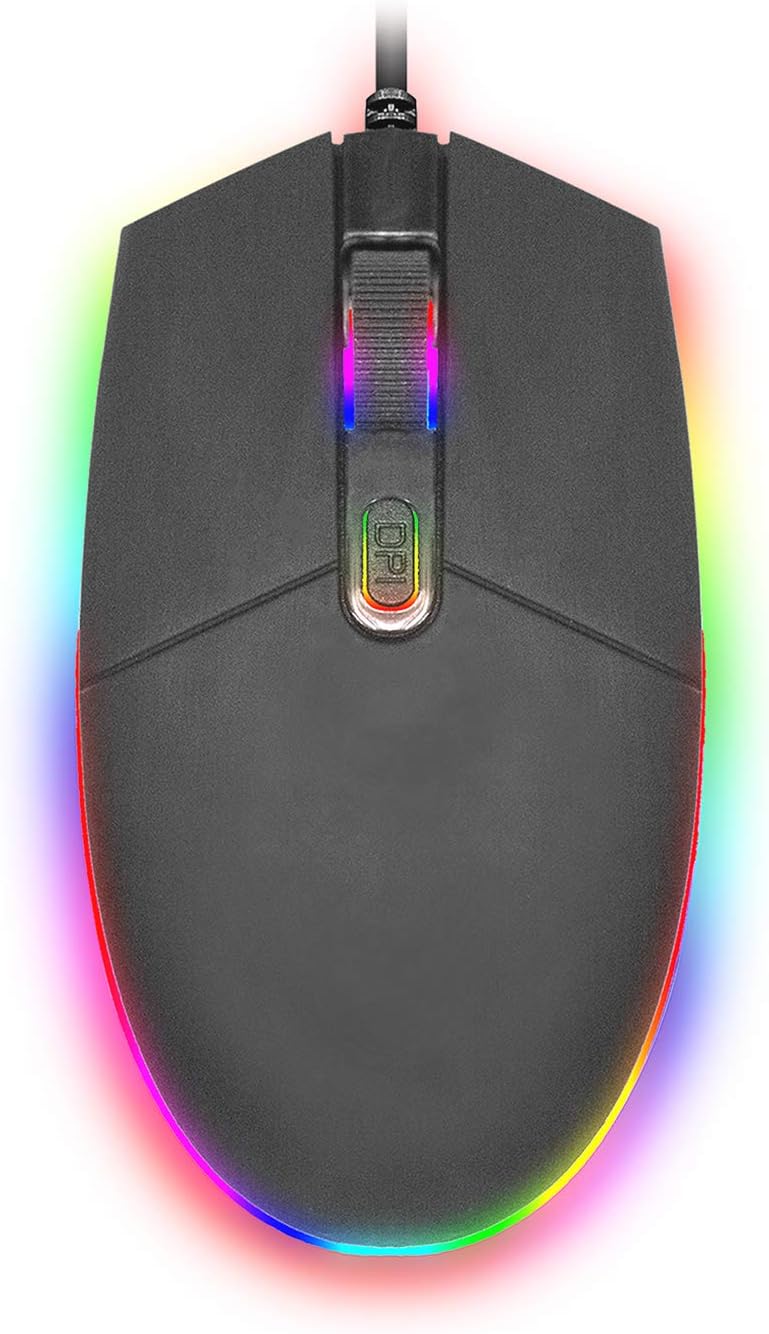
Image: A top-down view of the SENTRY HPXKX50 RGB Gaming Mouse, showcasing its vibrant, multi-color RGB lighting along the base and around the scroll wheel.

Image: A side profile view of the SENTRY HPXKX50 RGB Gaming Mouse, highlighting the illuminated RGB strip along its bottom edge in a dark environment.
DPI Sensitivity
The HPXKX50 mouse is equipped with a high-precision optical sensor, offering up to 7200 DPI. This allows for highly sensitive and accurate cursor movements, ideal for fast-paced gaming or precise graphic design work. Press the DPI button to switch between sensitivity levels. The mouse is designed for smooth tracking and ultra-high sensitivity.

Image: The SENTRY HPXKX50 RGB Gaming Mouse with an overlay indicating its 7200 DPI high-precision optical sensor, emphasizing its accuracy for gaming.
Maintenance
To ensure the longevity and optimal performance of your SENTRY HPXKX50 RGB Gaming Mouse, follow these maintenance guidelines:
- Cleaning: Use a soft, dry, lint-free cloth to wipe the surface of the mouse. For stubborn dirt, slightly dampen the cloth with water. Avoid using harsh chemicals, solvents, or abrasive cleaners.
- Sensor Care: Keep the optical sensor on the bottom of the mouse clean and free from dust or debris. Use a cotton swab or compressed air to gently clean the sensor area.
- Cable Management: Avoid sharp bends or kinks in the USB cable. Store the mouse in a way that prevents the cable from being tangled or stressed. The braided cable is designed for durability.
- Storage: When not in use for extended periods, store the mouse in a cool, dry place away from direct sunlight and extreme temperatures.
Troubleshooting
If you encounter issues with your SENTRY HPXKX50 RGB Gaming Mouse, refer to the table below for common problems and solutions:
| Problem | Possible Cause | Solution |
|---|---|---|
| Mouse not responding | Loose USB connection, faulty USB port, driver issue. | Ensure USB cable is firmly plugged in. Try a different USB port. Restart your computer. |
| Cursor movement is erratic or jumpy | Dirty optical sensor, unsuitable mouse pad surface. | Clean the optical sensor. Use a clean, uniform mouse pad surface. |
| RGB lighting is off or flickering | Insufficient power from USB port, internal fault. | Try a different USB port, preferably a direct port on the motherboard (for desktops). If the issue persists, contact support. |
| DPI button not changing sensitivity | Software conflict, button malfunction. | Ensure no conflicting mouse software is running. Restart your computer. |
Specifications
| Feature | Detail |
|---|---|
| Brand | SENTRY |
| Model Number | 50M1-05000 |
| Connectivity Technology | USB Wired |
| Movement Detection Technology | Optical |
| DPI (Dots Per Inch) | Up to 7200 DPI |
| Lighting | RGB |
| Color | Black |
| Hardware Platform | PC |
| Operating System Compatibility | Windows, macOS (Plug & Play) |
| Item Weight | 6.4 ounces (approx. 181g) |
| Product Dimensions (LxWxH) | 4.75 x 2 x 7.25 inches (approx. 12.07 x 5.08 x 18.42 cm) |
| Special Feature | Ergonomic Design |
| Manufacturer | CableWholesale |
Warranty and Support
For warranty information and customer support, please refer to the documentation provided with your purchase or visit the official SENTRY or CableWholesale website. Keep your proof of purchase for warranty claims.
For additional assistance, you may contact the manufacturer directly through their official support channels.