
RECJOY UL103A
RECJOY Mini USB Voice Recorder User Manual
Model: UL103A
Introduction
Thank you for choosing the RECJOY Mini USB Voice Recorder. This compact and powerful device is designed for clear audio recording in various settings, including conferences, meetings, and lectures. With its user-friendly operation and robust features, it ensures reliable performance for all your recording needs.

Image: The RECJOY Mini USB Voice Recorder, highlighting its sleek, grey USB stick form factor with the RECJOY brand name, a red indicator light, and small control buttons for operation.
Product Overview and Features
The RECJOY Mini USB Voice Recorder is engineered for convenience and high-quality audio capture. Key features include:
- Clear PCM Recording: Equipped with a professional recording chip, this device delivers crystal-clear audio. Its one-button recording and saving functionality ensures ease of use.
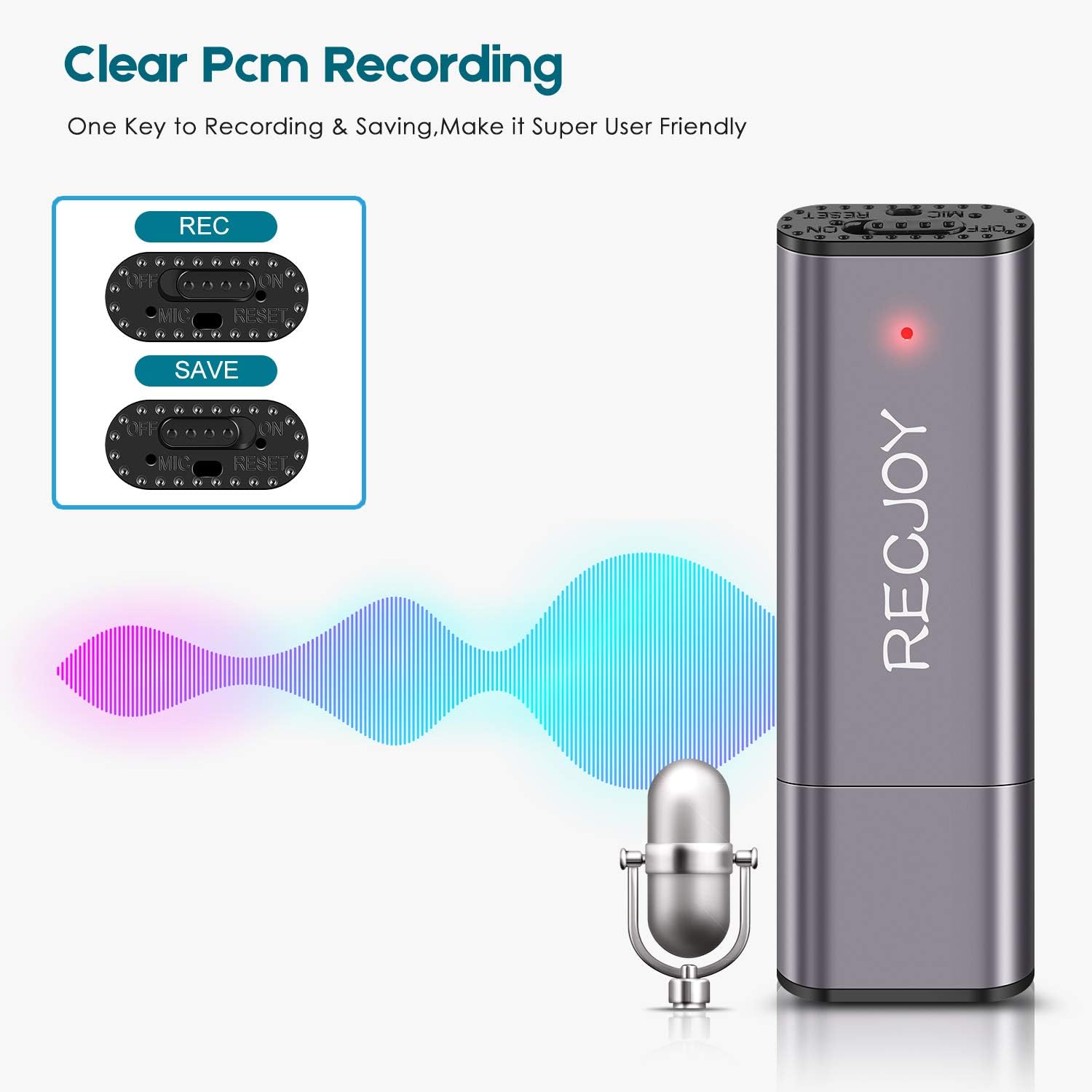
Image: A visual representation of the recorder's clear PCM recording capability, showing sound waves emanating from a microphone towards the device, emphasizing its one-key record and save function.
- 16GB Internal Memory: Store up to 72 hours of audio files or approximately 5000 songs, providing ample space for extensive recordings. The device is compatible with both Windows and Mac operating systems.

Image: An illustration highlighting the 16GB internal memory capacity of the RECJOY recorder, indicating it can store 72 hours of audio or 5000 songs, and showing its compatibility with Mac computers.
- Easy Charging & Long-Lasting Recording: The device fully charges in just 2 hours and supports recording while charging, ensuring you never miss an important moment. A full charge provides up to 13 hours of continuous audio recording.

Image: The RECJOY recorder shown plugged into a laptop's USB port, illustrating its ability to record while charging and highlighting its 13-hour recording battery life after only 2 hours of charging.
- Smart Battery Detection: Never lose an important recording. The built-in smart battery detection automatically saves your current recording before the battery depletes.

Image: A graphic depicting the RECJOY recorder alongside a battery icon that transitions from full to empty, with an arrow pointing to a save icon, illustrating the smart battery detection feature that automatically saves recordings before power runs out.
- Portable & Compact Design: With its mini size (6.7 x 2.1 x 0.8 cm), this digital voice recorder is incredibly easy to carry in your pocket, handbag, or suitcase, making it ideal for on-the-go recording.

Image: A person demonstrating the portability of the RECJOY recorder by easily slipping it into a pant pocket, emphasizing its compact size for convenient carrying.
Setup
Charging the Device
Before first use, fully charge the RECJOY Mini USB Voice Recorder. Connect the device to a standard USB port on your computer or a USB wall adapter (not included). The indicator light will show charging status and turn off when fully charged. A full charge takes approximately 2 hours and provides up to 13 hours of recording time.
Connecting to a Computer
To access recorded files or charge the device, simply plug the RECJOY recorder directly into an available USB port on your computer. The device will appear as a removable disk drive. No special drivers are typically required for Windows or Mac operating systems.
Operating Instructions
Recording Audio
- Locate the "ON/OFF" switch on the side of the device.
- Slide the switch to the "ON" position to begin recording. The indicator light may flash briefly and then turn off, indicating that recording is in progress.
- To stop recording and save the file, slide the switch back to the "OFF" position. The device will automatically save the current recording.
Ensure the microphone (MIC) opening is not obstructed during recording for optimal sound quality.
Playing Back Recordings
To listen to your recordings:
- Connect the RECJOY recorder to your computer's USB port.
- Open the removable disk drive associated with the recorder.
- Navigate to the folder containing your audio files (typically named "RECORD" or similar).
- Double-click on the desired audio file to play it using your computer's default media player.
Managing Files
Once connected to your computer, you can manage files on the RECJOY recorder just like any other USB drive:
- Copy: Drag and drop files from the recorder to your computer to back them up.
- Delete: Select unwanted files and delete them to free up space.
- Rename: Rename files for better organization.
Maintenance
- Keep the device dry. Do not expose it to moisture or liquids.
- Avoid extreme temperatures. Store the device in a cool, dry place.
- Clean the device with a soft, dry cloth. Do not use harsh chemicals or abrasive cleaners.
- Protect the USB connector from dust and damage.
Troubleshooting
| Problem | Possible Cause / Solution |
|---|---|
| Device not recording |
|
| Poor recording quality |
|
| Device not recognized by computer |
|
| Recordings are missing or corrupted |
|
Specifications
| Feature | Detail |
|---|---|
| Brand | RECJOY |
| Model Number | UL103A |
| Color | Grey |
| Memory Storage Capacity | 16 GB |
| Digital Recording Time | Up to 72 hours (based on 16GB capacity) |
| Battery Life (Recording) | 13 hours (per full charge) |
| Charging Time | Approximately 2 hours |
| Battery Type | 1 Lithium-ion Polymer battery (rechargeable) |
| Audio Format | MP3 audio |
| Microphone Form Factor | Integrated |
| Hardware Interface | USB |
| Compatible Devices | Personal Computer (Windows, Mac) |
| Headphone Jack | No headphone jack |
| Dimensions (approx.) | 6.7 x 2.1 x 0.8 cm |
Warranty and Support
For any questions or issues regarding your RECJOY Mini USB Voice Recorder, please refer to the retailer's return policy or contact the manufacturer, EVIDA, through their official support channels. Please note that international products may have different terms and conditions, and product language or instructions may vary.
For the most up-to-date support information, please visit the official RECJOY or EVIDA website.
Ask a question about this manual
Ask about setup, troubleshooting, compatibility, parts, safety, or missing instructions. Manuals+ will review the question and use this page’s manual context to help answer it.