
1. Introduction
This manual provides comprehensive instructions for the setup, operation, and maintenance of your Zebronics Zeb-Ultimate Pro Full HD 1080p Webcam. Please read this manual carefully before using the product to ensure optimal performance and longevity. Keep this manual for future reference.
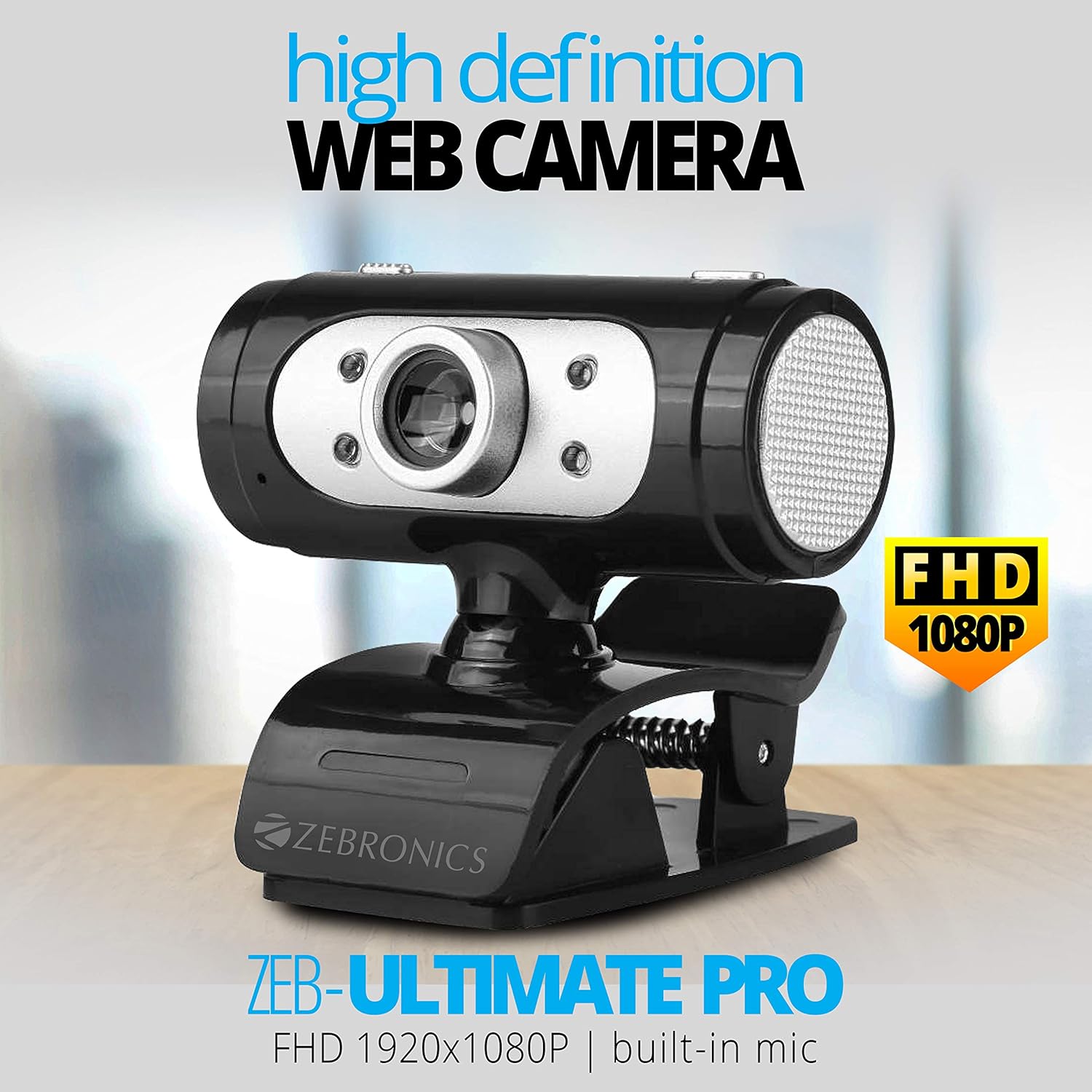
Image 1.1: The Zebronics Zeb-Ultimate Pro Full HD 1080p Webcam, showcasing its design and FHD 1080P capability.
2. Package Contents
Verify that all items listed below are present in your product package:
- Zebronics Zeb-Ultimate Pro Webcam (1 Unit)
3. Product Overview
The Zebronics Zeb-Ultimate Pro is a Full HD webcam designed for clear video communication. It features a 5P quality lens, a built-in microphone, automatic white balance, night vision capabilities, and a manual switch for its integrated LED lighting.
Key Features:
- Full HD 1080p Resolution: Delivers video at 1920x1080 pixels at 30 frames per second.
- 5P Quality Lens: Ensures sharp and clear image capture.
- Built-in Microphone: Provides integrated audio for video calls.
- Auto White Balance: Automatically adjusts color balance for natural-looking video.
- Night Vision: Enhances visibility in low-light conditions.
- Manual LED Switch: Allows user control over the integrated LED light.
- USB Interface: Simple plug-and-play connectivity.

Image 3.1: Diagram illustrating the 5P lens for Full HD videos and the built-in microphone for video calls.

Image 3.2: Visual representation of the USB interface for connectivity and the night vision feature for low-light performance.
4. Setup Instructions
Follow these steps to set up your Zebronics Zeb-Ultimate Pro Webcam:
- Unpack the Webcam: Carefully remove the webcam from its packaging.
- Position the Webcam: Place the webcam securely on top of your monitor, laptop screen, or a flat surface. The adjustable clip allows for stable placement.
- Connect to Computer: Insert the USB connector of the webcam into an available USB port on your computer.
- Automatic Driver Installation: The webcam is designed for plug-and-play operation. Your operating system (Windows, macOS, iOS) should automatically detect and install the necessary drivers. Wait for a notification indicating that the device is ready for use.
- Verify Installation: Open a video conferencing application or your computer's camera application to confirm that the webcam is recognized and displaying video.
5. Operating Instructions
Once set up, the Zeb-Ultimate Pro Webcam is ready for use with various applications.
Using the Webcam:
- Video Calls and Conferences: Launch your preferred video communication software (e.g., Zoom, Microsoft Teams, Google Meet). Select the "Zebronics Zeb-Ultimate Pro" as your video and audio input device in the application's settings.
- Online Classes: The webcam is suitable for participating in or conducting online educational sessions.
- Recording: Use your computer's native camera application or third-party software to record videos.

Image 5.1: The webcam positioned on a laptop, illustrating its use for webinars and conferences.

Image 5.2: A child using a laptop with the webcam for online classes, demonstrating its application in education.
Adjusting Features:
- Manual Focus: The lens of the webcam can be rotated to adjust the focus for a sharper image. Turn the lens gently until the image appears clear.
- LED Light: Use the manual switch located on the webcam to turn the integrated LED light on or off, especially useful in low-light environments.
6. Maintenance
Proper maintenance ensures the longevity and optimal performance of your webcam.
- Cleaning the Lens: Gently wipe the lens with a soft, lint-free cloth. Avoid using harsh chemicals or abrasive materials that could scratch the lens.
- Cleaning the Body: Use a dry or slightly damp cloth to clean the exterior of the webcam.
- Storage: When not in use, store the webcam in a clean, dry place away from direct sunlight and extreme temperatures.
- Cable Care: Avoid bending or twisting the USB cable excessively to prevent internal damage.
7. Troubleshooting
If you encounter issues with your webcam, refer to the following common problems and solutions:
| Problem | Possible Cause | Solution |
|---|---|---|
| Webcam not detected or not working. | Loose USB connection, driver issue, or disabled camera. | Ensure the USB cable is securely connected. Try a different USB port. Restart your computer. Check privacy settings to ensure camera access is enabled for applications. |
| Image is blurry or out of focus. | Incorrect focus adjustment. | Gently rotate the lens of the webcam until the image becomes clear. |
| No audio from the webcam's microphone. | Microphone not selected or muted in software. | In your video conferencing application or system sound settings, ensure the Zebronics webcam's microphone is selected as the input device and is not muted. |
| Poor image quality in low light. | Insufficient lighting. | Activate the webcam's LED light using its manual switch. Ensure adequate ambient lighting in your environment. |
8. Specifications
Technical specifications for the Zebronics Zeb-Ultimate Pro Webcam:
- Model: Zeb-Ultimate Pro
- Video Resolution: 1920 x 1080 (Full HD)
- Frame Rate: 30 fps
- Image Sensor: CMOS
- Lens Type: 5P Quality Lens
- Interface: USB
- Cable Length: 1.58 meters
- Special Features: Built-in Microphone, Auto White Balance, Night Vision, Manual Switch for LED
- Product Dimensions: 7.2 x 7.2 x 6.4 cm
- Item Weight: 90 g
- Compatible Operating Systems: Windows, iOS (and generally other USB-compatible systems)
9. Warranty and Support
For warranty information and technical support, please refer to the official Zebronics website or contact their customer service. Details regarding warranty periods and service centers are typically provided with your purchase documentation or on the manufacturer's website.
Manufacturer: 13,7, Smith Road, Royapettah CHENNAI-600002