
1. Introduction
This manual provides essential information for the safe and efficient operation of your Nikai 43 Inch Smart UHD 4K Android LED TV. Please read these instructions thoroughly before using the television and retain them for future reference.
2. Safety Information
Observe the following safety precautions to prevent fire, electric shock, or injury:
- Power Supply: Ensure the TV is connected to a 110V AC, 60Hz power source. Do not overload power outlets.
- Ventilation: Maintain adequate space around the TV for proper ventilation. Do not block ventilation openings.
- Liquid Exposure: Do not expose the TV to rain or moisture. Avoid placing objects filled with liquids, such as vases, on the TV.
- Cleaning: Unplug the TV before cleaning. Use a soft, dry cloth. Do not use liquid cleaners or aerosol cleaners.
- Placement: Place the TV on a stable, level surface. Avoid placing it in direct sunlight or near heat sources.
- Servicing: Do not attempt to service this product yourself. Refer all servicing to qualified service personnel.
3. Package Contents
Verify that all items are present in the package:
- Nikai 43 Inch Smart UHD 4K Android LED TV
- Remote Control
- Power Cable
- User Manual (this document)
- TV Stand (if included)
- Screws for TV Stand
4. Product Overview
4.1 Front View
The front of the television features the 43-inch LED display with a slim bezel design. The Nikai logo is located at the bottom center.
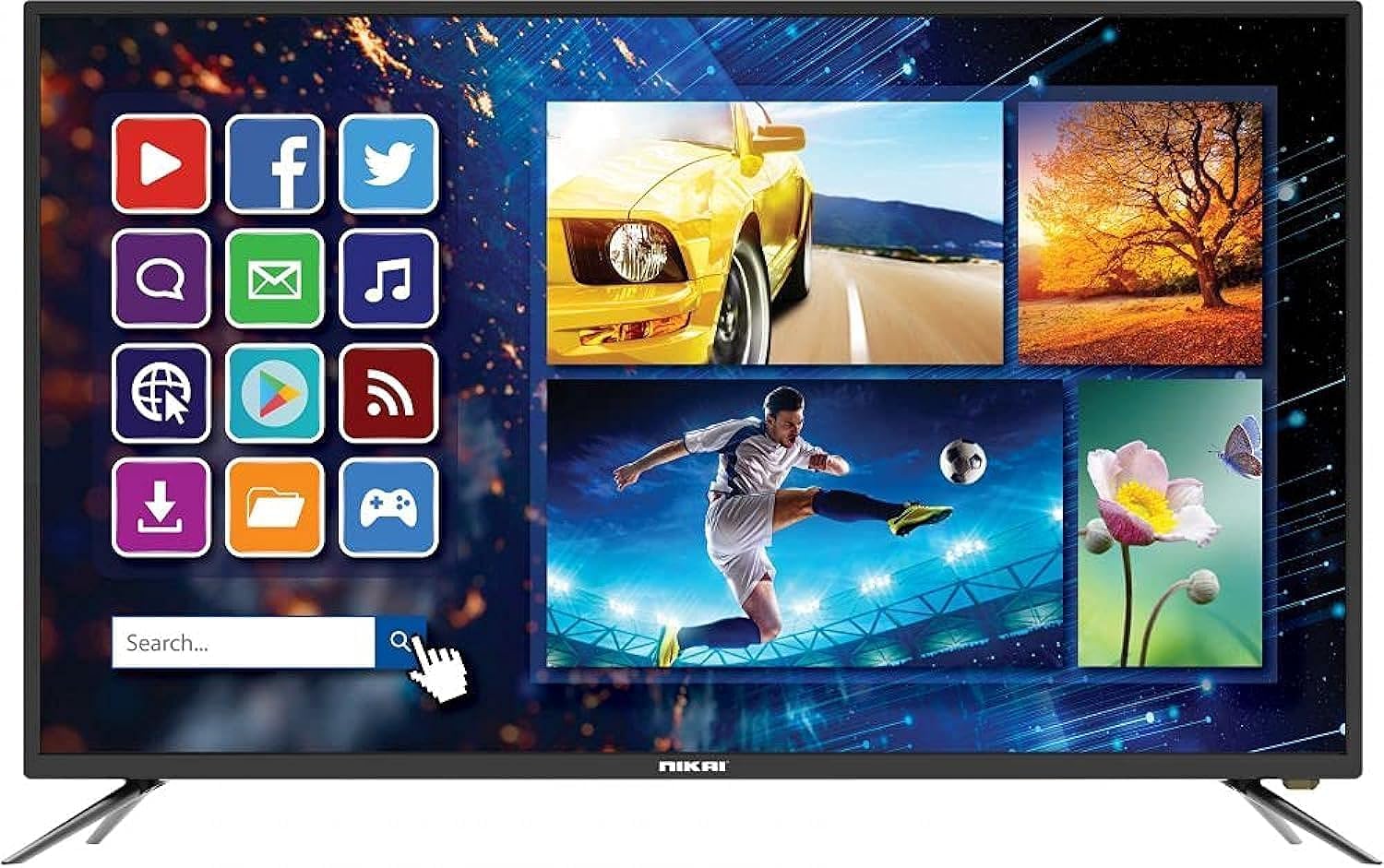
Image: Front view of the Nikai 43 Inch Smart UHD 4K Android LED TV, showcasing the screen and the Nikai brand logo at the bottom.
4.2 Side View
The side of the TV houses some of the input/output ports for easy access.

Image: Side profile of the Nikai TV, highlighting the slim design and accessible ports on the left side.
4.3 Back View
The rear panel contains the main connectivity ports and mounting points.

Image: Rear view of the Nikai TV, displaying the various input/output ports and VESA mounting holes.
4.4 Remote Control
The included remote control allows for convenient operation of all TV functions.

Image: The remote control for the Nikai TV, showing various buttons for power, volume, channels, smart features, and input selection.
5. Setup
5.1 Attaching the Stand
Carefully place the TV face down on a soft, flat surface. Align the stand bases with the corresponding slots on the bottom of the TV. Secure the stands using the provided screws.
5.2 Wall Mounting (Optional)
This TV supports VESA standard wall mounts (800 x 440 mm). Consult a professional for wall mounting to ensure proper installation and safety.
5.3 Connecting Power
Connect the power cable to the TV's power input and then to a suitable 110V AC, 60Hz wall outlet.
5.4 Connecting External Devices
Use the appropriate cables to connect your external devices (e.g., Blu-ray player, game console, soundbar) to the TV's input ports. Refer to the 'Connectivity' section for port details.

Image: Close-up view of the rear connectivity panel, showing HDMI, USB, and other input/output ports.
5.5 Initial Power On and First-Time Setup
After connecting power, press the power button on the remote control or TV. The TV will guide you through the initial setup process, including language selection, network connection, and channel scanning.
6. Operating Instructions
6.1 Basic TV Functions
- Power: Press the Power button on the remote to turn the TV on or off.
- Volume: Use the VOL +/- buttons to adjust the volume.
- Channels: Use the CH +/- buttons to change channels.
- Mute: Press the Mute button to temporarily silence the audio.
6.2 Input Source Selection
Press the SOURCE button on the remote to cycle through available input sources (HDMI, AV, USB, TV Tuner, etc.).
6.3 Menu Navigation
Press the MENU button to access the TV's settings. Use the arrow keys to navigate and ENTER to confirm selections. Press EXIT to close the menu.
7. Smart TV Features
Your Nikai TV runs on Android 9.0, offering a range of smart functionalities.
7.1 Wi-Fi Connection
To access smart features, connect your TV to a wireless network:
- Press the MENU button on the remote.
- Navigate to 'Network Settings' or 'Wi-Fi'.
- Select your Wi-Fi network from the list and enter the password.
7.2 Netflix Access
The TV supports Netflix. You can access it directly from the home screen or through the app menu. An active Netflix subscription is required.
7.3 Screen Mirroring (Miracast)
Use Miracast technology to mirror content from compatible mobile devices to your TV screen. Refer to your device's instructions for initiating screen mirroring.
7.4 App Management
The TV comes with pre-installed apps. You can manage these apps through the Android operating system. Note that some applications may have compatibility requirements or regional restrictions.
8. Connectivity
The TV offers various ports for connecting external devices:
- HDMI (x2): For high-definition audio and video input from devices like Blu-ray players, game consoles, and set-top boxes.
- USB (x3, 1x USB 3.0 compatible): For connecting USB storage devices to play media files or for software updates.
- AV Input (x1): For standard definition audio and video input from older devices.
- Component Input (x1): For higher quality analog video input.
- Antenna Input (x1): For connecting an aerial or cable TV signal.
- RGB Input (PC Compatible) (x1): For connecting a computer.
- Coaxial (x1): Digital audio output.
- AV Output (x1): Analog audio/video output.
- Headphone Output (x1): For connecting headphones.
- Wireless (Wi-Fi): For internet connectivity.
9. Maintenance
9.1 Cleaning the Screen
Gently wipe the screen with a soft, lint-free cloth. For stubborn marks, slightly dampen the cloth with water. Do not use harsh chemicals or abrasive materials.
9.2 Cleaning the Cabinet
Wipe the TV cabinet with a soft, dry cloth. Avoid using any liquid cleaners directly on the TV.
9.3 Storage
If storing the TV for an extended period, unplug it from the power outlet and cover it to protect against dust.
10. Troubleshooting
Before contacting support, try these common solutions:
| Problem | Possible Solution |
|---|---|
| No Power | Check if the power cable is securely connected and the power outlet is working. Try a different outlet. |
| No Picture, but Sound is Present | Ensure the correct input source is selected. Check cable connections to external devices. |
| No Sound, but Picture is Present | Check volume level and mute status. Verify audio cable connections. |
| Remote Control Not Working | Replace batteries. Ensure no obstructions between the remote and the TV's IR sensor. |
| Wi-Fi Connection Issues | Restart your router and the TV. Re-enter Wi-Fi password. Ensure TV is within range of the router. |
| Apps Not Working/Slow | Check internet connection. Clear app cache/data in TV settings. Some apps may not be fully compatible with Android 9.0 or require updates. |
11. Specifications
| Feature | Detail |
|---|---|
| Screen Size | 43 Inches |
| Display Technology | LED |
| Resolution | 4K UHD (3840 x 2160) |
| Refresh Rate | 60 Hz |
| Operating System | Android 9.0 |
| RAM | 1 GB |
| Storage | 8 GB NAND Flash |
| Supported Internet Services | Netflix |
| Connectivity | HDMI (x2), USB (x3), Wi-Fi, AV In, Component In, Antenna In, RGB In, Coaxial Out, AV Out, Headphone Out |
| Screen Mirroring | Miracast |
| Aspect Ratio | 16:9 |
| Contrast Ratio | 3000:1 |
| Brightness | 280 cd/m² |
| Viewing Angle | 178 Degrees |
| Response Time | 58 ms |
| Audio Output Power | 20W |
| Power Supply | 110V AC, 60Hz |
| Power Consumption | 210W |
| Mounting Standard | VESA 800 x 440 mm |
| Product Dimensions (DxWxH) | 99 x 102 x 12 cm (approximate) |
12. Warranty and Support
This product carries a manufacturer's warranty for 2 years from the date of purchase. For warranty claims or technical support, please contact the manufacturer or their authorized service center. You may also contact Amazon for further details regarding warranty services.
For the most up-to-date support information, please refer to the official Nikai website or your purchase documentation.


