
1. Product Overview
The SXFJF 4K Ultra HD WiFi Action Camera is designed for capturing high-quality video and photos during various outdoor and sports activities. It features 4K video recording, a wide-angle lens, electronic image stabilization, and a waterproof design, making it suitable for adventures both on land and underwater.
Key Features:
- Ultra HD Video: Records crystal clear 4K video and high-quality images with a wide-angle lens.
- Anti-shake Function: Built-in electronic image stabilization ensures smooth and steady footage even during fast-moving activities.
- Waterproof Design: Equipped with a waterproof case, allowing for underwater use in sports like swimming, surfing, and diving.
- Long Battery Life: Rechargeable batteries provide extended recording time.
- Versatile Accessories: Comes with various accessories for adapting to different indoor and outdoor activities.
- Connectivity: Features Wi-Fi and HDMI output for easy sharing and viewing.

Image 1.1: The SXFJF 4K Ultra HD WiFi Action Camera, showcasing its compact design and primary lens.
2. Getting Started: Setup
2.1 Unpacking and Checking Contents
Before using your camera, please ensure all components are present in the package:
- SXFJF 4K Ultra HD WiFi Action Camera
- Waterproof Case
- Rechargeable Battery
- Various Mounting Accessories
- USB Cable
- User Manual (this document)
2.2 Battery Installation and Charging
- Locate the battery compartment on the camera.
- Open the compartment cover and insert the rechargeable battery, ensuring the correct orientation according to the polarity indicators.
- Close the battery compartment cover securely.
- To charge, connect the camera to a power source using the provided USB cable. The charging indicator light will illuminate.
- A full charge typically takes approximately 2-3 hours. The indicator light will change or turn off once charging is complete.
2.3 Micro SD Card Insertion
The camera requires a Micro SD card (not included) for storing photos and videos. A Class 10 or UHS-I (U1) or higher speed rating is recommended for 4K recording.
- Locate the Micro SD card slot on the side or bottom of the camera.
- Insert the Micro SD card with the gold contacts facing the front of the camera until it clicks into place.
- To remove, gently push the card inward until it springs out.
2.4 Using the Waterproof Case
The included waterproof case allows the camera to be used underwater. Before first use, perform a waterproof test without the camera inside.
- Open the waterproof case latch and carefully place the camera inside, ensuring it fits snugly.
- Close the latch firmly to create a watertight seal.
- Always ensure the rubber seal is clean and free of debris before closing the case.
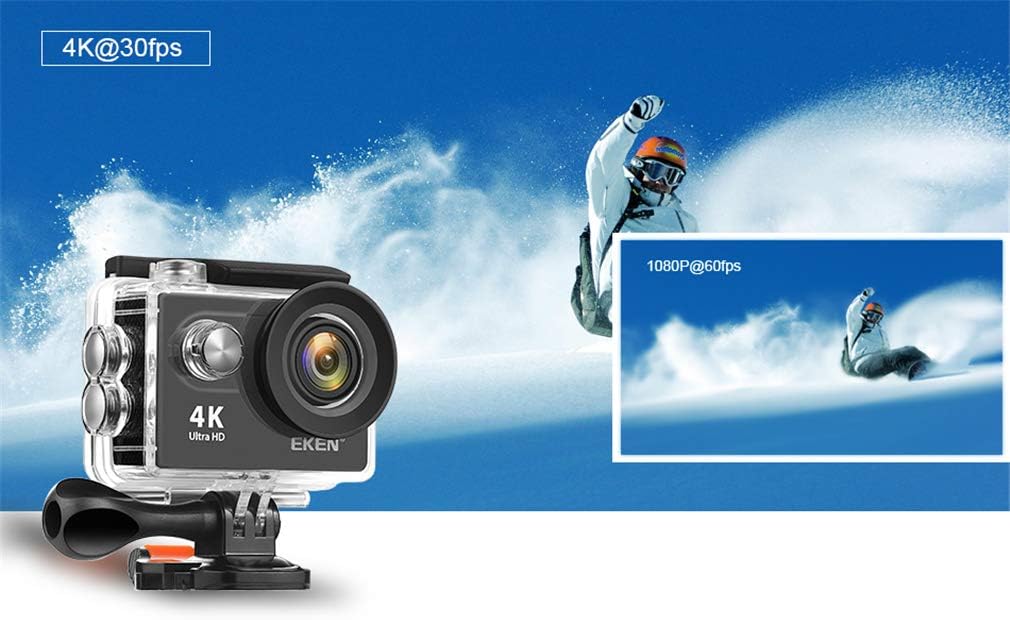
Image 2.1: The action camera enclosed in its waterproof housing, highlighting its 4K and 1080P video recording capabilities for various action shots.
2.5 Attaching Mounting Accessories
The camera comes with various mounts for different scenarios. Refer to the accessory guide for specific attachment instructions. Generally, mounts attach to the waterproof case or directly to the camera via a standard tripod screw mount.
3. Operating the Camera
3.1 Powering On/Off
- Power On: Press and hold the Power/Mode button for a few seconds until the screen illuminates.
- Power Off: Press and hold the Power/Mode button again until the screen turns off.
3.2 Mode Selection
Press the Power/Mode button repeatedly to cycle through different modes:
- Video Mode: For recording video footage.
- Photo Mode: For taking still images.
- Playback Mode: For reviewing recorded videos and photos.
- Settings Mode: To adjust camera settings.
3.3 Recording Video and Taking Photos
- To Record Video: In Video Mode, press the Shutter/OK button to start recording. Press it again to stop. A red indicator light will usually flash during recording.
- To Take a Photo: In Photo Mode, press the Shutter/OK button to capture an image.

Image 3.1: The action camera highlighting its 12-megapixel photo capability, suitable for capturing detailed images in various environments.
3.4 Wi-Fi Connection
The camera can connect to your smartphone via Wi-Fi for remote control and file transfer.
- Enable Wi-Fi on the camera through the Settings menu.
- Download the dedicated camera app (refer to the camera's display or packaging for the app name) on your smartphone.
- On your smartphone, connect to the camera's Wi-Fi network (SSID and password will be displayed on the camera screen).
- Open the app to control the camera remotely, view live footage, and download files.
3.5 Using the Remote Control
The 2.4G remote control allows for convenient operation from a distance.
- Ensure the remote control is paired with the camera (refer to the camera's settings for pairing instructions).
- Use the designated buttons on the remote to start/stop recording or take photos.
3.6 Image Stabilization
The camera features electronic image stabilization (EIS) to reduce blur and shakiness in your videos. This feature is typically enabled by default or can be toggled in the camera's video settings menu for smoother footage.
3.7 HDMI Output
Connect the camera to an HDMI-compatible display (e.g., TV, monitor) using an HDMI cable (not included) to view your recordings on a larger screen.

Image 3.2: The action camera demonstrating its various features including 4K video, 12MP photos, waterproof capability, Wi-Fi, and remote control, shown in an active outdoor setting.
4. Maintenance
4.1 Cleaning the Camera and Case
- Use a soft, lint-free cloth to clean the camera body and lens. For stubborn smudges, a slightly damp cloth can be used, followed by a dry one.
- Clean the waterproof case, especially the rubber seal, after each use, particularly after exposure to saltwater, sand, or dirt. Rinse with fresh water and allow to air dry.
- Do not use harsh chemicals or abrasive materials for cleaning.
4.2 Battery Care
- Store batteries in a cool, dry place when not in use.
- Avoid fully discharging batteries regularly to prolong their lifespan.
- If storing for extended periods, charge batteries to approximately 50% capacity.
4.3 Storage
When not in use, store the camera and accessories in a protective case in a cool, dry environment, away from direct sunlight and extreme temperatures.
5. Troubleshooting
If you encounter issues with your camera, refer to the following common solutions:
| Problem | Possible Cause / Solution |
|---|---|
| Camera does not power on. | Battery is depleted or not inserted correctly. Charge the battery or re-insert it. |
| Cannot record video/take photos. | Micro SD card is full, not inserted, or corrupted. Format the card (this will erase all data) or replace it. Ensure the camera is in the correct mode. |
| Poor video/photo quality. | Lens may be dirty. Clean the lens. Ensure sufficient lighting. Check resolution settings. |
| Wi-Fi connection issues. | Ensure Wi-Fi is enabled on the camera and smartphone. Check app permissions. Restart both devices. |
| Water leakage in waterproof case. | Rubber seal is dirty, damaged, or case not closed properly. Clean the seal, inspect for damage, and ensure the latch is securely fastened. |
If the problem persists, please contact customer support.
6. Specifications
Detailed technical specifications for the SXFJF 4K Ultra HD WiFi Action Camera:
| Feature | Specification |
|---|---|
| Brand | SXFJF |
| Video Capture Resolution | 4K |
| Flash Memory Type | Micro SD |
| Video Capture Format | MP4 |
| Screen Size | 2 Inches |
| Connectivity Technology | HDMI, Wi-Fi |
| Special Feature | Portable, Waterproof |
| Camcorder Type | Action Camera |
| Included Components | Battery |
| Water Resistance Level | Waterproof |
| Image Stabilization | Electronic |
| Form Factor | Compact |
| Battery Average Life | 60 minutes (approx.) |
| Lens Type | Wide Angle |
| Focus Type | Auto Focus |
| Display Resolution Maximum | 4K UHD |
| Compatible Devices | Smartphone, TV |
| Video Resolution | 4K |
| Shooting Modes | Time Lapse |
| Image Aspect Ratio | 16:9 |
| Supported Image Format | JPEG |
| File Format | MP4 |
| Zoom | Optical |
7. Warranty and Support
For warranty information, please refer to the documentation included with your purchase or contact the retailer. For technical support or further assistance, please reach out to SXFJF customer service through their official website or the contact information provided with your product.