
FALWEDI T16
Falwedi T16 True Wireless Bluetooth Earbuds User Manual
Model: T16
Introduction
Thank you for choosing the Falwedi T16 True Wireless Bluetooth Earbuds. This manual provides detailed instructions on how to set up, operate, maintain, and troubleshoot your new earbuds. Please read this manual carefully before use to ensure optimal performance and longevity of your device.
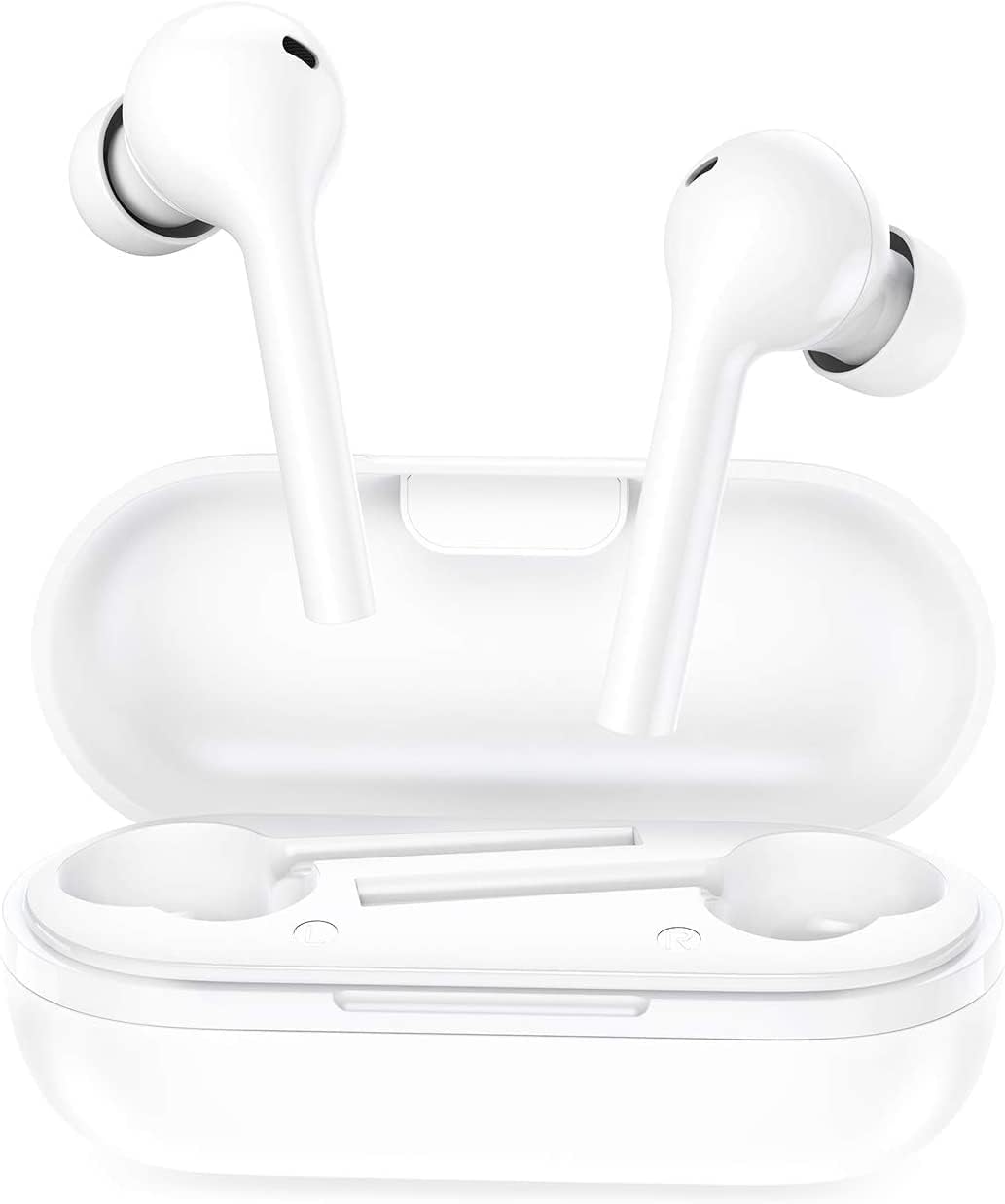
Image: The Falwedi T16 True Wireless Bluetooth Earbuds shown with their compact charging case.
Package Contents
Upon opening your Falwedi T16 Earbuds package, you should find the following items:
- 1 x FALWEDI T16 Wireless Earbuds
- 1 x Charging Case
- 1 x USB Charging Cable
- 1 x User Manual (this document)
- 3 x Ear Tips (Sizes L, M, S)

Image: The Falwedi T16 earbuds, charging case, and the three included sizes of ear tips (L, M, S) for a comfortable fit.
Setup and Pairing
Initial Charging
Before first use, ensure both the earbuds and the charging case are fully charged. Place the earbuds into the charging case and connect the USB charging cable to a power source. The indicator lights on the case will show charging status. A full charge for the earbuds provides approximately 4 hours of playback, and the charging case can recharge the earbuds up to 6 times, extending total listening time to 28 hours.

Image: An illustration demonstrating the lasting battery life of the Falwedi T16 earbuds, showing 4 hours of earbud battery time plus 6 recharges from the case for a total of 28 hours of working time.
One-Step Pairing
The Falwedi T16 earbuds feature Bluetooth 5.0 technology for stable and quick connections.
- Take both earbuds out of the charging case. The orange and white lights on the main earbud will flash alternately, indicating they are in pairing mode.
- On your device (smartphone, tablet, laptop), go to the Bluetooth settings.
- Turn on Bluetooth and select the device named "T16" from the list of available devices to connect.
- Once connected, the indicator lights on the earbuds will stop flashing.
The earbuds will automatically connect to the last paired device when taken out of the case, provided Bluetooth is enabled on the device.

Image: A smartphone screen displaying Bluetooth settings with "T16" selected and connected, illustrating the simple one-step pairing process for the Falwedi T16 earbuds.
Operating Instructions
Smart Touch Controls
The Falwedi T16 earbuds feature intuitive touch controls for various functions. Gently tap the touch sensitive area on the earbuds.
| Function | Action |
|---|---|
| Play/Pause Music | Double click either earbud |
| Previous Track | Keep touching for 2 seconds (Left earbud only) |
| Next Track | Keep touching for 2 seconds (Right earbud only) |
| Answer/Hang up Phone Call | Double click either earbud |
| Reject Phone Call | Keep touching for 2 seconds either earbud |
| Switch Call (between phone and earbuds) | Keep touching for 2 seconds either earbud |
| Activate/Deactivate Siri (iOS only) | Triple click either earbud |
Note: If using only one earbud, the earbud can only go to the next track, not the previous track, using this operation.

Image: A visual guide to the smart touch controls of the Falwedi T16 earbuds, showing icons for power, play/pause, track navigation, call management, and Siri activation.
Single and Dual Earbud Mode
The Falwedi T16 earbuds offer flexible usage modes:
- Independent Use: You can take out any one of the earbuds from the charging case and use it independently.
- Automatic Switching: If you are using one earbud and then take the other earbud out of the charging case, the two earbuds will automatically pair together immediately for stereo sound.
- Main Earbud Power Loss: If the main earbud runs out of power or is placed back into the charging case, the secondary earbud will automatically switch to become the main earbud and continue to function without interruption.

Image: An illustration depicting the different sound modes of the Falwedi T16 earbuds: single ear mode, binaural mode, and sharing mode, highlighting their flexibility.
Maintenance
Cleaning Your Earbuds
To maintain optimal sound quality and hygiene, regularly clean your earbuds.
- Gently wipe the earbuds and charging case with a soft, dry, lint-free cloth.
- For earwax or debris in the ear tips, carefully remove the ear tips and clean them with a mild soap solution, then rinse and dry thoroughly before reattaching.
- Do not use abrasive cleaners or submerge the earbuds or case in water.
Charging and Battery Care
Proper charging practices extend battery life.
- Always use the provided USB charging cable.
- Avoid exposing the earbuds and case to extreme temperatures.
- Store the earbuds in their charging case when not in use to protect them and keep them charged.
Troubleshooting
Common Issues and Solutions
- Earbuds not pairing with device:
- Ensure Bluetooth is enabled on your device.
- Make sure the earbuds are fully charged.
- Try resetting the earbuds as described below.
- Ensure no other Bluetooth devices are interfering.
- Only one earbud working:
- Place both earbuds back into the charging case, close the lid, wait a few seconds, then take them out again.
- Perform a factory reset.
- Poor sound quality or disconnections:
- Ensure the earbuds are within the 10-meter Bluetooth range of your device.
- Check for obstructions between the earbuds and your device.
- Clean the ear tips and speaker mesh.
- Ensure the earbuds are fully charged.
- Touch controls not responding:
- Ensure your fingers are clean and dry.
- Try resetting the earbuds.
Factory Resetting
If you encounter persistent issues, a factory reset can often resolve them.
- While the earbuds are turned on, go to your device's Bluetooth settings and "forget" or "unpair" the device named "T16".
- Click the multi-function key on both earbuds 5 times rapidly to clear the pairing information and restart the earbuds. You will hear a short melody tone, and the indicator light will slowly flash orange and white simultaneously.
- Place both earbuds back into the charging case and close the case cover.
- The reset operation is complete. You can now attempt to pair them with your device again.
Specifications
| Feature | Detail |
|---|---|
| Model | T16 |
| Brand | FALWEDI |
| Connectivity Technology | Wireless (Bluetooth 5.0) |
| Wireless Communication Technologies | Bluetooth |
| Form Factor | In Ear |
| Microphone Format | Built-In (with DSP intelligent noise reduction) |
| Water Resistance Level | Water Resistant |
| Earbud Playback Time | Up to 4 hours |
| Total Playback Time (with charging case) | Up to 28 hours |
| Battery Cell Composition | Lithium Polymer |
| Product Dimensions | 8 x 8 x 3 cm |
| Item Weight | 90 g |
| Material Type | Plastic |
| Special Features | Smart Touch Control, One-Step Pairing, Noise-Reducing Microphone |

Image: An illustration highlighting the intelligent noise reduction microphone of the Falwedi T16 earbuds, showing how it accurately picks up voice while reducing background noise for clearer calls.
Warranty and Support
Your Falwedi T16 Wireless Earbuds come with a 12-month after-sales service warranty.
If you have any questions, concerns, or require assistance with your product, please do not hesitate to contact Falwedi customer support. Refer to the contact information provided on the product packaging or the official Falwedi website for the most up-to-date support channels.
Please retain your proof of purchase for warranty claims.
Ask a question about this manual
Ask about setup, troubleshooting, compatibility, parts, safety, or missing instructions. Manuals+ will review the question and use this page’s manual context to help answer it.