
Introduction
This manual provides instructions for the proper setup, operation, and maintenance of your TeknoGame N64 Controller. Please read this manual thoroughly before use to ensure optimal performance and longevity of your device.
Product Model: VGA-0625-R
Color: Clear Purple
Package Contents
Ensure all items are present in the package:
- 1 x TeknoGame N64 Controller (Clear Purple)
- 1 x User Manual (this document)
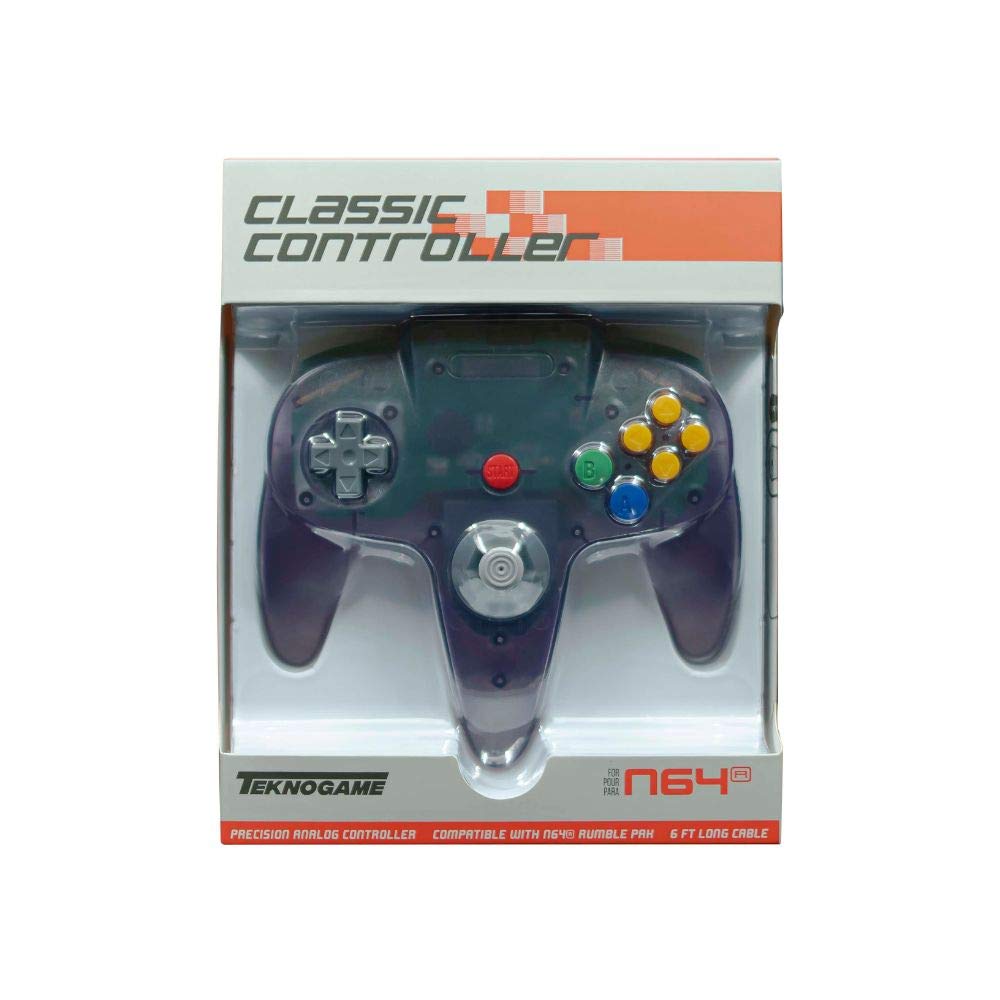
Image: The TeknoGame N64 Controller in Clear Purple. This image displays the front view of the controller, highlighting its transparent purple casing and button layout.
Controller Layout
Familiarize yourself with the buttons and controls of your TeknoGame N64 Controller:
- Analog Stick: For precise 360-degree movement.
- D-Pad: For directional input in games that support it.
- A Button: Primary action button.
- B Button: Secondary action button.
- C Buttons (Yellow): Four directional buttons for camera control or specific in-game actions.
- Start Button: Pauses games or confirms selections.
- L Button: Left shoulder button.
- R Button: Right shoulder button.
- Z Trigger: Located on the underside of the central handle.
- USB Cable: For connecting to your console or PC.
Setup Instructions
Connecting to Nintendo 64 Console
- Ensure your Nintendo 64 console is powered off.
- Locate an available controller port on the front of your Nintendo 64 console.
- Insert the controller's connector firmly into the chosen port.
- Power on your Nintendo 64 console. The controller is now ready for use.
Connecting to a Windows PC
- Locate an available USB port on your Windows PC.
- Plug the controller's USB cable into the USB port.
- Your Windows PC should automatically detect and install the necessary drivers. This may take a few moments.
- Once drivers are installed, the controller will be recognized as a standard gamepad. You may need to configure controller settings within your game or emulator software.
Note: For optimal performance on PC, ensure your operating system is up to date. Some games or emulators may require manual button mapping.
Operating Instructions
The TeknoGame N64 Controller functions identically to the original Nintendo 64 controller, providing a familiar gaming experience.
- Analog Stick: Use for movement and precise control in 3D environments.
- D-Pad: Primarily used for menu navigation or specific 2D game controls.
- A & B Buttons: Perform primary and secondary actions as defined by the game.
- C Buttons: Often used for camera control, item selection, or specific character abilities.
- Start Button: Typically used to pause the game, access menus, or confirm selections.
- L & R Buttons: Shoulder buttons for various in-game actions like strafing or targeting.
- Z Trigger: Commonly used for aiming, crouching, or other context-sensitive actions.
The controller features a rumble function for enhanced immersion in supported games. This feature is automatically activated when supported by the game or emulator.
Maintenance and Care
Proper care will extend the life of your controller:
- Cleaning: Use a soft, dry cloth to wipe the surface of the controller. For stubborn dirt, slightly dampen the cloth with water. Avoid harsh chemicals or abrasive cleaners.
- Storage: Store the controller in a cool, dry place away from direct sunlight and extreme temperatures. Avoid wrapping the cable tightly around the controller to prevent damage.
- Handling: Do not drop the controller or subject it to strong impacts. Avoid pulling the cable forcefully when disconnecting.
- Liquid Exposure: Keep the controller away from liquids. If liquid enters the controller, disconnect it immediately and allow it to dry completely before attempting to use it again.
Troubleshooting
| Problem | Possible Cause | Solution |
|---|---|---|
| Controller not responding on N64. | Loose connection; Console off. | Ensure the controller is firmly plugged into the N64 port. Verify the N64 console is powered on. |
| Controller not recognized on PC. | Loose USB connection; Driver issue; Faulty USB port. | Try a different USB port. Restart your PC. Check Device Manager for driver status. Ensure your operating system is updated. |
| Buttons or analog stick not working correctly. | Dirt or debris; Software calibration issue; Physical damage. | Clean around the affected buttons/stick. For PC, check game/emulator controller settings for calibration. If on N64, try another game. |
| Rumble feature not working. | Game/emulator does not support rumble; Rumble feature disabled in settings. | Verify the game or emulator supports rumble. Check in-game or emulator settings to ensure rumble is enabled. |
If you continue to experience issues, please contact TeknoGame customer support.
Specifications
- Model: VGA-0625-R
- Brand: TeknoGame
- Color: Clear Purple
- Connectivity: USB (Corded Electric)
- Controller Type: Gamepad
- Compatible Devices: Nintendo 64, Windows PC
- Features: Ergonomic design, Rumble feedback
- Button Quantity: 10
- UPC: 722267833718
Warranty Information
TeknoGame warrants this product against defects in materials and workmanship for a period of [Insert Warranty Period, e.g., one year] from the original date of purchase. This warranty does not cover damage caused by accident, misuse, abuse, modification, improper installation, or normal wear and tear.
To make a warranty claim, please retain your proof of purchase and contact TeknoGame customer support.
Support
For technical support, troubleshooting assistance, or warranty inquiries, please contact TeknoGame customer service:
- Website: www.teknogame.com/support (Example link, replace with actual if available)
- Email: support@teknogame.com (Example email, replace with actual if available)
- Phone: [Insert Phone Number, if available]
Please have your product model number (VGA-0625-R) and proof of purchase ready when contacting support.