
i-tec C31FLATDOCKPDPRO
i-tec USB C Triple Display Metal Docking Station User Manual
Model: C31FLATDOCKPDPRO
Introduction
This manual provides comprehensive instructions for the setup, operation, maintenance, and troubleshooting of your i-tec USB C Triple Display Metal Docking Station. This ergonomic docking station is designed to expand the connectivity of your USB-C or Thunderbolt 3 enabled laptop or tablet, allowing for multiple external displays, additional USB ports, network connectivity, and power delivery.
The i-tec C31FLATDOCKPDPRO is a versatile solution for enhancing your workspace, offering a robust metal design that can also serve as a laptop stand.
Package Contents
Before you begin, please ensure all items are present in the package:
- i-tec USB C Triple Display Metal Docking Station (Model: C31FLATDOCKPDPRO)
- Quick-Start Guide
- Anti-slip pads (typically included for stability)

Image: The i-tec USB-C Metal Low Profile 3x Display Docking Station box, the quick start guide, and the docking station itself, along with anti-slip pads.
Setup
Follow these steps to set up your i-tec docking station:
- Connect the Docking Station to your Laptop: Connect the integrated USB-C cable from the docking station to an available USB-C or Thunderbolt 3 port on your laptop or tablet. The cable length is approximately 60 cm, suitable for laptops up to 15 inches.
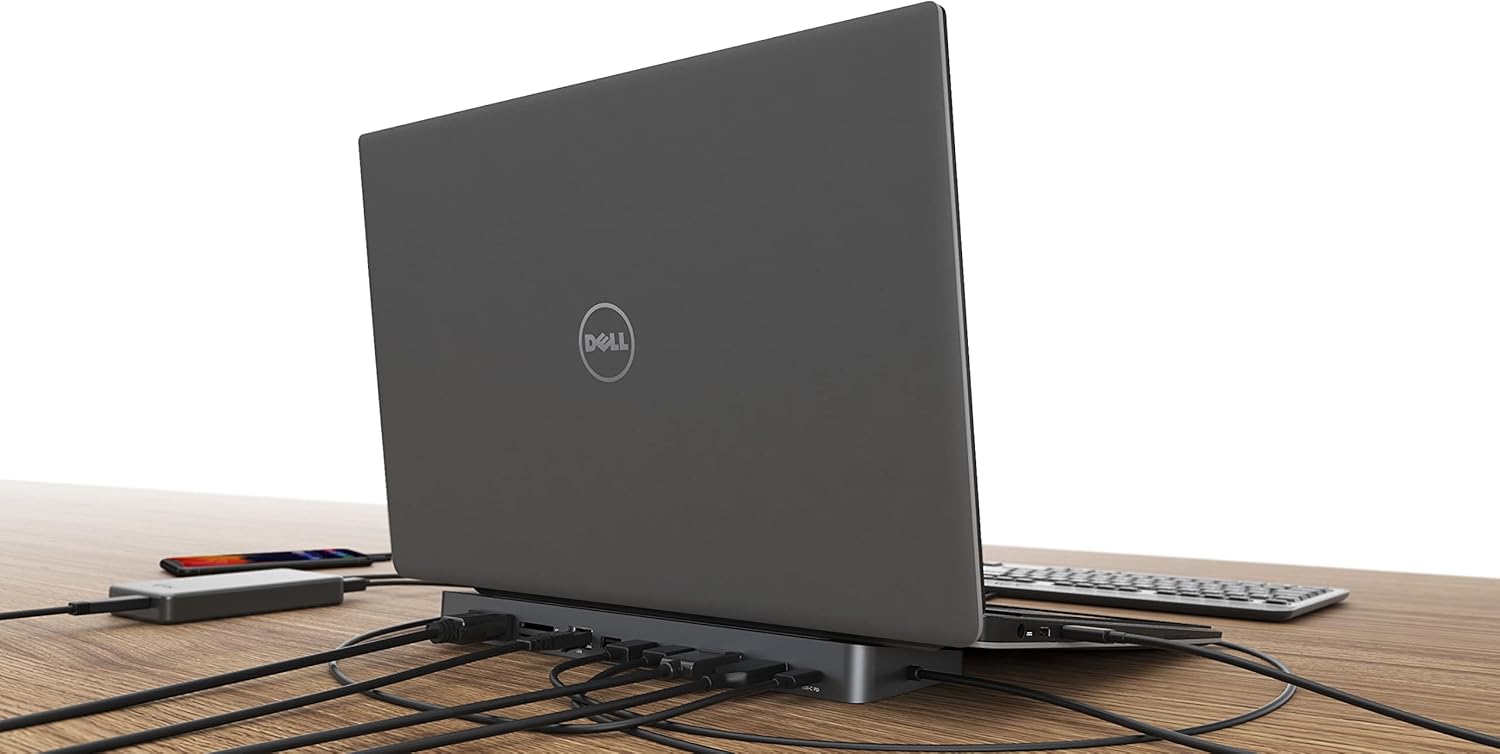
Image: A laptop positioned on the docking station, illustrating the USB-C connection to the laptop.
- Connect External Displays: Connect your monitors to the available video ports on the docking station. The station provides 1x DisplayPort, 1x HDMI, and 1x VGA port.
- For optimal resolution, use DisplayPort or HDMI for up to 4K/30 Hz with a single monitor.
- VGA supports up to 1080p/60 Hz.
- For two monitors, connect via any combination of DP, HDMI, or VGA for up to 2x 1080p/60 Hz.
- For three monitors (Windows environment only), connect via 1x DisplayPort + 1x HDMI + 1x VGA for up to 1x 1080p/60 Hz + 2x 720p/60 Hz.
Important Note for macOS Users:
macOS does not support Multi Stream Transport (MST) technology. When connected to a device running macOS, all connected monitors will display the same mirrored image. Only one external screen can be used effectively as an extended display; others will mirror it. For multiple extended monitors on macOS, a different i-tec docking station supporting alternative display technologies would be required.

Image: Visual representation of multi-monitor support, highlighting the difference between Windows/Linux/ChromeOS (up to 3 monitors) and macOS/Android (1 extended monitor, others mirrored).

Image: An illustration of the docking station connected to three external monitors, showcasing its multi-display capability.
- Connect Peripherals: Utilize the 2x USB 3.0 and 2x USB 2.0 ports to connect your USB devices such as keyboards, mice, external hard drives, or webcams.

Image: An overview of the docking station and various compatible peripherals such as external storage, input devices, and cameras.
- Connect to Network: For a stable and high-speed internet connection, connect an Ethernet cable to the Gigabit Ethernet RJ-45 port on the docking station. This supports 10/100/1000 Mbps speeds.
- Audio Connection: Use the combined audio jack on the front panel for connecting a headset (headphones and microphone).
- SD/microSD Card Readers: Insert your SD or microSD cards into the dedicated slots for data transfer.
- Power Delivery: The docking station supports USB-C Power Delivery up to 85W. To utilize this feature, connect your laptop's original USB-C AC adapter (a 100W USB-C power adapter is needed for 85W power delivery) to the USB-C PD port on the docking station. This will charge your connected laptop or tablet.

Image: Illustration showing the docking station's capability to charge a notebook via its USB-C port with 85W power delivery.

Image: Detailed diagram illustrating the various ports and their functions on the i-tec docking station.
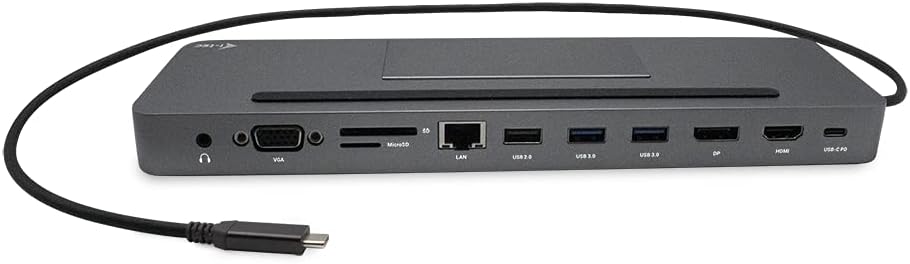
Image: A close-up view of the docking station's ports from the front, including audio, VGA, card readers, LAN, USB, DisplayPort, HDMI, and USB-C PD.
Operating Instructions
Once set up, the i-tec docking station operates automatically with compatible devices. It is compatible with any laptop or tablet equipped with a USB-C or Thunderbolt 3 port running Windows, macOS, Linux, ChromeOS, or Android.

Image: Devices compatible with the docking station, including laptops and tablets running Android, ChromeOS, Windows, Linux, and macOS.
Using as a Laptop Stand
The ergonomic metal design of the docking station allows it to be used as a stand for your laptop, promoting better airflow and a more comfortable typing angle.

Image: The docking station featuring an integrated slot, demonstrating its use as a stand for a smartphone or business card.
Maintenance
To ensure the longevity and optimal performance of your i-tec docking station, follow these simple maintenance guidelines:
- Cleaning: Use a soft, dry cloth to wipe the surface of the docking station. Avoid using liquid cleaners or abrasive materials, as they may damage the finish.
- Storage: When not in use for extended periods, store the docking station in a cool, dry place away from direct sunlight and extreme temperatures.
- Handling: Handle the docking station with care. Avoid dropping it or subjecting it to strong impacts.
- Ventilation: Ensure the docking station has adequate ventilation, especially when used as a laptop stand, to prevent overheating.
Troubleshooting
If you encounter issues with your i-tec docking station, please refer to the following common problems and solutions:
| Problem | Possible Cause / Solution |
|---|---|
| No display on external monitor(s) |
|
| USB devices are not recognized |
|
| No network connection via Ethernet |
|
| Laptop is not charging (Power Delivery) |
|
| Audio issues (no sound or microphone not working) |
|
Specifications
| Feature | Detail |
|---|---|
| Brand | i-tec |
| Model Number | C31FLATDOCKPDPRO |
| Dimensions (LxWxH) | 10.59 x 3.31 x 0.91 inches (26.9 x 8.4 x 2.3 cm) |
| Weight | 11.4 ounces (324 Grams) |
| Color | USB-C Dock (Metal Grey) |
| Host Connection | Integrated USB-C cable (60 cm) for connection to USB-C or Thunderbolt 3 port |
| Video Ports | 1x DisplayPort, 1x HDMI, 1x VGA |
| Max Resolution (Single Monitor) | DisplayPort/HDMI: up to 4K/30 Hz; VGA: up to 1080p/60 Hz |
| Max Resolution (Dual Monitors) | Up to 2x 1080p/60 Hz (any combination of DP, HDMI, VGA) |
| Max Resolution (Triple Monitors - Windows) | 1x 1080p/60 Hz (DP) + 2x 720p/60 Hz (HDMI + VGA) |
| USB Ports | 2x USB 3.0, 2x USB 2.0 |
| Ethernet | Gigabit Ethernet RJ-45 (10/100/1000 Mbps) |
| Card Readers | SD, microSD |
| Audio | 1x Combined audio jack (headset) |
| Power Delivery | Up to 85W (requires external 100W USB-C AC adapter) |
| Compatible Operating Systems | Windows, macOS, Linux, ChromeOS, Android |
| Additional Features | Ergonomic design, can be used as a laptop stand, metal body |
Warranty
i-tec products typically come with a standard manufacturer's warranty. Please refer to the warranty card or documentation included with your purchase for specific terms and conditions, including the warranty period and coverage details. Retain your proof of purchase for warranty claims.
Support
For further assistance, technical support, or driver downloads, please visit the official i-tec website or contact their customer service. You can often find support resources, FAQs, and contact information on the brand's dedicated support pages.
Visit the i-tec Store for more information: i-tec Official Store
Related documentsC31FLATDOCKPDPRO


Ask a question about this manual
Ask about setup, troubleshooting, compatibility, parts, safety, or missing instructions. Manuals+ will review the question and use this page’s manual context to help answer it.