
Introduction
This manual provides comprehensive instructions for the setup, operation, maintenance, and troubleshooting of your UPERFECT 16" OLED Portable Monitor (Model N156N01). Please read this manual thoroughly before using the product to ensure optimal performance and longevity. Keep this manual for future reference.
Product Overview
The UPERFECT 16" OLED Portable Monitor is designed for enhanced portability and visual performance, featuring a 3K 2880x1880 resolution, 120Hz refresh rate, and a 100000:1 contrast ratio. Its lightweight and slim design makes it an ideal companion for laptops, smartphones, and game consoles.

Figure 1: UPERFECT 16" OLED Portable Monitor. This image showcases the monitor's vibrant display capabilities and its sleek, portable design, featuring a person swimming in a pool on the screen.

Figure 2: Frameless OLED Screen. This image highlights the monitor's edge-to-edge display, emphasizing its immersive viewing experience and advanced OLED technology.

Figure 3: 500 Nits High Brightness. This image visually demonstrates the superior brightness and contrast of the UPERFECT monitor compared to others, enhancing color details and overall picture quality.
Key Features:
- True Portability: Single cable connection via Type-C or HDMI, eliminating the need for extra power cables for compatible devices.
- 120Hz Refresh Rate: Provides higher motion clarity and smoother visual effects, beneficial for gaming and fast-paced content.
- Immersive 3K Clarity: 2880x1880 resolution delivers exceptional sharpness, vibrant colors, and detailed visuals.
- Quad Speakers: Equipped with four built-in speakers for an immersive surround sound experience.
- Smart Leather Case: Includes a protective folding leather case that doubles as an adjustable stand.
- 500 Nits Brightness: High brightness for clear visibility in various lighting conditions.
- 100000:1 Contrast Ratio: Delivers deep blacks and bright whites for enhanced image depth.
- 100% DCI-P3 Color Gamut: Ensures accurate and vivid color reproduction, ideal for content creation.
Ports and Controls:
The monitor features multiple ports for versatile connectivity and a rocker switch for OSD navigation.
- USB-C Ports (x2): One for video/power input (single cable solution), another for power delivery pass-through.
- Mini HDMI Port: For video input from devices without USB-C video output.
- 3.5mm Audio Jack: For connecting external headphones or speakers.
- Rocker Switch: Used to navigate the On-Screen Display (OSD) menu and adjust settings.

Figure 4: Connectivity Ports. This image illustrates the side of the monitor, highlighting the USB-C and Mini HDMI ports for various device connections.
Setup Instructions
- Unpacking: Carefully remove the monitor and all accessories from the packaging. Ensure all components listed in the product overview are present.
- Positioning: Place the monitor on a stable, flat surface. Utilize the smart leather case as a stand, adjusting it to your desired viewing angle.
- Connecting to a Device:
- USB-C Connection (Single Cable): For devices with a full-featured USB-C port (supporting DisplayPort Alternate Mode and Power Delivery), connect one end of the provided USB-C to USB-C cable to your device and the other end to the monitor's USB-C input port. This connection can provide both video signal and power.
- HDMI Connection: For devices with an HDMI output, connect one end of the provided Mini HDMI to HDMI cable to the monitor's Mini HDMI port and the other end to your device's HDMI port. An additional USB-C to USB-A power cable connected to a power adapter or a powered USB port on your device will be required to power the monitor.
- Power Supply: If your device's USB-C port does not provide sufficient power, or if using HDMI, connect the monitor to an external power source using the provided power adapter and USB-C to USB-A cable.
- Power On: Once connected, the monitor should automatically power on and detect the input signal. If not, press the power button (usually integrated with the rocker switch) to turn it on.
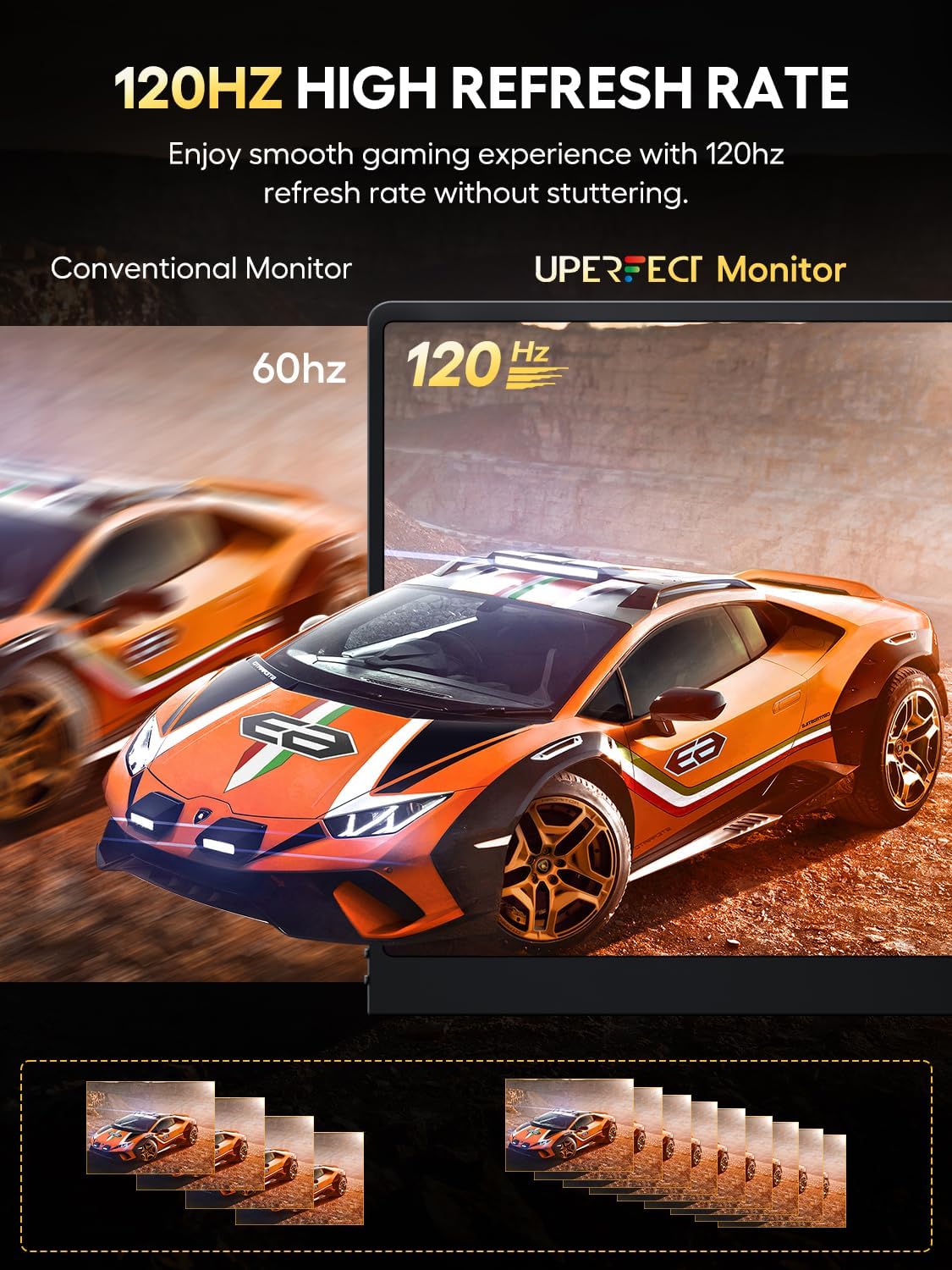
Figure 5: Monitor in Use. This image demonstrates the monitor connected to a laptop, showcasing its extended display capabilities and vivid picture quality.
Operating Instructions
On-Screen Display (OSD) Menu:
The OSD menu allows you to adjust various display settings. It is typically accessed and navigated using the rocker switch located on the side of the monitor.
- Accessing OSD: Press the rocker switch to bring up the OSD menu.
- Navigation:
- Push the rocker switch up/down to scroll through menu options.
- Press the rocker switch in to select an option or confirm a setting.
- Push the rocker switch left/right to adjust values or navigate sub-menus.
- Exiting OSD: Navigate to the "Exit" option or hold the rocker switch for a few seconds.
Common Settings:
- Brightness/Contrast: Adjust these to optimize visual comfort and image depth.
- Color Profile: Select from preset modes (e.g., Standard, Game, Movie) or customize settings like Temperature, Hue, and Saturation.
- Sharpness: Fine-tune image clarity.
- Aspect Ratio: Adjust the display ratio to match your content (e.g., 16:9).
- Input Selection: Manually switch between USB-C and Mini HDMI inputs if auto-detection fails.
- Refresh Rate: Ensure your device is configured to output at 120Hz to fully utilize the monitor's capabilities for smoother visuals.

Figure 6: 120Hz High Refresh Rate. This image visually compares the smoothness of a 120Hz display against a standard 60Hz monitor, highlighting the enhanced gaming and viewing experience.
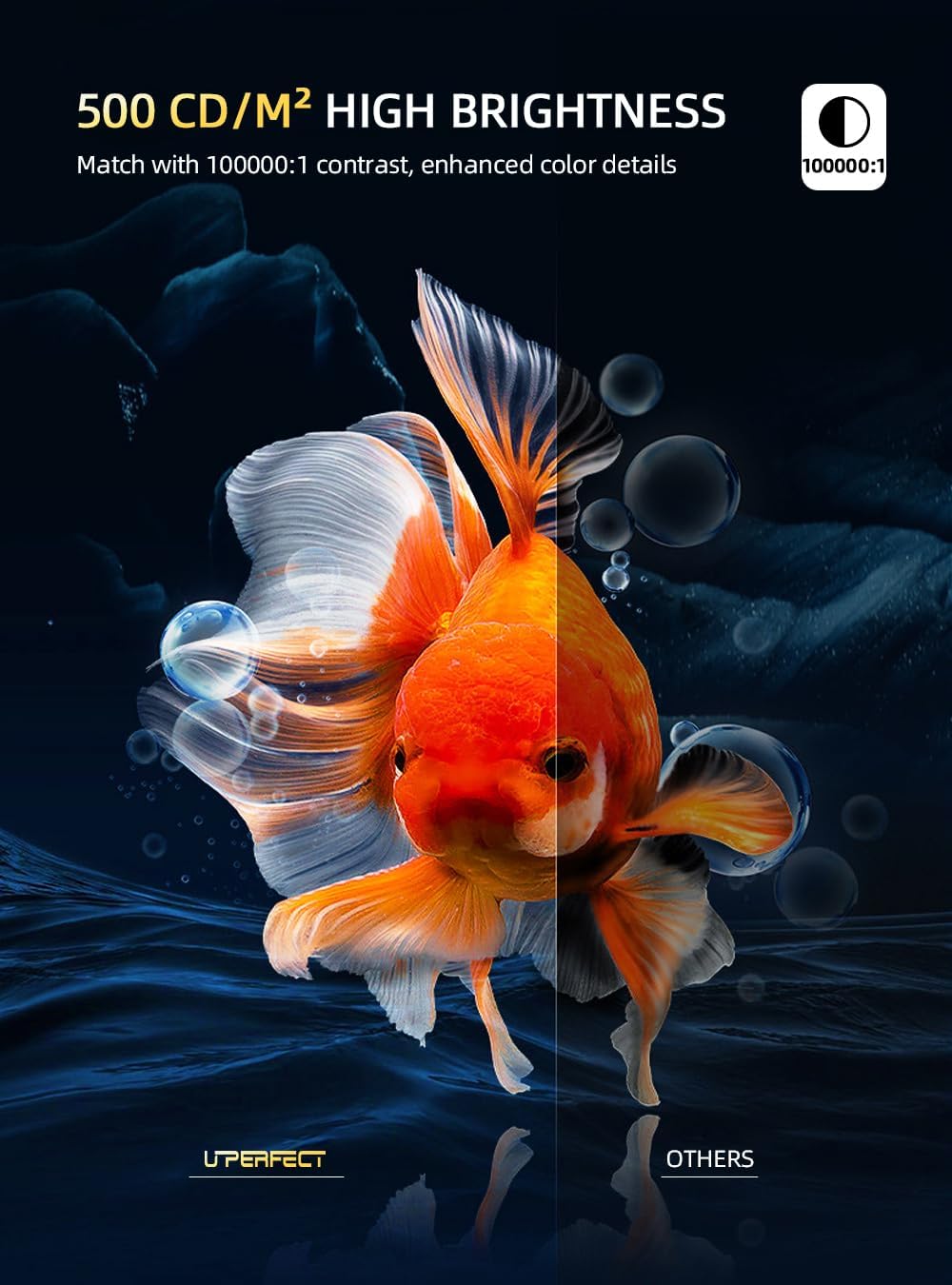
Figure 7: 100% DCI-P3 Color Gamut. This graphic demonstrates the monitor's wide color coverage, indicating its suitability for professional color-sensitive tasks.
Maintenance
- Cleaning the Screen: Use a soft, lint-free cloth slightly dampened with water or a non-abrasive screen cleaner. Avoid harsh chemicals or abrasive materials that could damage the screen surface.
- Cleaning the Body: Wipe the monitor's exterior with a soft, dry cloth.
- Handling: Due to its slim and lightweight design, handle the monitor with care to prevent accidental drops or impacts. Avoid applying excessive pressure to the screen.
- Storage: When not in use, store the monitor in its protective leather case to prevent scratches and dust accumulation.
- Ventilation: Ensure proper airflow around the monitor to prevent overheating, especially during prolonged use.
Troubleshooting
If you encounter issues with your UPERFECT portable monitor, refer to the following common problems and their solutions:
| Problem | Possible Cause | Solution |
|---|---|---|
| No Signal / Black Screen | Incorrect input source selected, loose cable connection, insufficient power, device not outputting signal. |
|
| No Power | Power cable not connected, power adapter faulty, USB-C port not providing power. |
|
| Uneven Brightness / Poor Image Quality | Display settings misconfigured, defective unit. |
|
| No Audio from Monitor Speakers | Audio output settings on device, monitor volume too low or muted. |
|
Specifications
| Feature | Detail |
|---|---|
| Brand | UPERFECT |
| Model Number | N156N01 |
| Screen Size | 16.1 Inches |
| Max Screen Resolution | 2880x1880 Pixels (3K QHD) |
| Display Technology | OLED |
| Refresh Rate | 120Hz |
| Contrast Ratio | 100000:1 |
| Brightness | 500 Nits (CD/M²) |
| Color Gamut | 100% DCI-P3, 99% Adobe RGB |
| Aspect Ratio | 16:9 |
| Screen Surface | Matte |
| Item Weight | 2.2 pounds |
| Product Dimensions | 2.48 x 15.59 x 10.63 inches |
| Color | Black |
| Voltage | 5 Volts (DC) |
| USB 2.0 Ports | 1 |
| USB 3.0 Ports | 3 |
Warranty and Support
UPERFECT stands behind the quality of its products. This portable monitor comes with a 3-year service warranty. For any inquiries or assistance, our dedicated customer service team is available 24 hours a day. We are committed to resolving any issues promptly, typically within 8 hours.
For technical support, warranty claims, or general inquiries, please refer to the contact information provided on the official UPERFECT website or your purchase documentation.


