Introduction
This manual provides comprehensive instructions for the setup, operation, and maintenance of your GIGABYTE G27Q 27" 144Hz 1440P Gaming Monitor. Please read this manual thoroughly before using the product to ensure proper functionality and safety.

The GIGABYTE G27Q 27-inch gaming monitor features a QHD display and a sleek black design.
The GIGABYTE G27Q is a 27-inch gaming monitor featuring a 2560x1440 IPS display with a 144Hz refresh rate (overclockable to 165Hz) and a 1ms (MPRT) response time. It supports VESA Display HDR400 and covers 92% DCI-P3 (120% sRGB) color gamut, providing vibrant and accurate colors. Key features include AMD FreeSync Premium for smooth gameplay, GIGABYTE Classic Tactical Features with OSD Sidekick, and an ergonomic design allowing for tilt and height adjustments. It also includes Low Blue Light & Flicker-Free technology for eye comfort, VESA wall mount compatibility (100x100mm), and built-in 2x 2W speakers. Connectivity options include 1x DisplayPort 1.2, 2x HDMI 2.0, and 2x USB 3.0 ports.
Safety Information
Always observe the following safety precautions to prevent injury and damage to the monitor:
- Do not expose the monitor to rain or moisture to avoid fire or shock hazards.
- Do not open the monitor casing. There are no user-serviceable parts inside. Refer all servicing to qualified service personnel.
- Place the monitor on a stable, flat surface to prevent it from falling.
- Ensure proper ventilation around the monitor. Do not block ventilation openings.
- Use only the power adapter supplied with the monitor.
- Disconnect the power plug from the wall outlet if the monitor will not be used for an extended period.
- Clean the monitor with a soft, dry cloth. Avoid using liquid cleaners or aerosol cleaners.
Package Contents
Verify that all items are present in the package:
- GIGABYTE G27Q Monitor
- Monitor Stand (Base and Neck)
- Power Adapter and Power Cord
- DisplayPort Cable
- HDMI Cable
- USB 3.0 Upstream Cable
- Quick Start Guide
- Warranty Card

The GIGABYTE G27Q monitor shown alongside its packaging, indicating typical contents.
Setup
1. Assembling the Stand
- Carefully remove the monitor from its packaging, placing it face down on a soft, clean surface to prevent scratches.
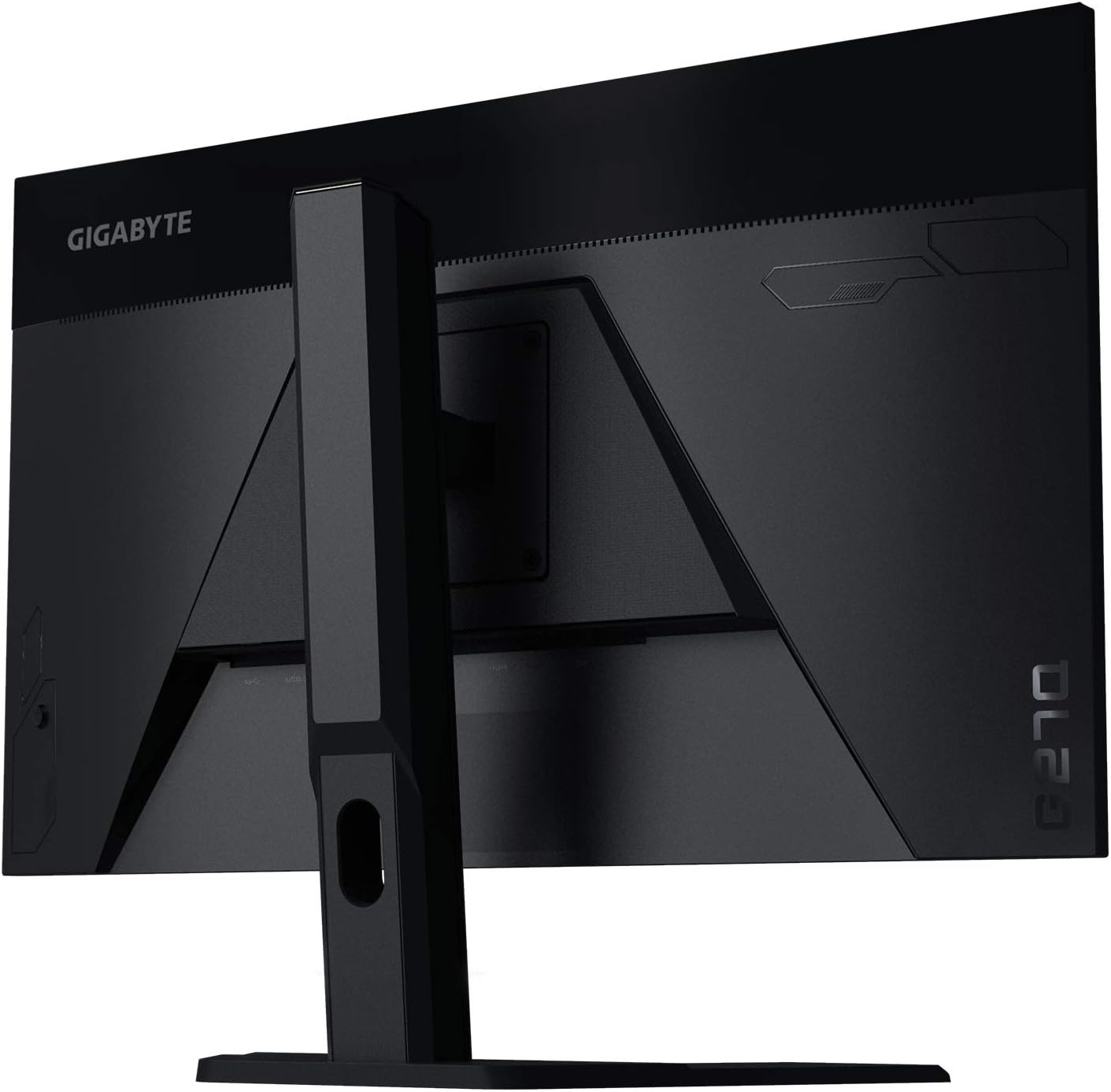
- Attach the stand neck to the back of the monitor by aligning the mounting points and securing it with the provided screws.
- Attach the stand base to the bottom of the stand neck, ensuring it clicks into place or is secured with the thumb screw.

The rear of the GIGABYTE G27Q monitor showing the stand assembly and VESA mounting points.
2. Connecting Cables
Connect the necessary cables to the monitor's input ports. The G27Q monitor includes:
- DisplayPort 1.2: For high refresh rate and resolution.
- HDMI 2.0 (x2): For general connectivity with various devices.
- USB 3.0 Upstream: Connect to your PC to enable the monitor's USB 3.0 downstream ports.
- USB 3.0 Downstream (x2): For connecting peripherals like keyboards, mice, or USB drives.
- Audio Out (3.5mm jack): For connecting external headphones or speakers.
Detail of the GIGABYTE G27Q monitor's rear panel, showing DisplayPort, HDMI, and USB ports.
Connect the appropriate video cable (DisplayPort or HDMI) from your computer's graphics card to the corresponding input on the monitor. If using the USB 3.0 ports on the monitor, connect the USB 3.0 upstream cable from the monitor to an available USB 3.0 port on your computer.
3. Power Connection
Connect the power adapter to the monitor's power input, then plug the power cord into a wall outlet.
4. Initial Power On
Press the power button located on the monitor to turn it on. The monitor should automatically detect the input signal. If not, use the OSD joystick to manually select the input source.
Operating the Monitor
On-Screen Display (OSD) Navigation
The GIGABYTE G27Q monitor features a single joystick control located on the back or bottom of the monitor for navigating the On-Screen Display (OSD) menu. This joystick allows you to power on/off the monitor, select input sources, and adjust various display settings.
- Press In: Enter OSD menu / Confirm selection.
- Move Up/Down: Navigate menu options.
- Move Left/Right: Adjust values / Navigate sub-menus.
Key Features and Adjustments
- Refresh Rate: The monitor supports up to 144Hz natively and 165Hz when overclocked. Ensure your graphics card settings are configured to utilize the desired refresh rate.
- Response Time: Features 1ms (MPRT) response time for reduced motion blur. This setting can often be adjusted in the OSD under "Overdrive" or similar options.
- AMD FreeSync Premium: For tear-free and stutter-free gaming, ensure FreeSync is enabled in the monitor's OSD and your AMD graphics card drivers.
- VESA Display HDR400: Activate HDR in your operating system display settings to experience enhanced contrast and color.
- OSD Sidekick: GIGABYTE provides a software utility called OSD Sidekick that allows you to control monitor settings directly from your desktop. Download and install it from the official GIGABYTE website.
- Ergonomic Adjustments:
- Height Adjustment: Gently push or pull the monitor up or down along the stand.
- Tilt Adjustment: Hold the top and bottom edges of the monitor and gently tilt it forwards or backwards.

The GIGABYTE G27Q monitor from the side, illustrating its ergonomic stand capabilities.

A combined front and side view of the GIGABYTE G27Q monitor, showcasing its adjustable stand.
Maintenance
Cleaning the Monitor
- Always unplug the monitor from the power outlet before cleaning.
- Use a soft, lint-free cloth to gently wipe the screen and casing.
- For stubborn marks, lightly dampen the cloth with water or a mild, non-abrasive screen cleaner. Do not spray liquid directly onto the screen.
- Avoid using benzene, thinner, ammonia-based cleaners, or abrasive cleaning agents, as these can damage the monitor's surface.
General Care
- Avoid placing heavy objects on the monitor or its cables.
- Do not expose the monitor to direct sunlight or excessive heat.
- Keep the monitor away from strong magnetic fields.
Troubleshooting
| Problem | Possible Cause | Solution |
|---|---|---|
| No image on screen | Power cable disconnected; Video cable disconnected; Incorrect input source selected. | Ensure power and video cables are securely connected. Press the OSD joystick to open the input menu and select the correct source. |
| Image is blurry or distorted | Incorrect resolution setting; Video cable issue. | Set the display resolution to 2560x1440. Check or replace the video cable. |
| No sound from speakers | Volume too low; Audio cable not connected (if using 3.5mm); Incorrect audio output selected on PC. | Adjust monitor volume via OSD. Ensure audio output on PC is set to the monitor or correct external speakers. If using 3.5mm, ensure cable is connected. |
| Flickering or unstable image | Refresh rate mismatch; Graphics driver issue; Cable quality. | Ensure refresh rate is set correctly (144Hz/165Hz). Update graphics drivers. Try a different DisplayPort or HDMI cable. |
| USB ports not working | USB upstream cable not connected. | Connect the USB 3.0 upstream cable from the monitor to your computer. |
Specifications
| Feature | Detail |
|---|---|
| Screen Size | 27 Inches |
| Panel Type | IPS |
| Resolution | 2560 x 1440 (QHD Wide 1440p) |
| Refresh Rate | 144Hz (OC 165Hz) |
| Response Time | 1ms (MPRT) |
| Color Gamut | 92% DCI-P3 (120% sRGB) |
| HDR Support | VESA Display HDR400 |
| Adaptive Sync | AMD FreeSync Premium |
| Connectivity | 1x DisplayPort 1.2, 2x HDMI 2.0, 2x USB 3.0 (downstream), 1x USB 3.0 (upstream) |
| Audio | 2x 2W Speakers, 1x 3.5mm Audio Out |
| Ergonomics | Tilt, Height Adjustment |
| VESA Mount | 100x100mm |
| Dimensions (LxWxH) | 14.54 x 24.17 x 2.89 inches (without stand) |
| Weight | 20.9 pounds |
| Model Number | G27Q-SA |
Warranty and Support
For detailed warranty information, please refer to the warranty card included with your product or visit the official GIGABYTE website.
For further assistance, technical support, or to download the full user manual in PDF format, please visit:
- Official GIGABYTE Support: www.gigabyte.com
- User Manual (PDF): Download PDF Manual


