1. Introduction
The R-Go Compact Keyboard is an ergonomic, flat-designed keyboard engineered to enhance your workspace comfort and productivity. It aims to prevent discomfort often associated with prolonged computer use by promoting a natural posture and reducing muscle strain. This manual provides comprehensive instructions for setting up, operating, maintaining, and troubleshooting your R-Go Compact Keyboard.
Key Features:
- Wired Ergonomic Compact Design: Eliminates sideways reaching, ideal for use with a mouse, and easy to transport.
- Thin Keyboard & Light Keystroke: Ultra-thin profile prevents blood vessel and tendon pinching. Scissor mechanism ensures a light keystroke, reducing typing effort.
- R-Go Break Software: Patented software provides color-coded cues to signal optimal break times, promoting a balanced work routine.
- Wide Compatibility: Plug-and-play functionality with PC/desktop/laptop and compatible with Windows/Mac operating systems.
- Eco-friendly Materials: Crafted from recycled materials, supporting sustainable practices.
- Multi-Media Keys: Integrated keys for convenient control of media functions.

Figure 1.1: Top view of the R-Go Compact Keyboard, showcasing its compact layout and wired connection.

Figure 1.2: The R-Go Compact Keyboard with key dimensions, highlighting its ergonomic and portable design.
Video 1.1: An official overview of the R-Go Tools Compact Slim Ergonomic Wired-USB Keyboard, demonstrating its features and benefits.
2. Setup Instructions
Setting up your R-Go Compact Keyboard is a straightforward process. Follow these steps to get started:
- Unpack the Keyboard: Carefully remove the keyboard and the included USB cable from its packaging.
- Connect to Your Device: Plug the USB-C end of the cable into the keyboard and the USB-A end into an available USB port on your PC, desktop, or laptop. The keyboard is designed for plug-and-play installation.
- Operating System Compatibility: The keyboard is compatible with both Windows and Mac operating systems. No additional drivers are typically required for basic functionality.
- R-Go Break Software Installation (Optional but Recommended): For optimal ergonomic benefits, download and install the R-Go Break software from the official R-Go Tools website. This software provides personalized break advice and utilizes the keyboard's LED indicator.

Figure 2.1: Illustration of the USB connection and compatibility with various operating systems, emphasizing plug-and-play setup.
3. Operating the Keyboard
The R-Go Compact Keyboard is designed for intuitive use, focusing on ergonomic comfort and efficiency.
Ergonomic Design Principles:
- Compact Layout: The compact size ensures that your hands remain within shoulder width, reducing the need for wide arm movements when switching between typing and using a mouse. This minimizes strain on your shoulders and wrists.
- Flat Profile: The ultra-thin design promotes a natural, flat position for your wrists, preventing compression of blood vessels and tendons.
- Light Keystroke: The scissor mechanism beneath each key provides a responsive yet light keystroke, requiring less force and reducing muscle tension in your fingers and hands.
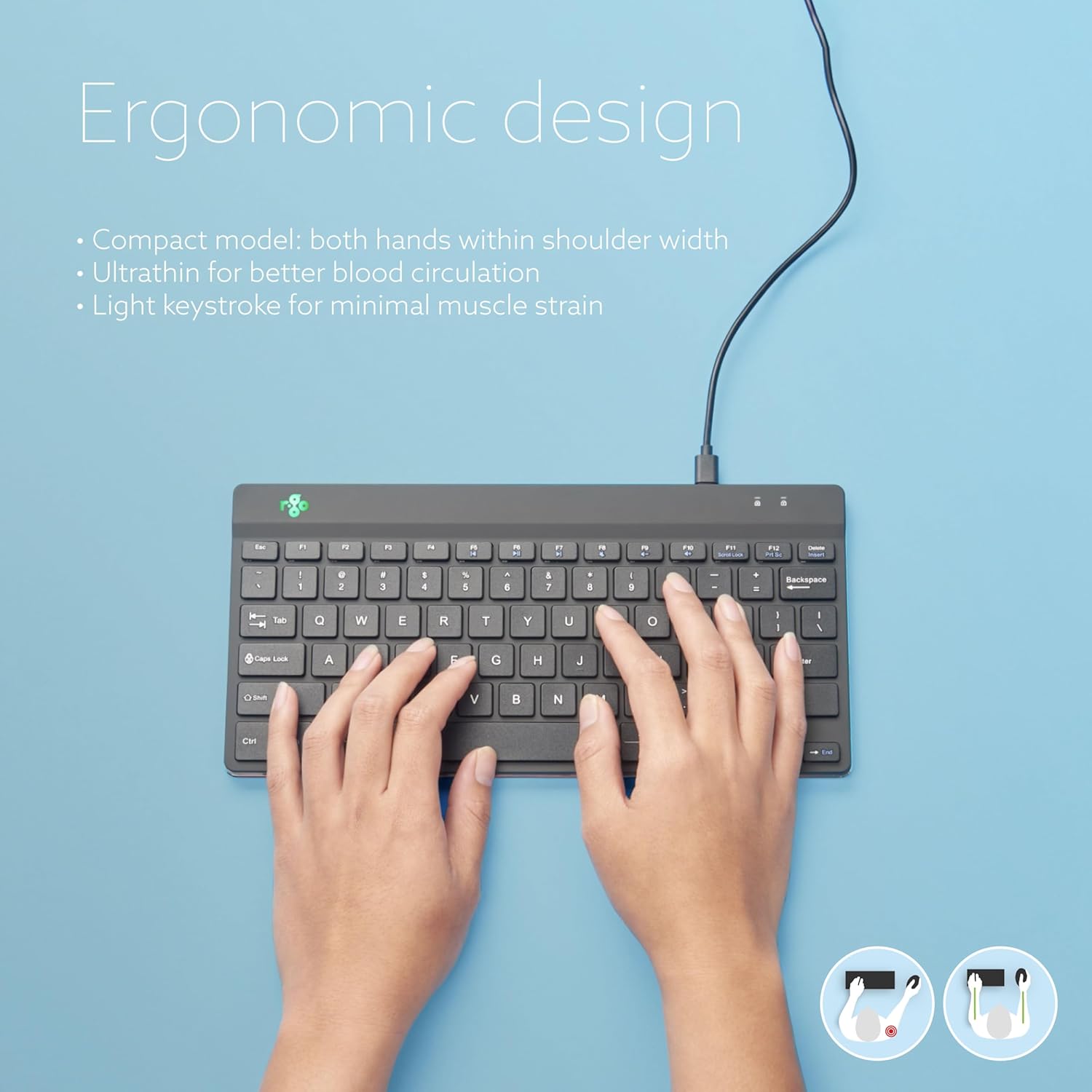
Figure 3.1: Proper hand placement on the R-Go Compact Keyboard, illustrating the ergonomic benefits of its compact and flat design.
R-Go Break Software Integration:
The R-Go Break software is a unique feature designed to encourage healthy work habits. Once installed, it provides visual cues through the keyboard's integrated LED indicator:
- Green Light: Indicates that you are working healthily and taking appropriate breaks.
- Orange Light: Suggests that it is time for a short break to prevent strain.
- Red Light: Warns that you have worked too long without a break and should rest immediately.
You can customize break intervals and settings within the R-Go Break software interface. Regular short breaks are crucial for preventing Repetitive Strain Injury (RSI).

Figure 3.2: The R-Go Compact Keyboard's LED indicator showing different colors based on work duration, prompting users to take breaks.
Multi-Media Keys:
The keyboard includes dedicated multi-media keys for quick access to common functions such as volume control, play/pause, and track navigation. Refer to the keycap legends for specific functions.
4. Maintenance
Proper care and maintenance will ensure the longevity and optimal performance of your R-Go Compact Keyboard.
- Cleaning:
- Disconnect the keyboard from your computer before cleaning.
- Use a soft, lint-free cloth slightly dampened with water or a mild, non-abrasive cleaning solution to wipe down the keycaps and surface.
- Avoid spraying liquids directly onto the keyboard.
- For dust and debris between keys, use compressed air.
- Storage: Store the keyboard in a dry, cool environment away from direct sunlight and extreme temperatures.
- Handling: Avoid dropping the keyboard or exposing it to excessive force, which could damage internal components.
- Eco-friendly Design: The keyboard is made from recycled materials. Please consider proper electronic waste disposal at the end of its life cycle.
5. Troubleshooting
If you encounter issues with your R-Go Compact Keyboard, refer to the following common problems and solutions:
| Problem | Possible Cause | Solution |
|---|---|---|
| Keyboard not responding | Loose USB connection, faulty USB port, software conflict. | Ensure the USB cable is securely connected to both the keyboard and the computer. Try a different USB port. Restart your computer. |
| Keys are not typing correctly or are sticky | Debris under keys, software issue. | Clean the keyboard using compressed air. Check if the issue persists on another computer. |
| R-Go Break software not working | Software not installed, outdated version, background processes interfering. | Ensure the software is correctly installed. Check for updates on the R-Go Tools website. Restart the software or your computer. |
| Keyboard LED indicator not functioning | R-Go Break software not running or configured incorrectly. | Verify the R-Go Break software is running and its settings are correctly configured for the LED indicator. |
If the problem persists after trying these solutions, please contact R-Go Tools customer support for further assistance.
6. Specifications
| Feature | Detail |
|---|---|
| Product Dimensions | 11.9 x 5.6 x 1.2 inches (11.9"L x 5.6"W x 1.2"H) |
| Item Weight | 10.9 ounces |
| Manufacturer | R-Go Tools |
| ASIN | B08CNL56YL |
| Item Model Number | RGOCOUSWDBL |
| Date First Available | July 9, 2020 |
| Brand | R-Go Tools |
| Compatible Devices | PC (Windows/Mac OS) |
| Connectivity Technology | Cable (USB) |
| Keyboard Description | Ergonomic |
| Recommended Uses | Business |
| Special Features | Portable, Ergonomic, Lightweight, Break Software |
| Color | Black |
| Number of Keys | 78 |
| Material | Plastic |
| What's in the Box | USB Cable |
7. Warranty and Support
Warranty Information:
The R-Go Compact Keyboard comes with a standard manufacturer's warranty. Please refer to the warranty card included with your product or visit the official R-Go Tools website for detailed warranty terms and conditions specific to your region.
Customer Support:
For technical assistance, troubleshooting beyond this manual, or warranty claims, please contact R-Go Tools customer support. You can find contact information, FAQs, and additional resources on the official R-Go Tools website:
Visit the R-Go Tools Store on Amazon
When contacting support, please have your product model number (RGOCOUSWDBL) and purchase details ready.


