1. Product Overview
The GIGABYTE G27F is a 27-inch Full HD (1920x1080) IPS gaming monitor designed for an immersive and responsive gaming experience. It features a 144Hz refresh rate and 1ms (MPRT) response time, ensuring smooth gameplay. With AMD FreeSync Premium, it eliminates screen tearing and stuttering. The monitor boasts a studio-grade 125% sRGB and 95% DCI-P3 color gamut for vibrant and accurate colors. It includes GIGABYTE's classic tactical features accessible via OSD Sidekick software and supports GIGABYTE Auto-Update for firmware. The ergonomic design allows for tilt and height adjustments, and it is VESA wall mount compatible (100x100mm). It also includes built-in 2x2W speakers.
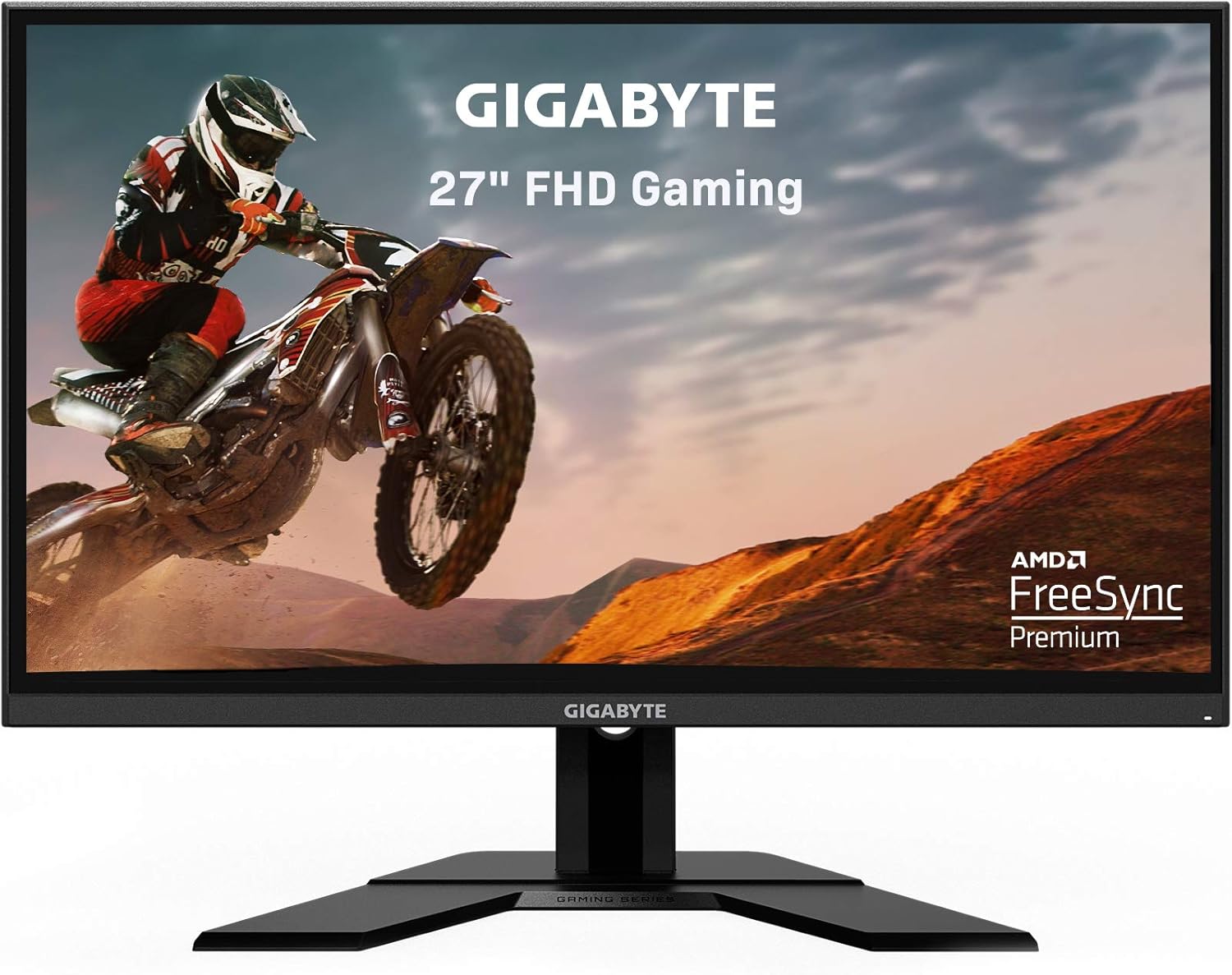
Figure 1.1: Front view of the GIGABYTE G27F gaming monitor, showcasing its sleek design and thin bezels.
2. Setup Guide
2.1 Unpacking
Carefully remove all components from the packaging. Ensure all items listed in the packing list are present. Keep the original packaging for future transportation or service needs.
2.2 Assembling the Stand
- Place the monitor face down on a soft, clean surface to prevent scratches.
- Attach the stand neck to the back of the monitor, aligning the mounting holes. Secure with the provided screws.
- Attach the stand base to the stand neck. Tighten the thumb screw at the bottom of the base to secure it.

Figure 2.1: Angled front view of the GIGABYTE G27F monitor, showing the attached stand.
2.3 Connecting the Monitor
Connect the monitor to your computer or other devices using the appropriate cables. The G27F monitor includes 1x DisplayPort 1.2, 2x HDMI 1.4, and 2x USB 3.0 ports.
- Power Connection: Connect the power adapter to the monitor's power input and then to a power outlet.
- Video Connection: Use either a DisplayPort cable or an HDMI cable to connect the monitor to your graphics card. For optimal performance (144Hz refresh rate), DisplayPort is recommended.
- USB Hub Connection: Connect the USB 3.0 upstream cable (Type-B to Type-A) from the monitor to your computer's USB port to enable the monitor's USB 3.0 downstream ports.
- Audio Connection: If using external speakers or headphones, connect them to the monitor's 3.5mm audio output jack.

Figure 2.2: Rear view of the GIGABYTE G27F monitor, highlighting the various input ports for connectivity.
3. Operating Instructions
3.1 Powering On/Off
Press the power button, usually located on the back or bottom of the monitor, to turn it on or off. The power indicator light will illuminate when the monitor is on.
3.2 OSD Menu Navigation
The On-Screen Display (OSD) menu allows you to adjust various monitor settings. Navigate the OSD menu using the joystick or buttons typically found on the back or bottom of the monitor.
- Press the joystick/button: To open the OSD menu.
- Move the joystick (Up/Down/Left/Right): To navigate through menu options.
- Press the joystick/button: To select an option or confirm a setting.
- Move the joystick Left/Right: To adjust values within a selected option.
3.3 Adjusting Settings
Key settings you can adjust include:
- Picture: Brightness, Contrast, Sharpness, Gamma, Color Temperature.
- Gaming: Overdrive, FreeSync Premium, Black Equalizer, Aim Stabilizer.
- Input: Select the active video input source (DisplayPort, HDMI).
- System: OSD language, OSD timeout, Reset settings.
3.4 Using OSD Sidekick Software
GIGABYTE provides OSD Sidekick software, which allows you to control monitor settings directly from your Windows desktop using a mouse and keyboard. This software also supports GIGABYTE Auto-Update for convenient firmware updates.
- Download the latest OSD Sidekick software from the official GIGABYTE website.
- Install the software on your computer.
- Ensure the USB upstream cable is connected between the monitor and your PC for the software to function correctly.
- Launch OSD Sidekick to access and adjust monitor settings, including tactical features like custom crosshairs.
4. Maintenance and Care
- Cleaning the Screen: Gently wipe the screen with a soft, lint-free cloth. For stubborn marks, lightly dampen the cloth with water or a non-abrasive screen cleaner. Avoid spraying liquid directly onto the screen.
- Cleaning the Casing: Use a soft, dry cloth to clean the monitor's casing. Do not use strong detergents or abrasive cleaners.
- Handling: Avoid placing heavy objects on the monitor. Do not block the ventilation openings.
- Power Off: Always turn off the monitor and unplug it from the power outlet before cleaning or if it will be unused for an extended period.
5. Troubleshooting Common Issues
- No Power: Ensure the power cable is securely connected to both the monitor and the power outlet. Check if the power outlet is functional.
- No Display/Black Screen: Verify that the video cable (DisplayPort/HDMI) is correctly connected to both the monitor and the computer. Ensure the correct input source is selected in the OSD menu. Try restarting your computer.
- Flickering/Distorted Image: Check the video cable for damage or loose connections. Ensure your graphics card drivers are up to date. Adjust the refresh rate in your computer's display settings.
- Colors are Incorrect: Reset the monitor's color settings to default via the OSD menu. Adjust color temperature or calibrate the display if necessary.
- No Sound from Speakers: Ensure the audio cable (if applicable) is connected, or that the HDMI/DisplayPort cable is transmitting audio. Check the volume settings on both the monitor and your computer.
- OSD Sidekick Not Working: Ensure the USB upstream cable is connected between the monitor and your PC. Reinstall the OSD Sidekick software.
For more detailed troubleshooting or complex issues, please refer to the official GIGABYTE User Manual PDF available for download or contact GIGABYTE customer support.
6. Technical Specifications
| Feature | Specification |
|---|---|
| Screen Size | 27 Inches |
| Screen Resolution | 1920x1080 (FHD 1080p) |
| Refresh Rate | 144Hz |
| Response Time | 1ms (MPRT) |
| Panel Type | IPS |
| Color Gamut | 95% DCI-P3, 125% sRGB |
| Adaptive Sync Technology | AMD FreeSync Premium |
| Video Inputs | 1x DisplayPort 1.2, 2x HDMI 1.4 |
| USB Ports | 2x USB 3.0 (downstream) |
| Audio | 2x 2W Speakers, 1x Headphone Jack |
| VESA Mount Compatibility | 100x100mm |
| Ergonomics | Tilt, Height Adjustment |
| Dimensions (LxWxH) | 14.54 x 24.17 x 2.89 inches (monitor only) |
| Weight | 14.55 pounds |

Figure 6.1: Key dimensions of the GIGABYTE G27F monitor.
7. Warranty and Support
GIGABYTE products typically come with a limited warranty. Please refer to the warranty card included with your product or visit the official GIGABYTE website for detailed warranty terms and conditions specific to your region.
For technical support, driver downloads, or further assistance, please visit the official GIGABYTE support page:
Visit the GIGABYTE Store on Amazon
You can also find the comprehensive User Manual in PDF format here: GIGABYTE G27F User Manual (PDF)