
Meshforce M3s Suite
Meshforce Mesh WiFi System M3s Suite User Manual
Brand: Meshforce | Model: M3s Suite

The Meshforce M3s Suite, a set of three black mesh WiFi units.
1. Introduction
The Meshforce Mesh WiFi System M3s Suite provides a robust and seamless wireless internet experience throughout your home. Designed for extensive coverage, this system eliminates WiFi dead zones and delivers high-speed connectivity for all your devices. Its compact and elegant design integrates well with any home decor, ensuring reliable WiFi without compromising aesthetics.
2. What's in the Box
Upon opening your Meshforce M3s Suite package, you will find the following components:
- Meshforce M3s WiFi Units (3 units)
- Power Adapters (3 units)
- Ethernet Cable (1 unit)
- Quick Start Guide (1 unit)
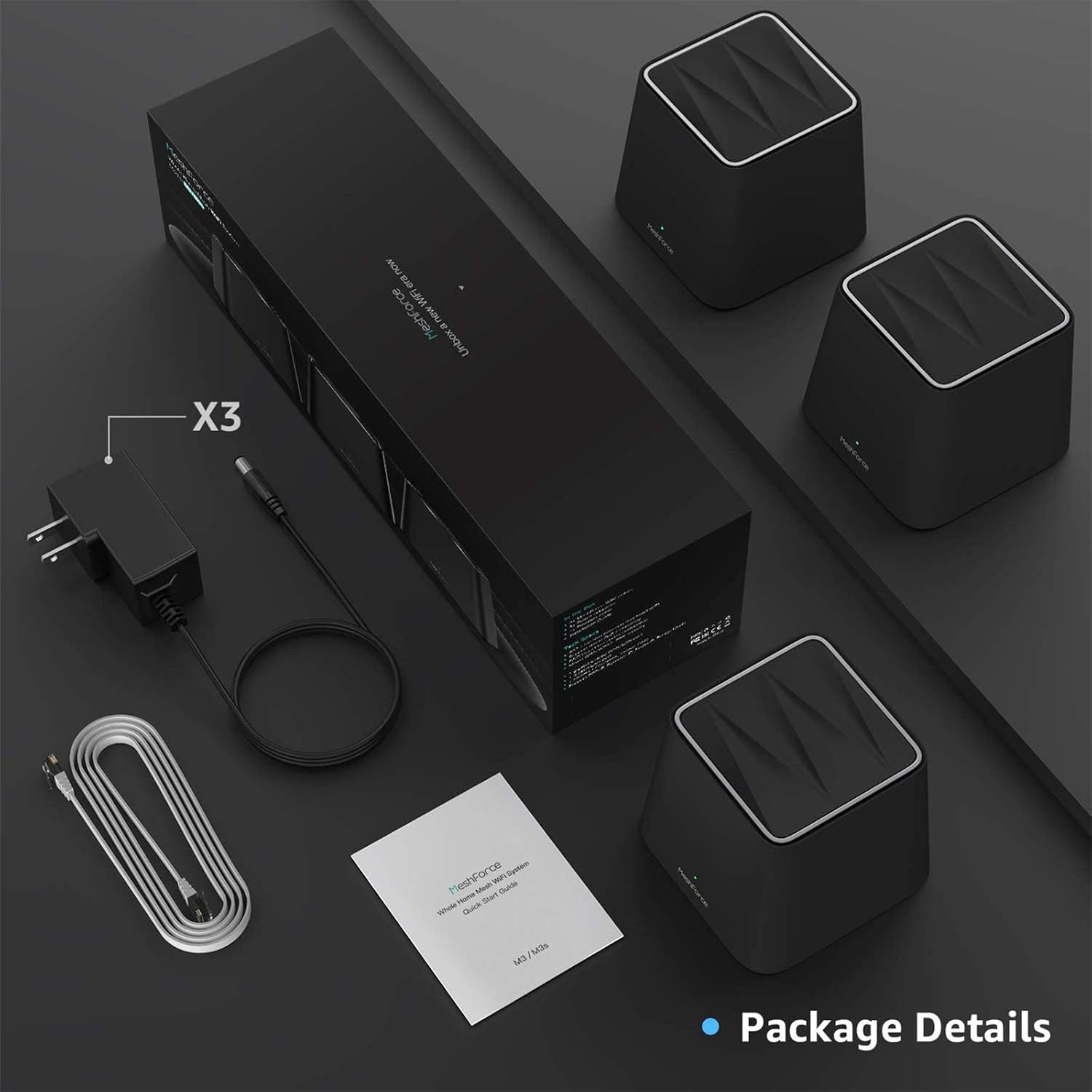
All components included in the Meshforce M3s Suite package.
3. Setup Guide
Setting up your Meshforce M3s system is designed to be straightforward. Follow these steps for a quick and easy installation.
3.1 Hardware Connection
- Power off your existing modem.
- Connect one Meshforce M3s unit (this will be your main point) to your modem's LAN port using the provided Ethernet cable.
- Connect the power adapter to the main Meshforce unit and plug it into a power outlet.
- Power on your modem, then power on the Meshforce unit. Wait for the unit's indicator light to turn solid green, indicating it's ready.
- Place the other two Meshforce units in desired locations within your home to extend coverage. Ensure they are within range of the main point or another mesh point.
- Connect power adapters to the additional units and plug them into power outlets. They will automatically connect to the mesh network.

The Meshforce M3s supports simultaneous dual-band 2.4GHz and 5GHz connections.
3.2 App Download & Initial Setup
The My Mesh app is required for network setup and management.
- Download the "My Mesh" app from the App Store (iOS) or Google Play Store (Android).
- Open the app and follow the on-screen instructions to create your Meshforce account.
- The app will guide you through connecting to the default WiFi network broadcast by your main Meshforce unit. The default SSID and password are typically found on a sticker at the bottom of the main unit.
- Once connected, you can customize your WiFi network name (SSID) and password within the app.
4. Operating Instructions
The My Mesh app provides comprehensive control over your Meshforce WiFi system.
4.1 Network Management
From the app dashboard, you can monitor connected devices, view network status, and manage bandwidth allocation. The system supports seamless roaming, ensuring your devices automatically connect to the strongest signal as you move around your home.

Manage your Meshforce WiFi system with the intuitive My Mesh app.
4.2 Parental Controls
The app allows you to set up parental controls to manage internet access for specific devices or users. You can schedule internet pauses, block inappropriate content, and monitor online activity.
4.3 Guest Network
Create a separate guest network for visitors, keeping your main network secure. You can easily enable or disable the guest network and set a unique password.
4.4 Security Features
The Meshforce M3s Suite incorporates advanced security protocols and a built-in firewall to protect your network and personal information. This includes WPA2-PSK Mixed WiFi encryption and QoS (Quality of Service) to prevent unauthorized access and ensure network stability.

The Meshforce M3s system provides robust security for your home network.
5. Performance & Coverage
The Meshforce M3s Suite is designed to provide extensive and high-performance WiFi coverage.
- Whole Home Coverage: Capable of covering up to 6,000 sq. ft., ideal for large homes with multiple bedrooms.
- Fast WiFi: Equipped with AC1200 Dual Band technology and gigabit Ethernet ports to maximize internet speeds for streaming, gaming, and downloading.
- High Device Capacity: Supports 60+ devices running simultaneously without significant performance degradation.

Achieve comprehensive WiFi coverage throughout your home with the Meshforce M3s Suite.
6. Maintenance
To ensure optimal performance and longevity of your Meshforce M3s system, consider the following maintenance practices:
- Regular Reboots: Periodically reboot your main Meshforce unit and connected mesh points (e.g., once a month) to refresh network connections and clear temporary data. This can often resolve minor performance issues.
- Firmware Updates: Check the My Mesh app regularly for available firmware updates. Keeping your system's firmware up-to-date ensures you have the latest features, security patches, and performance improvements.
- Physical Placement: Ensure units are placed in open areas, away from obstructions like large metal objects, thick walls, or other electronic devices that may cause interference.
- Cleaning: Gently wipe the units with a soft, dry cloth to remove dust. Do not use liquid cleaners or abrasive materials.
7. Troubleshooting
If you encounter issues with your Meshforce M3s system, try the following common troubleshooting steps:
- No Internet Connection:
- Verify that your modem is working correctly and has an active internet connection.
- Check all Ethernet cable connections between the modem and the main Meshforce unit.
- Reboot your modem and then your Meshforce system.
- Slow WiFi Speed:
- Ensure your devices are connected to the 5GHz band for optimal speed, if supported.
- Check for interference from other electronic devices or neighboring WiFi networks.
- Relocate mesh points to improve signal strength and coverage.
- Perform a speed test via the My Mesh app to identify potential bottlenecks.
- Units Losing Connection:
- Ensure mesh points are within adequate range of the main unit or another connected mesh point.
- Check for physical obstructions that might be blocking the signal.
- Reboot the entire mesh system.
- App Connection Issues:
- Ensure your smartphone is connected to the Meshforce WiFi network.
- Close and reopen the My Mesh app.
- Clear the app's cache or reinstall the app if issues persist.
For persistent issues, refer to the detailed troubleshooting section in the My Mesh app or contact Meshforce customer support.
8. Specifications
| Feature | Detail |
|---|---|
| Brand | Meshforce |
| Model Name | M3s |
| Item Model Number | M3sBO |
| Wireless Type | 802.11ac, 802.11n |
| Frequency Band Class | Dual-Band (2.4 GHz, 5 GHz) |
| Connectivity Technology | Ethernet, Wi-Fi |
| Ethernet Ports | Gigabit (1x LAN/WAN, 1x LAN per unit) |
| Coverage | Up to 6,000 sq. ft. (with 3 units) |
| Special Feature | WPS |
| Operating System (App) | Android, iOS |
| Item Weight | 2.75 pounds |
| Package Dimensions | 14.72 x 5.55 x 5.51 inches |
9. Warranty and Support
Meshforce products are designed for reliability and performance. For information regarding product warranty, please refer to the warranty card included in your package or visit the official Meshforce website. For technical assistance, troubleshooting beyond this manual, or customer service inquiries, please contact Meshforce support through their official channels.
You can often find support resources, FAQs, and contact information on the Meshforce Store on Amazon or their official website.
Related documentsM3s Suite


Ask a question about this manual
Ask about setup, troubleshooting, compatibility, parts, safety, or missing instructions. Manuals+ will review the question and use this page’s manual context to help answer it.