
1. What's Included
The Lume Cube Broadcast Lighting Kit includes the following components:
- Panel Go Bicolor LED Light with Softening Silicone Diffuser
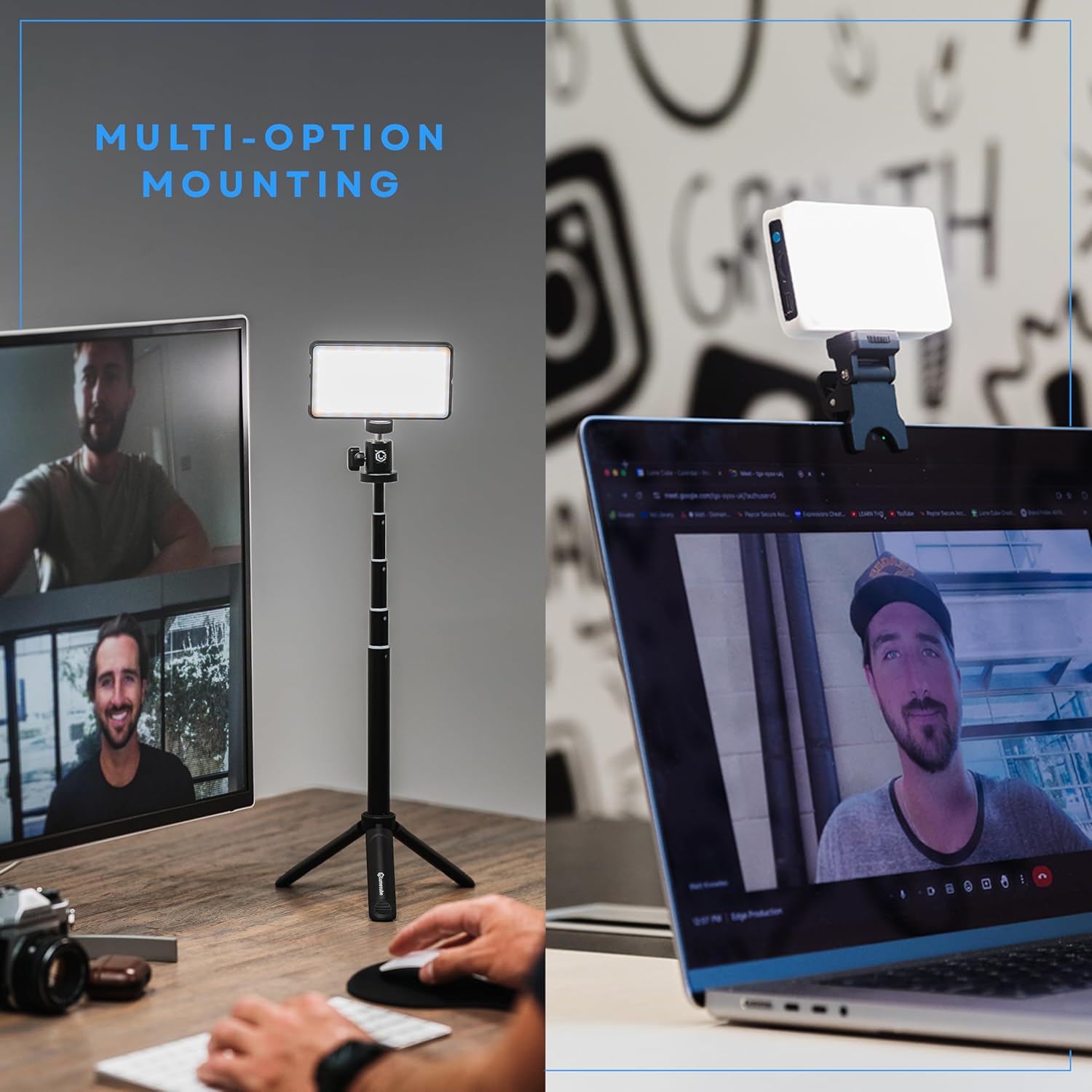
- Adjustable Desktop Stand with Laptop Clip Mount
- 30" Adjustable Telescoping Stand
- 3.3' USB-C Charging Cable

2. Setup Instructions
Follow these steps to set up your Lume Cube Broadcast Lighting Kit:
- Attach the Light to a Mount: The Panel Go LED Light can be attached to either the adjustable desktop stand with laptop clip mount or the 30" adjustable telescoping stand. Screw the light securely onto the mounting point.
- Positioning for Laptop Use: If using the laptop clip mount, attach it to the top of your laptop screen. Ensure the light is facing you.
- Positioning for Desktop Use: If using the telescoping stand, extend it to your desired height and place it on a stable surface. Adjust the ball head to direct the light as needed.
- Apply Diffuser: Gently slide the softening silicone diffuser over the LED light panel. This will help create a softer, more even light output.
- Power Connection: Connect the 3.3' USB-C charging cable to the light's USB-C port and plug the other end into a USB power source (e.g., computer, wall adapter). The light can operate while charging.
Video 1: An overview of the Lume Cube Broadcast Lighting Kit, demonstrating its ease of setup, adjustable features, and soft lighting for video calls and streaming.
3. Operating Instructions
The Lume Cube Broadcast Lighting Kit offers adjustable settings for optimal lighting:
- Power On/Off: Press and hold the power button located on the side of the light for a few seconds to turn it on or off.
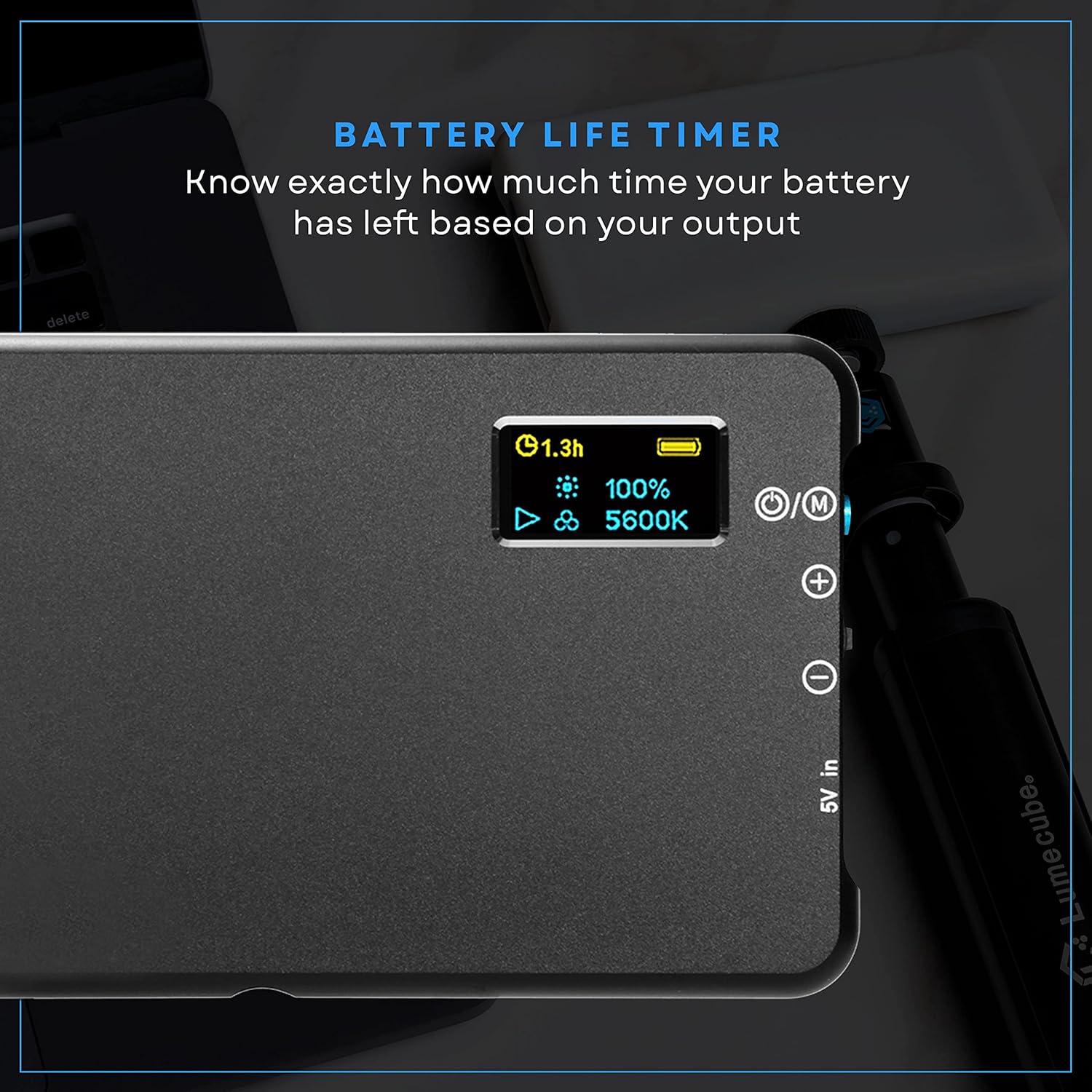
- Adjust Brightness: Use the '+' and '-' buttons to increase or decrease the brightness level from 1% to 100%. The current brightness percentage will be displayed on the rear screen.
- Adjust Color Temperature: Press the 'M' button to switch to color temperature adjustment mode. Use the '+' and '-' buttons to change the color temperature from warm (3200K) to cool (5600K). The current Kelvin (K) value will be displayed.
- Monitor Battery Life: The rear screen displays the remaining battery life in hours and percentage, allowing you to anticipate charging needs.

Video 2: A demonstration of the Lume Cube Panel Mini's adjustable brightness and color temperature settings, along with its soft light diffuser.
4. Maintenance
To ensure the longevity and optimal performance of your Lume Cube Broadcast Lighting Kit, follow these maintenance guidelines:
- Cleaning: Use a soft, dry cloth to clean the light panel and housing. Avoid abrasive cleaners or solvents that could damage the surface.
- Storage: Store the kit in a cool, dry place away from direct sunlight and extreme temperatures when not in use.
- Battery Care: For prolonged storage, ensure the battery is charged to approximately 50%. Avoid fully discharging the battery for extended periods.
- Cable Inspection: Regularly check the USB-C cable for any signs of wear or damage. Replace if necessary to prevent electrical hazards.
5. Troubleshooting
If you encounter any issues with your Lume Cube Broadcast Lighting Kit, refer to the following common troubleshooting steps:
- Light Not Turning On:
- Ensure the battery is charged. Connect the light to a power source using the USB-C cable.
- Press and hold the power button for at least 3 seconds.
- Light Not Bright Enough:
- Increase the brightness using the '+' button.
- Ensure the diffuser is properly seated and not obstructing the light output excessively.
- Inconsistent Light Color:
- Adjust the color temperature using the 'M' button and '+' / '-' controls.
- Ensure no external light sources are interfering with the desired color temperature.
- Mounting Issues:
- For the laptop clip, ensure it is firmly gripping the screen without excessive pressure.
- For the tripod, ensure all legs are fully extended and locked, and the surface is stable.
6. Specifications
| Feature | Detail |
|---|---|
| Model Number | LC-BLK |
| Product Dimensions | 29 x 5 x 29 inches |
| Item Weight | 1.32 pounds |
| Batteries | 1 Lithium Polymer batteries required (included) |
| Connectivity Technology | USB |
| Hardware Interface | USB |
| UPC | 810019500756 |
7. Warranty and Support
For warranty information and customer support, please refer to the official Lume Cube website or contact their customer service directly. Keep your proof of purchase for any warranty claims.