
Introduction
The KAYSUDA CA20 Face Recognition USB IR Camera is designed to enhance your computer's security and convenience through facial recognition technology. It offers high-speed login, multi-user support, and anti-spoofing features for a secure biometric experience. This web camera also provides up to 1080P video resolution and dual omnidirectional microphones, suitable for video conferencing, online education, and home office use. Always ensure the privacy switch is engaged before use for optimal security.
What's in the Box
- KAYSUDA CA20 Face Recognition USB IR Camera
- USB Cable
- User Manual

Image: The KAYSUDA CA20 camera, USB cable, and user manual as packaged.
Setup
1. Physical Connection and Placement
Connect the provided USB cable to the USB-C port on the back of the CA20 camera and then to an available USB port on your computer. The camera features an adjustable clip that allows it to be securely mounted on top of your monitor or laptop screen. Ensure the camera is stable and facing you directly for optimal performance.

Image: The KAYSUDA CA20 camera shown mounted on top of a computer monitor.
2. Initial Setup and Privacy Switch
Before initial use, locate the privacy switch on the camera. Push the privacy switch to turn on the camera. This switch protects your privacy and security by physically enabling or disabling the camera when connected to your PC.
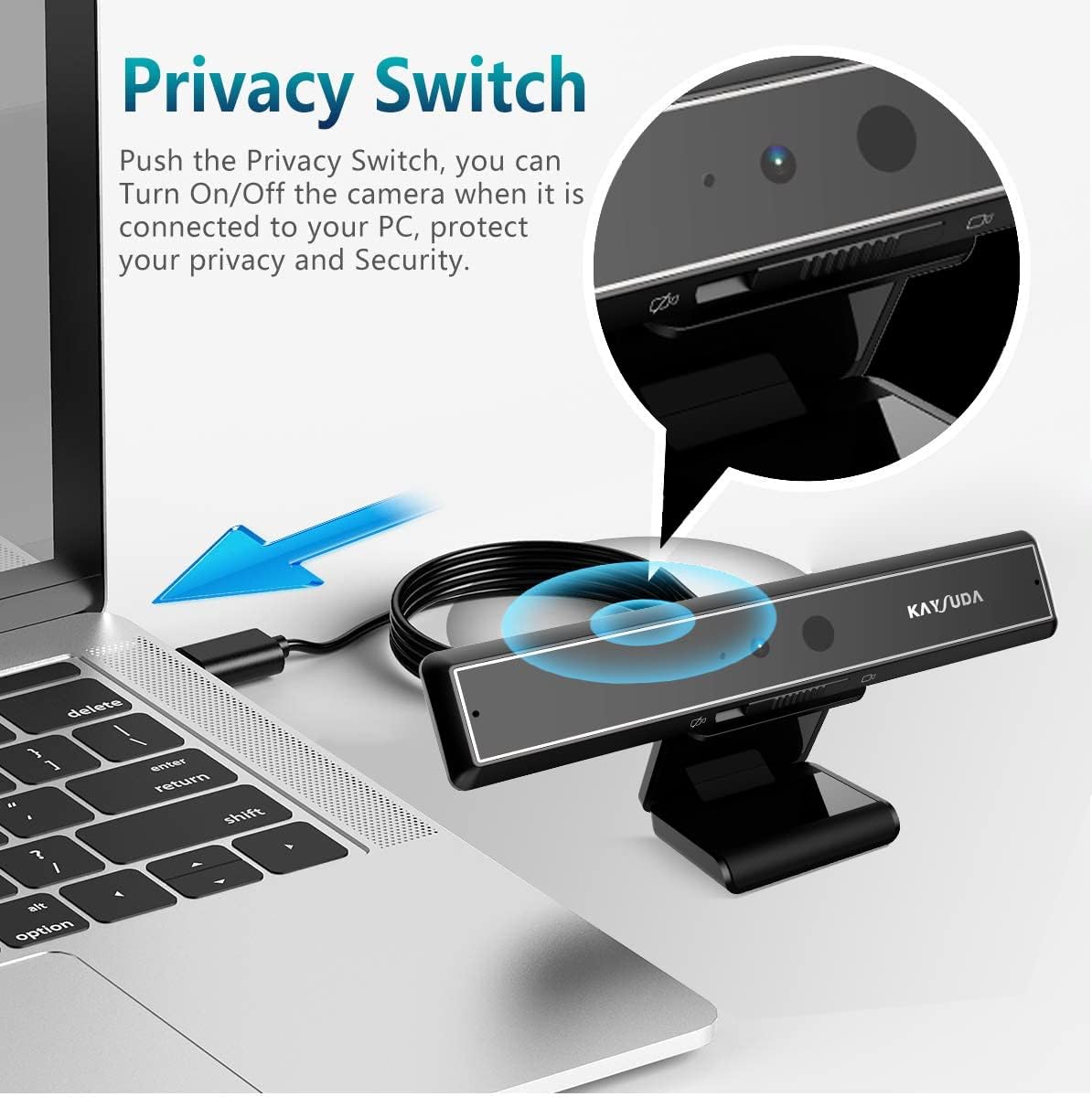
Image: A close-up of the KAYSUDA CA20 camera showing the privacy switch being engaged.
3. Windows Hello Configuration
The CA20 camera is designed for seamless integration with Windows Hello for facial recognition login. Follow these steps to set up Windows Hello:
- Open Windows Settings and navigate to "Accounts".
- Select "Sign-in options" from the left-hand menu.
- Under "Windows Hello Face", click "Set up".
- Follow the on-screen instructions to input your PIN and allow the camera to collect your facial data.
- Once completed, Windows Hello Face will be ready for use.

Image: A four-panel image illustrating the steps to set up Windows Hello facial recognition on a PC.
For a visual guide on setting up Windows Hello with a webcam, please refer to the video below:
Video: Demonstration of a webcam with Windows Hello functionality, showing quick login via facial recognition.
Operating Instructions
1. Facial Recognition Login
Once Windows Hello is configured, simply face the camera to log into your PC. The camera utilizes infrared technology for high-speed recognition, allowing you to log in within approximately 1 second. This system supports multi-user recognition, enabling different users to log into their respective accounts on a shared computer.

Image: A user logging into their PC using the KAYSUDA CA20 camera's face unlock function.

Image: Two different users demonstrating the multi-user login support feature of the KAYSUDA CA20 camera.
2. Video Conferencing and Recording
The CA20 camera provides up to 1080P video resolution and dual omnidirectional microphones. It is compatible with popular platforms such as MS Teams, Cortana, and Zoom, making it suitable for professional quality video calls, streaming, and recording for online education, remote conferences, and home office environments.

Image: A user engaged in a video conference, showcasing the KAYSUDA CA20 camera's suitability for home and company office use.
Maintenance
To ensure the longevity and optimal performance of your KAYSUDA CA20 camera, keep the lens clean using a soft, dry cloth. Avoid using harsh chemicals or abrasive materials. Always engage the privacy switch when the camera is not in use to protect the lens and your privacy.
Troubleshooting
No specific troubleshooting steps are provided in the product information. If you encounter issues, please ensure the camera is properly connected via USB, the privacy switch is engaged (camera on), and your computer's drivers are up to date. For Windows Hello issues, re-check the setup steps in your Windows settings.
Specifications
| Feature | Detail |
|---|---|
| Brand | KAYSUDA |
| Model Number | CA20 |
| Item Weight | 4.9 ounces |
| Package Dimensions | 6.26 x 3.15 x 1.61 inches |
| Color | Black |
| Special Features | Infrared |
| Photo Sensor Technology | CMOS |
| Video Capture Resolution | 1080p |
| Connectivity Technology | Infrared, USB |
| Field of View (FOV) | 79.4° (diagonal), 44.2° (vertical), 71.8° (horizontal) |
| Microphone | Dual Omnidirectional |
Warranty and Support
Specific warranty and support information is not provided in the available product details. Please refer to the product packaging or the manufacturer's official website for detailed warranty terms and customer support contacts.
