
1. Introduction
This manual provides detailed instructions for the installation, operation, and maintenance of your ATOTO S8 Gen 2 Ultra Plus Android Car Stereo (Model: S8G2109UP-A). Please read this manual thoroughly before using the product to ensure proper functionality and safety.
The ATOTO S8 Gen 2 is the second generation of ATOTO S8 Android car stereos, featuring a 12nm manufacturing process, an ARM Cortex Octa-Core processor for high efficiency and performance, and the ATOTO AICE 11.0 user interface based on Android Q. This unit offers a comprehensive multimedia and navigation experience for your vehicle.
2. Product Overview
The ATOTO S8 Gen 2 Ultra Plus (S8G2109UP-A) is an advanced Android car stereo designed to integrate seamlessly into your vehicle's dashboard. It features a 10.1-inch QLED display with a resolution of 1280x720 and a 178° viewing angle, providing clear and vibrant visuals. The floating display design allows for adjustable height and viewing angles.

Image: Front view of the ATOTO S8 Gen 2 Ultra Plus car stereo unit.

Image: The ATOTO S8 Gen 2 Ultra Plus car stereo installed in a vehicle dashboard, showcasing its large display.
Key Features:
- QLED Display: 10.1-inch 1280x720 resolution screen with 178° wide viewing angle.
- Octa-Core Processor: 12nm ARM Cortex Octa-Core for efficient performance.
- Dual Bluetooth: BT1 with aptX HD codec for high-quality audio, BT2 for internet tethering and device connections.
- Internet Access: Supports Wi-Fi, Bluetooth tethering, USB tethering, and an integrated 4G cellular modem (SIM card not included).
- Phone Integration: Wired and wireless Apple CarPlay and Android Auto support.
- DriveChat AI Assistant: Advanced voice control for safer driving.
- Gesture Control: Hand gesture sensor for basic operations like skipping tracks and adjusting volume.
- Camera Support: Compatible with ATOTO AC-HD03LR camera for Virtual Surround-View (VSV) and Live Rear-View (LRV).
- Audio Enhancements: Digital Signal Processor (DSP) and Speed Compensated Volume Control (SCVC).
3. Setup and Installation
3.1 Box Contents
Before installation, verify that all components are present:
- ATOTO S8 Gen 2 Ultra Plus Car Stereo Unit
- GPS Antenna
- External Microphone
- Line Output Converter
- Power Cable
- 4G LTE Antenna
- Mounting Brackets and Screws
- USB Cables
- User Manual (this document)

Image: Overview of the components included in the ATOTO S8 Gen 2 Ultra Plus package.
3.2 Installation Considerations
The S8 Gen 2 Ultra Plus features a 10.1-inch floating display. The double DIN base has dimensions of 178x100 mm, and the screen itself measures 252x155 mm. The floating design allows for adjustment of height and viewing angles (up/down).
Important Note:
- In some vehicles, the edge of the large screen may obstruct air vents, emergency switch buttons, or other controls. Ensure your vehicle's dashboard layout accommodates the screen without inconvenience, or be prepared to accept such minor obstructions.
- When installing the display module, ensure all screw holes are properly secured and screws are tightened. Failure to do so may lead to display issues such as lines, frozen screens, or blurry images.

Image: Diagram illustrating the dimensions and adjustable nature of the ATOTO S8 floating display for vehicle fitment.
3.3 Wiring Diagram
Refer to the following diagram for proper wiring connections. Incorrect wiring can damage the unit or your vehicle's electrical system.
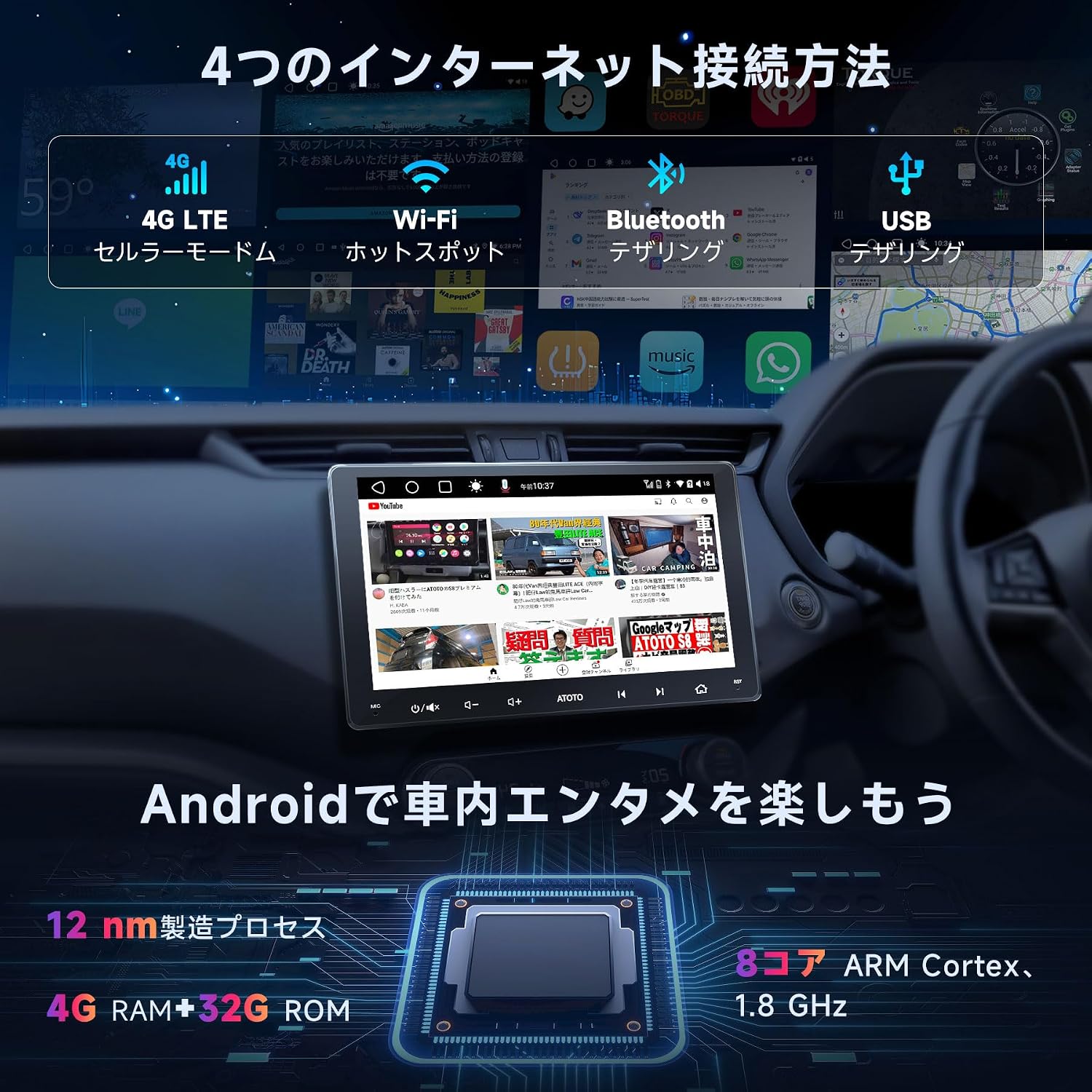
Image: Detailed wiring diagram for the ATOTO S8 Gen 2 Ultra Plus car stereo, showing connections for power, speakers, antennas, and external devices.
Key Connections:
- Power: Connect the main power harness to your vehicle's power supply (constant 12V, accessory 12V, and ground).
- Speakers: Connect speaker wires to the corresponding vehicle speakers. The unit supports 5.1 surround sound.
- Antennas: Connect the GPS antenna, Wi-Fi antenna, and 4G LTE antenna to their respective ports.
- External Microphone: Plug in the external microphone for improved call quality and voice commands.
- USB Ports: Multiple USB ports are available for data transfer, charging, and connecting external devices.
- Rearview Camera Input: Dedicated input for rearview cameras (e.g., ATOTO AC-HD03LR).
- Steering Wheel Control: Connect to your vehicle's steering wheel control interface (if applicable) via the 3.5mm jack.
3.4 Versatile Connectivity
The ATOTO S8 Ultra Plus offers various inputs and outputs for enhanced functionality:
- USB DVR Camera: Connect a specific 1080P USB On-dash DVR camera for video preview and playback.
- USB TPMS System: Connect a specific ATOTO USB TPMS system. Low tire pressure warnings will appear on the S8 screen with an audible alert.
- Rearview Camera: Connect a rearview camera with CVBS and HD video signal output for safe parking.
- Smartphone Mirroring: Connect your Android/iOS smartphone via USB/Wi-Fi using EasyConnection to mirror your phone's screen.
- CarPlay/Android Auto: Connect your iOS phone via USB or Bluetooth for wired/wireless CarPlay. Android Auto works with wired USB connection. This integrates your smartphone with the S8 display for calls, music, messages, and navigation.
- OBD II Diagnostic Scanner: Connect an OBD II engine code reader/diagnostic scanner via Bluetooth. Dual Bluetooth ensures stable communication with multiple Bluetooth connections.
- Fast Charging: Connect your phone to the dedicated Fast Charge USB interface for quick battery charging.
- Headrest Monitors: Connect to headrest monitors using ATOTO USB video output adapters (AC-AHV68: USB to HDMI; AC-AHV48: USB to RCA; both sold separately) to synchronize S8 display content.
4. Operating Instructions
4.1 Basic Operations
The unit features a touch-sensitive QLED display for intuitive control. Power-on is quick, typically within 2 seconds after ignition.

Image: The ATOTO S8 Android interface showing various applications and connectivity icons like Wi-Fi and Bluetooth.
4.2 Internet Access
The S8 Ultra Plus offers four methods for internet connectivity:
- Wi-Fi Connection: Connect to available Wi-Fi networks.
- Bluetooth Tethering: Use your phone's Bluetooth to share its internet connection.
- USB Tethering: Connect your phone via USB to share its internet connection.
- Integrated 4G Cellular Modem: Insert a 4G SIM card (not included) directly into the unit for independent internet access.

Image: Visual representation of the four internet connection methods: 4G LTE, Wi-Fi, Bluetooth Tethering, and USB Tethering.
Once connected, you can install numerous Android applications from the Google Play Store.

Image: The Google Play Store interface displayed on the ATOTO S8 unit, showing available applications.
4.3 Bluetooth Connectivity
The S8 features dual Bluetooth modules:
- BT1: Supports the QCM aptX HD codec for 24-bit high-quality music streaming (requires a phone compatible with aptX HD).
- BT2: Primarily for internet tethering and connecting other Bluetooth devices.
This dual setup allows simultaneous connections to your phone and other Bluetooth accessories.

Image: The ATOTO S8 display showing music playback via Bluetooth, with controls and track information.
4.4 Apple CarPlay & Android Auto
The S8 supports both wired and wireless Apple CarPlay and Android Auto, integrating your smartphone's features directly onto the car stereo display. This allows for navigation, calls, messages, and music control.

Image: Screenshots of Apple CarPlay and Android Auto interfaces on the ATOTO S8, demonstrating navigation, communication, and media functions.
Note:
While older package instructions might not mention it, the received car stereo unit is compatible with wireless Android Auto.
4.5 DriveChat AI Driving Assistant
Enhance your driving safety and convenience with the DriveChat app, your AI driving assistant. It offers advanced voice control to manage the car stereo, answer calls, control music, and more, allowing you to keep your hands on the wheel.
- Interact with multiple "Drivebots" for expert advice and specific needs.
- Customize activation words for a personalized experience.

Image: The DriveChat application interface, demonstrating AI voice control and intelligent conversations for driving assistance.
Note:
DriveChat is continuously under development with periodic updates. Ensure you update the app or system for the latest version.
4.6 Gesture Control
The S8 features a hand gesture sensor for convenient control of basic functions without touching the screen. This includes skipping tracks, adjusting system volume, and other operations.

Image: Diagram illustrating the hand gesture control functionality of the ATOTO S8, showing the operating plane and detection range.
4.7 Camera Features (VSV & LRV)
When used with the ATOTO AC-HD03LR camera (sold separately), the S8 Ultra Plus can display HD Virtual Surround-View (VSV) and Live Rear-View (LRV).
- Virtual Surround-View (VSV): An integrated panoramic image stitching algorithm processes images from the AC-HD03LR to reconstruct a virtual, nearly real-sized surround view.
- Live Rear-View (LRV): Allows users to see the rearview while the vehicle is moving forward, eliminating obstructions from headrests and rear pillars, thereby increasing the visual field.

Image: Display showing Virtual Surround View (top) and Live Rear View (bottom) from compatible ATOTO cameras on the S8 screen.
4.8 Audio Features
- Digital Signal Processor (DSP): Provides advanced audio processing for a balanced and high-quality sound experience, regardless of speaker placement.
- Speed Compensated Volume Control (SCVC): Automatically adjusts the system volume as vehicle speed changes, compensating for road and wind noise.
- Advanced Equalizer: Offers separate 16-band EQ adjustments for front and rear audio channels.

Image: Visuals demonstrating the Digital Signal Processor (DSP) for time alignment, Speed Compensated Volume Control (SCVC), and the advanced equalizer interface on the ATOTO S8.
5. Maintenance
To ensure the longevity and optimal performance of your ATOTO S8 Gen 2 Ultra Plus, follow these maintenance guidelines:
- Screen Cleaning: Use a soft, lint-free cloth to gently wipe the QLED screen. For stubborn smudges, slightly dampen the cloth with water or a screen-safe cleaner. Avoid harsh chemicals or abrasive materials.
- Software Updates: Regularly check for and install software updates via OTA (Over-The-Air) through the FindApps application. Updates often include performance improvements, bug fixes, and new features.
- System Reset: If the unit experiences persistent issues, a factory reset may resolve them. Refer to the troubleshooting section or contact support before performing a reset, as it will erase all user data and settings.
- Environmental Conditions: Avoid exposing the unit to extreme temperatures, direct sunlight for prolonged periods, or excessive moisture.
- Cable Connections: Periodically check all cable connections to ensure they are secure and free from damage.

Image: Illustration of the software update process, emphasizing the importance of regular updates for optimal performance.
6. Troubleshooting
This section addresses common issues you might encounter with your ATOTO S8 Gen 2 Ultra Plus. For more complex problems, please contact ATOTO customer support.
| Problem | Possible Cause | Solution |
|---|---|---|
| Unit does not power on. | Incorrect power wiring, blown fuse, vehicle battery issue. | Check power cable connections (constant 12V, accessory 12V, ground). Inspect vehicle fuses. Ensure vehicle battery is charged. |
| No sound or distorted audio. | Incorrect speaker wiring, volume too low, audio settings misconfigured. | Verify speaker connections. Adjust volume. Check EQ and DSP settings. Ensure correct audio source is selected. |
| Bluetooth connection issues. | Device not in pairing mode, incorrect pairing process, interference. | Ensure both devices are in pairing mode. Delete previous pairings and re-pair. Move closer to the unit. Restart both devices. |
| GPS signal loss or inaccuracy. | GPS antenna not properly installed or obstructed, outdated maps. | Ensure GPS antenna is securely connected and has a clear view of the sky. Update navigation software/maps. |
| Screen issues (lines, frozen, blurry). | Loose display module screws, software glitch. | Check and tighten the screws on the display module. Perform a soft reset (power cycle). If persistent, contact support. |
| CarPlay/Android Auto not connecting. | Incorrect USB cable, phone settings, software incompatibility. | Use a high-quality USB cable. Ensure CarPlay/Android Auto is enabled on your phone. Update phone OS and unit firmware. |
7. Specifications
| Feature | Detail |
|---|---|
| Model Number | S8G2109UP-A |
| Brand | ATOTO |
| Product Dimensions | 12.6 x 17.8 x 10 cm; 2.1 kg |
| Display Type | 10.1-inch QLED, 1280x720 resolution, 178° viewing angle |
| Processor | ARM Cortex Octa-Core (12nm manufacturing process) |
| Operating System | Android Q (ATOTO AICE 11.0 UI) |
| Connectivity Technology | Bluetooth (Dual, aptX HD), USB, Wi-Fi, Integrated 4G LTE Modem |
| Compatible Devices | Smartphone |
| Special Features | Quick start (2s), Privacy protection, Digital Signal Processor (DSP), HD rearview input with Virtual Surround View (VSV), QLED screen, Hand gesture recognition, CarPlay, Android Auto, Integrated 4G LTE cellular modem. |
| Audio Output Mode | Stereo, Surround (5.1 channels) |
| Output Power | 180 Watts |
| Video Encoding | H.264, H.265/HEVC |
| Control Method | Touch |
| UPC / GTIN | 799257526356 |
8. Warranty and Support
8.1 Product Warranty
The ATOTO S8 Gen 2 Ultra Plus comes with an 18-month product care period:
- 12 months for manufacturing defects.
- An additional 6 months of product care can be obtained by contacting ATOTO. This provides top-priority support, as ATOTO can access initial order details and the product's Serial Number (SN code).
Please retain your purchase receipt and product SN code for warranty claims.
8.2 Customer Support
For technical assistance, troubleshooting, or warranty inquiries, please contact ATOTO customer support through the following channels:
- Visit the official ATOTO website for support resources and contact information.
- Refer to the "Search for help" section within the FindApps application on your device.
- Email support at support@atotoglobal.com.

Image: Steps to access ATOTO customer support, including purchasing information and direct inquiry options.
Image: Contact information for ATOTO support, including product care duration and update methods.


