
FELICON T3 Wireless Gaming Keyboard and Mouse Combo
Wireless Gaming Keyboard and Mouse Combo Instruction Manual
Brand: FELICON | Model: T3 Wireless Gaming Keyboard and Mouse Combo
1. Introduction
The FELICON T3 Wireless Gaming Keyboard and Mouse Combo is designed to provide a high-performance and comfortable experience for both work and gaming. Featuring 2.4G high-speed and stable wireless transmission, rainbow backlighting, and long-lasting rechargeable batteries, this combo ensures smooth operation and an immersive user experience. The keyboard includes anti-ghosting keys for precise input, and the mouse offers adjustable DPI settings for enhanced flexibility and accuracy. A gaming mousepad is also included to complete your setup.

Figure 1: FELICON T3 Wireless Gaming Keyboard and Mouse Combo.
Product Overview Video
Video 1: An overview of the FELICON T3 Wireless Keyboard and Mouse Combo, showcasing its features and design.
2. Setup Instructions
Locate the USB Receiver: The keyboard and mouse share a single USB receiver. This receiver is conveniently stored in the bottom of the mouse. Gently remove it before use.
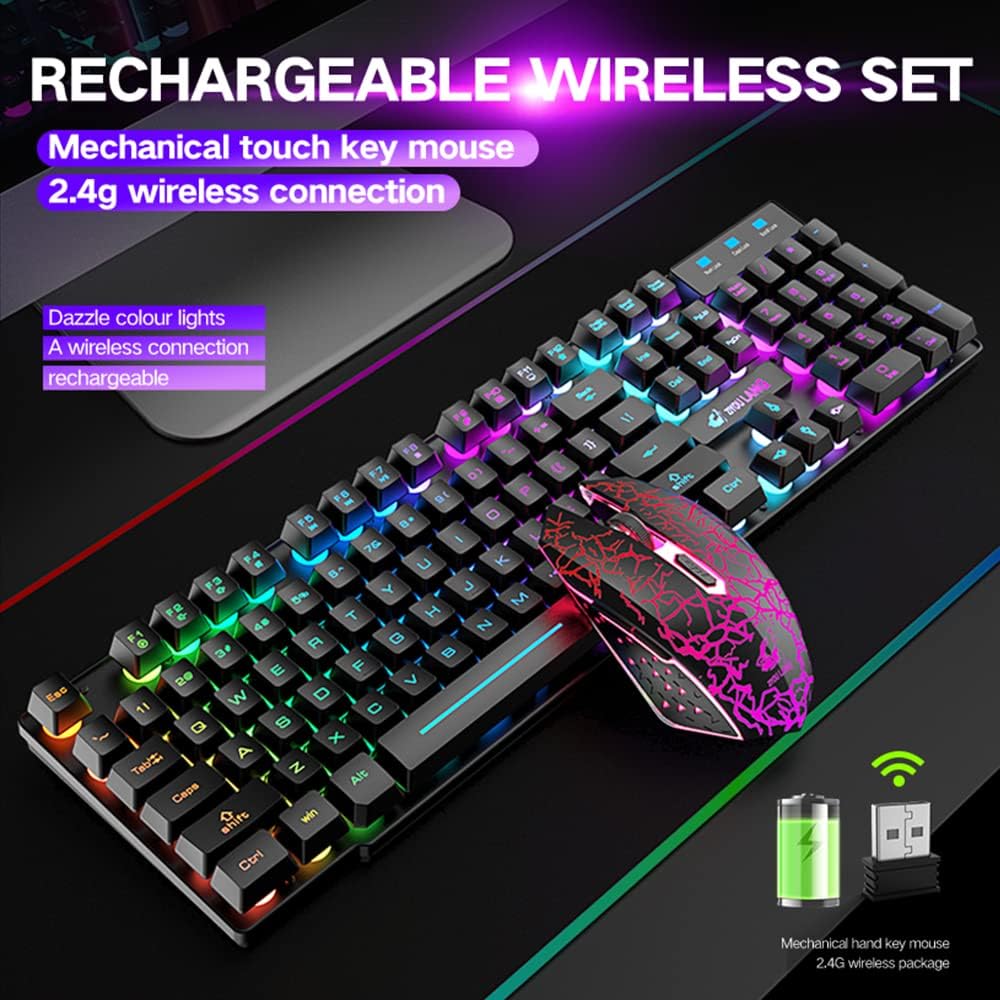
Figure 2: The USB receiver is located at the bottom of the mouse.
Initial Charging: For optimal performance, ensure both the keyboard and mouse are fully charged before their first use. It is recommended to charge them for 8 hours. The keyboard is equipped with a 3000 mAh battery, and the mouse with an 1000 mAh battery.

Figure 3: Battery capacities for the keyboard and mouse.
Plug and Play: Insert the USB receiver into an available USB port on your computer. Turn on both the keyboard and mouse. They are pre-paired and should automatically connect. If the connection is lost for any reason, you may need to reset the code pairing.
Matching Method (Re-pairing): If the keyboard or mouse cannot be connected or becomes unusable, follow the matching method demonstrated in the video below to re-pair them.
Matching Method Video
Video 2: This video demonstrates the matching method for the T3 Wireless Keyboard and Mouse, useful if the connection is lost or for initial pairing.
3. Operating Instructions
Rainbow Backlight Control: The keyboard features a vibrant rainbow backlight. You can adjust the brightness with 3 levels and control the changing speed. Use the dedicated keys (often FN + Scroll Lock or similar combinations) to turn the backlight on/off or adjust its settings. All keycap letters are designed to glow, ensuring visibility even without light.

Figure 4: Keyboard backlight controls and features.
Mouse DPI Adjustment: The gaming mouse has 3 adjustable DPI levels (800/1600/2400) to suit your precision needs. Use the DPI button on the mouse to cycle through the settings. The mouse also features a 7-color cyclic gradual lighting effect and a light switch to turn the backlight on/off.
Multimedia Keys: The keyboard includes 12 FN+ multimedia combination keys for quick access to various functions.

Figure 5: Multimedia keys and anti-ghosting capabilities.
Anti-Ghosting: The keyboard supports 29 anti-ghosting keys, ensuring that multiple key presses are registered accurately during intense gaming sessions.
4. Maintenance
Charging Guidelines: Both the keyboard and mouse can be charged using a DC 5V adapter. Please note that quick charger adapters are not supported and should not be used. The long battery life allows for continuous use for up to 75 hours with the backlight on.
Smart Energy-Saving: To conserve battery, the keyboard will automatically enter sleep mode if there is no operation for 3 minutes. Press any key to wake it up. The mouse also has smart energy-saving functions and will automatically go to sleep if no operation occurs within 2 minutes.
Waterproof Design: The keyboard features a front waterproof design, making it resistant to spilled liquids. This allows for convenient and easy cleaning.

Figure 6: The keyboard's waterproof feature.
5. Troubleshooting
Connection Issues: If the keyboard or mouse loses connection or fails to pair, refer to the "Matching Method" instructions in the Setup section (Section 2.4) and Video 2 to re-establish the connection. The code pairing can be reset if needed.
Keycap Letter Fading: Some users have reported that keycap letters may fade over time with heavy use. While this does not affect the functionality of the keys, it can impact the visual appearance. Regular cleaning and gentle use can help prolong the life of the keycap legends.
Mouse Stuttering/Freezing: If the mouse experiences stuttering or freezing, ensure it is fully charged. Also, verify that the USB receiver is within optimal range (within 10 meters) and not obstructed. Re-pairing the mouse using the matching method may also resolve the issue.
6. Specifications
| Feature | Detail |
|---|---|
| Product Dimensions | 17.72 x 1.77 x 5.31 inches |
| Item Weight | 2.02 pounds |
| Batteries | Keyboard: 3000 mAh, Mouse: 1000 mAh (Built-in rechargeable) |
| Brand | FELICON |
| Color | Black & Rainbow |
| Connectivity Technology | USB, Radio Frequency (2.4G Wireless) |
| Special Features | Ergonomic, Backlit, Rechargeable, Anti-ghosting (29 keys), Multimedia Keys (FN+12) |
| Compatible Devices | Personal Computer |
Note: The product features built-in rechargeable batteries for both keyboard and mouse, as detailed in the product description.
7. Warranty and Support
FELICON is committed to delivering high-quality products. If you encounter any issues or are unsatisfied with your product for any reason, please contact our after-sales service. We are dedicated to providing professional service to ensure your satisfaction.
For specific inquiries regarding replacement parts, such as a USB receiver for your wireless FELICON mouse, please visit the official FELICON store. You can select the correct USB receiver by matching it to your product model.
For further assistance, please refer to the official FELICON website or contact their customer support directly.
Related documentsT3 Wireless Gaming Keyboard and Mouse Combo

Ask a question about this manual
Ask about setup, troubleshooting, compatibility, parts, safety, or missing instructions. Manuals+ will review the question and use this page’s manual context to help answer it.