
1. Introduction
This manual provides comprehensive instructions for the setup, operation, and maintenance of your ProCase Wireless Keyboard Case. This product combines a protective case with a detachable wireless keyboard, designed to enhance the functionality and portability of your Samsung Galaxy tablet.

Image 1.1: ProCase Keyboard Case with tablet and detachable keyboard.
2. Compatibility
The ProCase Keyboard Case is specifically designed for the following Samsung Galaxy 12.4-inch tablet models:
- Samsung Galaxy Tab S8 Plus 2022: Models SM-X800, SM-X806
- Samsung Galaxy Tab S7 FE 2021: Models SM-T730, SM-T733, SM-T736, SM-T738
- Samsung Galaxy Tab S7 Plus 2020: Models SM-T970, SM-T975, SM-T976, SM-T978
Please verify your tablet's model number in the tablet's 'Settings' menu before use to ensure compatibility. This case is not compatible with any other tablet models.

Image 2.1: Visual guide for tablet compatibility with model numbers.
3. Package Contents
Upon opening your ProCase Keyboard Case package, you should find the following items:
- 1 x ProCase Tablet Case
- 1 x Detachable Wireless Keyboard
- 1 x USB Charging Cable (for keyboard)
- 1 x User Manual (this document)
4. Setup
4.1 Installing Your Tablet
- Gently align your Samsung Galaxy tablet with the hard plastic shell of the case.
- Press the tablet firmly into the shell until it snaps securely into place. Ensure all corners and edges are protected.
4.2 Attaching and Detaching the Keyboard
The wireless keyboard features a magnetic design, allowing it to be easily attached to or detached from the case. Simply place the keyboard onto the designated magnetic area within the case. To remove, gently lift the keyboard away from the magnetic surface.
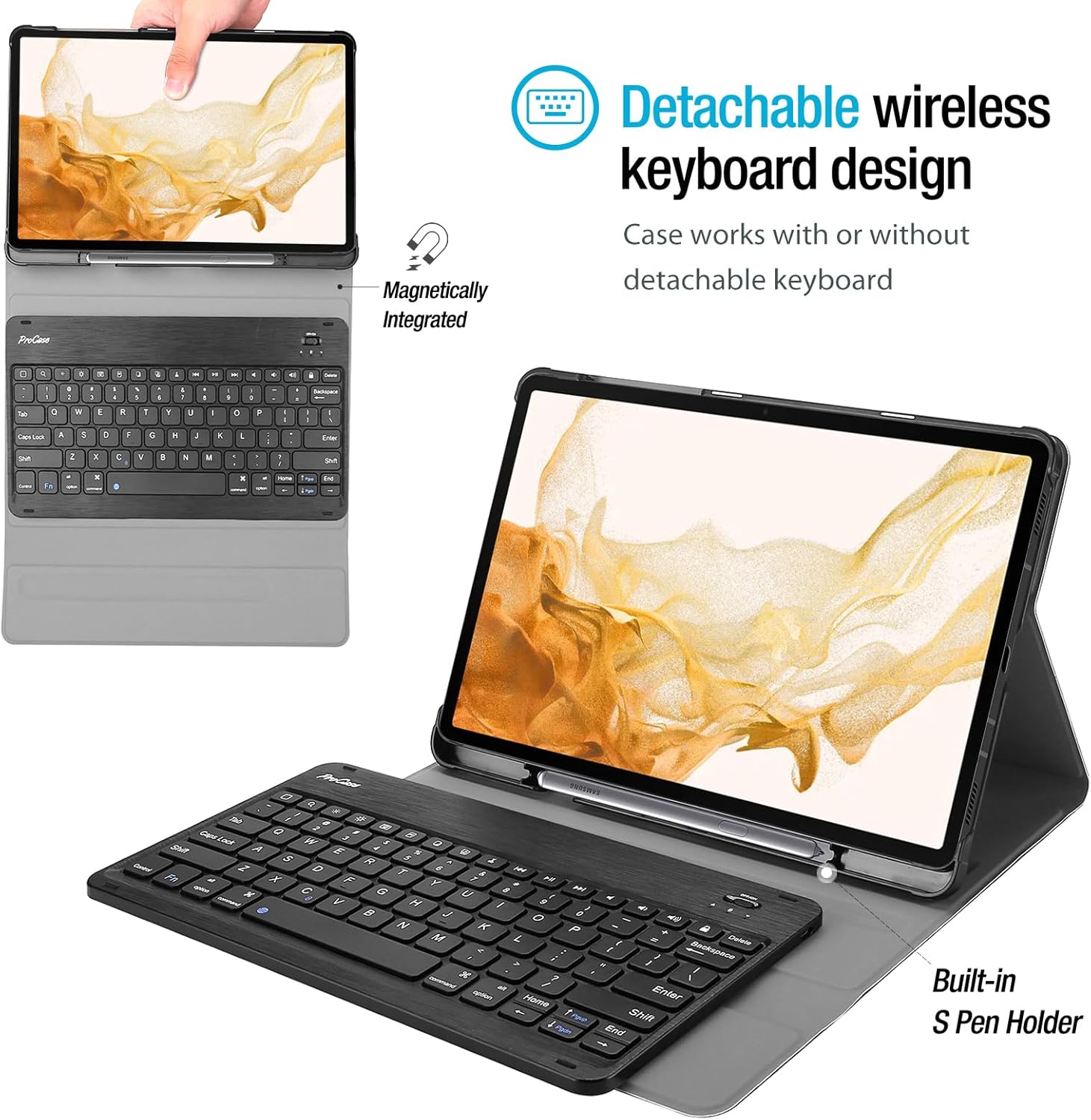
Image 4.1: Detachable wireless keyboard design and S Pen holder.
4.3 Charging the Keyboard
Before initial use, fully charge the wireless keyboard. Connect the provided USB charging cable to the keyboard's charging port and a suitable USB power source. The charging indicator light will illuminate during charging and turn off when fully charged.
4.4 Pairing the Keyboard via Bluetooth
- Turn on the keyboard using the power switch, usually located on the side or top edge.
- Press the Fn + C keys simultaneously on the keyboard to enter Bluetooth pairing mode. The Bluetooth indicator light will flash.
- On your Samsung Galaxy tablet, go to Settings > Connected devices > Bluetooth and ensure Bluetooth is enabled.
- Search for available devices. The keyboard should appear as a device named similar to "Bluetooth Keyboard" or "ProCase Keyboard".
- Tap on the keyboard's name to connect. If prompted, enter the displayed pairing code on the keyboard and press Enter.
- Once successfully paired, the Bluetooth indicator light on the keyboard will stop flashing.
5. Operating the Keyboard
The ProCase wireless keyboard provides a laptop-style typing experience. It features well-spaced keys and a spring mechanism for tactile feedback.
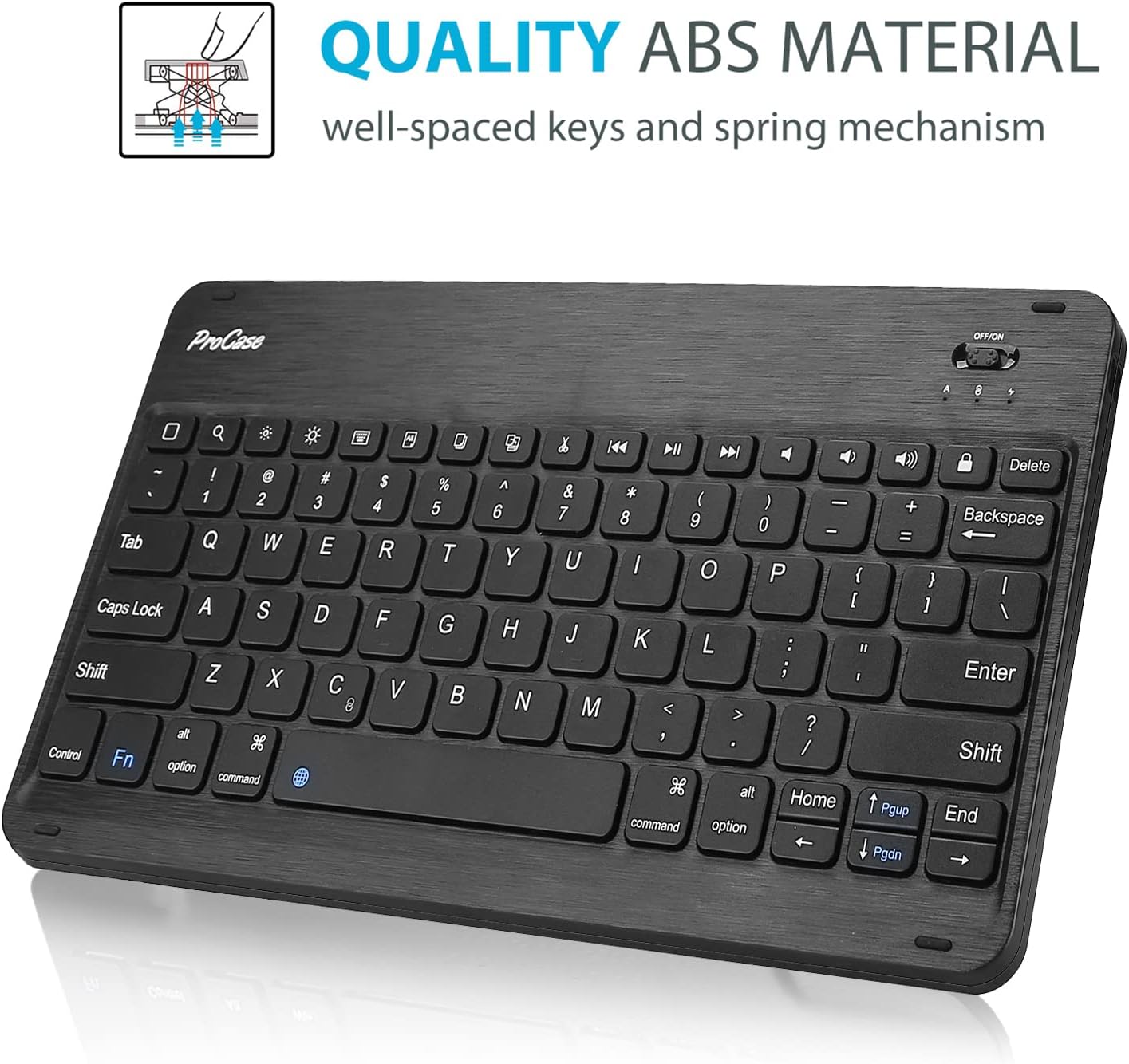
Image 5.1: ProCase wireless keyboard with ABS material keys.
5.1 Function Keys
The top row of the keyboard includes various function keys that can be activated by pressing them directly or in combination with the Fn key, depending on the specific key. These may include:
- Home, Search, Media Playback controls (Play/Pause, Previous, Next)
- Volume controls (Mute, Volume Down, Volume Up)
- Screen Lock
- Brightness adjustment (may require Fn key)
5.2 Sleep Mode and Wake-up
To conserve battery, the keyboard will automatically enter sleep mode after a period of inactivity. To wake it up, simply press any key. It will automatically reconnect to your tablet if Bluetooth is enabled.
6. S Pen Holder Functionality
The case is designed with a dedicated S Pen holder to securely store your S Pen when not in use. Additionally, a cutout on the back of the case allows for magnetic attachment and wireless charging of the S Pen directly on your tablet.
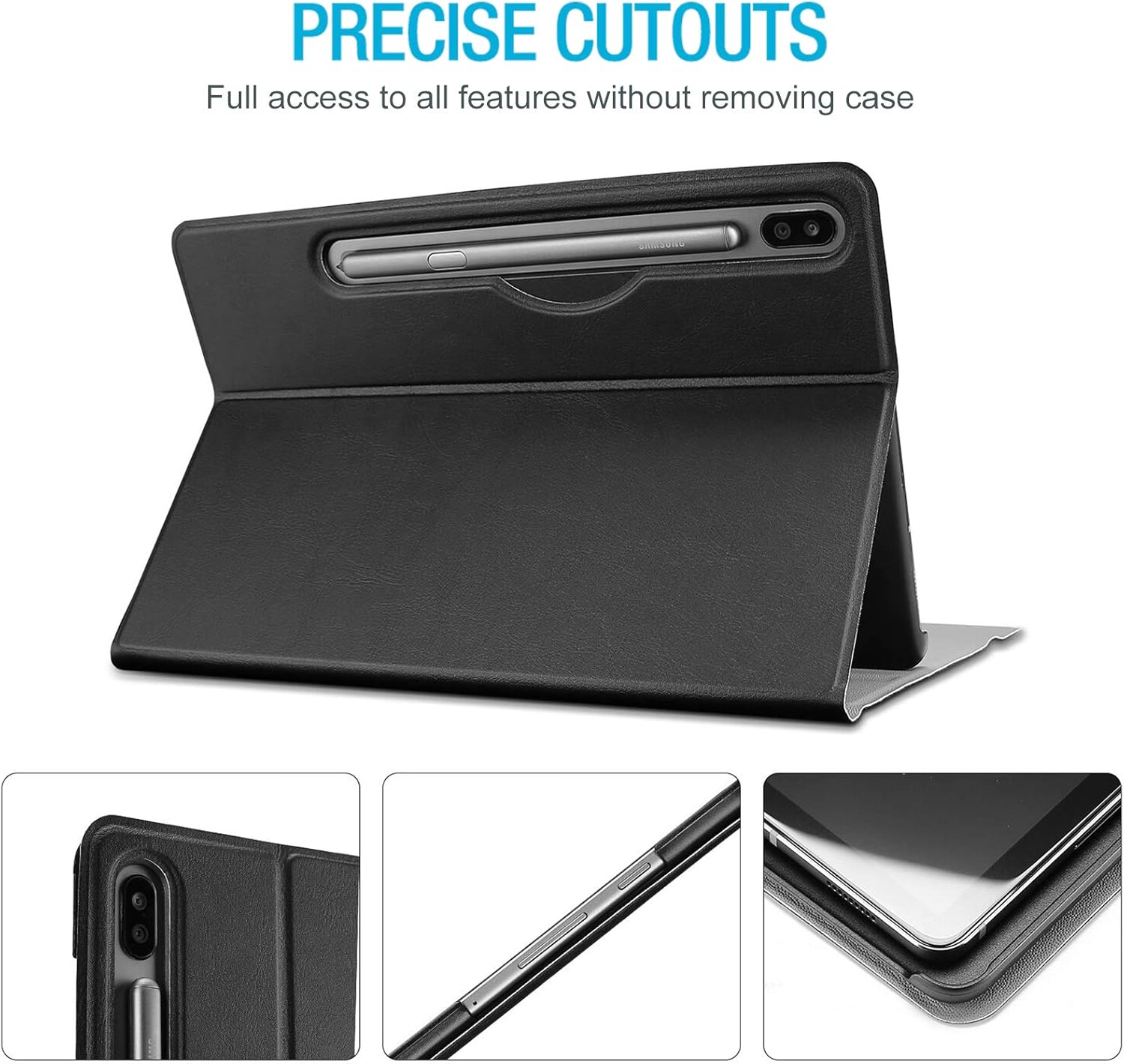
Image 6.1: Precise cutouts and S Pen holder location.
7. Multiple Viewing Angles
The case features three distinct dents that allow you to prop up your tablet in landscape mode at various viewing angles. This provides flexibility for typing, watching videos, or browsing.

Image 7.1: Multiple viewing angle adjustment feature.
8. Maintenance
To ensure the longevity and optimal performance of your ProCase Keyboard Case, follow these maintenance guidelines:
- Cleaning the Case: Wipe the exterior with a soft, damp cloth. Avoid harsh chemicals or abrasive cleaners.
- Cleaning the Keyboard: Use a soft, dry cloth to clean the keyboard. For dust between keys, use compressed air.
- Storage: When not in use for extended periods, store the case and keyboard in a cool, dry place.
- Avoid Liquids: Keep the keyboard and case away from liquids to prevent damage.
- Handle with Care: While the case offers protection, avoid dropping or subjecting it to excessive force.

Image 8.1: Premium composition leather exterior for protection.
9. Troubleshooting
If you encounter issues with your ProCase Keyboard Case, refer to the following common problems and solutions:
| Problem | Possible Solution |
|---|---|
| Keyboard does not turn on. | Ensure the power switch is in the 'ON' position. Charge the keyboard fully. |
| Keyboard does not connect via Bluetooth. | Ensure Bluetooth is enabled on your tablet. Re-enter pairing mode on the keyboard (Fn+C). Forget the device on your tablet and try pairing again. Ensure the keyboard is charged. |
| Typing lag or missed keystrokes. | Ensure the keyboard is fully charged. Move the keyboard closer to the tablet to reduce interference. Restart both the keyboard and the tablet. |
| S Pen is not charging or detected. | Ensure the S Pen is correctly placed in the charging cutout on the back of the case. Check tablet settings for S Pen functionality. |
10. Specifications
- Brand: ProCase
- Compatible Devices: Samsung Galaxy Tab S8 Plus (2022), Tab S7 FE (2021), Tab S7 Plus (2020) 12.4-inch models
- Item Model Number: SM-T970/ SM-T975/ SM-T976/ SM-T978 (for S7 Plus, similar for S8 Plus/S7 FE)
- Material: Acrylonitrile Butadiene Styrene (ABS) for keyboard, Premium Composition Leather for case exterior
- Connectivity: Bluetooth Wireless
- Power Source: Battery Powered (keyboard)
- Special Features: Detachable keyboard, S Pen holder, Multiple viewing angles, Lightweight, Ultra-slim design
- Product Dimensions: Approximately 11.55 x 7.35 x 0.29 inches (case)
- Item Weight: Approximately 10 ounces
11. Warranty and Support
ProCase products are designed for quality and durability. For specific warranty information, please refer to the documentation included with your purchase or visit the official ProCase website. For further assistance or support, please contact ProCase customer service.
You can find more information about ProCase products and support at the ProCase Store on Amazon.