
1. Introduction
The Sandberg USB Office Headset Pro Mono is designed for clear communication in office environments, online meetings, and calls. This manual provides essential instructions for setting up, operating, maintaining, and troubleshooting your headset to ensure optimal performance.
2. Package Contents
Please verify that all items are present in your package:
- Sandberg USB Office Headset Pro Mono (with integrated USB cable)

Image 1: The Sandberg USB Office Headset Pro Mono packaging, showing the headset and its features.
3. Setup
Follow these steps to connect your headset to your computer:
- Locate an available USB-A port on your computer.
- Plug the USB-A connector of the headset into the USB-A port on your computer.
- Your operating system (Windows, macOS, etc.) should automatically detect and install the necessary drivers. This process typically takes a few moments.
- Once installed, the headset will be ready for use. You may need to select it as the default audio input and output device in your computer's sound settings or within your communication application (e.g., Zoom, Microsoft Teams, Skype).
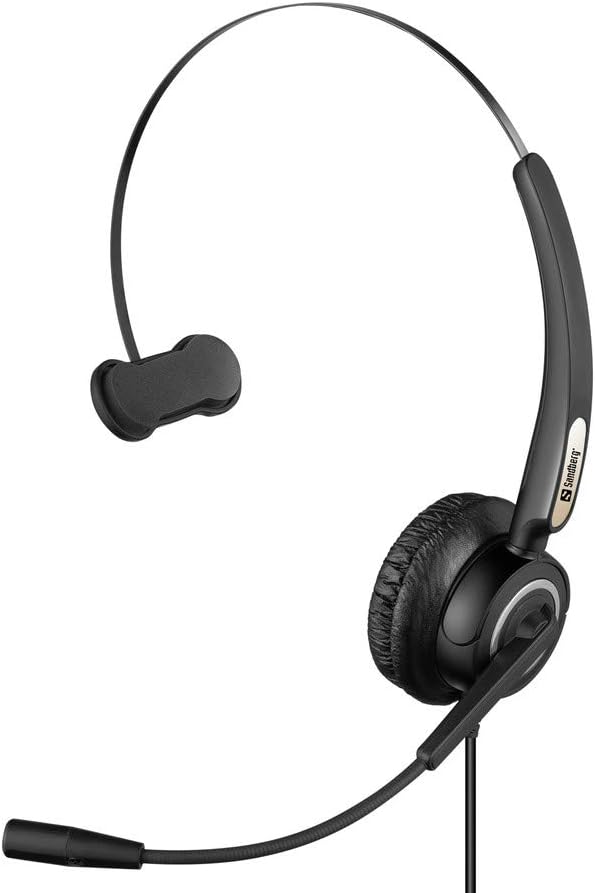
Image 2: The Sandberg USB Office Headset Pro Mono, illustrating its design for single-ear use with an adjustable microphone boom.
4. Operating Instructions
4.1 Wearing the Headset
- Place the earcup over one ear and adjust the headband for a comfortable fit.
- Position the microphone boom so that the microphone is approximately 1-2 inches (2.5-5 cm) from your mouth for optimal voice pickup.
4.2 Volume Control and Mute
The headset features an inline control unit on the USB cable for easy access to audio functions:
- Volume Up: Press the '+' button to increase the listening volume.
- Volume Down: Press the '-' button to decrease the listening volume.
- Microphone Mute: Press the microphone button to mute or unmute your microphone. An indicator light on the control unit typically shows the mute status.
4.3 Making Calls and Using Applications
Once connected and selected as the default audio device, your headset will function with most communication applications. Ensure the headset is selected as the audio input (microphone) and output (speaker) device within the settings of your specific application (e.g., video conferencing software, softphone client).
5. Maintenance
5.1 Cleaning
- Gently wipe the headset with a soft, dry cloth.
- For ear cushions, use a slightly damp cloth with mild soap if necessary, then wipe dry immediately.
- Do not use harsh chemicals, solvents, or abrasive cleaners.
- Avoid getting moisture into the earcup or microphone openings.
5.2 Storage
- Store the headset in a clean, dry place away from extreme temperatures and direct sunlight.
- Avoid tangling the cable to prevent damage.
6. Troubleshooting
6.1 No Sound from Headset
- Ensure the USB connector is fully inserted into the computer's USB port.
- Check the volume level on the inline control unit and on your computer's operating system.
- Verify that the Sandberg USB Office Headset Pro Mono is selected as the default playback device in your computer's sound settings.
- Try connecting the headset to a different USB port on your computer.
6.2 Microphone Not Working
- Ensure the microphone is not muted via the inline control unit.
- Check that the Sandberg USB Office Headset Pro Mono is selected as the default recording device in your computer's sound settings.
- Adjust the microphone input level in your computer's sound settings.
- Confirm that the microphone boom is positioned correctly near your mouth.
6.3 Headset Not Detected by Computer
- Unplug the headset and plug it back into a different USB port.
- Restart your computer.
- Check your computer's Device Manager (Windows) or System Information (macOS) to see if the USB device is listed.
7. Specifications
| Feature | Detail |
|---|---|
| Model Name | Pro Mono |
| Model Number | 126-14 |
| Connector | 1 x USB A Male Plug |
| Cable Length | 6.6 ft (2.0 m) |
| Control Type | Volume Control (Inline) |
| Special Feature | Microphone Included |
| Material | Plastic |
| Item Weight | 0.035 ounces (approx. 1 gram) |
| Product Dimensions | 6.3 x 4.72 x 6.69 inches |
8. Warranty and Support
For warranty information, please refer to the documentation provided with your purchase or visit the official Sandberg website. For technical support or further assistance, please contact Sandberg customer service or your retailer.
You can find more information and support resources on the Sandberg website.


