1. Introduction
The CORSAIR iCUE 4000X RGB is a distinctive and customizable tempered glass mid-tower ATX PC case designed for exceptional cooling and easy cable management. It features two tempered glass panels, dedicated front ventilation channels, and three pre-installed 120mm AirGuide RGB fans with an iCUE Lighting Node CORE Controller for brilliant, customizable lighting. The CORSAIR RapidRoute design simplifies cable routing, ensuring a clean and professional build.

Figure 1: The CORSAIR iCUE 4000X RGB Mid-Tower ATX PC Case, showcasing its tempered glass panels and vibrant RGB lighting.
2. Setup
2.1 Unpacking
Carefully remove the PC case from its packaging. Inspect for any damage during transit. Retain all packaging materials for future transport or warranty claims.
2.2 Panel Removal
The tempered glass side panel and front panel can be easily removed for component installation. Gently pull the side panel from the rear notch to detach. The front panel can be removed by applying pressure from the bottom edge. Exercise caution when handling glass panels.

Figure 2: The case features two tempered glass panels and includes three 120mm RGB fans for enhanced airflow and aesthetics.
2.3 Component Installation
- Motherboard: Install your ATX, Micro-ATX, or Mini-ITX motherboard onto the pre-installed standoffs.
- Storage Drives: The case supports up to four drives. Utilize the 2x 2.5-inch SSD mounts and 2x 3.5-inch HDD trays.

Figure 3: The case provides dedicated mounts for up to four storage drives, including 2.5-inch SSDs and 3.5-inch HDDs.
- Power Supply: Install your ATX power supply in the dedicated bottom-mount or rear-mount area.
- Cooling System: The case supports multiple radiators, including up to 360mm in the front and 280mm in the roof (dependent on RAM height). Three CORSAIR 120mm AirGuide RGB fans are pre-installed.

Figure 4: The case offers extensive cooling options, supporting large radiators and multiple fans for optimal thermal performance.
2.4 Cable Management
Utilize the CORSAIR RapidRoute cable management system for a clean build. Major cables can be neatly routed through a single channel, with a roomy 25mm of space behind the motherboard for all of your cables.

Figure 5: The RapidRoute system simplifies cable organization, providing a dedicated channel and ample space behind the motherboard.
2.5 iCUE Lighting Node CORE Controller
The included iCUE Lighting Node CORE allows full control and synchronization of RGB lighting for up to 6 fans via CORSAIR iCUE software. Connect your RGB fans to this controller for personalized lighting effects.
3. Operating Instructions
3.1 Power On/Off
Press the large power button located on the top I/O panel to power on or shut down your system. A smaller reset button is also available.
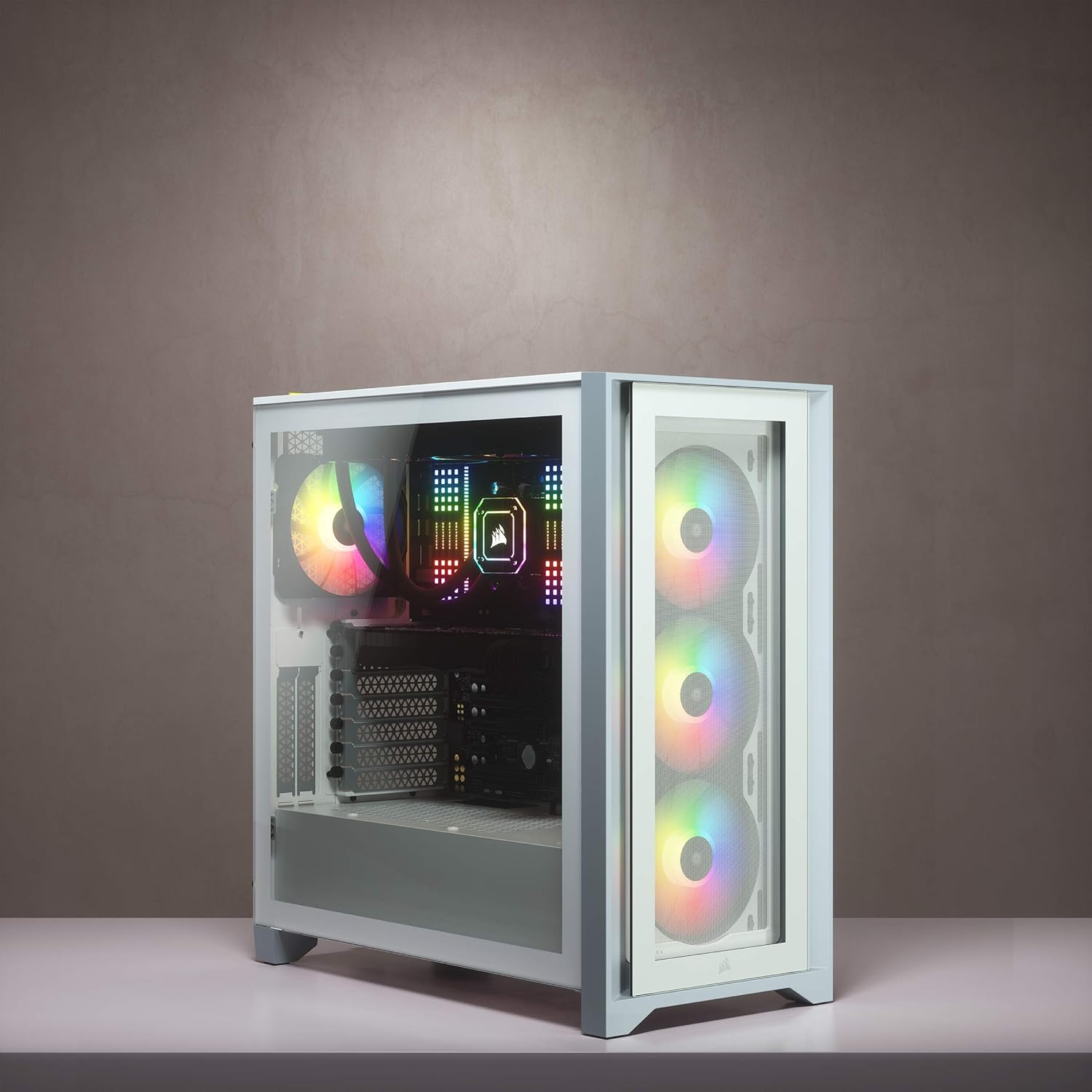
Figure 6: The top I/O panel provides convenient access to power, USB ports (including USB-C), and audio connections.
3.2 Airflow and Cooling
The 4000X RGB is designed for high airflow. The three included AirGuide RGB fans utilize anti-vortex vanes to concentrate airflow and enhance cooling performance, drawing air through the dedicated front ventilation channels.
3.3 RGB Lighting Control
Manage and customize your system's RGB lighting using the CORSAIR iCUE software. This software allows for intricate lighting patterns and synchronization across compatible CORSAIR devices connected to the iCUE Lighting Node CORE.
Video 1: An overview of the CORSAIR iCUE 4000X RGB Mid-Tower ATX PC Case, highlighting its features and RGB lighting capabilities.
Video 2: A promotional video showcasing the various RGB lighting effects and features of the CORSAIR 4000X RGB Cases.
4. Maintenance
4.1 Dust Filter Cleaning
Regularly clean the dust filters to maintain optimal airflow and prevent dust buildup inside the case. The top, front, and bottom filters are easily removable for cleaning.
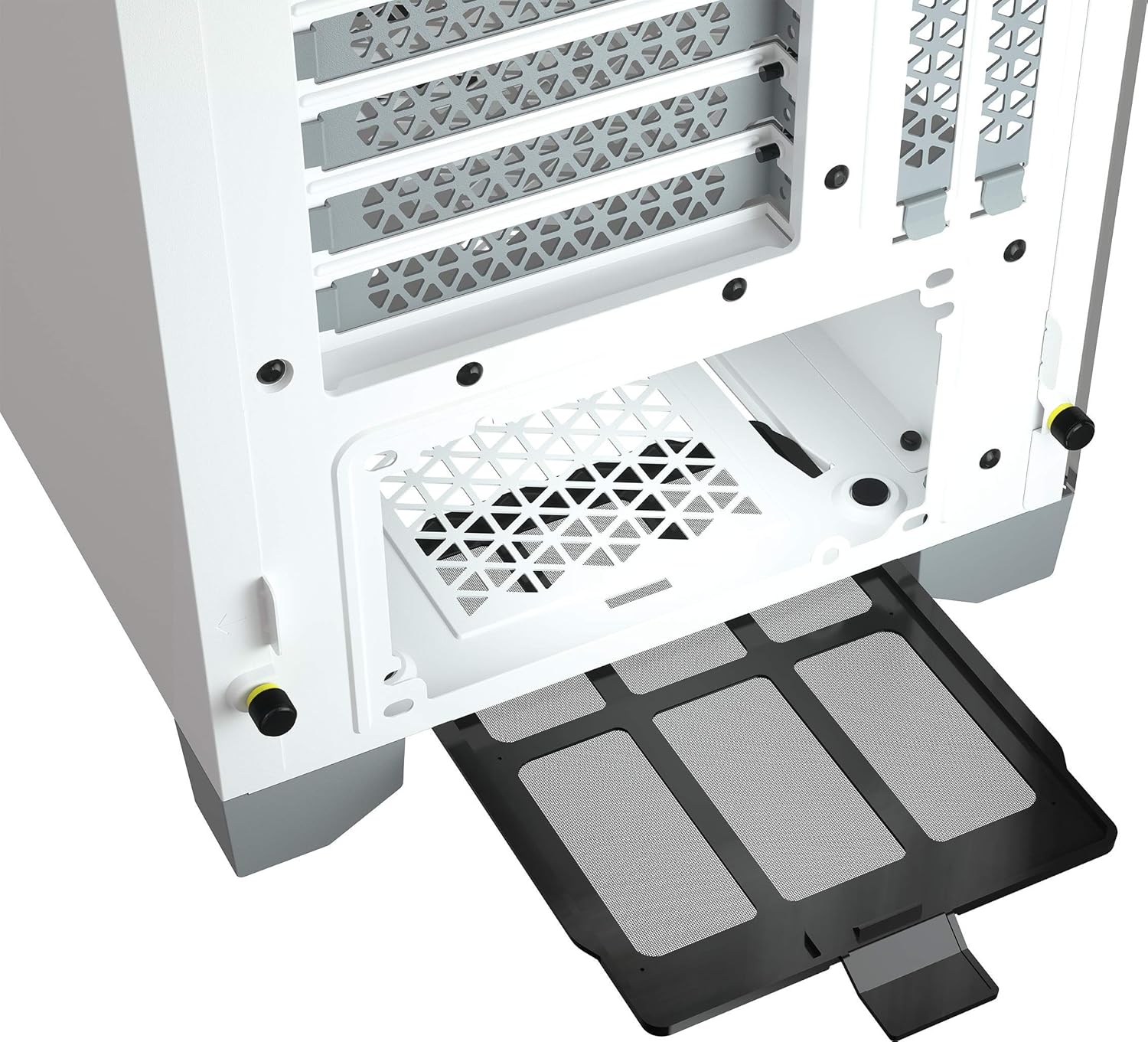
Figure 7: The bottom dust filter is easily accessible and removable for routine cleaning, helping to keep the internal components dust-free.
4.2 Tempered Glass Care
Clean tempered glass panels with a soft, lint-free cloth and a mild glass cleaner. Avoid abrasive materials that could scratch the surface.
5. Troubleshooting
- System Not Powering On: Ensure all power cables (PSU, motherboard, CPU) are securely connected. Check the power button connection to the motherboard.
- Fans Not Spinning/RGB Not Working: Verify fan connections to the iCUE Lighting Node CORE and the controller's connection to the motherboard/PSU. Ensure iCUE software is installed and updated.
- High Temperatures: Clean all dust filters. Ensure fans are correctly oriented for optimal airflow (intake/exhaust). Check for any obstructions to airflow.
6. Specifications
| Feature | Detail |
|---|---|
| Brand | Corsair |
| Series | iCUE 4000X RGB |
| Model Number | CC-9011205-WW |
| Case Type | Mid-Tower |
| Motherboard Compatibility | ATX, Micro-ATX, Mini-ITX |
| Color | White |
| Material | Tempered Glass |
| Dimensions (LxWxH) | 20.47 x 9.65 x 20.47 inches |
| Item Weight | 17.6 pounds |
| Included Fans | 3x SP120 RGB Elite 120mm AirGuide Fans |
| Radiator Compatibility | Front: 360mm, Top: 280mm, Rear: 120mm |
| Drive Bays | 2x 2.5" SSD, 2x 3.5" HDD |
| Front I/O Ports | 1x USB 3.2 Gen 2 Type-C, 1x USB 3.2 Gen 1 Type-A, 1x Headphone/Mic Combo Jack |
7. Warranty and Support
For warranty information and technical support, please refer to the official Corsair website or contact Corsair customer service directly. Keep your proof of purchase for any warranty claims.
Online Support: www.corsair.com/support


