
HENEX HC-300R
HENEX Mini Bluetooth Barcode Reader User Manual
Model: HC-300R
1. Introduction
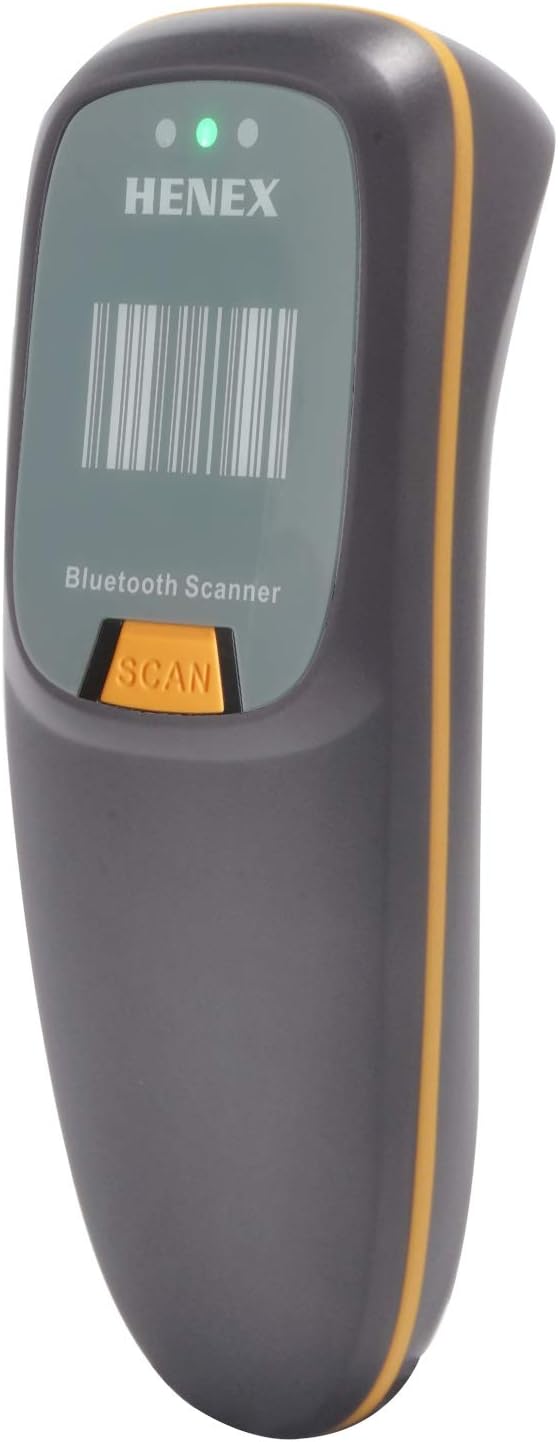
This manual provides comprehensive instructions for the HENEX Mini Bluetooth Barcode Reader (Model: HC-300R). This versatile 3-in-1 barcode scanner supports Bluetooth, 2.4G wireless, and wired USB connections, making it compatible with a wide range of devices and operating systems including Windows, Mac OS, Linux, and Android.
The device is designed for efficient scanning of both 1D and 2D QR codes from various surfaces, including paper and digital screens. Its compact and lightweight design ensures portability and ease of use in diverse environments.
2. Product Features
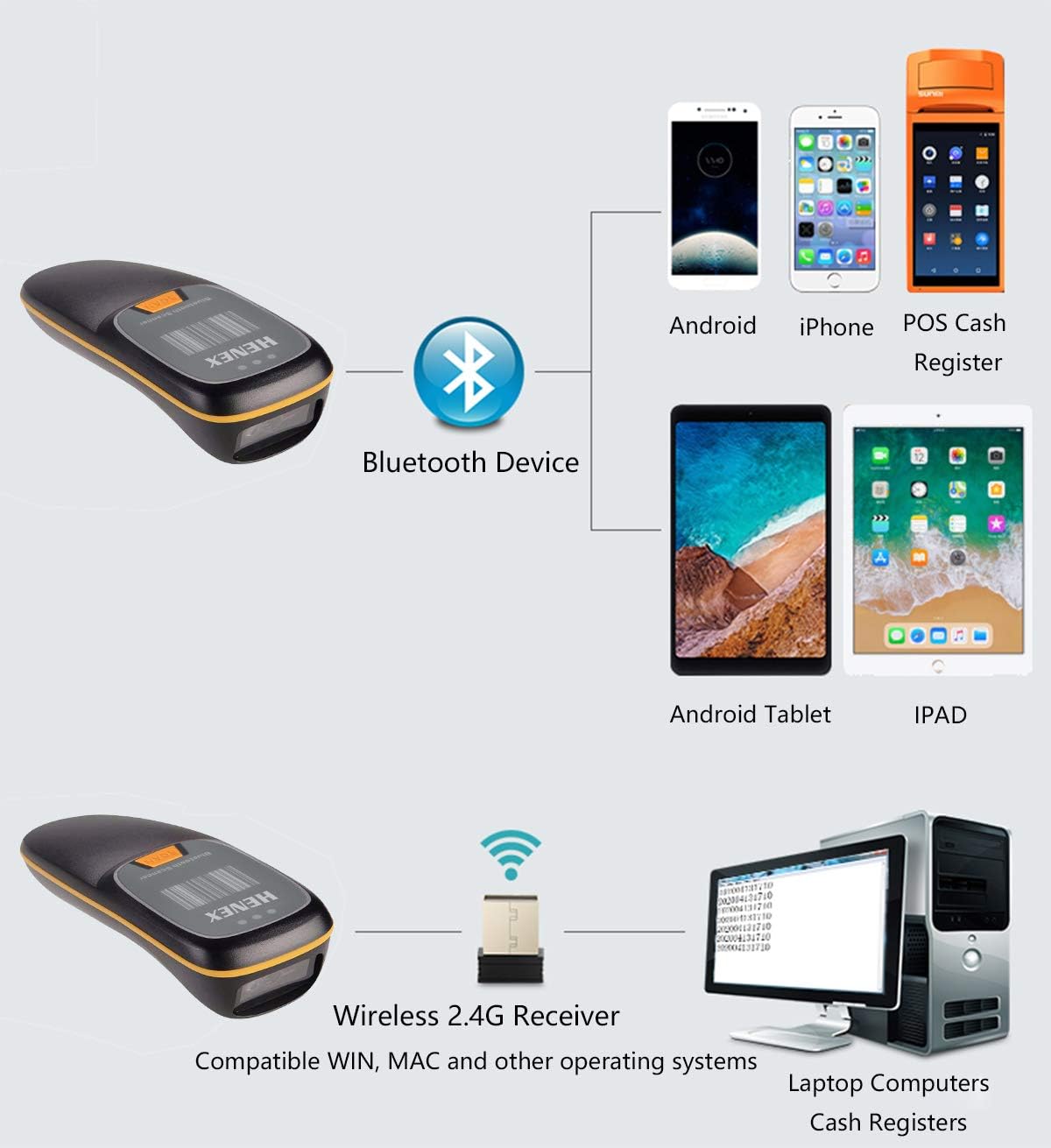
- 3-in-1 Connection Design: Supports Bluetooth, 2.4G Wireless (with USB adapter), and Wired USB connections for broad compatibility with laptops, PCs, POS systems, smartphones, and tablets.
- Instant Upload & Offline Storage: Equipped with 16MB memory, capable of storing up to 12,500 barcodes. Users can choose between immediate data upload or storing barcodes for later transmission. Features a Type-C USB cable for efficient data transfer and charging.
- Mini Portable Design: Small and lightweight (approximately 130g), designed for comfortable long-term handheld use and easy portability. Includes tactile vibration feedback for successful scans, alongside a buzzer and LED indicators. The buzzer can be muted for quiet environments.
- Advanced Decoding Ability: Capable of scanning a wide range of 1D and 2D barcodes, including PDF417, Data Matrix (ECC200, ECC000, etc.), QR Code, UPC, EAN, Code128, Code39, Code11, Interleaved 2 of 5, and Codabar.
- Long Battery Life: Features a 1200mAh battery for extended continuous use and standby time.
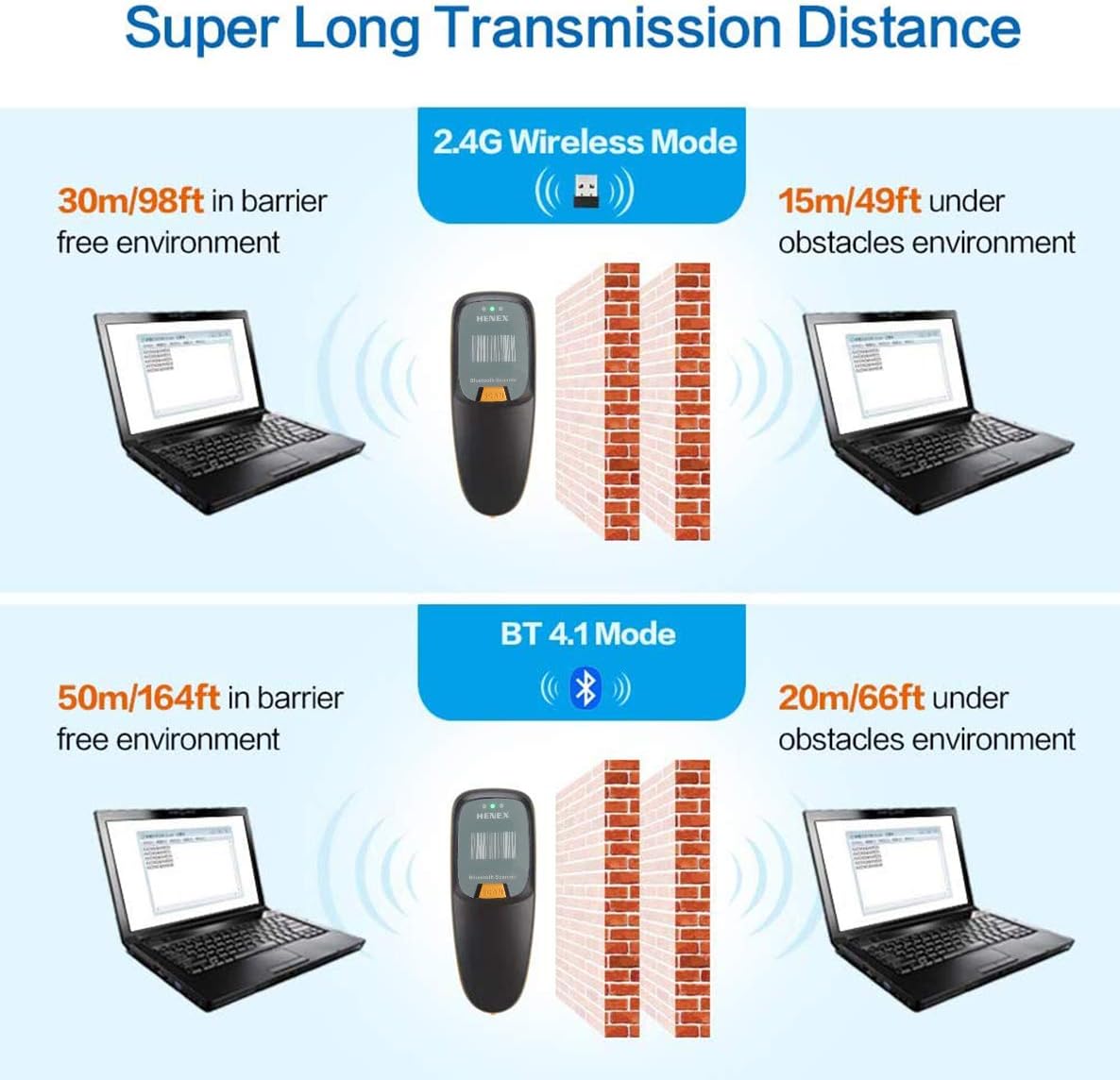
- Super Long Transmission Distance: Offers significant wireless range, up to 50m/164ft in barrier-free environments for Bluetooth 4.1 and up to 100m/328ft for 2.4GHz wireless.
- Durable Construction: Designed with anti-shock properties for enhanced durability.

3. Package Contents
Please check the package for the following items:
- HENEX Mini Bluetooth Barcode Reader (Model: HC-300R)
- USB Type-C Charging/Data Cable
- 2.4G Wireless USB Adapter (Dongle)
- User Manual (this document)

4. Setup and Connection
4.1 Charging the Scanner
Before first use, fully charge the scanner. Connect the provided USB Type-C cable to the scanner's charging port and the other end to a USB power source (e.g., computer USB port, USB wall adapter). The LED indicator will show charging status.

4.2 Connection Modes
The scanner supports three connection modes:
- Bluetooth Connection: For wireless connection to Bluetooth-enabled devices like smartphones, tablets, and some laptops.
- 2.4G Wireless Connection: Uses the included USB adapter for wireless connection to computers without built-in Bluetooth or for a dedicated wireless link.
- Wired Connection: Connects directly via the USB cable, allowing scanning while charging.


4.3 Pairing Instructions
Bluetooth Pairing:
- Turn on the scanner.
- Scan the "Bluetooth Pairing" barcode (usually found in a separate quick start guide or on a configuration sheet). The scanner will enter pairing mode.
- On your host device (smartphone, tablet, PC), enable Bluetooth and search for available devices.
- Select "HENEX Barcode Scanner" (or similar name) from the list of found devices.
- Once paired, the scanner will emit a confirmation tone, and the Bluetooth indicator light will stabilize.
2.4G Wireless Connection:
- Plug the 2.4G USB adapter into an available USB port on your computer.
- Turn on the scanner. It should automatically connect to the adapter.
- A confirmation tone will indicate a successful connection.
Wired Connection:
- Connect the USB Type-C cable to the scanner and the standard USB-A end to your computer's USB port.
- The scanner will function as a wired scanner and also charge simultaneously.
5. Operating Instructions
5.1 Basic Scanning
Point the scanner's window at the barcode you wish to scan and press the "SCAN" button. A successful scan will be indicated by a beep, a flash of the LED, and a slight vibration (if enabled).

5.2 Instant Upload vs. Offline Storage
The scanner supports two data transmission modes:
- Instant Upload Mode: Scanned barcodes are immediately transmitted to the connected device. This is the default mode when connected.
- Offline Storage Mode: If the scanner is out of range or not connected, scanned barcodes are stored in the internal 16MB memory (up to 12,500 barcodes). To upload stored data, reconnect the scanner to your device and scan the "Upload Data" barcode (refer to your quick start guide for specific configuration barcodes).

5.3 Clearing Stored Data
To clear all stored barcode data from the scanner's memory, scan the "Clear Data" barcode (refer to your quick start guide for specific configuration barcodes). Ensure all necessary data has been uploaded before clearing.
5.4 Sound and Vibration Settings
The scanner provides audible beeps and tactile vibrations for scan confirmations. Refer to your quick start guide or configuration sheet for barcodes to enable/disable the buzzer or vibration feedback.
5.5 Application Scenarios
The HENEX Mini Bluetooth Barcode Reader is suitable for a wide range of applications across various industries due to its versatility and decoding capabilities.


6. Maintenance
- Cleaning: Use a soft, dry cloth to clean the scanner's exterior. For the scanning window, use a lens cleaning cloth or a soft cloth lightly dampened with water or a mild, non-abrasive cleaner. Do not use harsh chemicals or abrasive materials.
- Battery Care: To prolong battery life, avoid fully discharging the battery frequently. Store the scanner in a cool, dry place when not in use for extended periods.
- Storage: Store the scanner in a safe place, away from extreme temperatures, direct sunlight, and excessive moisture.

7. Troubleshooting
| Problem | Possible Cause | Solution |
|---|---|---|
| Scanner not turning on. | Low battery. | Charge the scanner fully. |
| Cannot connect via Bluetooth. | Scanner not in pairing mode; Bluetooth disabled on host device; interference. | Ensure scanner is in pairing mode. Enable Bluetooth on host device. Move closer to host device. Try re-pairing. |
| Cannot connect via 2.4G Wireless. | USB adapter not properly inserted; scanner not linked to adapter. | Ensure USB adapter is fully inserted. Re-plug the adapter. Turn scanner off and on. |
| Scanner not reading barcodes. | Barcode damaged or unclear; incorrect symbology setting; scanner lens dirty. | Ensure barcode is clear and flat. Check if the barcode type is supported. Clean the scanner lens. Try scanning a different, known good barcode. |
| Scanned data not appearing on device. | Not connected; in offline storage mode; application not ready to receive input. | Verify connection status. If in offline mode, upload data. Ensure cursor is in a text field on your device. |
| Scanner beeps but no data transmitted. | Likely in offline storage mode. | Scan the "Upload Data" barcode to transmit stored data. |
8. Specifications
| Feature | Detail |
|---|---|
| Model Number | HC-300R |
| Product Dimensions | 5.31 x 2.05 x 1.57 inches |
| Item Weight | 4.6 ounces (approx. 130g) |
| Connectivity Technology | Bluetooth, 2.4G Wireless, USB Wired |
| Battery Type | 1 Lithium Ion battery (included) |
| Battery Capacity | 1200mAh |
| Offline Storage | 16MB (stores up to 12,500 barcodes) |
| Decoding Capability (1D) | UPC, EAN, Code128, Code39, Code11, Interleaved 2 of 5, Codabar, etc. |
| Decoding Capability (2D) | PDF417, Data Matrix (ECC200, ECC000, 050, 080, 100, 140), QR Code, etc. |
| Compatible Operating Systems | Windows XP/7/8/10, Mac OS, Linux, Windows Mobile, Android, iOS |
| Manufacturer | HENEX |
9. Warranty and Support
For warranty information and technical support, please contact HENEX customer service. Refer to the product packaging or the official HENEX website for the most up-to-date contact details.
For general inquiries or to find more information about HENEX products, you may visit: http://m.atobo.com.cn/u/winningqd
Related documentsHC-300R


Ask a question about this manual
Ask about setup, troubleshooting, compatibility, parts, safety, or missing instructions. Manuals+ will review the question and use this page’s manual context to help answer it.