
1. Introduction
The AGSHOME Wireless Smart Wi-Fi Garage Door Opener allows you to control and monitor your garage door remotely using a smartphone application or voice commands. This device integrates with popular smart home platforms such as Tuya Smart, Smart Life, Amazon Alexa, and Google Assistant, providing enhanced convenience and security for your home.
This manual provides comprehensive instructions for the installation, setup, operation, and maintenance of your smart garage door opener. Please read it thoroughly before installation and use.
2. Safety Information
- Ensure the power to the garage door opener is disconnected before beginning installation to prevent electrical shock.
- This device requires a 2.4 GHz Wi-Fi connection. Ensure your router supports this frequency.
- Do not install the device in locations exposed to extreme temperatures or moisture.
- Keep the device and its components out of reach of children.
- Always visually confirm the garage door's status before operating it remotely.
- If your garage door opener has a safety beam, ensure it is functioning correctly.
3. Package Contents
Verify that all components are present in the package:
- AGSHOME Smart Garage Controller Unit
- Wireless Door Position Sensor
- USB Power Cable
- Mounting Accessories (e.g., double-sided tape, screws)
- User Manual

This image displays the main AGSHOME Smart Garage Controller unit, a wireless door sensor, and a USB power cable. It highlights the wireless installation feature, indicating that no traditional sensor cable is needed.
4. Setup Guide
4.1. Compatibility Check
Before installation, ensure your existing garage door opener is compatible. The AGSHOME opener is compatible with most garage door openers, but some models require an adapter.
- Check the "Learn button" color: Garage door openers with yellow learn buttons and some partial purple learn buttons are incompatible without an adapter. If you have one of these, contact support with your opener's brand and model to obtain an adapter.
- Perform the "Jumper Test": If you are unsure about compatibility, use pliers to short the wall button terminals on your garage door opener. If the garage door opens/closes, no adapter is needed. If it does not, an adapter is required.

This diagram provides instructions for checking compatibility with existing garage door openers. It shows how to identify the color of the 'Learn button' and how to perform a 'Jumper Test' using pliers on the wall button terminals to determine if an adapter is needed.
4.2. Installation Steps
The installation process is designed to be straightforward and wireless.
- Mount the Wireless Sensor: Attach the wireless door position sensor to the top panel of your garage door using the provided double-sided tape or screws. Ensure it is securely fastened and can accurately detect the door's open/closed state.
- Connect the Controller: Wire the AGSHOME Smart Garage Controller into your existing garage door opener or wall button terminals. Refer to your garage door opener's manual for specific wiring instructions if needed. The controller typically connects to the same terminals as your wall button.
- Power On: Plug the USB power cable into the Smart Garage Controller and connect it to a power source. The device will power on and indicate its status via an LED light.
4.3. App Download and Device Pairing
To control your garage door, you need to download the Smart Life or Tuya Smart app and pair the device.
- Download App: Search for "Smart Life" or "Tuya Smart" in your smartphone's app store (iOS or Android) and install it.
- Register/Login: Open the app and register a new account or log in with an existing one.
- Enter Pairing Mode: After powering on the main device, wait approximately 30 seconds. Press and hold the button on the controller for at least 5 seconds until the light turns off and then back on, flashing rapidly. This indicates it is in pairing mode. If it flashes slowly, repeat the reset.
- Add Device: In the app, tap the "+" sign to add a new device. Select the appropriate device type (e.g., "Garage Door Opener" or "Sensor"). Follow the on-screen instructions to connect to your Wi-Fi network.
- Pair Wireless Sensor: While holding the door sensor close to the main controller, tap the learn button on the sensor a few times. The app should detect and pair the sensor within approximately 2 minutes. If pairing fails, remove the device from the app, factory reset the controller, and try again.
4.4. Wi-Fi Connection
The device requires a stable 2.4 GHz Wi-Fi connection for optimal performance. Ensure your Wi-Fi network is configured to support this frequency. If you have a dual-band router, you may need to temporarily disable the 5 GHz band during the initial pairing process or ensure your phone is connected to the 2.4 GHz network.
5. Operating Instructions
5.1. Remote Control via App
Once paired, you can control your garage door from anywhere using the Smart Life or Tuya Smart app.
- Open/Close: Tap the designated button in the app to open or close your garage door.
- Real-time Monitoring: The app displays the current status of your garage door (open or closed) in real-time.

This image features a smartphone displaying the Smart Life application, which is actively controlling a garage door (showing 'Closing'). The AGSHOME Smart Garage Controller and its wireless sensor are also visible, demonstrating app-based operation.
5.2. Voice Control
Integrate your AGSHOME opener with Amazon Alexa or Google Assistant for hands-free control.
- Connect to Smart Assistant: Link your Smart Life/Tuya Smart account to your Amazon Alexa or Google Home app.
- Voice Commands: Use commands like "Alexa, open the garage door" or "Hey Google, close the garage."

This image depicts a user interacting with a smart voice assistant to control their garage door. A speech bubble shows the command 'Alexa, open the garage door' and the assistant's response 'OK', highlighting the voice control functionality.
5.3. Scheduling and Timer Functions
Automate your garage door operations with custom schedules and countdown timers.
- Set Schedules: Program the garage door to open or close at specific times, such as daily routines.
- Countdown Timer: Use the countdown timer function for temporary opening or closing, for example, to allow a delivery.

The image illustrates the scheduling feature of the AGSHOME Smart Garage Opener, with a smartphone displaying an interface to set a timing schedule for the garage door. A house with an open garage door is in the background, suggesting automated operation.
5.4. Notifications and Alerts
Stay informed about your garage door's status with various notification modes.
- Door Status Updates: Receive instant notifications when the garage door opens or closes.
- Overtime/Overnight Alerts: Get reminders if the garage door remains open for an extended period or overnight.
5.5. Enhanced Security with Password Protection
For added security, you can set a password for opening the garage door, especially when using voice commands.
- App Password: Configure a security password within the Smart Life/Tuya Smart app. Navigate to the device settings, find the 'Alarm' or 'Security' section, and set a password.
- Voice Command PIN: When using voice assistants like Google Assistant to open the door, you may be prompted for this PIN.
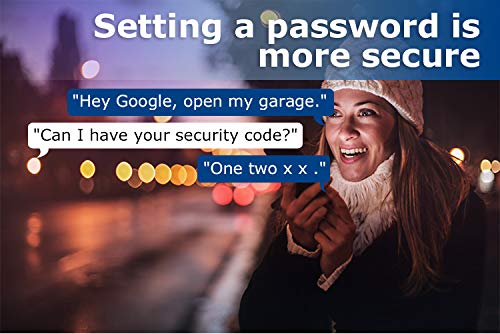
The image shows a person using Google Assistant, which is asking for a security code ('Can I have your security code?') before opening the garage door, emphasizing the product's secure access feature.
5.6. Access Sharing
Share control of your garage door with family members or trusted individuals through the app.
- In the Smart Life/Tuya Smart app, navigate to the device settings and select the 'Share Device' option.
- Invite other users to control the garage door from their own accounts.
6. Maintenance
To ensure the longevity and optimal performance of your AGSHOME Smart Garage Door Opener, follow these maintenance guidelines:
- Clean Sensors: Periodically check and clean the wireless door position sensor to ensure it is free from dust, debris, or obstructions that could affect its accuracy.
- Check Battery: The wireless sensor is battery-powered. Monitor the battery level through the app and replace the battery when indicated to ensure continuous operation.
- Firmware Updates: Regularly check the Smart Life/Tuya Smart app for any available firmware updates for your device. Updates can improve performance, add features, and enhance security.
- Wi-Fi Stability: Ensure your Wi-Fi network remains stable and strong in the garage area to prevent connectivity issues.
7. Troubleshooting
If you encounter issues with your AGSHOME Smart Garage Door Opener, refer to the following common problems and solutions:
- Device Not Pairing:
- Ensure the device is in rapid flashing pairing mode (press and hold the button for 5 seconds until the light turns off and then back on).
- Confirm your smartphone is connected to a 2.4 GHz Wi-Fi network.
- Try resetting the device by unplugging and replugging it, then re-entering pairing mode.
- Wireless Sensor Not Pairing:
- Ensure the sensor is close to the main controller during pairing.
- Tap the sensor's learn button multiple times within the 2-minute pairing window.
- If issues persist, remove the device from the app, factory reset the controller, and attempt the entire setup process again.
- Garage Door Not Responding to App/Voice Commands:
- Check your Wi-Fi connection and ensure the device is online in the app.
- Verify the wiring connections between the controller and your garage door opener.
- For voice control, ensure your Smart Life/Tuya Smart account is correctly linked to Alexa/Google Assistant.
- False Alarms for Door Open:
- This can occur with up-and-over garage doors, especially in windy conditions, due to the sensor type. Ensure the sensor is firmly mounted and not shifting.
- The sensor is designed for up-and-over doors, not roller shutters.
- Google Assistant/Gemini PIN Issue:
- If Google Assistant (or Gemini) requires a PIN to open the door and is not prompting correctly, ensure the PIN is set within the Smart Life/Tuya app under the device's 'Alarm' or 'Security' settings.
- Google Assistant may require a PIN for security reasons when opening garage doors.
- Incompatibility with Opener:
- If your garage door opener has a yellow or certain purple 'Learn button', an adapter is required. Contact AGSHOME support for assistance.
- Perform the 'Jumper Test' as described in the Setup Guide to confirm compatibility.
8. Specifications
| Brand | AGSHOME |
| Model | B08C564V1N |
| Color | Black |
| Material | Polyvinyl Chloride |
| Style | Modern |
| Connectivity | Wi-Fi (IEEE 802.11b/g/n, 2.4 GHz) |
| Input | DC 5V/1A |
| Output | NO (Normally Open) |
| Product Dimensions | 0.1 x 0.98 x 1 inches |
| Item Weight | 6.7 ounces |
| Manufacturer | ShenZhen Daping computer co,.ltd |
| UPC | 779566074823 |
9. Warranty and Support
AGSHOME products are designed for reliability and performance. For warranty information, please refer to the documentation included with your purchase or visit the official AGSHOME website.
If you require technical assistance, have questions about installation, or need to inquire about compatibility adapters, please contact AGSHOME customer support. Contact details can typically be found on the product packaging or the manufacturer's website.


