
Introduction
The Huawei E5576-320 Mobile WiFi is a portable 4G wireless router designed to provide high-speed internet access on the go. It allows you to connect multiple devices simultaneously to a secure Wi-Fi network using a mobile SIM card. This manual provides essential information on setting up, operating, maintaining, and troubleshooting your device.

Figure 1: Front view of the Huawei E5576-320 Mobile WiFi device, showcasing its compact white design with indicator lights.
Package Contents
Please check the package contents upon unboxing to ensure all items are present:
- Huawei E5576-320 Mobile WiFi Device
- Lithium-ion Battery (pre-installed or separate)
- USB Charging Cable
- Quick Start Guide (if included)
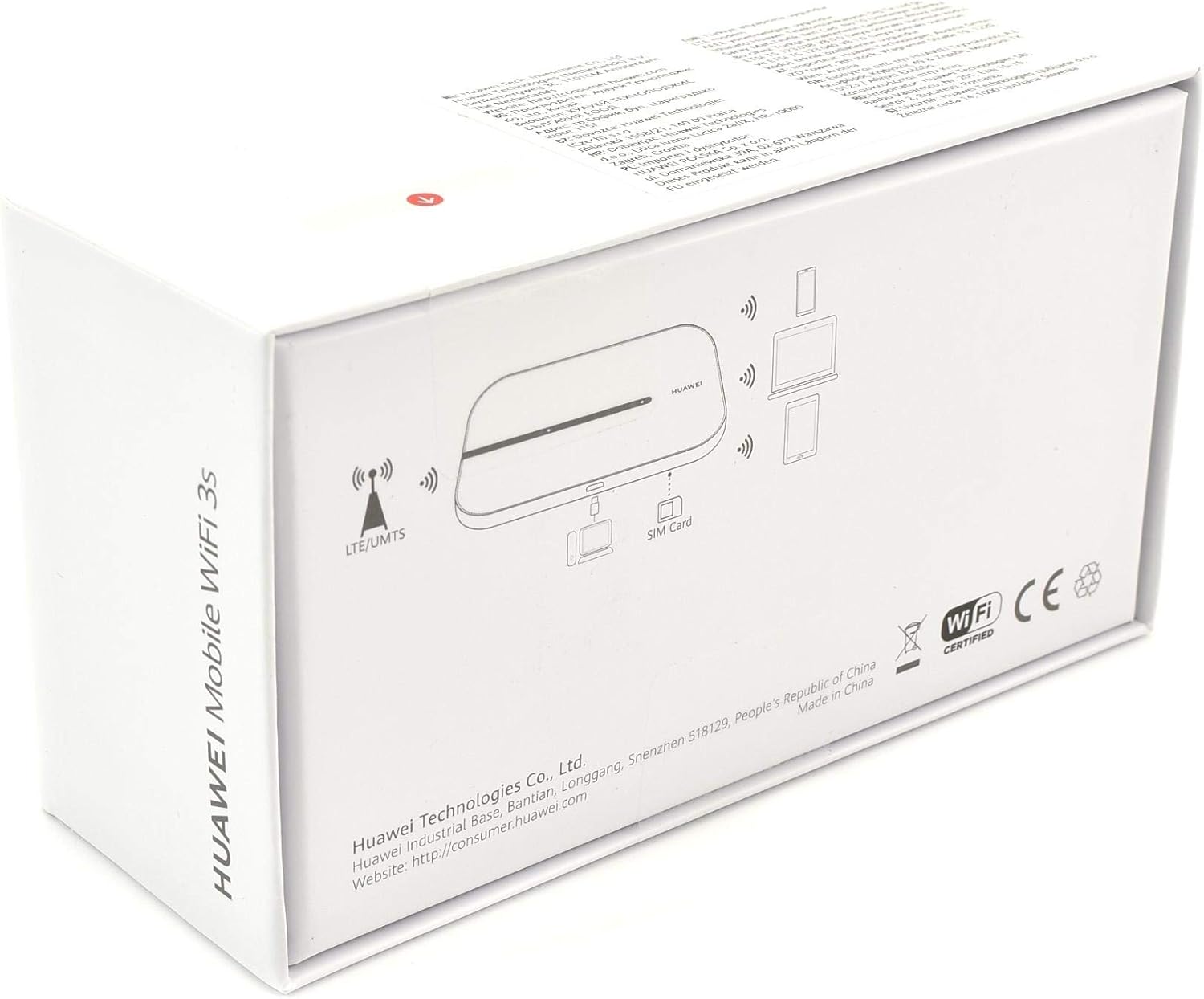
Figure 2: Retail packaging of the Huawei E5576-320, showing the model number and branding.
Device Overview
Familiarize yourself with the key components of your Mobile WiFi device.

Figure 3: Close-up of the device's front panel, highlighting the signal strength and battery/network indicator lights.
Indicator Lights
- Signal Indicator: Displays network signal strength.
- Battery/Network Indicator: Shows battery status and network connection type (e.g., 4G, 3G).

Figure 4: Side view of the device, revealing the charging port and other external features.
Setup
1. Installing the SIM Card and Battery
Your Huawei E5576-320 requires a standard mobile SIM card (not included) to access cellular networks. Ensure the device is powered off before proceeding.
- Remove the back cover of the device.
- Insert the SIM card into the designated slot with the gold contacts facing down and the notched corner aligned correctly.
- If the battery is not pre-installed, insert the Lithium-ion battery into its compartment, ensuring the contacts align.
- Replace the back cover until it clicks into place.

Figure 5: Rear view of the device with the back cover removed, showing the SIM card slot, battery compartment, and product label with default Wi-Fi credentials and reset button.
2. Powering On/Off
- To Power On: Press and hold the Power button until the indicator lights illuminate.
- To Power Off: Press and hold the Power button until the indicator lights turn off.
3. Initial Wi-Fi Connection
Once powered on, the device will automatically search for a mobile network. You can connect your Wi-Fi enabled devices (smartphones, tablets, laptops) to the Mobile WiFi using the default credentials found on the label under the battery cover (refer to Figure 5).
- Default SSID (Wi-Fi Name): HUAWEI-4962
- Default Wi-Fi Key (Password): 1RQMTNAF8NY
- Alternatively, you can scan the QR code on the label (Figure 5) with a compatible device to automatically connect to the Wi-Fi network.
For advanced settings and to change the Wi-Fi name or password, access the device's web management page by typing 192.168.8.1 into your web browser's address bar. The default login password is admin.
Operating the Device
Connecting Devices
The Huawei E5576-320 can connect up to 10 devices simultaneously. To connect a device:
- Ensure your Mobile WiFi is powered on and has a stable network connection (indicated by the signal light).
- On your device (smartphone, laptop, etc.), go to Wi-Fi settings.
- Select the Wi-Fi network name (SSID) of your Huawei Mobile WiFi (e.g., HUAWEI-4962).
- Enter the Wi-Fi Key (password) when prompted.
- Once connected, your device will have internet access.
Understanding Indicator Lights
The LED indicators provide important status information:
- Signal Indicator:
- Solid Green: Excellent signal.
- Flashing Green: Good signal.
- Solid Red: No signal or poor signal.
- Battery/Network Indicator:
- Solid Green: Battery level is sufficient, connected to 4G/LTE network.
- Flashing Green: Connected to 3G/2G network.
- Solid Red: Battery low.
- Flashing Red: Battery critically low, please charge.
Charging the Device
Connect the Mobile WiFi to a power source (e.g., USB port on a computer, wall adapter) using the provided USB cable. The battery indicator will show charging status.
Maintenance
Cleaning
Wipe the device with a soft, dry cloth. Do not use liquid cleaners or abrasive materials, as they may damage the device.
Battery Care
- Avoid exposing the battery to extreme temperatures.
- Do not fully discharge the battery regularly.
- If storing the device for an extended period, charge the battery to about 50% before storage.
Software Updates
Periodically check for software updates via the web management page (192.168.8.1) to ensure optimal performance and security. Follow the on-screen instructions for any available updates.
Troubleshooting
| Problem | Possible Cause | Solution |
|---|---|---|
| No Internet Connection | No SIM card, invalid SIM, no mobile signal, data plan expired. | Ensure SIM is correctly inserted and active. Check signal strength. Contact your mobile operator. |
| Cannot Connect to Wi-Fi | Incorrect Wi-Fi password, device too far from Mobile WiFi, Wi-Fi disabled. | Verify password. Move closer to the device. Ensure Wi-Fi is enabled on both devices. |
| Device Not Powering On | Battery drained, faulty battery, device malfunction. | Charge the device. Try a different charging cable/adapter. If problem persists, contact support. |
| Slow Internet Speed | Poor signal, too many connected devices, network congestion. | Relocate device for better signal. Disconnect unused devices. |
Factory Reset
If you encounter persistent issues, you may perform a factory reset. This will restore all settings to their default values, including Wi-Fi name and password. Locate the reset button (refer to Figure 5) and use a pin or straightened paperclip to press and hold it for approximately 5-10 seconds until the device restarts.
Specifications
| Feature | Detail |
|---|---|
| Model Number | E5576-320 |
| Brand | HUAWEI |
| Color | White |
| Network Type | 4G Wireless Router |
| Battery Type | Lithium-ion |
| Battery Capacity | 3000 mAh |
| Operating Time | Up to 6 hours |
| Standby Time | Up to 300 hours |
| Wi-Fi Standard | 802.11b/g/n |
| Max Connected Devices | 10 |
| MicroSD Card Slot | Yes (max 32 GB) |
| USB Port | USB 2.0 (for charging/data) |
| Operating System | HiLink |
| Weight | 190 Grams |
| Special Feature | USB Print Server (via HiLink OS) |
Warranty and Support
Warranty Information
This product comes with a standard manufacturer's warranty. Please refer to the warranty card included in your package or visit the official HUAWEI website for detailed terms and conditions regarding warranty coverage and duration.
Customer Support
For technical assistance, troubleshooting beyond this manual, or service inquiries, please contact HUAWEI customer support. You can find contact information and additional resources on the official HUAWEI consumer website:

Figure 6: Side of the retail box, illustrating device connectivity and providing the official HUAWEI consumer website address for support.


