
Amazon Fire TV Stick (3rd Gen)
Amazon Fire TV Stick (3rd Gen) User Manual
Model: Fire TV Stick (3rd Gen)
Brand: Amazon
Introduction
The Amazon Fire TV Stick (3rd Gen) transforms your television into a smart entertainment hub, providing access to a vast library of streaming content. This device offers fast, Full HD streaming and comes with an Alexa Voice Remote for intuitive control. This manual provides comprehensive instructions for setting up, operating, and maintaining your Fire TV Stick, along with troubleshooting tips and product specifications.
What's in the Box
Before you begin, please ensure all components are present in the package:
- Fire TV Stick (3rd Gen)
- Alexa Voice Remote (3rd Gen)
- Power cable and power adapter
- HDMI extender
- 2 AAA batteries
- Quick Start Guide

Image: All components included in the Fire TV Stick package, laid out for clear identification.
Setup
Setting up your Fire TV Stick is a straightforward process. Follow these steps to get started:
- Connect the Fire TV Stick: Plug the Fire TV Stick directly into an available HDMI input on your high-definition television. If space is limited or the stick obstructs other ports, use the included HDMI extender.
- Connect Power: Connect the micro-USB end of the power cable to the Fire TV Stick and the other end to the power adapter. Plug the power adapter into a wall outlet.
- Insert Batteries into Remote: Open the battery compartment on the back of the Alexa Voice Remote and insert the two included AAA batteries, ensuring correct polarity.
- Turn on TV and Select Input: Turn on your television and select the HDMI input to which the Fire TV Stick is connected.
- Follow On-Screen Instructions: The Fire TV Stick will guide you through the remaining setup steps, including connecting to your Wi-Fi network, signing into your Amazon account, and pairing the Alexa Voice Remote. The remote will automatically pair; if not, press and hold the Home button for 10 seconds.
- Update Software: The device may download and install software updates during the initial setup. Allow this process to complete without interruption.

Image: The Fire TV Stick connected to a television's HDMI port, demonstrating its compact design that can be neatly tucked behind the TV.
Operating Your Fire TV Stick
The Fire TV Stick provides a user-friendly interface for accessing a wide range of entertainment.
Alexa Voice Remote
The included Alexa Voice Remote is your primary tool for navigating the Fire TV interface and controlling content. It features dedicated buttons for power and volume, allowing you to control your TV and soundbar with a single remote.
- Voice Control: Press and hold the Alexa button (microphone icon) and speak your commands. You can search for movies, TV shows, launch apps, or ask general questions.
- Navigation: Use the directional ring to move through menus and select items. The center button acts as a 'Select' or 'OK' button.
- Home Button: Returns you to the Fire TV home screen.
- Back Button: Returns to the previous screen.
- Menu Button: Accesses contextual options within apps or the system.
- Playback Controls: Dedicated buttons for play/pause, fast forward, and rewind.
- App Shortcut Buttons: Quickly access popular streaming services with dedicated buttons.

Image: The Alexa Voice Remote demonstrating its voice control capability for adjusting TV volume.
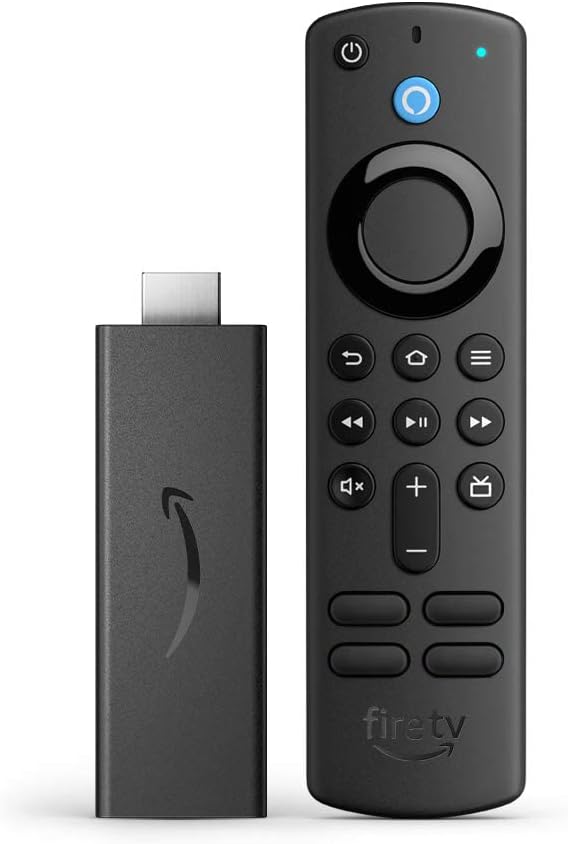
Image: The Fire TV Stick and its accompanying Alexa Voice Remote, showcasing their compact design.
Content Access
Your Fire TV Stick provides access to a vast library of content:
- Movies & TV Shows: Stream over 1.5 million movies and TV episodes from services like Netflix, Prime Video, Disney+, Peacock, and more (subscription fees may apply).
- Live TV & Sports: Watch your favorite live TV, news, and sports with subscriptions to services such as SLING TV and YouTube TV. Use the Guide button on your remote to see what's available.
- Free Content: Access over 300,000 free movies and TV episodes from popular ad-supported streaming apps like Amazon Freevee, Tubi, and Pluto TV.
- Music: Listen to millions of songs on Amazon Music, Spotify, Pandora, and other platforms (subscription fees may apply).

Image: A collage of popular streaming service logos, illustrating the wide range of content available on the Fire TV Stick.

Image: The Fire TV Stick and remote alongside icons representing various entertainment categories like sports, movies, music, and live TV.
Accessibility Features
The Fire TV Stick includes several accessibility features to enhance the user experience:
- VoiceView Screen Reader: Enables access to most Fire TV features for users who are blind or visually impaired.
- Screen Magnifier: Allows users to zoom in and out, and pan around the screen.
- Text Banner: Consolidates on-screen text into a compact, customizable banner.
- Closed Captioning: Watch videos and TV shows with closed captioning displayed (availability varies by content).
- Audio Description: Provides verbal descriptions of on-screen actions, facial expressions, and scene changes (availability varies by content).
- Bluetooth Headphone Support: Listen to Fire TV with compatible Bluetooth headphones.

Image: A television displaying a live camera feed, illustrating the Fire TV Stick's capability to integrate with smart home devices.
Specifications
Detailed technical specifications for the Amazon Fire TV Stick (3rd Gen) and its Alexa Voice Remote:
| Feature | Specification |
|---|---|
| Fire TV Stick (3rd Gen) | |
| Size | 3.4” x 1.2” x 0.5” (86 x 30 x 13 mm) |
| Weight | 1.1 oz (32.0 g) |
| Processor | Quad-core 1.7 GHz |
| GPU | IMG GE8300 |
| Storage | 8 GB internal |
| Wi-Fi | Dual-band, dual-antenna Wi-Fi (MIMO) for faster streaming and fewer dropped connections. Supports 802.11a/b/g/n/ac Wi-Fi networks. |
| Bluetooth | Bluetooth 5.0 and Bluetooth Low Energy. Pair with compatible Bluetooth speakers, headphones, video game controllers, and more. |
| Voice Support | Yes, with Alexa Voice Remote (included) or the free Fire TV app. |
| IR Device Control | Controls Fire TV Stick and certain functions (power, volume) on compatible IR-enabled devices (TVs, soundbars, A/V receivers). |
| Cloud Storage | Free cloud storage for digital content purchased from Amazon. |
| Ports | HDMI output, micro-USB for power only. |
| Audio Support | Dolby Atmos, Dolby Digital, Dolby Digital+ surround sound and HDMI Audio passthrough. |
| Video Content Formats Supported | HDR 10, HDR10+, HLG, H.265, H.264, VP9 |
| Output Resolution Supported | 1080p and 720p up to 60 fps |
| System Requirements | High-definition television with available HDMI input, internet connection via Wi-Fi, a power outlet. |
| TV Compatibility | High-definition TVs with HDMI capable of 1080p or 720p at 60/50 Hz. |
| Alexa Voice Remote (3rd Gen) | |
| Size | 38 x 142 x 16 mm |
| Weight | 43.4 g (without batteries) |
| Batteries | 2 AAA (included) |
| Technology | Bluetooth |
| Compatibility | Fire TV Stick (3rd Gen), Fire TV Stick 4K, Fire TV Stick 4K Max |
Maintenance
To ensure optimal performance and longevity of your Fire TV Stick, consider the following maintenance tips:
- Keep it Clean: Gently wipe the Fire TV Stick and remote with a soft, dry cloth to remove dust. Avoid using liquid cleaners or abrasive materials.
- Ensure Ventilation: While compact, ensure the Fire TV Stick is not covered or placed in an enclosed space that could lead to overheating.
- Software Updates: Allow the device to install software updates when prompted. These updates often include performance improvements and security enhancements.
- Remote Batteries: Replace the AAA batteries in the Alexa Voice Remote when performance degrades or the remote becomes unresponsive.
Troubleshooting
If you encounter issues with your Fire TV Stick, try the following troubleshooting steps:
- No Power/No Signal:
- Ensure the power adapter is securely plugged into a working wall outlet and the micro-USB cable is firmly connected to the Fire TV Stick.
- Verify the Fire TV Stick is fully inserted into the HDMI port on your TV. Try a different HDMI port if available.
- Confirm your TV is set to the correct HDMI input source.
- Remote Not Responding:
- Replace the AAA batteries in the Alexa Voice Remote.
- If the remote is not paired, press and hold the Home button on the remote for 10 seconds to initiate pairing.
- Ensure there are no obstructions between the remote and the Fire TV Stick.
- Buffering or Poor Streaming Quality:
- Check your Wi-Fi connection. Ensure your router is working correctly and the Fire TV Stick is within range.
- Restart your Wi-Fi router by unplugging it for 30 seconds and then plugging it back in.
- Restart the Fire TV Stick by unplugging its power adapter for a few seconds and then plugging it back in.
- Ensure other devices on your network are not consuming excessive bandwidth.
- App Not Working:
- Go to Settings > Applications > Manage Installed Applications, select the problematic app, and choose 'Force Stop' then 'Clear Cache'.
- If the issue persists, try 'Clear Data' (this will log you out of the app) or uninstall and reinstall the app.
Warranty and Support
Your Amazon Fire TV Stick (3rd Gen) comes with a 90-day Limited Warranty and service. Optional 2-Year and 3-Year Extended Warranty plans are available for U.S. customers and are sold separately.
This device receives guaranteed software security updates until at least four years after the device is last available for purchase as a new unit on our websites. For specific information regarding your device, you can visit the 'Manage Your Content and Devices' section on the Amazon website.
For further assistance, please refer to the official Amazon support resources or contact Amazon customer service.
Ask a question about this manual
Ask about setup, troubleshooting, compatibility, parts, safety, or missing instructions. Manuals+ will review the question and use this page’s manual context to help answer it.