
ZJ B08BZPQTZ4
Vehicle Traveling Data Recorder User Manual
Brand: ZJ | Model: B08BZPQTZ4
1. Product Overview
The ZJ Vehicle Traveling Data Recorder is a 4.3-inch 1080P dual-lens car DVR designed for front and rear vehicle recording. It functions as a dash camera integrated into a rearview mirror, providing comprehensive video surveillance for your vehicle.

Image 1.1: Front view of the ZJ Vehicle Traveling Data Recorder, showing the mirror display with a road scene and the integrated front camera on top.
This device captures high-definition video from both the front and rear of your vehicle, ensuring critical moments on the road are recorded. Key features include automatic recording upon vehicle startup, motion detection, and a collision sensing function to protect important footage.
2. Key Features
- 4.3-inch HD Resolution Display: Features a 4.3-inch full-angle high-definition LCD screen for clear playback and real-time viewing.
- Real 1080P HD Video Recording: Records crystal clear HD video in 1080P mode from the front camera. Video and audio are automatically recorded in an endless loop.
- Dual Lens System: Allows simultaneous recording from two different angles (front and rear). The Picture-in-Picture (PIP) display mode provides a clear view from both cameras.
- 6-Glass Professional Camera Lens: Utilizes a wide-angle infrared filter glass lens for improved image quality, high temperature resistance, and advanced deformity correction.
- Reverse Image Function: Automatically switches to the back-up camera image view with parking lines when the vehicle is in reverse gear.
- Motion Detection: Automatically records when movement is detected in front of the camera while in static standby mode.
- Parking Monitoring Support: Provides surveillance when the vehicle is parked.
- Collision Sensing (G-Sensor): In the event of a severe collision, the built-in G-sensor will trigger, automatically locking the current video file (typically 10 seconds before and 1-3 minutes after the event) to prevent it from being overwritten. These files are stored in a protected folder.
- Automatic On/Off: Starts recording automatically when the vehicle's power supply is connected and shuts down, saving recordings, when the ignition is turned off.

Image 2.1: Visual representation of key features including Motion Detection, Loop Recording, G-Sensor, High Definition 1080P, Parking Monitor, and Touch Screen functionality.
3. Specifications
| Parameter | Value |
|---|---|
| Product Name | Vehicle Traveling Data Recorder |
| Product Size | 345mm x 120mm x 55mm |
| Net Weight | 548g |
| Camera Lens | 140-degree A+ high resolution ultra wide angle lens (Front) |
| Rear Camera Angle | 140-degree (as per diagram) |
| Supported Languages | English, Chinese (Simplified), Chinese (Traditional), etc. |
| Video File Format | MOV (Recording), AVI (Playback) |
| Video Resolution | Front: 1080P, Rear: 480P |
| Video Pixels | 130 pixels |
| Video Encoding Format | MJPEG |
| Loop Video | Seamless video, no leakage |
| Photographic Pixels | 500 pixels |
| Photo Format | JPEG |
| Memory Card Support | TF card, maximum support 32GB |
| Current Frequency | 50HZ/60HZ |
| USB Function | USB-Disk, PC camera |
| Power Supply Interface | 5V / 1.0A |
| Battery Capacity | 200mA |

Image 3.1: Diagram illustrating the wide viewing angles of the front camera (170°) and rear camera (140°) for comprehensive coverage.
4. Package Contents
Please check the package carefully to ensure all items are present and in good condition.
- ZJ Vehicle Traveling Data Recorder (Mirror Unit)
- Rear View Camera
- Power Cable (for main unit)
- Rear Camera Connection Cable
- Memory Card (TF card, up to 32GB supported)
- User Manual (this document)

Image 4.1: Components included in the package: the main mirror unit, rear camera, and necessary power and connection cables.
5. Setup and Installation
Follow these steps to properly install your ZJ Vehicle Traveling Data Recorder:
- Mount the DVR: Securely fix the main DVR unit onto your vehicle's existing rearview mirror. Ensure it is stable and does not obstruct your view.
- Connect Power Cable: Plug the power cord into the main DVR unit.
- Route Power Cable (Part 1): Carefully route the power cord along the line between the ceiling and the windshield glass.
- Route Power Cable (Part 2): Continue routing the power cord along the crevices of the door frame, down to the bottom of the storage box alignment.
- Connect to Power Source: Plug the cigarette lighter adapter end of the power cord into your vehicle's cigarette lighter socket.
- Install Rear Camera (Optional): If using the rear camera, mount it at the rear of your vehicle (e.g., near the license plate or inside the rear window). Connect its cable to the main DVR unit and route the cable discreetly.
- Insert Memory Card: Insert a TF (microSD) card (up to 32GB, Class 10 recommended) into the designated slot on the DVR unit.
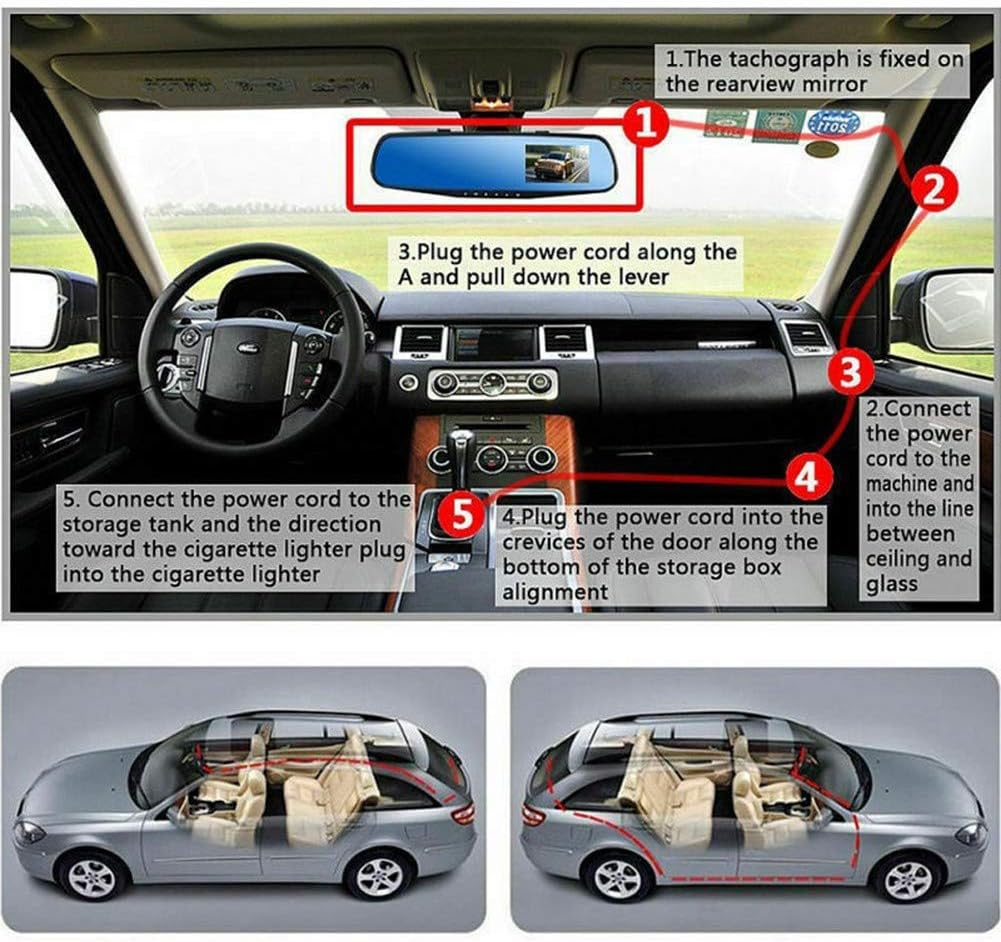
Image 5.1: Step-by-step diagram illustrating the installation process, from mounting the DVR to routing and connecting the power cable to the cigarette lighter.
Note: For optimal performance, ensure all cables are securely connected and routed away from moving parts or areas that could cause damage.
6. Operation
6.1 Power On/Off
The device is designed for automatic operation. When connected to the vehicle's power supply and the ignition is turned on, the DVR will automatically power on and begin recording. When the ignition is turned off, the DVR will automatically save the current recording and shut down.
6.2 Recording Modes
- Continuous Loop Recording: The DVR records video in seamless loops (e.g., 1, 3, or 5-minute segments). When the memory card is full, the oldest unlocked files will be overwritten automatically.
- Motion Detection Recording: When enabled, the DVR will enter a static standby state. If movement is detected in front of the camera, it will automatically start recording. This is useful for parking surveillance.
- G-Sensor (Collision Sensing) Recording: In the event of a sudden impact or collision, the built-in G-sensor will trigger, automatically locking the current video file (typically 10 seconds before and 1-3 minutes after the event) to prevent it from being overwritten. These files are stored in a protected folder.
6.3 Display Modes
- Front Camera View: Displays the live feed from the front camera.
- Picture-in-Picture (PIP) Display: Shows both front and rear camera feeds simultaneously on the screen, with one main view and a smaller inset view.
- Rear Camera View (Reverse Assist): When the vehicle is put into reverse gear, the display will automatically switch to the full-screen rear camera view, often with parking guidelines to assist with backing up.
6.4 Menu Navigation
Use the buttons located on the bottom of the mirror unit to navigate through the menu options. These typically include buttons for power, menu, mode switching, up/down navigation, and OK/confirm.
- Mode Button: Switch between video recording, photo mode, and playback mode.
- Menu Button: Access settings such as video resolution, loop recording duration, G-sensor sensitivity, motion detection, date/time, and language.
- Up/Down Buttons: Navigate through menu options or adjust settings.
- OK Button: Confirm selections or start/stop recording in video mode.
6.5 Playback
To review recorded videos or photos:
- Press the Mode button to switch to playback mode.
- Use the Up/Down buttons to browse through the recorded files.
- Press the OK button to play a selected video or view a photo.
- To exit playback, press the Mode button again.
7. Maintenance
- Cleaning: Use a soft, dry cloth to clean the lens and screen. Avoid using abrasive cleaners or solvents that may damage the device.
- Memory Card Management: Regularly format the memory card (e.g., once a month) within the DVR's settings to ensure optimal performance and prevent data corruption. Back up any important files before formatting.
- Temperature: Avoid exposing the device to extreme temperatures (very hot or very cold) for extended periods, as this can affect battery life and component longevity.
- Firmware Updates: Check the manufacturer's website periodically for any available firmware updates. Follow instructions carefully if performing an update.
8. Troubleshooting
| Problem | Possible Cause | Solution |
|---|---|---|
| Device does not power on. | No power supply; loose connection; faulty power adapter. | Check cigarette lighter connection. Ensure vehicle ignition is on. Test power adapter in another socket if possible. |
| Recording stops or freezes. | Memory card full; slow memory card; memory card error; device overheating. | Format the memory card. Use a Class 10 or higher TF card. Try a different memory card. Ensure proper ventilation. |
| Video quality is poor. | Protective film on lens; dirty lens; low light conditions; incorrect resolution setting. | Remove any protective film. Clean the lens. Adjust video resolution in settings. |
| G-sensor is too sensitive/not sensitive enough. | G-sensor sensitivity setting is too high/low. | Adjust the G-sensor sensitivity in the device settings menu. |
| Rear camera not displaying. | Loose connection; faulty cable/camera. | Check the connection of the rear camera cable to the main unit. Ensure the cable is not damaged. |
9. Warranty and Support
For warranty information and technical support, please refer to the documentation provided with your purchase or contact the manufacturer directly. Keep your proof of purchase for warranty claims.
Manufacturer: ZJ
Note: Specific warranty terms may vary by region and retailer.
Related documentsB08BZPQTZ4


Ask a question about this manual
Ask about setup, troubleshooting, compatibility, parts, safety, or missing instructions. Manuals+ will review the question and use this page’s manual context to help answer it.