
PXN PXN-V3II
PXN-V3II Racing Wheel User Manual
Model: PXN-V3II
Brand: PXN
1. Introduction
The PXN-V3II Racing Wheel is a versatile gaming peripheral designed to enhance your racing and driving simulation experience across multiple platforms. This manual provides detailed instructions for setup, operation, maintenance, and troubleshooting to ensure optimal performance and longevity of your device.
The PXN-V3II is compatible with PC, PlayStation 3 (PS3), PlayStation 4 (PS4), Nintendo Switch, Xbox One, and Xbox Series X|S consoles. It features dual motor vibration feedback, a 3-pedal system, an integrated sequential shifter, and paddle shifters for a realistic driving feel.

Figure 1: PXN-V3II Racing Wheel, Pedals, and Shifter
2. Package Contents
Please verify that all items listed below are included in your package:
- PXN-V3II Racing Wheel
- 3-Pedal Unit (Accelerator, Brake, Clutch)
- C-Type Fixing Bracket
- User Manual

Figure 2: PXN-V3II Package Contents
3. Setup and Installation
3.1 Physical Installation
The PXN-V3II Racing Wheel offers two methods for secure attachment to your gaming surface: suction cups and a C-type fixing bracket.
- Suction Cups: The base of the steering wheel is equipped with seven strong suction cups. Place the wheel on a smooth, flat surface and press down firmly to engage the suction cups.
- C-Type Fixing Bracket: For enhanced stability, especially during intense gameplay, use the included C-type clamp. Attach the fixing rod to the U-shaped bracket, then clip the installed U-shaped bracket onto the steering wheel. Mount the steering wheel on your desk and tighten the fixing rod to secure it.

Figure 3: Double Fixation Method (Suction Cups and C-Type Clamp)
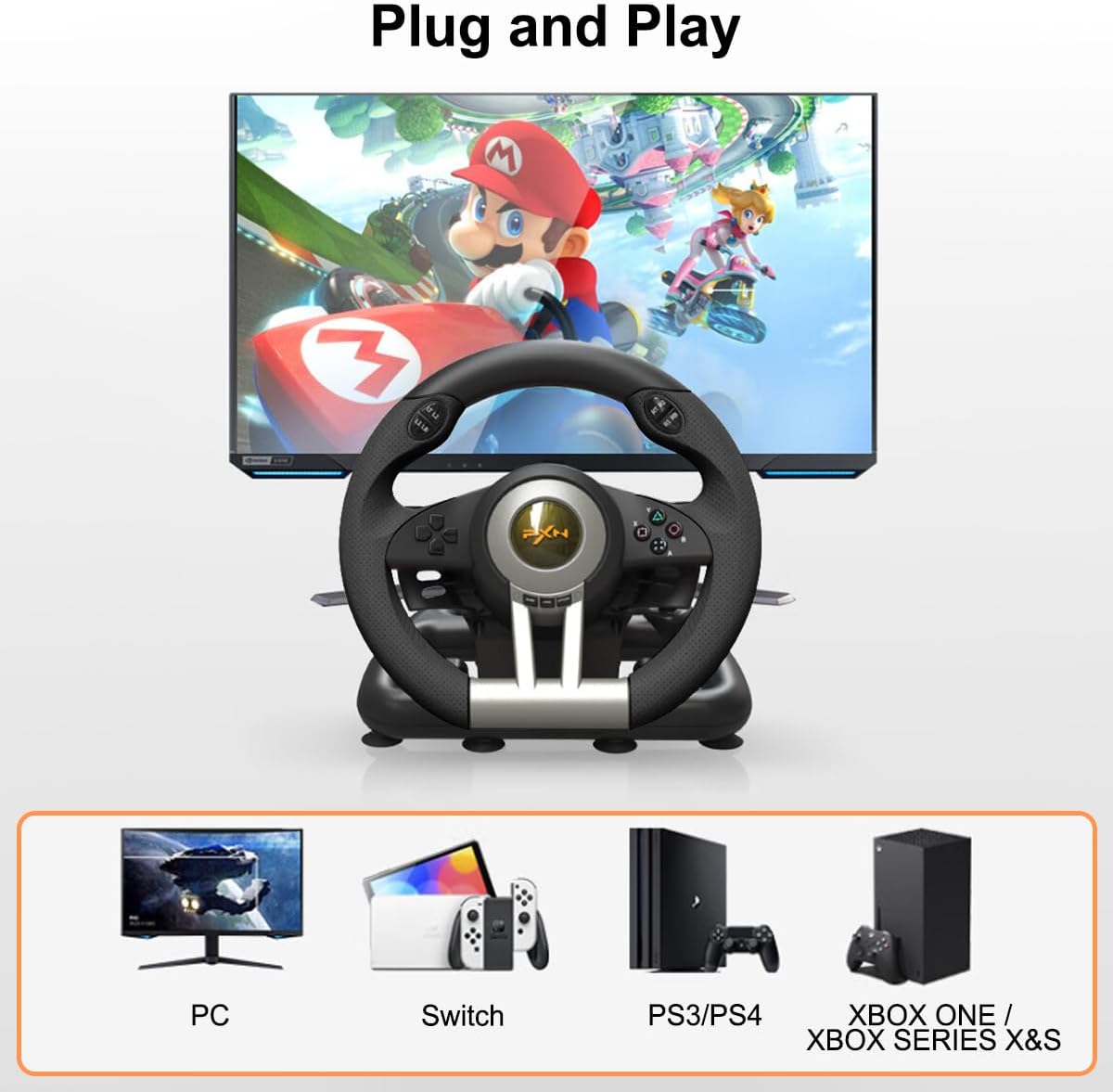
Figure 4: Racing Wheel Secured with C-Type Clamp
For a visual guide on bracket installation, please watch the following video:
Video 1: PXN-V3II Bracket Installation Tutorial
3.2 Platform Connectivity
The PXN-V3II Racing Wheel is designed for plug-and-play compatibility across various platforms. Ensure your console or PC is powered on before connecting the wheel.

Figure 5: Multi-Platform Compatibility
3.2.1 Connecting to PC
- Connect the pedal unit's crystal head cable to the crystal port on the back of the steering wheel's base.
- Plug the USB cable from the steering wheel into an available USB port on your PC.
- After a successful connection, you can test the steering wheel buttons in the game controller settings on your computer.
For a detailed PC connection guide, refer to the video below:
Video 2: Tutorial for Connecting V3 to PC
3.2.2 Connecting to PS4 / PS3
- Turn off the original PS4/PS3 controller.
- Connect the pedal unit's crystal head cable to the crystal port on the back of the steering wheel's base.
- Use the original controller's data cable to connect the controller to the USB guide port on the back of the steering wheel.
- Plug the USB cable that comes with the steering wheel into the PS4/PS3 console.
- Press the HOME button on the steering wheel. A steady red indicator light indicates a successful connection, and you can now control the console.
For a detailed PS4 connection guide, refer to the video below:
Video 3: Tutorial for Connecting V3 to PS4
3.2.3 Connecting to Xbox One / Xbox Series X|S
- Turn off the original Xbox controller.
- Connect the pedal unit's crystal head cable to the crystal port on the back of the steering wheel's base.
- Use a micro USB cable to connect the original Xbox controller to the USB guide port on the back of the steering wheel.
- Plug the USB cable that comes with the steering wheel into the Xbox console.
- Press the HOME button on the steering wheel. A steady red indicator light indicates a successful connection, and you can now control the console.
For a detailed Xbox connection guide, refer to the video below:
Video 4: Tutorial for Connecting V3 to Xbox
3.2.4 Connecting to Nintendo Switch
- Connect the pedal unit's crystal head cable to the crystal port on the back of the steering wheel's base.
- Connect a Type-C OTG adapter (not included) to the USB connector on the steering wheel.
- Then, plug the Type-C connector into the Nintendo Switch console.
- After successful connection, the red mode indicator will show 'ON'.
- Note: You may need to pair with an original Switch wired controller to boot. If it is not the original controller, the connection may not be successful.
4. Operating Instructions
4.1 Mode Switching (270° & 900° Rotation)
The PXN-V3II features a physical button to switch between 270° and 900° rotation modes. The 900° mode is ideal for driver games, offering more precise steering, while the 270° mode is suitable for racing competition games that require quicker turns.

Figure 6: Steering Wheel Rotation Capability
4.2 Vibration Function
The gaming steering wheel includes dual motors for vibration feedback, which automatically adjusts the vibration amplitude based on different driving scenarios. For PC, you can manually adjust the vibration amplitude to customize your experience.

Figure 7: Real Double Vibration Feature
4.3 Pedal Operation
The 3-pedal unit provides a realistic racing experience with an angle self-adjusting linear pedal. The linear pedal can self-adjust gas and brake threshold levels according to your foot pressure.
4.4 Shifter and Paddle Operation
The PXN Racing Wheel features both a shift accelerator lever and shift paddles, allowing for quick and precise gear changes during gameplay.
The PXN-V3II works well with a wide range of racing games, including Need for Speed, Forza Horizon, DiRT, GTA, and real racing series. It is also suitable for driver games like Euro Truck Simulator and American Truck Simulator.
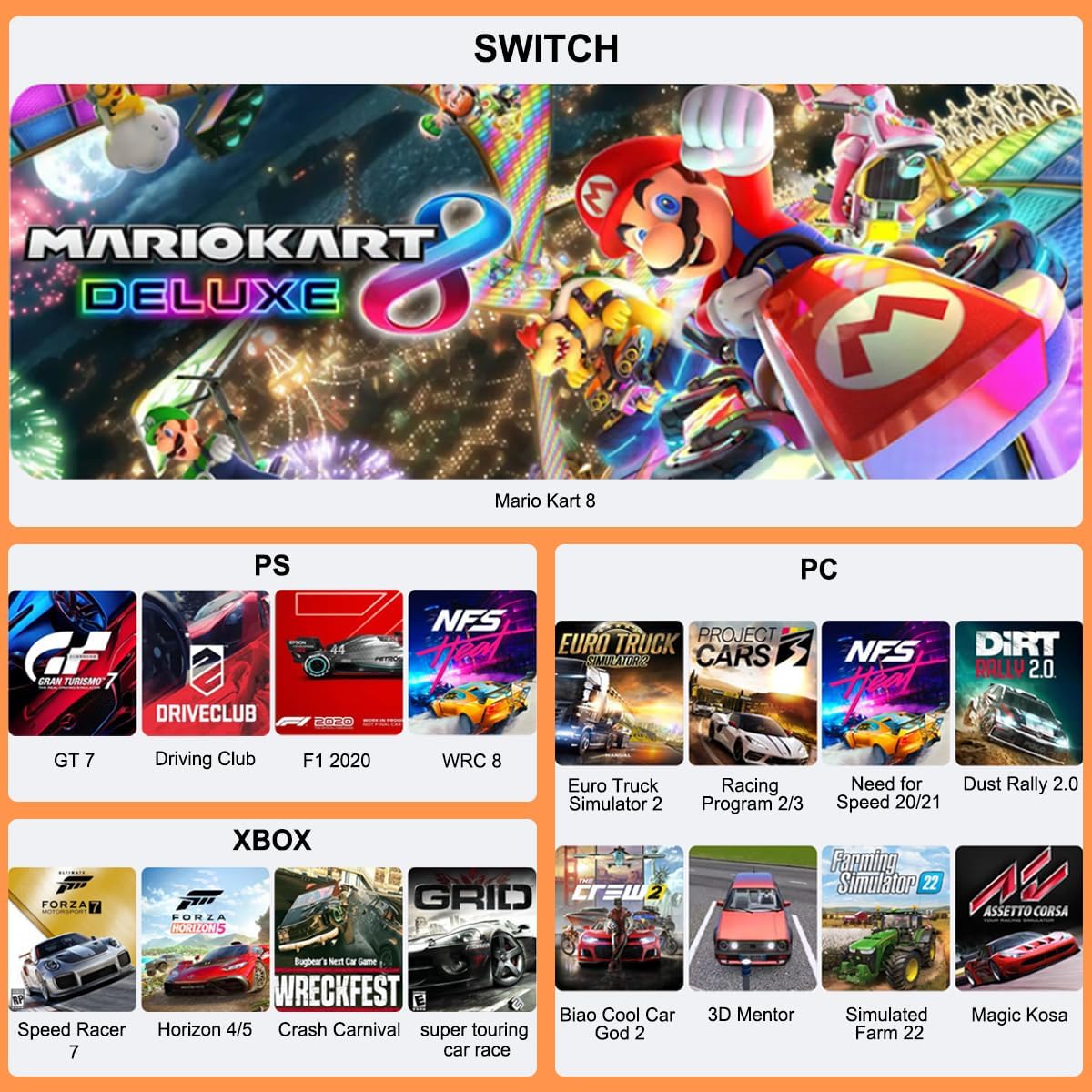
Figure 8: Compatible Game Titles
For an overview of the wheel's features and operation, please watch this video:
Video 5: PXN PC Racing Wheel Features
5. Troubleshooting
If you encounter issues with your PXN-V3II Racing Wheel, please consider the following common solutions:
- Connection Issues: Ensure that the original controller is powered off before connecting it to the steering wheel's guide port. Verify that the data cable used to connect the controller has data transmission capabilities; otherwise, the connection will not be completed.
- Stability Problems: If the wheel is not stable, ensure the suction cups are on a clean, smooth surface, or use the C-type fixing bracket and tighten it securely to your desk.
- No Response: Double-check all USB connections. Ensure the correct connection method for your specific console (PC, PS4, Xbox, Switch) is followed as outlined in Section 3.2.
- Button Mapping: For some games, especially on PC, you may need to manually map controls within the game's settings.
If problems persist, please refer to the Warranty & Support section for further assistance.
6. Maintenance
To ensure the longevity and optimal performance of your PXN-V3II Racing Wheel, follow these maintenance guidelines:
- Cleaning: Use a soft, dry cloth to wipe down the steering wheel, pedals, and shifter. Avoid using abrasive cleaners or solvents that could damage the surfaces.
- Storage: When not in use, store the racing wheel in a clean, dry place away from direct sunlight and extreme temperatures.
- Cable Care: Avoid bending or crimping the cables excessively to prevent internal damage.
7. Specifications
| Feature | Detail |
|---|---|
| Product Dimensions | 10.24 x 12.6 x 9.65 inches |
| Item Weight | 7.48 pounds |
| Brand | PXN |
| Compatible Devices | PC, Nintendo Switch, Playstation 4, Xbox One, Xbox Series X |
| Controller Type | Paddle, Pedals, Steering Wheel |
| Connectivity Technology | USB |
| Color | Black |
| Manufacturer | PXN |
| Country of Origin | China |
8. Warranty & Support
For any questions or issues regarding your PXN-V3II Racing Wheel, please submit a support request through the Amazon platform by navigating to the product page, then the Seller Profile, and entering your query. The seller aims to respond within 12 hours.
You can also refer to the official User Guide PDF for additional information: PXN-V3II User Guide (PDF)
Related documentsPXN-V3II


Ask a question about this manual
Ask about setup, troubleshooting, compatibility, parts, safety, or missing instructions. Manuals+ will review the question and use this page’s manual context to help answer it.