
1. Introduction
This manual provides comprehensive instructions for the installation, configuration, and operation of your JOOWIN AC1200 High Power Outdoor Wireless Access Point (Model: JW-EW74-CAYY). This device is designed to extend your wireless network coverage outdoors, offering stable and high-speed internet access in various environments. Please read this manual thoroughly before using the device to ensure proper setup and optimal performance.
2. Package Contents
Upon opening the package, verify that all items listed below are present and in good condition. If any items are missing or damaged, please contact JOOWIN customer support.
- JOOWIN AC1200 Outdoor Wireless Access Point (JW-EW74-CAYY)
- PoE Adapter (24V)
- Power Cable
- Ethernet Cable
- Mounting Accessories (screws, wall plugs, cable ties)
- Quick Installation Guide (this manual)

Image: The JOOWIN AC1200 Outdoor Wireless Access Point and its accompanying accessories, including the PoE adapter, cables, and mounting hardware.
Note on Video Content: An unboxing video created by a customer is available for this product. While we cannot embed it directly here, it visually demonstrates the contents of the package.
3. Product Features
The JOOWIN AC1200 Outdoor Wireless Access Point is engineered for robust outdoor wireless connectivity, offering a range of features to enhance your network:
- High Power Output: Features 500mW transmit power and dual chip + PA for extended coverage up to 300 feet radius, improving performance by up to 50%.
- Dual Band & High Transmission: Supports speeds up to 300Mbps on 2.4GHz and 867Mbps on 5.8GHz, ensuring high-speed data transfer and reduced latency.
- Passive PoE Support: Flexible deployment with included 24V Passive PoE adapter. Important: Only use 24V POE; 48V POE will damage the device.
- Enhanced Security: Provides WEP, WPA/WPA2, and WPA-PSK/WPA2-PSK encryption for secure data transmission.
- Multiple Operating Modes: Supports AP, Router, Bridge, and Repeater modes to meet diverse networking requirements.
- High Device Capacity: Capable of supporting up to 64 connected devices simultaneously for stable and efficient network access.
- Weatherproof Design: Built to withstand outdoor conditions.

Image: An internal view highlighting the dual chip and Power Amplifier (PA) design, which contributes to the device's enhanced performance and extended range.

Image: A diagram demonstrating the device's multi-band capabilities, allowing it to automatically select the least interference and highest speed band between 2.4GHz and 5GHz.
4. Setup and Installation
4.1 Physical Installation
The JOOWIN AC1200 is designed for outdoor use and can be mounted on a pole or wall. It is recommended to install the device in an open area with minimal obstacles for optimal signal propagation.

Image: Illustration of the flexible mounting options, including pole and wall mounting, suitable for various outdoor environments.
4.2 Initial Configuration Steps
- Assemble the Device: Attach the antennas to the main unit if they are not pre-assembled.
- Connect to Computer: Set your computer to obtain an IP address automatically. Connect the LAN port of the JOOWIN device to your computer's Ethernet port using the provided Ethernet cable.
- Power On: Power on the device using the 24V PoE adapter. Wait approximately 90 seconds for the device to fully boot up.
- Connect to Wireless SSID: The device's default wireless SSID is JOOWIN_EW74. Connect your computer or mobile device to this SSID.
- Access Management Page: Open a web browser on your connected computer and enter the default IP address 192.168.10.1 into the address bar. This will take you to the device's login page.
- Login: The default password is admin. Enter this to access the setup wizard.

Image: A detailed view of the device's ports, including the WAN/LAN/RESET port, network cable port, and LED indicators for status monitoring.
5. Operating Modes
The setup wizard offers four primary operating modes. Select the mode that best suits your network requirements:
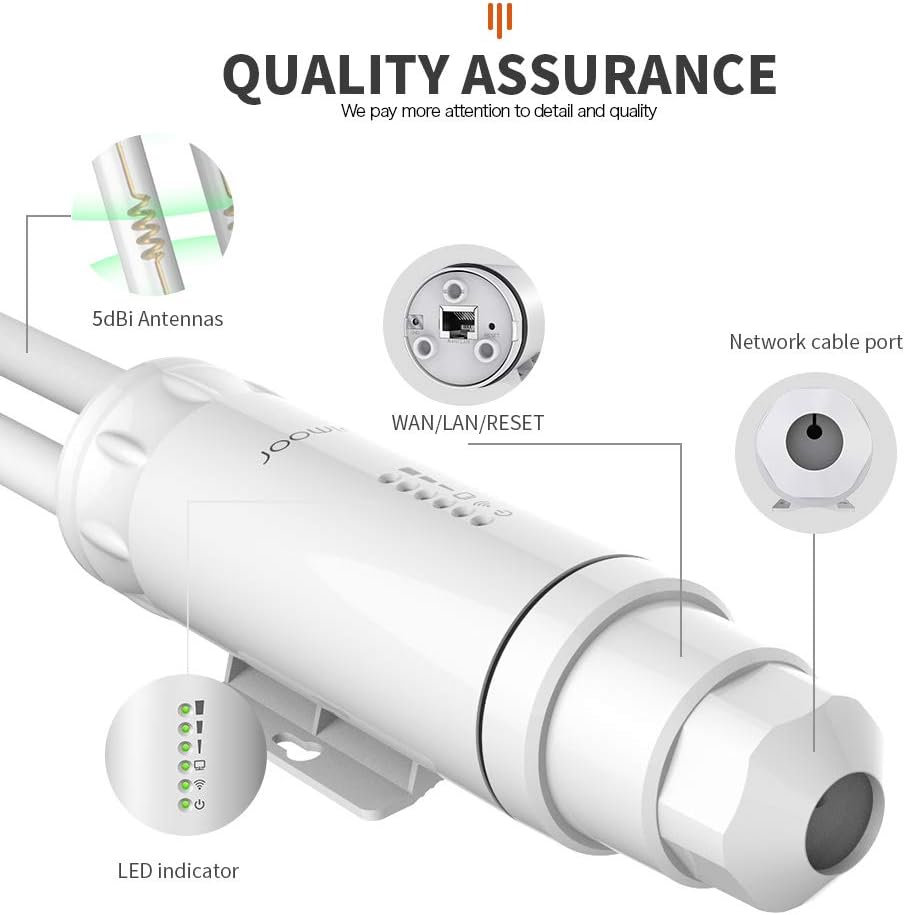
Image: A visual representation of the different operating modes supported by the device, including Bridge Mode, Repeater Mode, and Router/AP Mode, showing typical network setups for each.
5.1 AP Mode (Access Point Mode)
In AP Mode, the device acts as a central hub for wireless clients, extending a wired network wirelessly. It requires connection to an existing router or network switch.
- Set the IP address and subnet mask for the AP. These must be within the same network segment as your upper network (main router) and must not conflict with existing IP addresses.
- The upper network router will allocate IP addresses to devices connected to the AP.
- Configure 2.4G/5.8G wireless SSID, password, channel, and country settings.
- Connect the device's WAN port or PoE adapter LAN port to your internet source. Mobile devices can then connect to the configured SSID to access the internet.
- Note: The WiFi Unification feature allows simultaneous connection on both 2.4G and 5.8G bands under a single SSID.
5.2 Repeater Mode
Repeater Mode extends the coverage of an existing wireless network by re-transmitting the signal. This mode is ideal for eliminating Wi-Fi dead zones.
- The device connects wirelessly to your existing Wi-Fi network.
- It then broadcasts the extended signal, using the same SSID or a new one.
- Follow the on-screen wizard to scan for available networks and select the one you wish to extend.
5.3 Router Mode
In Router Mode, the device functions as a primary router, providing internet access to connected devices and managing the network. This mode is suitable when you have a modem but no router.
- Connect your modem to the device's WAN port.
- The device will create a new local network and assign IP addresses to connected clients.
- Configure your internet connection type (e.g., PPPoE, Dynamic IP, Static IP) through the management interface.
5.4 Bridge Mode
Bridge Mode connects two separate networks, allowing devices on both networks to communicate as if they were on the same network. This is often used for point-to-point or point-to-multipoint wireless links.
- The device establishes a wireless link to another access point or router.
- It then bridges the wired network connected to its LAN port with the remote wireless network.
- This mode is useful for extending a wired network to a remote location wirelessly.
6. Specifications
| Feature | Description |
|---|---|
| Model Number | JW-EW74-CAYY |
| Wireless Type | 802.11ac |
| Frequency Band Class | Dual-Band (2.4GHz & 5.8GHz) |
| Data Transfer Rate | Up to 300 Mbps (2.4GHz), 867 Mbps (5.8GHz) |
| Antennas | 2 x 5dBi Omni-directional |
| Transmit Power | 500mW |
| Power Supply | 24V Passive PoE (PoE Adapter Included) |
| Security | WEP, WPA/WPA2, WPA-PSK/WPA2-PSK |
| Max Connected Devices | 64 |
| Dimensions (LxWxH) | 8.66 x 1.98 x 1.98 inches |
| Item Weight | 1.19 pounds |
| Color | White |
7. Troubleshooting
If you encounter issues with your JOOWIN AC1200, refer to the following common troubleshooting steps:
- Cannot Access Management Page (192.168.10.1):
- Ensure your computer's Ethernet adapter is set to obtain an IP address automatically.
- Verify the Ethernet cable connection between the device's LAN port and your computer.
- Confirm the device is powered on and fully booted (wait 90 seconds after power-up).
- Try a different web browser.
- Temporarily disable your computer's firewall or antivirus software.
- No Internet Connection:
- Check the connection from the PoE adapter's WAN port to your main router/modem.
- Ensure your main router/modem is functioning correctly and has internet access.
- Verify the operating mode is correctly configured (e.g., AP Mode requires a connection to an existing network).
- In AP Mode, ensure the device's IP address does not conflict with your main router's IP address.
- Weak or Unstable Wi-Fi Signal:
- Ensure the device is installed in an open area with minimal physical obstructions (walls, large metal objects).
- Adjust the orientation of the antennas for better signal reception.
- Check for sources of interference (e.g., other 2.4GHz/5GHz devices, microwaves).
- Consider changing the Wi-Fi channel in the device's settings to a less congested one.
- Forgotten Password:
- If you have forgotten the login password for the management page, you may need to perform a factory reset. Locate the reset button (often a small pinhole) on the device. With the device powered on, press and hold the reset button for 5-10 seconds until the lights flash. This will revert all settings to factory defaults, including the password (admin).
- Device Not Powering On:
- Verify the power connection to the PoE adapter and the adapter's connection to the device.
- Ensure you are using the correct 24V PoE adapter. Using a 48V PoE adapter will damage the device.
- Test the power outlet with another device.
8. Maintenance
To ensure the longevity and optimal performance of your outdoor wireless access point, follow these maintenance guidelines:
- Regular Cleaning: Periodically clean the exterior of the device to remove dust, dirt, and debris. Use a soft, dry cloth. Do not use liquid cleaners or aerosols.
- Inspect Cables and Connections: Regularly check all cables (Ethernet, power) for any signs of wear, damage, or loose connections. Ensure the PoE adapter is protected from extreme weather.
- Firmware Updates: Check the official JOOWIN website periodically for firmware updates. Keeping your device's firmware up-to-date can improve performance, add new features, and enhance security.
- Environmental Considerations: While weatherproof, avoid direct exposure to extreme conditions if possible (e.g., prolonged submersion, direct lightning strikes). Ensure proper drainage around the installation area.
9. Warranty and Support
JOOWIN products are designed for reliability and performance. For warranty information, please refer to the warranty card included with your product or visit the official JOOWIN website.
For further assistance, technical support, or inquiries, please contact us:
- Email Support: YIYUANUS@163.com
- Online Resources: Visit the JOOWIN official website for FAQs, updated manuals, and driver downloads.
Please have your model number (JW-EW74-CAYY) and purchase information ready when contacting support.


