
1. Product Overview
The Cimetech Wireless Ergonomic Mouse (Model TM-004) is designed for comfortable and efficient computer navigation. It features 2.4G wireless connectivity, adjustable DPI settings, and a silent click design.

Image 1.1: Top view of the Cimetech Wireless Ergonomic Mouse, showing the scroll wheel and DPI button.
2. Package Contents
Please verify that all items are present in the package:
- Cordless Mouse
- USB Receiver
- User Manual
3. Setup Instructions
3.1 Battery Installation
- Locate the battery compartment on the underside of the mouse.
- Open the battery compartment cover.
- Insert one AA battery (not included) into the compartment, ensuring correct polarity (+/-).
- Close the battery compartment cover securely.
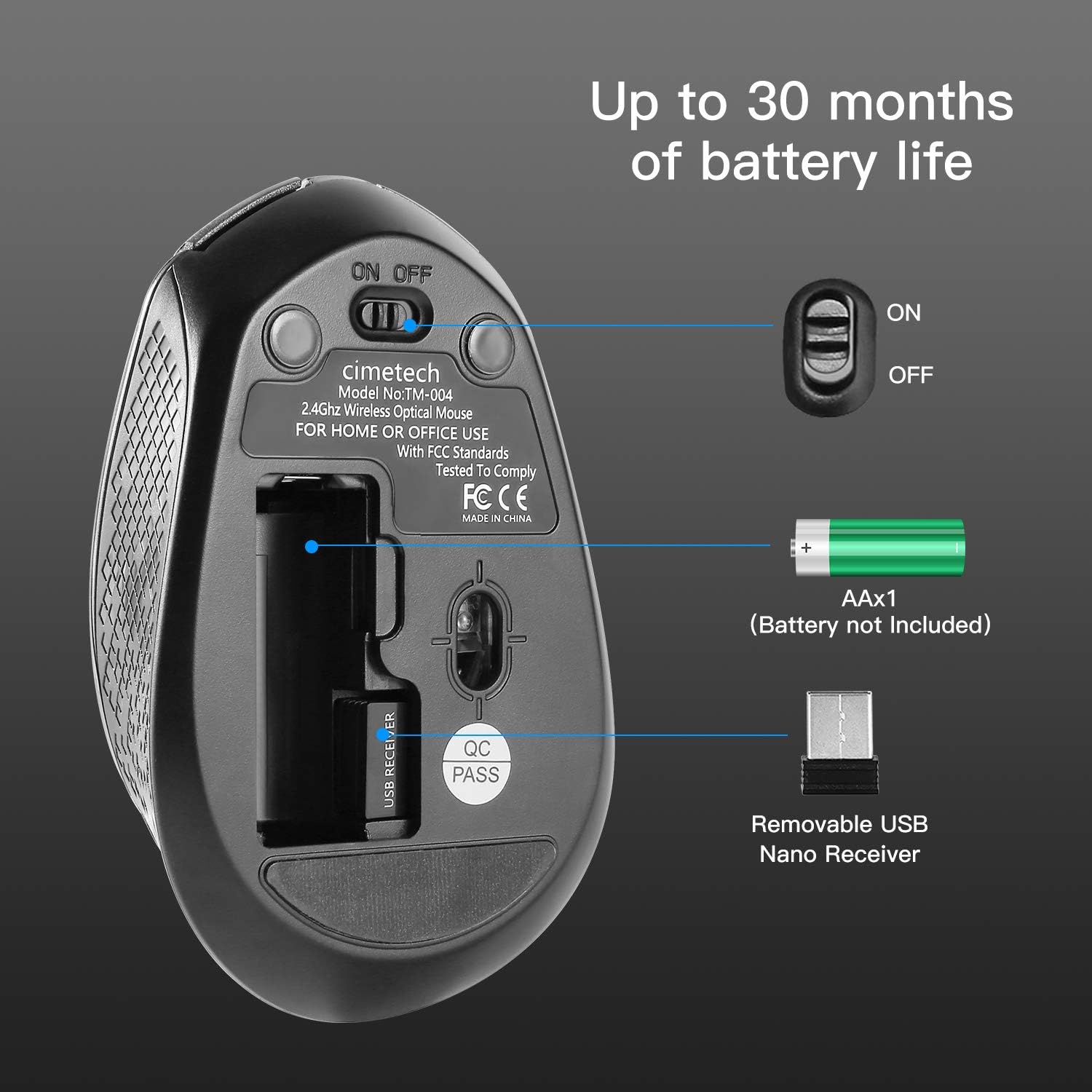
Image 3.1: Underside of the mouse, illustrating the battery compartment, ON/OFF switch, and USB receiver storage.
3.2 Connecting the USB Receiver
- Remove the USB receiver from its storage slot on the underside of the mouse.
- Plug the USB receiver into an available USB port on your computer (laptop, desktop, Mac, or PC).
- The mouse is plug-and-play; no additional drivers are typically required.
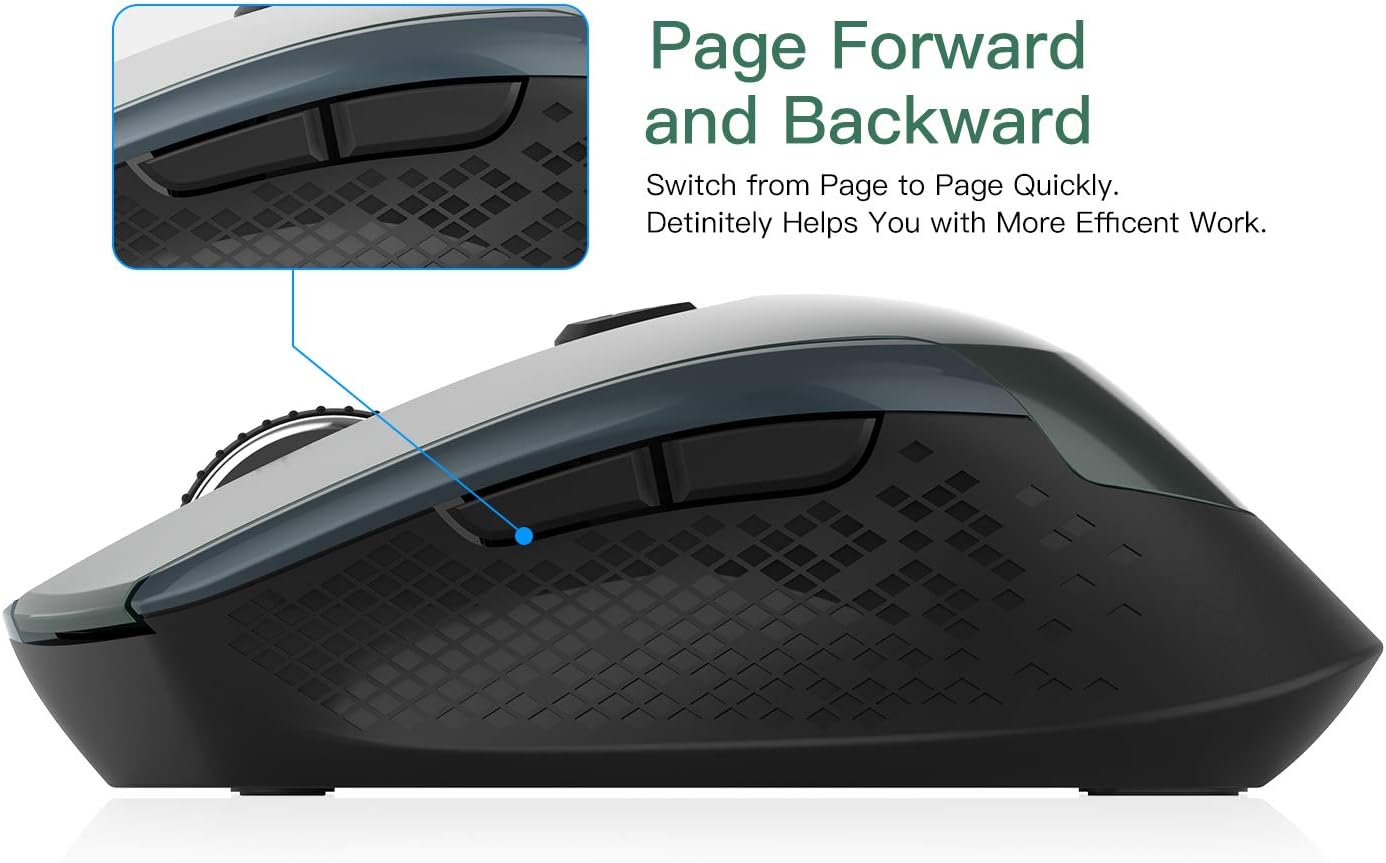
Image 3.2: The USB receiver connected to a laptop, demonstrating the wireless setup.
4. Operating Instructions
4.1 Powering On/Off
Locate the ON/OFF switch on the underside of the mouse (refer to Image 3.1). Slide the switch to the 'ON' position to power on the mouse. Slide it to 'OFF' when not in use to conserve battery life.
4.2 Adjusting DPI Sensitivity
The mouse features 3 adjustable DPI levels (800/1200/1600). To change the DPI, press the DPI button located behind the scroll wheel. Each press cycles through the available DPI settings, allowing for real-time adjustment of cursor speed and precision.
4.3 Button Functions
The mouse is equipped with 6 buttons:
- Left Click Button: Standard selection and activation.
- Right Click Button: Accesses context menus.
- Scroll Wheel: Scrolls content vertically. Can also be pressed for middle-click functionality.
- DPI Button: Adjusts cursor sensitivity (DPI).
- Forward Button: Navigates forward in web browsers or file explorers.
- Backward Button: Navigates backward in web browsers or file explorers.

Image 4.1: Side view of the mouse, indicating the location of the page forward and backward buttons.
4.4 Ergonomic Design and Silent Clicking
The mouse features an ergonomic design with a soft rubber grip, shaped to fit comfortably in your hand for extended use. Its silent click mechanism reduces operational noise, making it suitable for quiet environments.
4.5 Auto Sleep Function
To conserve battery power, the mouse will automatically enter a sleep mode after 15 minutes of inactivity. To wake the mouse, simply move it or click any button.
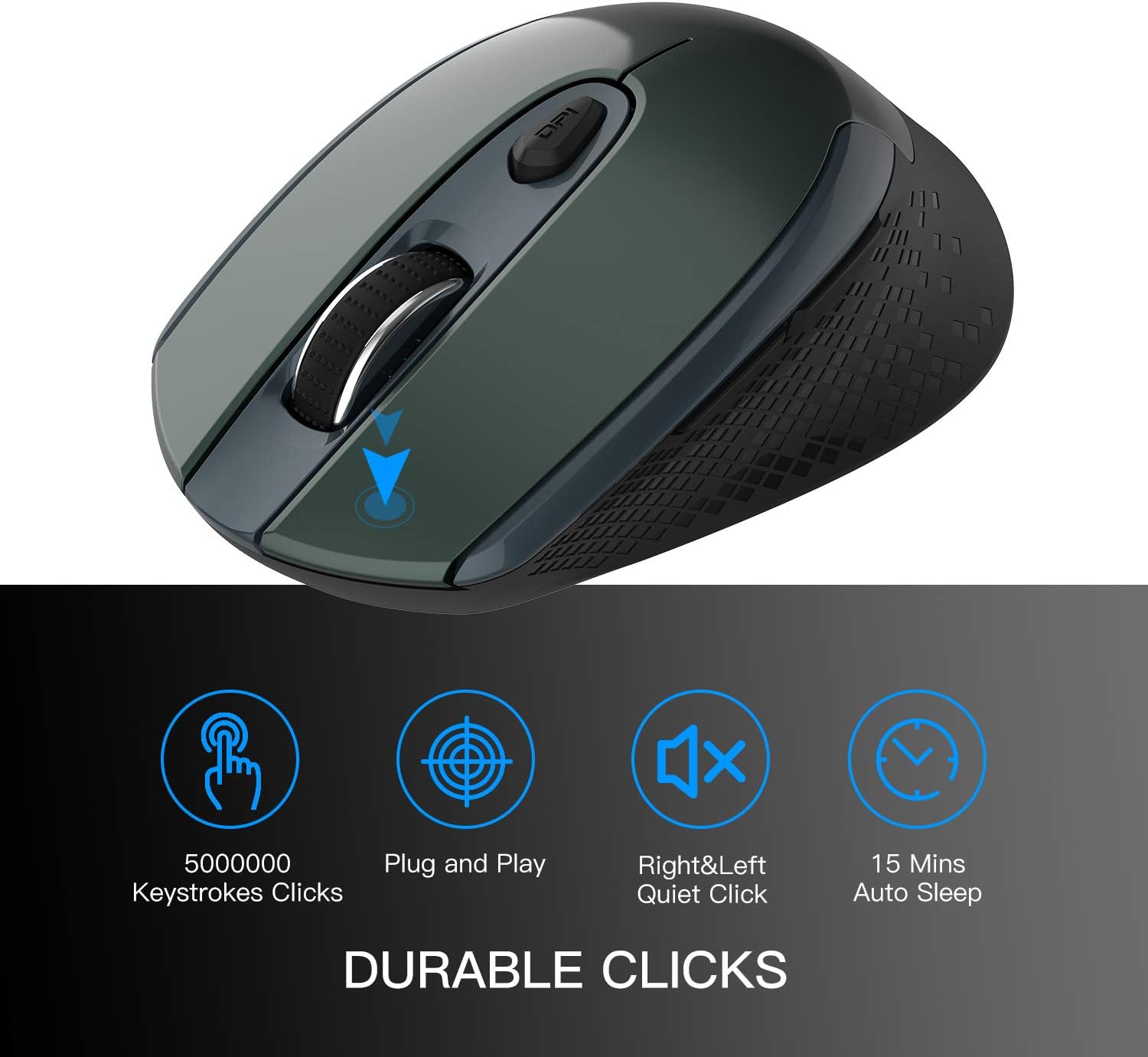
Image 4.2: Visual representation of key features including durable clicks, plug and play, quiet operation, and auto sleep.
5. Maintenance
5.1 Cleaning
To clean the mouse, gently wipe its surface with a soft, dry cloth. Avoid using harsh chemicals or abrasive materials, as these can damage the finish.
5.2 Battery Replacement
When the mouse's performance degrades or the cursor becomes erratic, it may indicate a low battery. Replace the AA battery as described in Section 3.1. The mouse is designed for up to 30 months of battery life, depending on usage.
6. Troubleshooting
- Mouse not responding:
- Ensure the mouse is powered on.
- Check if the battery is correctly installed and has sufficient charge. Replace if necessary.
- Verify that the USB receiver is securely plugged into a working USB port on your computer.
- Try plugging the USB receiver into a different USB port.
- Move the mouse closer to the USB receiver to ensure it is within the 50-foot wireless range.
- Erratic cursor movement:
- Ensure the optical sensor on the bottom of the mouse is clean and free from obstructions.
- Use the mouse on a suitable surface; highly reflective or transparent surfaces may affect tracking. A mouse pad is recommended.
- Replace the battery if it is low.
- Buttons not functioning:
- Ensure the mouse is powered on and connected.
- Test the mouse on a different computer to rule out software or system issues.
If you encounter issues not covered here, please contact customer support for assistance.
7. Specifications
| Feature | Description |
|---|---|
| Model Number | TM-004 |
| Connectivity | 2.4G Wireless (USB Receiver) |
| DPI Settings | 800 / 1200 / 1600 (Adjustable) |
| Buttons | 6 (Left, Right, Scroll Wheel, DPI, Forward, Backward) |
| Movement Detection | Optical |
| Special Features | Ergonomic Design, Portable, Silent Click, Auto Sleep |
| Wireless Range | Up to 50 feet |
| Battery Type | 1 x AA (not included) |
| Battery Life | Up to 30 months (approximate) |
| Compatibility | Windows 7/8/10/XP, Vista 7/8, Linux, Mac OS (Desktop, Laptop, PC, MacBook) |
| Item Weight | 2.89 ounces |
| Dimensions (L x W x H) | 4.1 x 2.6 x 1.2 inches (approximate) |

Image 7.1: Approximate dimensions of the mouse.
8. Warranty and Support
For warranty information or technical support, please refer to the contact details provided with your purchase or visit the official Cimetech website. Please retain your proof of purchase for any warranty claims.