
Ace Instruments KTP400
SIMATIC HMI Basic Touch Panel Instruction Manual
Model: KTP400 | Brand: Ace Instruments (Manufactured by Siemens)
1. Introduction
The Siemens KTP400 SIMATIC HMI Basic Touch Panel is an ideal entry-level human-machine interface designed for simple HMI applications in industrial communication, automation systems, and distributed control systems. This manual provides comprehensive instructions for setting up, operating, maintaining, and troubleshooting your KTP400 panel.

Figure 1.1: Front view of the KTP400 SIMATIC HMI Basic Touch Panel.
The KTP400 features a high-resolution, dimmable widescreen display with 64,000 colors, offering combined key and touch operation for intuitive control. It supports installation in portrait mode and is energy-efficient. Its innovative user interface, new controls, and graphics enhance usability. A USB interface allows connection of peripherals like keyboards, mice, and barcode scanners, and facilitates data archiving on a USB stick.
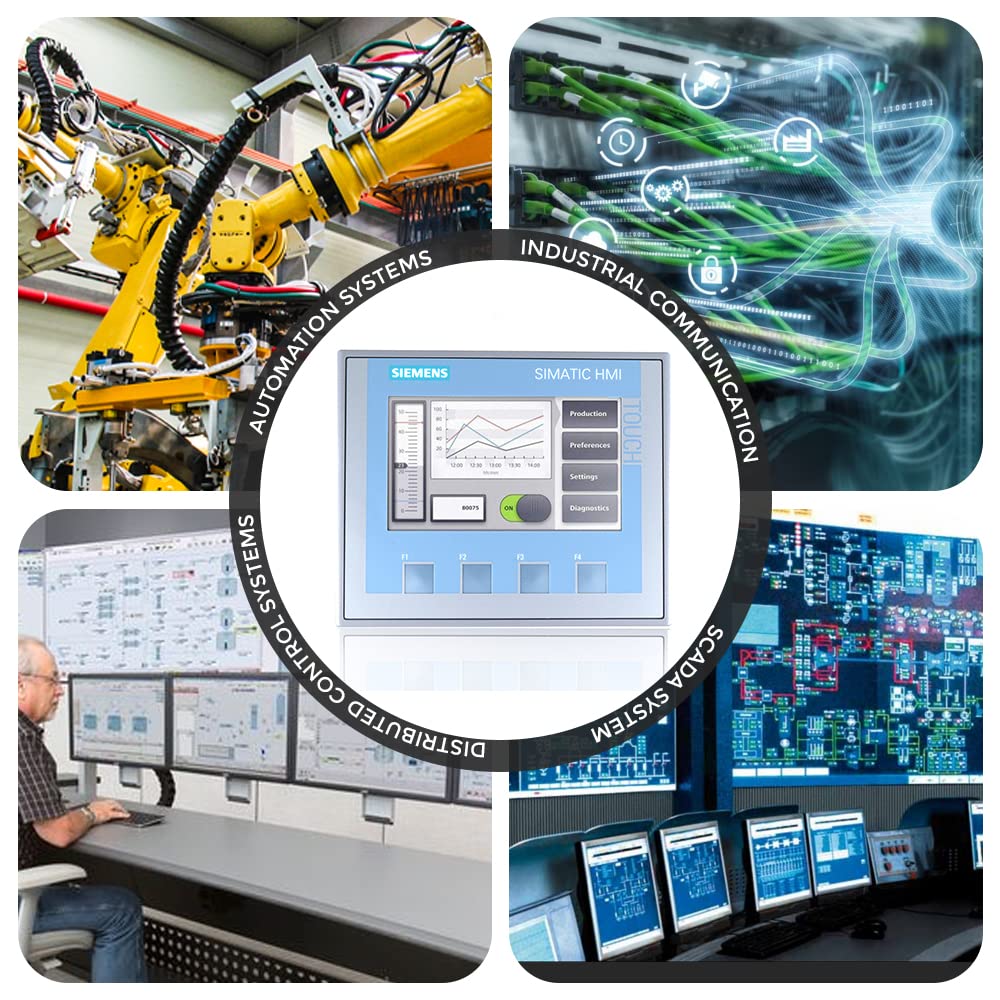
Figure 1.2: Typical applications of the SIMATIC HMI Basic Touch Panel.
2. Safety Information
Always adhere to the following safety guidelines to ensure safe operation and prevent damage to the device or injury to personnel:
- Ensure the power supply is disconnected before performing any installation, maintenance, or wiring tasks.
- Only qualified personnel should install, operate, and maintain this device.
- Protect the device from moisture, dust, and extreme temperatures.
- Use only specified power sources and cables.
- Do not open the device casing unless explicitly instructed by the manufacturer.
- Ensure proper grounding to prevent electrical hazards.
3. Setup
3.1 Unboxing and Package Contents
Carefully unpack the KTP400 HMI panel and verify that all components are present. The standard supply scope includes:
- 1 Unit of Siemens KTP400 SIMATIC HMI Basic Touch Panel
- Instruction Manual
- Accessories kit for mounting (e.g., mounting clips)
- Software CD (WinCC Basic)

Figure 3.1: KTP400 HMI Panel and included accessories.
3.2 Physical Installation
The KTP400 panel is designed for panel mounting. Ensure the installation cutout dimensions are 123 x 99 mm. The device depth is 43 mm. Use the provided mounting clips to secure the panel in place. The front of the panel has an IP 65, NEMA 4x degree of protection when mounted, while the rear is IP 20.

Figure 3.2: KTP400 HMI Panel components and interfaces.
- Display / touch screen
- Recesses for mounting clamps
- Mounting seal
- Function keys (F1-F4)
- RS-422/485 interface (not present on KTP400 Basic)
- Power supply connector
- Rating plate
- Interface name
- DIP switch
- Guide for labeling strips
- Connection for functional ground
3.3 Power Connection
Connect a 24V DC power supply to the designated power supply connector (6) on the rear of the panel. Ensure correct polarity. The device requires a stable 24V DC supply for proper operation.

Figure 3.3: Rear view with power and communication ports.
4. Operating Instructions
4.1 Basic Operation
The KTP400 features a touch screen for direct interaction and four function keys (F1-F4) for intuitive operation. The display provides visual feedback and allows navigation through various menus and process screens. The innovative user interface is designed for improved usability.
4.2 Connecting to PLCs and PCs
The KTP400 panel can be connected to various Programmable Logic Controllers (PLCs) and PCs for programming, control, and data exchange. It supports PROFINET (Ethernet) and USB interfaces.
Video 4.1: Overview of the Siemens KTP400 Basic Touch Panel, demonstrating its features and connectivity options for industrial applications.
PROFINET Connection: Use the RJ45 Ethernet port for PROFINET communication. This allows the HMI to communicate with compatible PLCs and other network devices. Ensure the communication protocols and IP settings are correctly configured on both the HMI and the connected device.
USB Connection: The USB host port allows connection of a USB stick for data archiving or other USB peripherals. It can also be used for data transfer with a PC.
4.3 Software Installation
To configure and program the KTP400, you will need to install the WinCC Basic (TIA Portal) V13 or higher configuration software on your PC. Refer to the software's installation guide for detailed instructions. This software enables you to create process screens, manage messages, and set up recipes for your HMI application.
4.4 Data Transfer and Archiving
The USB interface supports easy archiving of data on a USB stick. This is useful for logging process data, alarms, or other operational information. The HMI supports up to 50 recipes and 1000 messages, with 32 message classes.
5. Maintenance
Regular maintenance ensures the longevity and optimal performance of your KTP400 HMI panel:
- Cleaning: Use a soft, lint-free cloth slightly dampened with water or a mild, non-abrasive cleaning solution to clean the display and casing. Do not use harsh chemicals or abrasive materials.
- Inspection: Periodically inspect all cables and connections for signs of wear or damage. Ensure all mounting clips are secure.
- Software Updates: Keep the WinCC Basic software updated to the latest version to ensure compatibility and access to new features and bug fixes.
- Environmental Control: Ensure the operating environment remains within the specified temperature and humidity ranges to prevent damage.
6. Troubleshooting
This section provides solutions to common issues you might encounter with your KTP400 HMI panel.
| Problem | Possible Cause | Solution |
|---|---|---|
| Panel does not power on. | No power supply or incorrect voltage. | Check 24V DC power connection and ensure correct polarity. Verify power source is active. |
| Touch screen is unresponsive. | Screen calibration issue or physical damage. | Attempt to recalibrate the touch screen (refer to software documentation). Inspect for physical damage. |
| Communication with PLC fails. | Incorrect network settings or cable issues. | Verify IP addresses, subnet masks, and gateway settings. Check Ethernet cable connection. Ensure correct communication protocol is selected. |
| Data archiving to USB fails. | USB stick not recognized or full. | Ensure USB stick is properly inserted and formatted. Try a different USB stick. Check available space. |
If the problem persists after attempting these solutions, contact technical support.
7. Specifications
The following table outlines the key technical specifications for the Siemens KTP400 SIMATIC HMI Basic Touch Panel:
| Feature | Specification |
|---|---|
| Model | KTP400 SIMATIC HMI Basic Touch Panel |
| Display Size | 4 inches (also available in 7", 9", and 12" models) |
| Resolution | 480 x 272 px |
| Colors | 64,000 colors |
| Control Elements | Touch screen / 4 Function keys |
| Memory | 10 MB |
| Interfaces | 1 x RJ 45 Ethernet for PROFINET / 1 x USB host |
| Degree of Protection | IP 65, NEMA 4x (front if mounted) / IP 20 (rear) |
| Installation Cutout | 123 x 99 mm |
| Device Depth | 43 mm |
| Configuration Software | WinCC Basic (TIA Portal) V13 or higher |
| Messages | 1000 |
| Message Classes | 32 |
| Process Screens | 100 |
| Recipes | 50 |
| Archiving | Yes (via USB stick) |
| Manufacturer | Siemens |
8. Warranty and Support
Specific warranty information for the Siemens KTP400 SIMATIC HMI Basic Touch Panel should be obtained directly from the seller, Ace Instruments, or the manufacturer, Siemens. Please refer to your purchase documentation for details regarding warranty coverage and terms.
For technical support, product inquiries, or further assistance, please contact Ace Instruments or an authorized Siemens distributor. Ensure you have your product model number (KTP400) and any relevant purchase details available when seeking support.
Ask a question about this manual
Ask about setup, troubleshooting, compatibility, parts, safety, or missing instructions. Manuals+ will review the question and use this page’s manual context to help answer it.