1. Setup and Installation
1.1 Unboxing Your TV
Carefully remove the television from its packaging. Due to its size and weight (approximately 75.3 pounds), it is recommended that two or more people assist with unboxing and handling to prevent damage or injury.
1.2 Attaching the Stand
If you are not wall-mounting your TV, attach the included stand legs. Place the TV face down on a soft, clean surface to avoid scratching the screen. Ensure the correct leg is inserted into the corresponding slot (left leg into left slot, right leg into right slot) and secure with the provided screws. Refer to the diagram below for proper stand attachment.

Image: VIZIO P75Q9-H61 TV dimensions and included components. This image illustrates the TV's measurements with and without the stand, and lists the included accessories: User Manual, Power Cable, and XRT140 Remote.
1.3 Wall Mounting (Optional)
If wall-mounting, ensure you use a VESA-compatible wall mount (not included) that supports the TV's weight and size. Follow the wall mount manufacturer's instructions carefully. Remove the stand legs before mounting.
1.4 Connecting Peripherals
Connect your external devices such as cable boxes, gaming consoles, Blu-ray players, and sound systems to the TV's input ports. The VIZIO P75Q9-H61 features multiple HDMI 2.1 ports, USB ports, and an Ethernet port for network connectivity.
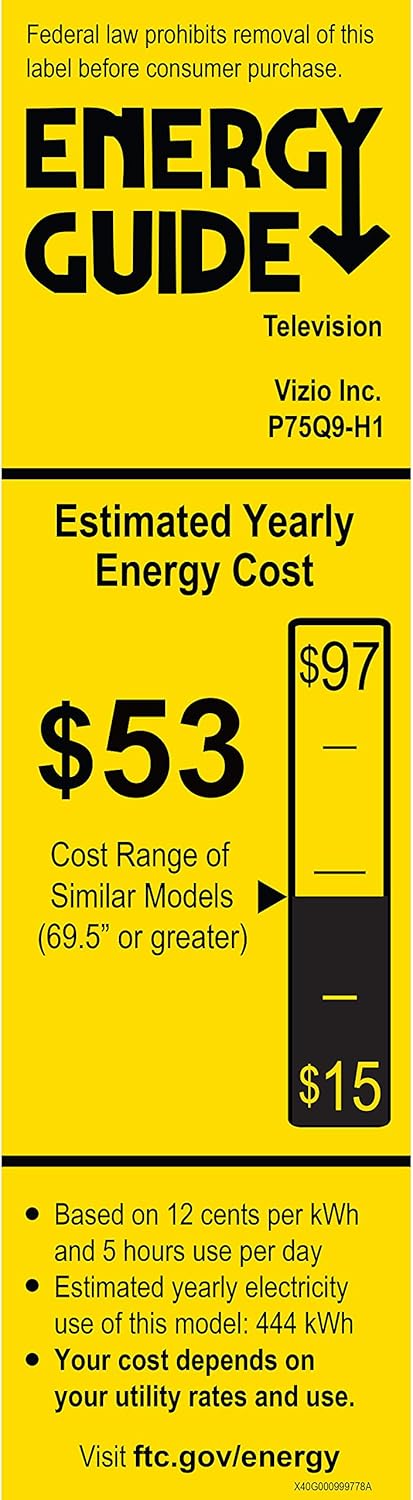
Image: Close-up of the VIZIO P75Q9-H61 TV's rear input ports. This image details the various connection options available on the back of the television, including HDMI, USB, audio outputs, antenna input, and an Ethernet port.
1.5 Initial Power On and Network Connection
After connecting all necessary cables, plug the power cable into an electrical outlet. Press the power button on the remote control or on the TV. Follow the on-screen instructions for the initial setup wizard, which will guide you through language selection, channel scanning, and connecting to your home Wi-Fi network. A stable internet connection is required to access Smart TV features.
2. Operating Your VIZIO Smart TV
2.1 Remote Control Functions
The included VIZIO XRT140 remote control provides access to all TV functions. Familiarize yourself with the buttons for power, input selection, volume, channel, SmartCast home, and navigation.
2.2 SmartCast Interface
Your VIZIO P75Q9-H61 features the SmartCast platform, offering quick access to a wide range of streaming applications and free channels. Press the 'Home' button on your remote to access the SmartCast interface.

Image: VIZIO P75Q9-H61 TV displaying the SmartCast home screen. This image shows the user interface with popular streaming applications and content recommendations.
2.3 Picture Settings
Optimize your viewing experience by adjusting picture settings. Navigate to the Picture menu to customize options such as brightness, contrast, color, and sharpness. The P75Q9-H61 features:
- Quantum Color: Delivers a wider spectrum of colors for a more vibrant image.
- Ultrabright 1200: Provides up to 1200 nits of peak brightness for enhanced detail in highlights.
- Active Full Array with 240 Local Dimming Zones: Precisely controls backlighting for deep blacks and improved contrast.
- Dolby Vision HDR: Supports advanced HDR formats for superior color, brightness, and detail.

Image: Quantum Color comparison chart. This graphic demonstrates the expanded color volume provided by VIZIO's Quantum Color technology, indicating 120% more color compared to standard 4K UHD TVs.
2.4 Gaming Features
The P75Q9-H61 is equipped with the ProGaming Engine for an optimized gaming experience:
- AMD FreeSync Premium: Reduces screen tearing and stuttering.
- 4K 120Hz Gaming: Supports high refresh rates for smooth gameplay on compatible consoles.
- Low Input Lag: Ensures responsive control during gaming sessions.

Image: VIZIO ProGaming Engine in action. This image shows the TV displaying a fast-paced video game, emphasizing the benefits of the ProGaming Engine for next-generation gaming.
2.5 Smart Home Integration
The TV supports Apple AirPlay 2 and Chromecast Built-in, allowing you to stream content directly from your compatible mobile devices. It also integrates with voice assistants like Siri, Google Assistant, and Alexa-enabled devices for convenient voice control.

Image: VIZIO TV with Apple AirPlay and Chromecast. This image illustrates the TV's compatibility with Apple AirPlay and Chromecast, enabling seamless content streaming from mobile devices.
3. Maintenance
3.1 Cleaning Your TV
To clean the screen, gently wipe it with a soft, dry microfiber cloth. For stubborn smudges, lightly dampen the cloth with water or a screen-specific cleaning solution. Avoid using harsh chemicals, abrasive cleaners, or direct spraying onto the screen. Clean the TV's body with a soft, dry cloth.
3.2 Software Updates
Your VIZIO Smart TV periodically receives software updates to improve performance and add new features. Ensure your TV is connected to the internet to receive these updates automatically. You can also manually check for updates in the TV's settings menu.
4. Troubleshooting
4.1 Common Issues and Solutions
- No Power: Ensure the power cable is securely connected to both the TV and a working electrical outlet. Try a different outlet.
- No Picture/Sound: Verify the correct input source is selected. Check all cable connections to external devices.
- TV Turns Off Randomly: This can sometimes be resolved by performing a soft reset. Unplug the TV from the power outlet for 60 seconds, then plug it back in. If the issue persists, check for available software updates.
- SmartCast Not Working/Slow: Ensure your TV has a stable internet connection. Try restarting your router and modem. A soft reset of the TV may also resolve the issue. If problems persist, check for software updates.
- Remote Control Not Responding: Replace the batteries in the remote. Ensure there are no obstructions between the remote and the TV's IR sensor.
4.2 Performing a Factory Reset
If issues persist, a factory reset can often resolve software-related problems. Be aware that a factory reset will erase all personalized settings and data, returning the TV to its original factory state. Consult the TV's on-screen menu for the exact steps to perform a factory reset.
5. Specifications
| Feature | Specification |
|---|---|
| Model Number | P75Q9-H61 |
| Screen Size | 75 Inches |
| Resolution | 4K Ultra HD (3840 x 2160) |
| Display Technology | LED, Quantum Color |
| Backlight Type | Active Full Array with 240 Local Dimming Zones |
| HDR Support | Dolby Vision HDR, HDR10, HLG |
| Refresh Rate | 120 Hz |
| Peak Brightness | Ultrabright 1200 nits |
| Processor | IQ Ultra Processor |
| Gaming Features | ProGaming Engine, AMD FreeSync Premium, 4K 120Hz Gaming |
| Smart TV Platform | VIZIO SmartCast, Apple AirPlay 2, Chromecast Built-in |
| Connectivity | HDMI 2.1, USB, Ethernet |
| Dimensions (with stand) | 65.76 x 13.39 x 40.26 inches |
| Dimensions (without stand) | 65.8"W x 34.9"H x 2.7"D |
| Weight | 75.34 Pounds |
| Included Components | Power Cable, Remote Control, Stand |
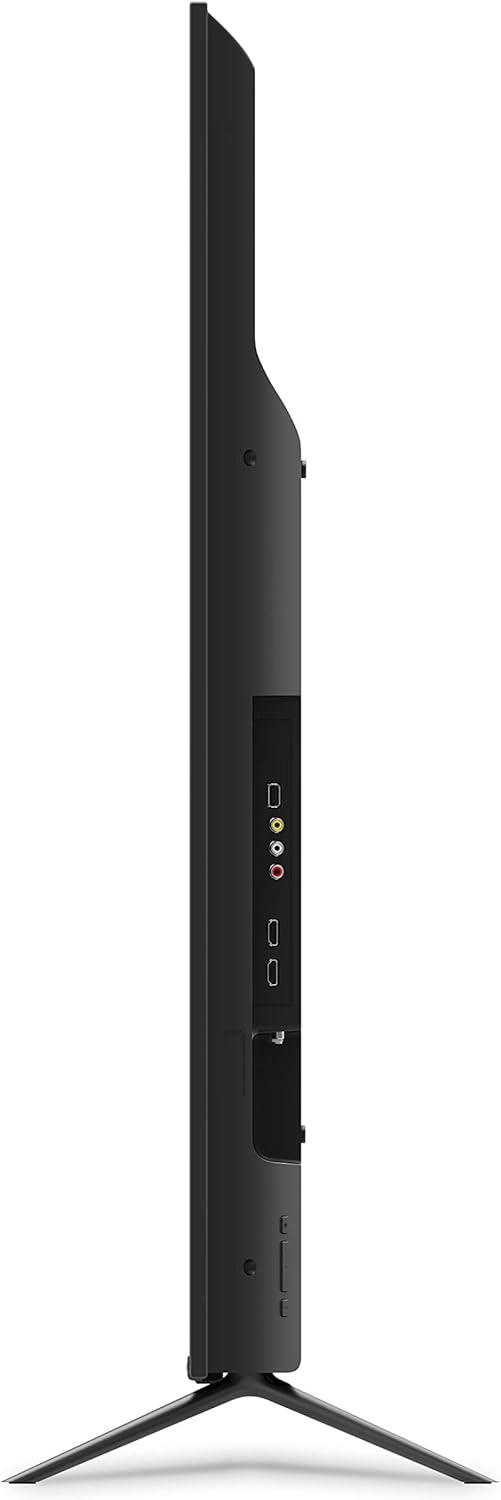
Image: Energy Guide label for VIZIO P75Q9-H1. This label provides information on the estimated yearly energy cost and consumption of the television.
6. Warranty Information
For detailed warranty information, please refer to the warranty card included with your product or visit the official VIZIO support website. Warranty terms and conditions may vary by region and purchase date.
7. Customer Support
If you encounter any issues not covered in this manual or require further assistance, please contact VIZIO Customer Support. You can find contact information, FAQs, and additional resources on the official VIZIO website:
7.1 Instructional Videos
Watch official VIZIO instructional videos for visual guidance on setup and features.
Video: VIZIO Product Overview (2:36). This video provides a general overview of the VIZIO P-Series Quantum TV's features and capabilities.
Video: VIZIO SmartCast Tutorial (1:17). This video guides users through the VIZIO SmartCast interface and its functionalities.


