
Samsung Electronics SM-N981UZNAXAA
Samsung Galaxy Note 20 5G User Manual
Model: SM-N981UZNAXAA
Introduction
This manual provides comprehensive instructions for the Samsung Galaxy Note 20 5G smartphone. It covers setup, operation, maintenance, and troubleshooting to help you maximize your device's capabilities. The Galaxy Note 20 5G is designed for productivity and entertainment, featuring advanced S Pen functionality, a powerful processor, and 5G connectivity.
What's in the Box
Upon unboxing your Samsung Galaxy Note 20 5G, verify that all components are present:
- Samsung Galaxy Note 20 5G Smartphone
- S Pen
- Travel Adapter (Charger)
- Data Cable (USB-C)
- Ejection Pin (for SIM/microSD tray)
- Quick Reference Manual
- Terms & Conditions
- Health & Safety Guide
Setup
1. Device Overview

Front view of the Galaxy Note 20 5G, showcasing the display and the S Pen alongside the device.

Rear view of the Galaxy Note 20 5G, highlighting the camera module and Samsung branding.
2. Inserting SIM Card
- Locate the SIM card tray on the side of the device.
- Insert the ejection pin into the small hole next to the tray to open it.
- Place your Nano-SIM card into the tray with the gold contacts facing down.
- Gently push the tray back into the slot until it clicks into place.
3. Initial Charge and Power On
- Connect the USB-C data cable to the phone's charging port and the travel adapter.
- Plug the travel adapter into a power outlet.
- Allow the device to charge for at least 15 minutes before first use.
- Press and hold the Power/Side key until the Samsung logo appears to power on the device.
4. Initial Setup Wizard
Follow the on-screen prompts to complete the initial setup, including:
- Language selection
- Wi-Fi network connection
- Google account sign-in
- Data transfer from a previous device (optional)
- Security setup (fingerprint, face recognition, PIN/pattern/password)
Operating Your Device
S Pen & Samsung Notes

A detailed view of the S Pen, highlighting its design and button.
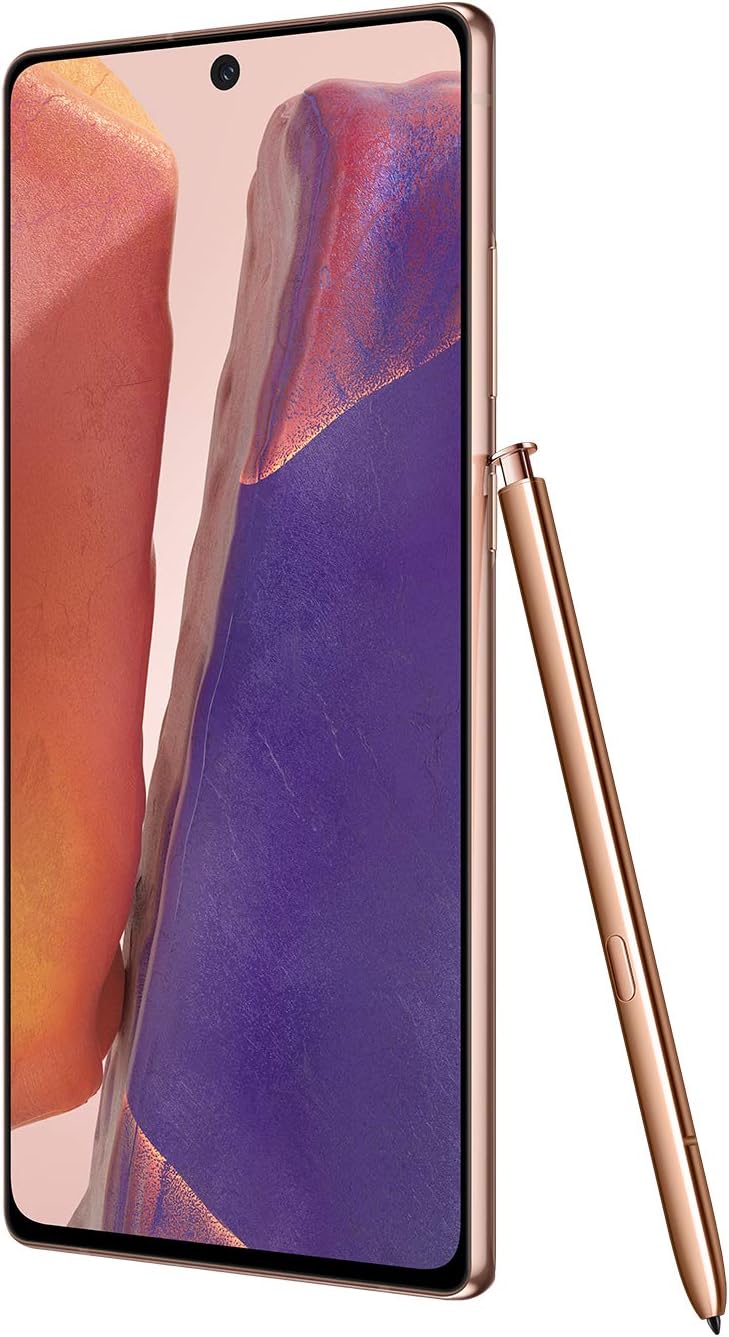
Side profile of the Galaxy Note 20 5G, showing the S Pen securely docked in its slot.
The S Pen offers precision and control, making it feel like a real pen. It integrates seamlessly with Samsung Notes, allowing you to jot down notes, sketch ideas, and convert handwriting to text. You can also convert your notes into Microsoft Word or PowerPoint documents and sync them across your Galaxy devices.
Intelligent Battery & Super Fast Charge
The Galaxy Note 20 5G features an intelligent battery that adapts to your usage patterns to optimize battery life. With Super Fast Charging, you can quickly boost your battery level in minutes, ensuring you stay powered throughout the day.
Gaming Experience
Enjoy an enhanced mobile gaming experience with the Galaxy Note 20 5G. Its breathtaking screen refresh rate, expansive display, 5G support, and advanced processor deliver smooth gameplay with minimal lag, providing an immersive gaming environment.
HyperFast Processor
Equipped with Samsung's fastest Note processor, the device ensures hyperfast processing speeds. This allows for seamless multitasking, improved gaming performance, and efficient handling of demanding applications without slowdowns.
Link to Windows Integration
Manage your mobile and Windows applications directly from your PC screen with the Link to Windows feature. This integration enables seamless multitasking and easy file sharing between your phone and computer via simple drag-and-drop functionality.
Power of 5G Connectivity
Experience next-level connectivity with 5G. This technology allows for faster downloads, smoother streaming, and more responsive online gaming, enhancing your overall mobile experience.
Maintenance
Cleaning Your Device
- Use a soft, lint-free cloth to clean the screen and body.
- For stubborn smudges, lightly dampen the cloth with distilled water or a screen cleaner.
- Avoid using harsh chemicals, abrasive materials, or aerosol sprays.
Battery Care
- Avoid extreme temperatures, as they can degrade battery life.
- Use only Samsung-approved chargers and cables.
- For optimal long-term battery health, avoid consistently draining the battery to 0% or charging to 100%.
Software Updates
Regularly check for and install software updates to ensure your device has the latest features, security patches, and performance improvements. Navigate to Settings > Software update > Download and install.
Troubleshooting
| Problem | Solution |
|---|---|
| Device not powering on | Ensure the battery is charged. Press and hold the Power/Side key and Volume Down key simultaneously for 7 seconds to force restart. |
| Apps crashing or freezing | Clear app cache (Settings > Apps > [App Name] > Storage > Clear cache). Restart the device. Update the app or device software. |
| Poor battery life | Check battery usage in Settings to identify power-hungry apps. Reduce screen brightness, disable unnecessary features (GPS, Bluetooth, Wi-Fi when not in use). |
| S Pen not responding | Ensure the S Pen is fully charged by inserting it into the device. Check S Pen settings (Settings > Advanced features > S Pen). Restart the device. |
| Network connectivity issues | Toggle Airplane mode on/off. Restart the device. Check SIM card insertion. Reset network settings (Settings > General management > Reset > Reset network settings). |
Specifications
| Feature | Detail |
|---|---|
| Model Name | Note 20 5G |
| Model Number | SM-N981UZNAXAA |
| Operating System | Android 10.0 (Upgradable) |
| Display Size | 6.7 Inches |
| Resolution | 7680 x 4320 (Video Recording) |
| RAM | 8 GB |
| Storage Capacity | 128 GB |
| Battery Capacity | 4300 Milliamp Hours |
| Connectivity | 5G Cellular, USB, Wi-Fi |
| Color | Mystic Bronze |
| Dimensions | 7 x 4 x 5 inches |
| Item Weight | 15.5 ounces |
Warranty and Support
Your Samsung Galaxy Note 20 5G comes with a standard manufacturer's warranty. For detailed warranty information, please refer to the "Terms & Conditions" document included in your product packaging or visit the official Samsung support website.
For technical assistance, troubleshooting, or service requests, please contact Samsung Customer Service or visit their official support portal:
- Samsung Support Website: www.samsung.com/us/support/
- Phone Support: Refer to your region's Samsung support page for local contact numbers.
Please have your device model number (SM-N981UZNAXAA) and serial number ready when contacting support.
Related documentsSM-N981UZNAXAA


Ask a question about this manual
Ask about setup, troubleshooting, compatibility, parts, safety, or missing instructions. Manuals+ will review the question and use this page’s manual context to help answer it.