1. Introduction
This manual provides detailed instructions for the setup, operation, and maintenance of your Pyle PMX466 Professional 6-Channel Bluetooth DJ Audio Mixer. Please read this manual thoroughly before using the device to ensure proper functionality and to prevent damage.
2. Key Features
- Rugged metal chassis and exquisite panel design.
- Preset 16 digital effects for enhanced audio.
- Built-in SUB output and EQ control for MP3 player.
- Selectable sound effects: Normal, Rock, POP, Classical, Jazz, Country.
- Flexible connectivity for various external devices.
- Ultra-low noise design with high headroom.
- Integrated sound card for computer recording support.
- USB interface for Mac/PC connection.
- Smooth rotary-style faders for Mic/USB/Line/Master controls.
- Extremely musical 2-band EQ & Pan on each channel.
- Combo microphone jack connector (XLR and 6.35 Jack).
- 4 XLR + 6.35 JACK (L/R) stereo input and output connectors.
- Voice echo effect/delay features.
- Audio signal CLIP LED indicator lights.
- Input selection/control buttons.
- Independent channel + MASTER volume controls.
- Independent channel balance/high + low-frequency adjustment.
- Universal digital audio file compatibility.

Figure 1: Front view of the Pyle PMX466 Mixer, showcasing its compact design and control layout.
3. What's in the Box
- Mixer Interface (Pyle PMX466)
- USB Cable
- Wall Adapter (DC 5V/1A)

Figure 2: The Pyle PMX466 Mixer, USB cable, and wall adapter included in the package.
4. Setup
4.1 Power Connection
- Connect the provided USB cable to the 'POWER' port on the mixer.
- Connect the other end of the USB cable to the wall adapter.
- Plug the wall adapter into a standard power outlet. The mixer can also be powered via a USB port on a computer or a power bank.

Figure 3: Diagram illustrating diversified power supply modes via USB, including power bank, USB port, and power socket.
4.2 Connecting Audio Devices
- Microphones/Line Inputs: Use XLR or 6.35mm (1/4 inch) jack cables to connect microphones or line-level instruments to channels 1-4.
- Stereo Line Inputs: Use 6.35mm (1/4 inch) jack cables for stereo line inputs on channels 5/6.
- AUX Input: Connect external audio sources (e.g., smartphone, tablet) via the 3.5mm AUX IN jack.
- Main Output: Connect your main speakers or amplifier to the MAIN OUT (XLR or 6.35mm jack) ports.
- Headphones: Plug your headphones into the PHONES 6.35mm jack for monitoring.
5. Operating Instructions
5.1 Controls Overview
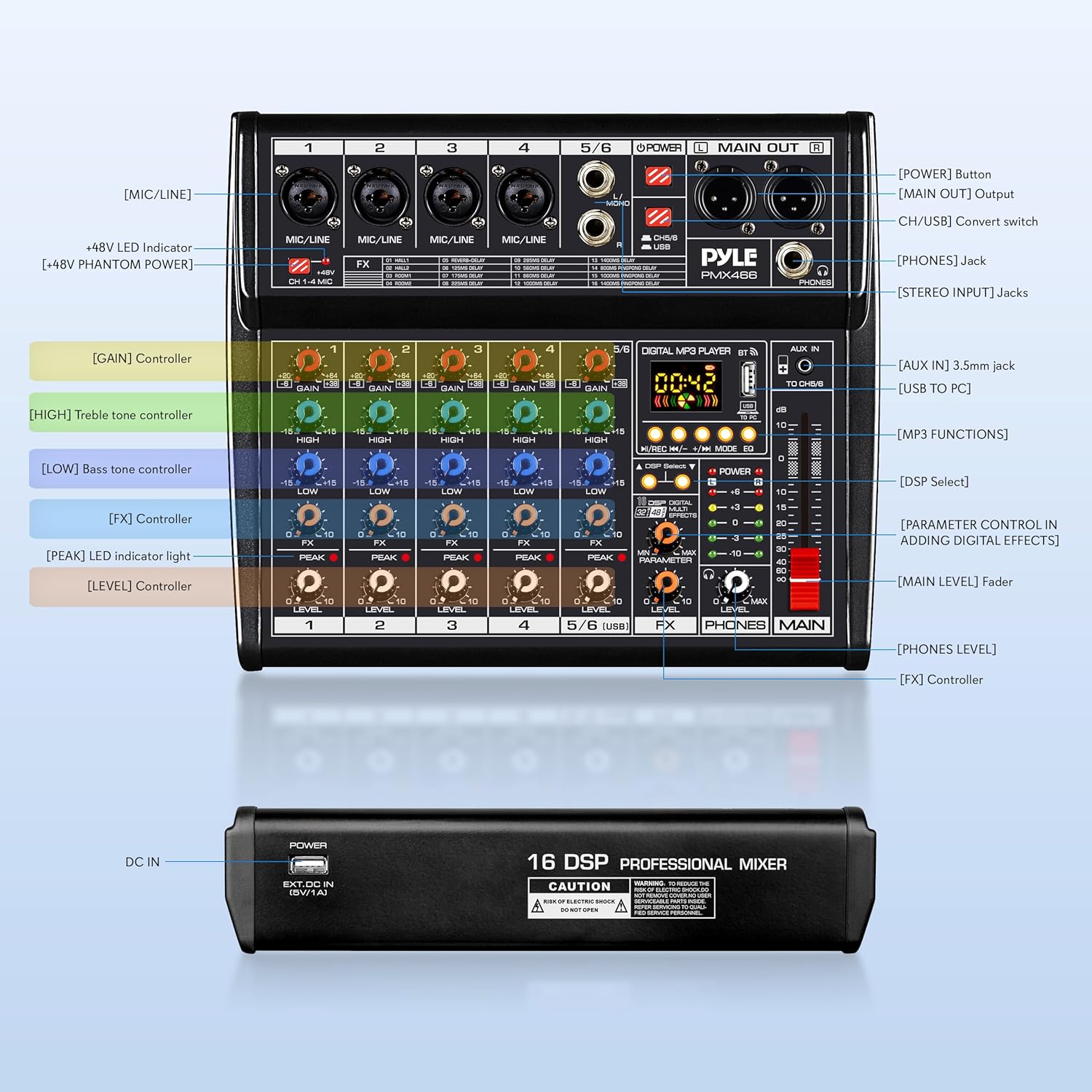
Figure 4: Detailed diagram of the Pyle PMX466 mixer's controls and input/output sections.
- [GAIN] Controller: Adjusts the input sensitivity for each channel.
- [HIGH] Treble Tone Controller: Adjusts the high-frequency range.
- [LOW] Bass Tone Controller: Adjusts the low-frequency range.
- [FX] Controller: Controls the amount of effect applied to the channel.
- [PEAK] LED Indicator Light: Illuminates when the input signal is too high, indicating potential clipping.
- [LEVEL] Controller: Adjusts the output level of each channel.
- [MAIN LEVEL] Fader: Controls the overall output volume of the mixer.
- [PHONES LEVEL]: Adjusts the volume for the headphone output.
- [DSP Select]: Button to cycle through the 16 digital effects.
- [PARAMETER CONTROL IN ADDING DIGITAL EFFECTS]: Adjusts specific parameters of the selected effect.
5.2 Digital MP3 Player & Bluetooth
The mixer features a built-in digital MP3 player with Bluetooth connectivity and a USB interface.
- USB Playback: Insert a USB drive with MP3 files into the USB port. Use the control buttons (Play/Pause, Next/Previous, Mode) to navigate and play tracks.
- Bluetooth Connectivity: Activate Bluetooth on your external device and search for 'Pyle PMX466'. Pair the devices to stream audio wirelessly.
- Sound Effects: The digital MP3 player offers 6 sound effects (Normal, Rock, POP, Classical, Jazz, Country) selectable via the EQ button.
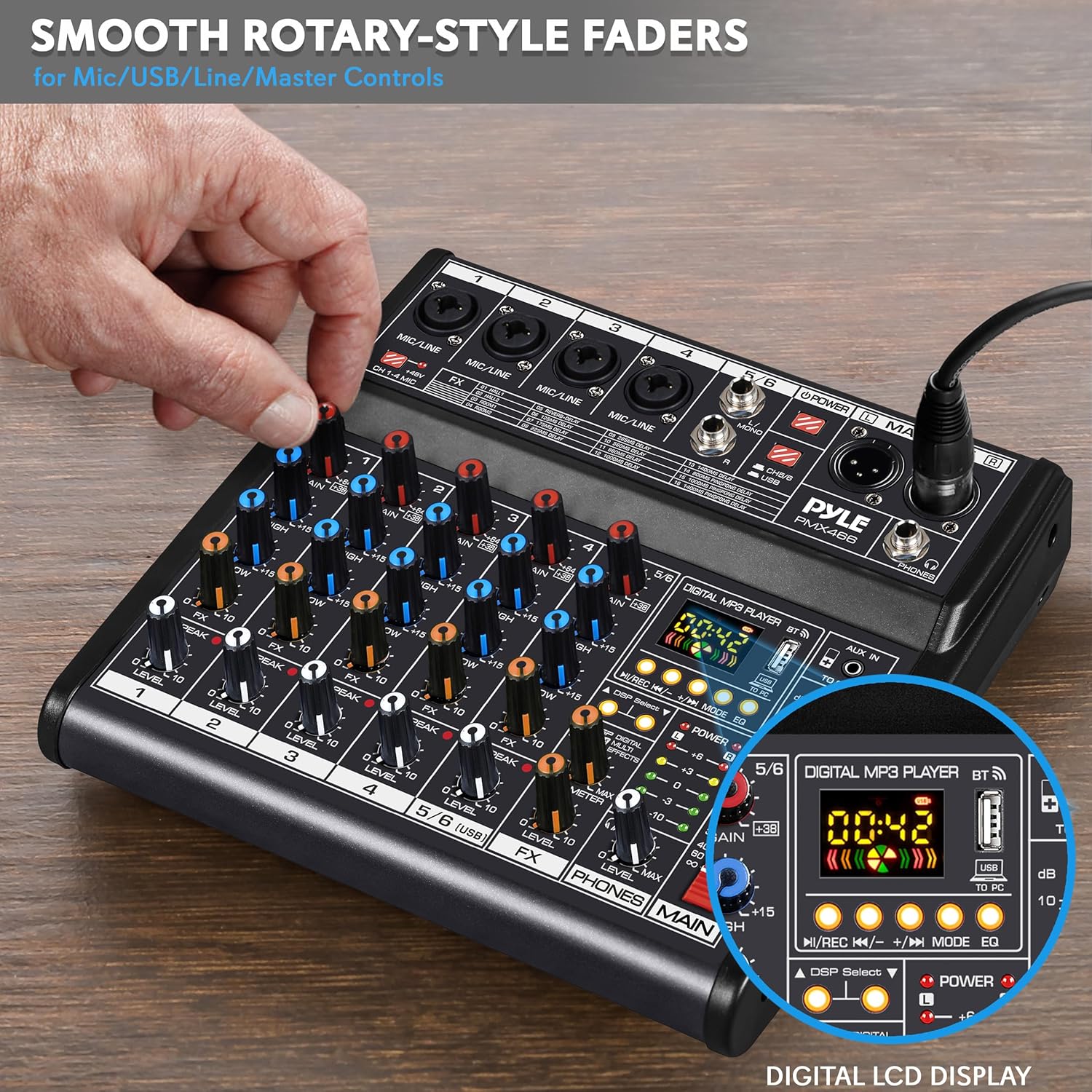
Figure 5: Smooth rotary-style faders for precise control over various inputs and the digital LCD display for MP3 player functions.
5.3 DSP Digital Effects
The mixer includes 16 preset digital effects to enhance your audio.
- Use the DSP Select button to cycle through the available effects (e.g., Reverb, Delay, Flanger).
- Adjust the Parameter knob to fine-tune the selected effect.
- Use the FX Level knob to control the overall wet/dry mix of the effects.
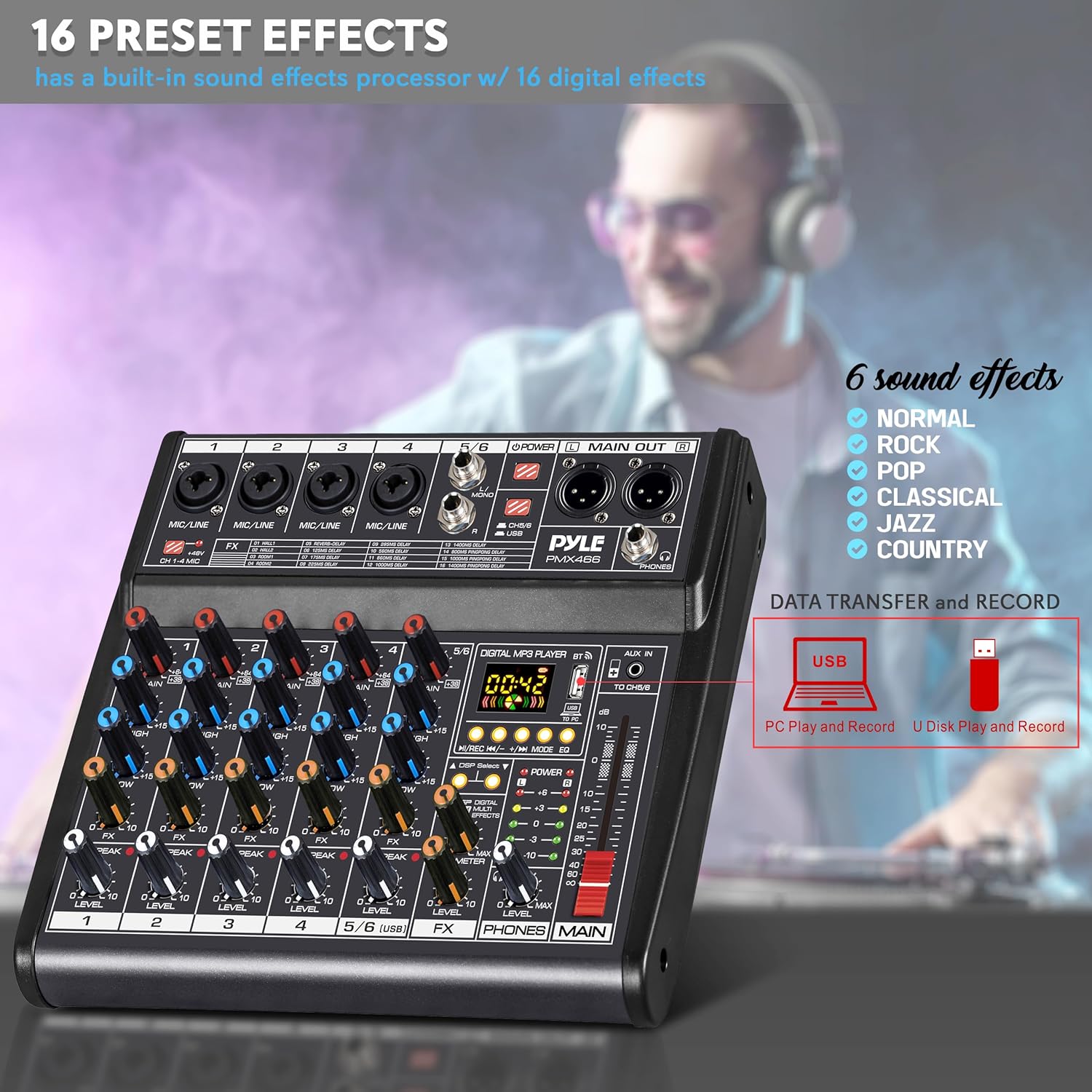
Figure 6: The 16 preset digital effects and 6 sound effects available on the Pyle PMX466 mixer.
5.4 Computer Recording
The integrated sound card allows for direct recording to a computer.
- Connect the mixer to your computer using the USB cable.
- The mixer will be recognized as an audio input/output device.
- Use your preferred digital audio workstation (DAW) or recording software to capture audio from the mixer.

Figure 7: The Pyle PMX466 mixer connected to a laptop, demonstrating its integrated sound card for computer recording.
5.5 Official Product Video
Video 1: An official product video showcasing the Pyle PMX466 Professional DJ Audio Mixer Controller and its features.
6. Maintenance
- Cleaning: Use a soft, dry cloth to clean the mixer's surface. Avoid abrasive cleaners or solvents.
- Storage: Store the mixer in a cool, dry place away from direct sunlight and extreme temperatures.
- Handling: Handle the mixer with care to prevent physical damage to knobs, faders, and ports.
7. Troubleshooting
| Problem | Possible Solution |
|---|---|
| No power | Ensure the USB cable and wall adapter are securely connected and plugged into a working power outlet. Check if the power button on the mixer is pressed. |
| No sound output | Verify all volume levels (channel, master, headphone) are turned up. Check cable connections to speakers/headphones. Ensure correct input selection. |
| Distorted audio | Reduce input GAIN levels to prevent clipping (check PEAK LEDs). Lower channel and master volume. Check for faulty cables. |
| Bluetooth not connecting | Ensure Bluetooth is enabled on both the mixer and your device. Make sure the mixer is in Bluetooth mode. Try unpairing and re-pairing the devices. |
| USB recording issues | Ensure the mixer is correctly recognized by your computer's operating system and recording software. Check USB cable connection. Verify recording settings in your software. |
8. Specifications
| Specification | Value |
|---|---|
| Power Supply | DC 5V/1A |
| Phantom Power | +48V |
| T.H.D. | =0.5%@+4dBµ |
| USB Interface | SB 2.0, Windows 98SE+, macOS |
| Dimensions (L x W x H) | 11.22'' x 9.06'' x 2.17'' inches |
| Item Weight | 3.87 pounds |
| Number of Channels | 6 |
| Connectivity Technology | USB |
9. Warranty and Support
Pyle products typically come with a manufacturer's warranty. Please refer to the warranty card included in your product packaging or visit the official Pyle website for detailed warranty information and support options. For technical assistance or service inquiries, contact Pyle customer support.


