
Introduction
Thank you for choosing the MMK Dual Mode Wireless Bluetooth Mouse. This manual provides detailed instructions for setting up, operating, and maintaining your mouse. This device offers versatile connectivity options, including 2.4GHz wireless and Bluetooth 5.0, allowing seamless switching between two devices. Its rechargeable design, adjustable DPI, and silent clicks enhance your computing experience.

Image: The MMK Dual Mode Wireless Bluetooth Mouse, showcasing its slim design and colorful LED backlight.
Package Contents
Please check the package for the following items:
- MMK Dual Mode Wireless Bluetooth Mouse
- USB Receiver (stored in the mouse's battery compartment)
- USB Charging Cable
- User Manual
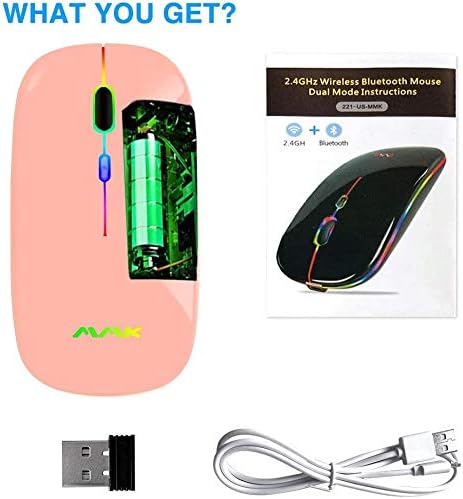
Image: An illustration of the package contents, showing the mouse, USB receiver, charging cable, and instruction manual.
Product Features
- Dual Mode Connectivity: Supports both 2.4GHz wireless (via USB receiver) and Bluetooth 5.0 for flexible connection to various devices.
- Wide Compatibility: 2.4GHz mode works with laptops, desktops, and other USB-enabled devices. Bluetooth mode is compatible with Bluetooth-enabled devices, including iPhones with iOS 13 or later.
- Rechargeable Battery: Equipped with a built-in 500mAh rechargeable battery, offering up to 30 days of standby time on a 2-3 hour charge.
- Adjustable DPI: Three adjustable DPI levels (1000, 1200, 1600) to suit different cursor speed preferences for work or entertainment.
- Silent Clicks: Designed with soft-click buttons to minimize noise, allowing you to focus without disturbing others.
- Portable and Slim Design: Weighing only 50 grams and measuring 111 x 55 x 22 mm, it is easy to carry for business or travel.
- LED Backlight: Features a colorful LED backlight that enhances the user experience.
- Automatic Sleep Mode: The mouse automatically enters sleep mode after 10 minutes of inactivity to conserve battery power.
Setup Guide
1. 2.4GHz Wireless Mode Connection
- Locate the USB receiver in the battery compartment at the bottom of the mouse.
- Plug the USB receiver into an available USB port on your computer or device.
- Slide the mode switch on the bottom of the mouse to the '2.4G' position.
- The mouse will automatically connect to your device.
2. Bluetooth Mode Connection
- Slide the mode switch on the bottom of the mouse to the 'BT 5.0' position.
- The LED light on the mouse will start flashing, indicating it is in pairing mode.
- On your device (laptop, PC, tablet, smartphone), go to Bluetooth settings.
- Search for new devices and select "BT5.0 Mouse" or a similar name from the list.
- Once connected, the LED light on the mouse will stop flashing and remain solid for a few seconds, then turn off to save power.

Image: The underside of the mouse, illustrating the mode switch for 2.4G and Bluetooth, and the storage slot for the USB receiver.
Operating Instructions
1. DPI Adjustment
The mouse features three adjustable DPI levels: 1000, 1200, and 1600. To change the DPI, press the DPI button located behind the scroll wheel. Each press will cycle through the DPI settings, allowing you to adjust cursor sensitivity to your preference.
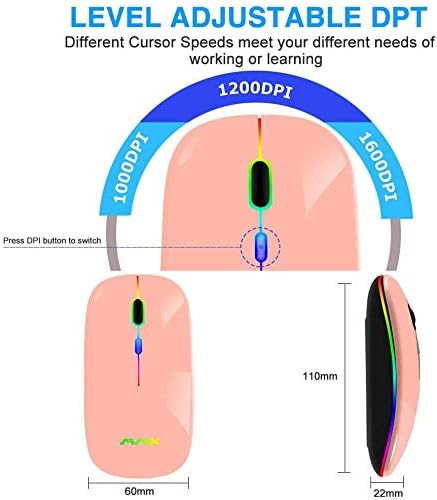
Image: A visual representation of the DPI button and the three adjustable DPI levels (1000, 1200, 1600).
2. Charging the Mouse
The mouse has a built-in rechargeable battery. When the battery is low, the LED indicator may flash or the mouse performance may degrade. To charge:
- Connect the provided USB charging cable to the charging port on the front of the mouse.
- Plug the other end of the USB cable into a USB power source (e.g., computer USB port, USB wall adapter, power bank).
- During charging, the LED light will illuminate. It will turn off when the mouse is fully charged. A full charge typically takes 2-3 hours.
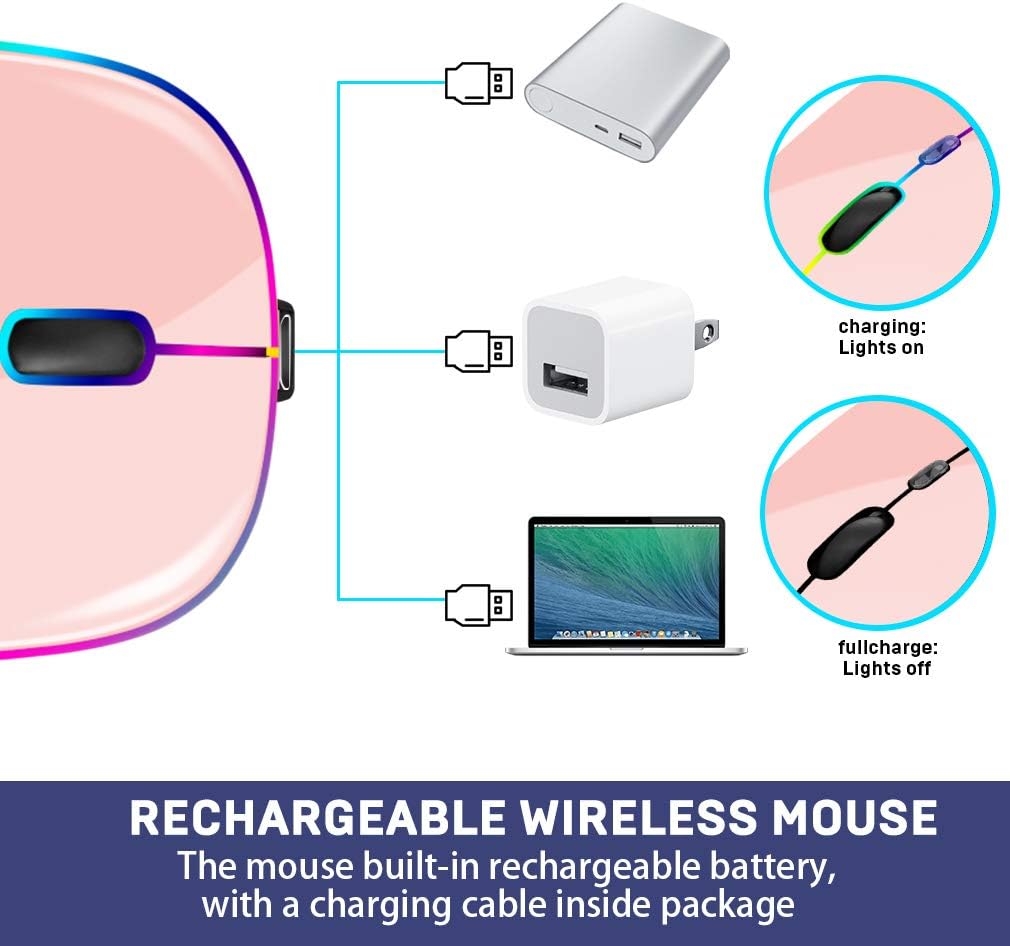
Image: A diagram showing the mouse being charged via a USB cable, with indicators for charging (lights on) and fully charged (lights off).
3. Automatic Sleep Mode
To conserve battery life, the mouse will automatically enter sleep mode after 10 minutes of inactivity. To wake the mouse, simply click any button.
Maintenance
- Keep the mouse clean by wiping it with a soft, dry cloth. Avoid using harsh chemicals or abrasive materials.
- Do not expose the mouse to extreme temperatures, direct sunlight, or high humidity.
- Avoid dropping the mouse or subjecting it to strong impacts.
- Store the USB receiver inside the mouse when not in use to prevent loss.
Troubleshooting
- Mouse not responding:
- Ensure the mouse is charged. Connect it to a power source using the USB cable.
- Check the mode switch on the bottom of the mouse. Make sure it is set to the correct mode (2.4G or BT 5.0) for your connection type.
- For 2.4G mode, ensure the USB receiver is securely plugged into your device. Try a different USB port.
- For Bluetooth mode, ensure Bluetooth is enabled on your device and the mouse is paired. Try unpairing and re-pairing the mouse.
- Restart your computer or device.
- Cursor movement is erratic or imprecise:
- Clean the optical sensor on the bottom of the mouse with a soft cloth.
- Ensure you are using the mouse on a suitable surface. Avoid highly reflective or transparent surfaces.
- Adjust the DPI setting using the DPI button to find a comfortable sensitivity.
- Bluetooth connection issues:
- Ensure your device's Bluetooth version is 4.0 or higher.
- Check for interference from other wireless devices.
- Ensure the mouse is within the effective range of your device's Bluetooth signal.
Specifications
| Brand | MMK |
| Model Number | DEAZ_221SB |
| Connectivity Technology | 2.4GHz Wireless (USB Receiver), Bluetooth 5.0 |
| Movement Detection | Optical |
| DPI Levels | 1000, 1200, 1600 |
| Number of Buttons | 4 |
| Battery Type | Built-in Rechargeable (500mAh) |
| Charging Time | 2-3 hours |
| Standby Time | Up to 30 days |
| Auto-Sleep | After 10 minutes of inactivity |
| Dimensions | 111 x 55 x 22 mm (4.37 x 2.17 x 0.87 inches) |
| Weight | 50 Grams |
| Hand Orientation | Ambidextrous |
| Compatible Systems | Windows, Mac OS, Android, iOS 13+, Linux (2.4G mode) |
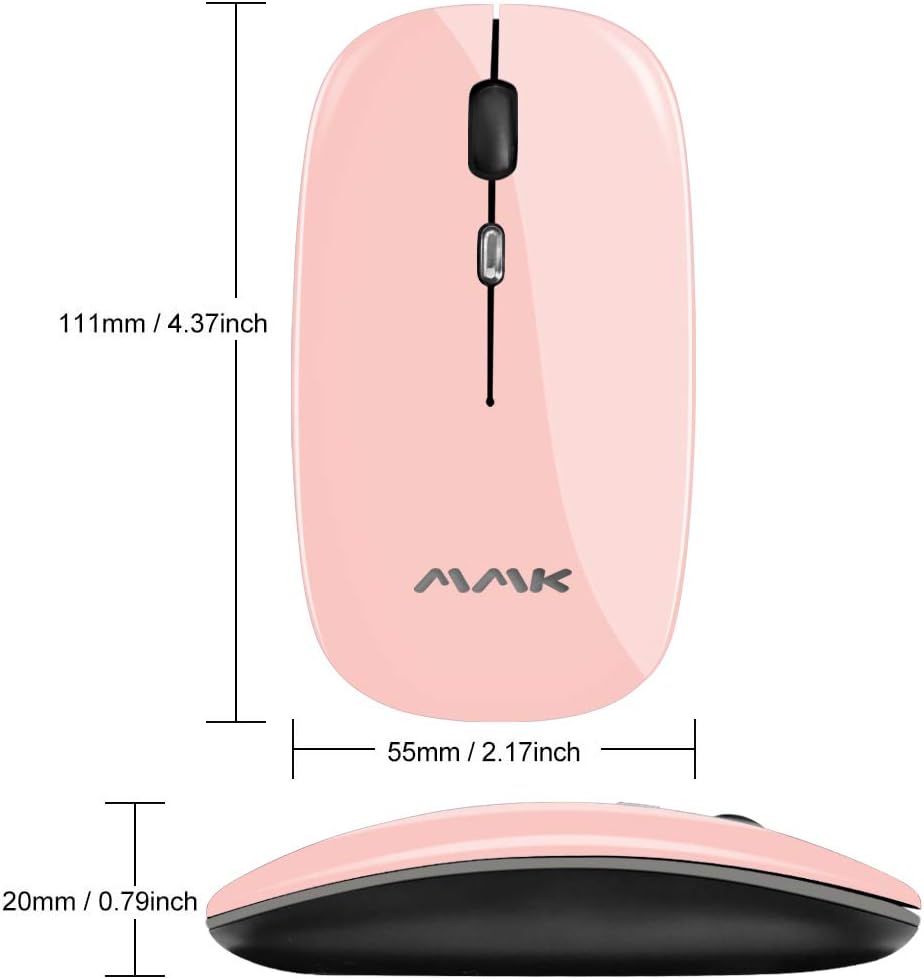
Image: Detailed dimensions of the MMK wireless mouse, showing its length, width, and height.
Safety Information
- Do not disassemble or attempt to repair the mouse yourself. This may void the warranty and cause damage.
- Keep the mouse away from water and other liquids.
- Dispose of the mouse and its battery according to local regulations. Do not dispose of in household waste.
- Keep out of reach of children.
Warranty and Support
MMK products are designed for reliability and performance. For warranty information or technical support, please refer to the contact details provided with your purchase or visit the official MMK website. Please retain your proof of purchase for warranty claims.
