
Expert X8AIR
EXPERT X8AIR Digital Sound Processor User Manual
Model: X8AIR
Introduction
This manual provides comprehensive instructions for the installation, operation, and maintenance of your EXPERT X8AIR Digital Sound Processor (DSP). The X8AIR is a compact 4-input, 8-output DSP designed to enhance audio quality with advanced sound processing capabilities, including a Bluetooth interface for convenient control.
Please read this manual thoroughly before using the device to ensure proper setup and to maximize its performance and longevity. Keep this manual for future reference.
Safety Information
- Power Supply: Ensure the device is connected to a stable 12V DC power source. Incorrect voltage can damage the unit.
- Ventilation: Install the DSP in a location with adequate ventilation to prevent overheating. Do not cover ventilation openings.
- Moisture: Avoid exposing the device to moisture, rain, or excessive humidity.
- Temperature: Operate the device within recommended temperature ranges. Extreme temperatures can affect performance.
- Connections: Always ensure all connections are secure and correctly polarized before powering on the device.
- Servicing: Do not attempt to open or service the unit yourself. Refer all servicing to qualified personnel.
Product Overview
The EXPERT X8AIR is a high-performance 32-bit, 96KHz Digital Sound Processor designed for precise audio control. It features 4 input channels and 8 output channels, allowing for extensive customization of your audio system. The integrated Bluetooth interface enables wireless control via a dedicated mobile application.
Key features include:
- Advanced 32-bit, 96KHz audio processing.
- Bluetooth connectivity for wireless control.
- Multiple input and output channels for flexible system configurations.
- Comprehensive equalization capabilities, including parametric EQ for each channel.
- Various crossover filter types (Butterworth, Linkwitz-Riley, Bessel).
- Time alignment features for optimized sound staging.
- Integrated limiter for speaker protection and distortion prevention.


Setup and Installation
Proper installation is crucial for optimal performance. Follow these steps carefully:
- Mounting: Choose a secure, dry location with good airflow. Ensure the unit is firmly mounted to prevent vibration.
- Power Connection:
- Connect the +12V terminal to a fused constant 12V power source.
- Connect the GND terminal to a solid chassis ground point.
- Connect the REM (Remote) terminal to your head unit's remote turn-on output.
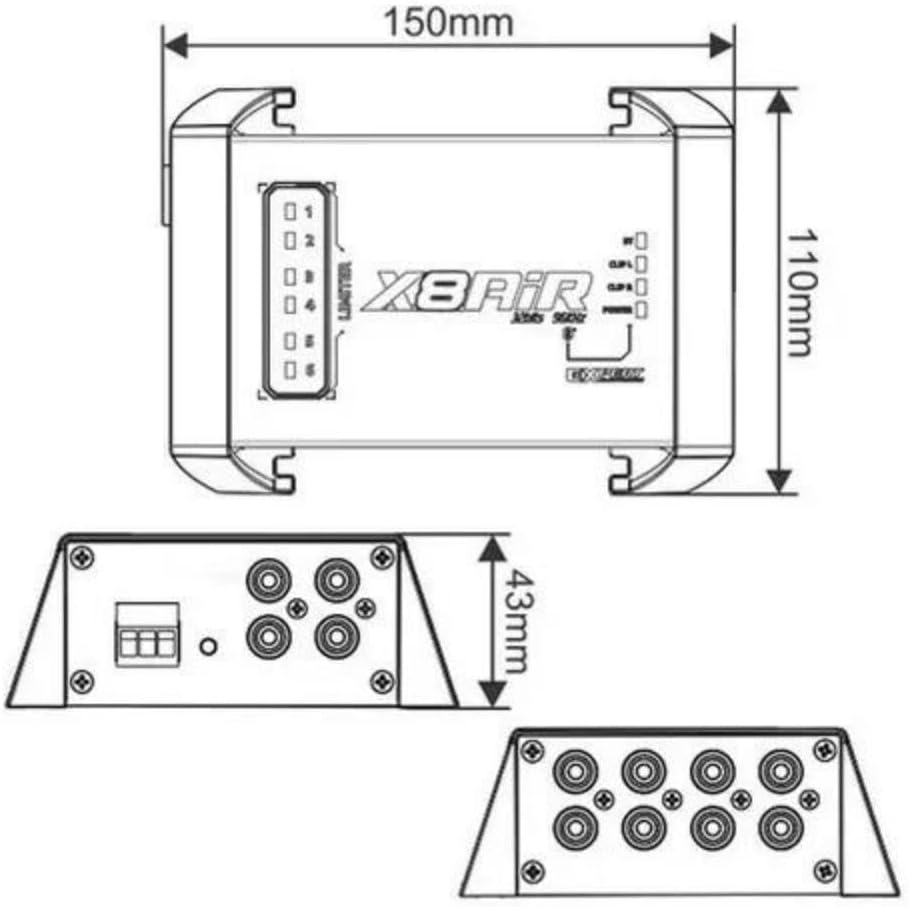
- Audio Input Connection: Connect your audio source (e.g., head unit RCA outputs) to the X8AIR's input RCA jacks. The X8AIR supports 4 input channels.
- Audio Output Connection: Connect the X8AIR's 8 RCA output channels to your amplifiers. Ensure correct channel assignment for your speaker configuration.
- Bluetooth Pairing:
- Download the official EXPERT DSP control application from your device's app store.
- Power on the X8AIR. The Bluetooth indicator light will flash.
- Open the app on your smartphone or tablet and search for available Bluetooth devices.
- Select "X8AIR" from the list to pair. Once paired, the Bluetooth indicator will illuminate steadily.


Operating the X8AIR DSP
All primary adjustments and controls for the X8AIR DSP are managed through its dedicated mobile application. After successful Bluetooth pairing, you can access various audio processing functions:
- Input/Output Routing: Configure which input channels feed specific output channels. You can select right, left, or mono channels for each output.
- Equalization (EQ):
- Apply a common equalizer across all channels.
- Utilize the parametric equalizer for each individual output channel, allowing precise adjustment of frequency, gain, and Q-factor.
- Crossovers: Set high-pass, low-pass, and band-pass filters for each output channel. Choose from Butterworth, Linkwitz-Riley, and Bessel filter types with adjustable slopes.
- Gain Control: Adjust the output gain for each channel independently to match amplifier sensitivity and balance sound levels.
- Time Alignment: Correct for speaker distance differences by adjusting the delay for each channel, ensuring a cohesive sound stage.
- Limiter: The X8AIR features an integrated limiter to prevent signal clipping and protect your speakers. Monitor the limiter indicators on the device for visual feedback.
- Channel Testing: The application allows you to mute individual channels, facilitating easier tuning and troubleshooting of specific speakers.
Maintenance
To ensure the longevity and optimal performance of your EXPERT X8AIR DSP, follow these maintenance guidelines:
- Cleaning: Use a soft, dry cloth to clean the exterior of the unit. Do not use harsh chemicals or abrasive cleaners.
- Ventilation: Periodically check that the ventilation openings are clear of dust and debris to maintain proper airflow and prevent overheating.
- Connections: Regularly inspect all power and audio connections to ensure they remain secure and free from corrosion. Loose connections can lead to signal loss or intermittent issues.
- Software Updates: Check the manufacturer's website or the app store for any available firmware or application updates. Keeping your software updated can improve performance and add new features.
Troubleshooting
| Problem | Possible Cause | Solution |
|---|---|---|
| No Power | Loose power connections; Blown fuse; No remote signal. | Check +12V, GND, and REM connections. Verify fuse integrity. Ensure head unit is providing remote turn-on signal. |
| No Audio Output | Incorrect input/output routing; Muted channels; Loose RCA connections. | Verify channel routing in the app. Check if any channels are muted. Secure all RCA cables. |
| Bluetooth Disconnection / Pairing Issues | Interference; Out of range; App glitch. | Ensure device is within range. Restart the app and the X8AIR. Forget the device in your phone's Bluetooth settings and re-pair. |
| Distortion or Noise | Input signal too high; Improper gain settings; Ground loop; Damaged cables. | Reduce input gain. Adjust output gains in the app. Check for proper grounding. Inspect RCA cables for damage. Utilize the limiter function to prevent clipping. |
| Intermittent Channel Dropouts | Loose internal connections (rare); Faulty RCA cable. | Check and secure all external RCA connections. If problem persists, contact qualified service personnel. |
If you encounter issues not listed here or if the suggested solutions do not resolve the problem, please contact EXPERT customer support.
Specifications
| Model Number | X8AIR |
| Product Dimensions | 1 x 1 x 1 inches (25.4 x 25.4 x 25.4 mm) |
| Item Weight | 8.8 ounces (249.5 grams) |
| Audio Processing | 32-bit, 96KHz |
| Input Channels | 4 |
| Output Channels | 8 |
| Connectivity | Bluetooth |
| Manufacturer | EXPERT |
| Brand | Expert |
| CPU Manufacturer | Allwinner |
| CPU Model | 1.2GHz Cortex A8 Processor |
| CPU Speed | 1 GHz |
| Platform | Not Machine Specific |
Warranty Information
Specific warranty terms and conditions for the EXPERT X8AIR Digital Sound Processor are provided by the manufacturer at the time of purchase. Please refer to the warranty card included with your product or visit the official EXPERT website for detailed information regarding warranty coverage, duration, and claims procedures.
Customer Support
For technical assistance, product inquiries, or support, please contact EXPERT customer service through their official channels. This may include their website, email, or phone support, as listed on their official product page or packaging.
For more information, you may visit the Expert Store on Amazon.
Related documentsX8AIR


Ask a question about this manual
Ask about setup, troubleshooting, compatibility, parts, safety, or missing instructions. Manuals+ will review the question and use this page’s manual context to help answer it.