
Sharper Image SPIN 10
Sharper Image SPIN 10 Oscillating Desktop Fan User Manual
Model: SPIN 10 (FA1-0122-06)
Brand: Sharper Image
Introduction
The Sharper Image SPIN 10 Oscillating Desktop Fan offers a fresh approach to personal cooling. Designed with an energy-efficient DC motor, it provides powerful airflow while maintaining quiet operation. Its compact size and versatile features make it ideal for various indoor settings.
Key Features:
- Quiet Comfort: Energy-efficient DC motor provides powerful airflow with low noise levels (31 to 49 dB).
- Simple Controls: Touch-sensitive controls for 3 speed settings and oscillation toggle.
- Multi-Directional Airflow: Adjustable tilt head and 110 degrees of smooth oscillation for targeted cooling.
- Sleek Design: Compact 15-inch height, suitable for desks, nightstands, or tabletops.
- Convenient Carry Handle: Integrated handle for easy portability.
Setup
Unpack the Sharper Image SPIN 10 fan and its components. Ensure all parts are present before proceeding with setup.
- Placement: Place the fan on a stable, flat surface such as a desk, nightstand, or table. Ensure there is adequate space around the fan for optimal airflow and oscillation.
- Power Connection: Connect the power cord to the fan's power input port, typically located at the base. Plug the other end of the power cord into a standard 120V AC electrical outlet. This item is built to meet U.S. voltage requirements.
- Initial Inspection: Before first use, visually inspect the fan for any signs of damage or loose parts. Ensure the fan blades are clear of obstructions.

Image: The Sharper Image SPIN 10 fan, showcasing its compact design and tripod base, ready for placement on a desktop.
Operating Instructions
The SPIN 10 fan features intuitive touch-sensitive controls for ease of use.
Controls:
- Power/Speed Button: Located on the fan's base, this button controls power and fan speed.
- Oscillation Button: Also on the base, this button activates or deactivates the oscillation feature.

Image: A close-up view of the fan's base, highlighting the touch-sensitive power/speed and oscillation control buttons.
Fan Operation:
- Turning On/Adjusting Speed: Press the Power/Speed button repeatedly to cycle through the 3 available speed settings (Low, Medium, High) and to turn the fan off.
- Activating Oscillation: Press the Oscillation button once to activate the 110-degree smooth oscillation. The fan head will begin to move from side to side.
- Deactivating Oscillation: Press the Oscillation button again to stop the fan's oscillation. The fan will remain in a fixed position.
- Adjusting Tilt: Manually adjust the fan head's vertical tilt to direct airflow precisely where needed. The fan head can be tilted up or down.

Image: The Sharper Image SPIN 10 fan demonstrating its 110-degree oscillation feature, showing the range of motion.

Image: A side view of the fan highlighting its multi-directional airflow capability and the convenient carry handle for portability.
Maintenance
Regular maintenance ensures optimal performance and longevity of your Sharper Image SPIN 10 fan.
- Cleaning: Always unplug the fan before cleaning. Use a soft, damp cloth to wipe down the exterior surfaces. Do not immerse the fan in water or use abrasive cleaners.
- Blade Cleaning: For deeper cleaning, the front grille may be removable (refer to specific instructions in the full owner's guide if applicable). Carefully wipe the fan blades to remove dust and debris. Ensure all parts are dry before reassembling and plugging in the fan.
- Storage: When not in use for extended periods, store the fan in a cool, dry place, away from direct sunlight and extreme temperatures.
Troubleshooting
If you encounter issues with your SPIN 10 fan, refer to the following common solutions:
| Problem | Possible Cause | Solution |
|---|---|---|
| Fan does not turn on. | No power supply; power button not pressed. | Ensure the fan is securely plugged into a working electrical outlet. Press the power button firmly. |
| Weak airflow. | Fan speed set too low; dust accumulation on blades/grille. | Increase the fan speed setting. Clean the fan blades and grilles as per maintenance instructions. |
| Fan is noisy. | Obstruction in fan blades; fan not on a stable surface. | Unplug the fan and check for any obstructions. Ensure the fan is placed on a flat, stable surface. |
| Oscillation not working. | Oscillation feature not activated. | Press the oscillation button to activate the feature. |
If issues persist, please contact Sharper Image customer support.
Specifications
| Brand: | Sharper Image |
| Model Name: | SPIN 10 |
| Model Number: | FA1-0122-06 |
| Color: | Black |
| Electric Fan Design: | Table Fan |
| Power Source: | Corded Electric |
| Product Dimensions (D x W x H): | 10.1"D x 39.37"W x 15.5"H |
| Item Weight: | 5.54 pounds |
| Noise Level: | 49 dB (max) |
| Wattage: | 10 watts |
| Number of Blades: | 3 |
| Speed Settings: | 3 RPM (3 speeds) |
| Control Method: | Touch |
| Blade Material: | Plastic |
| UPC: | 043765014011 |
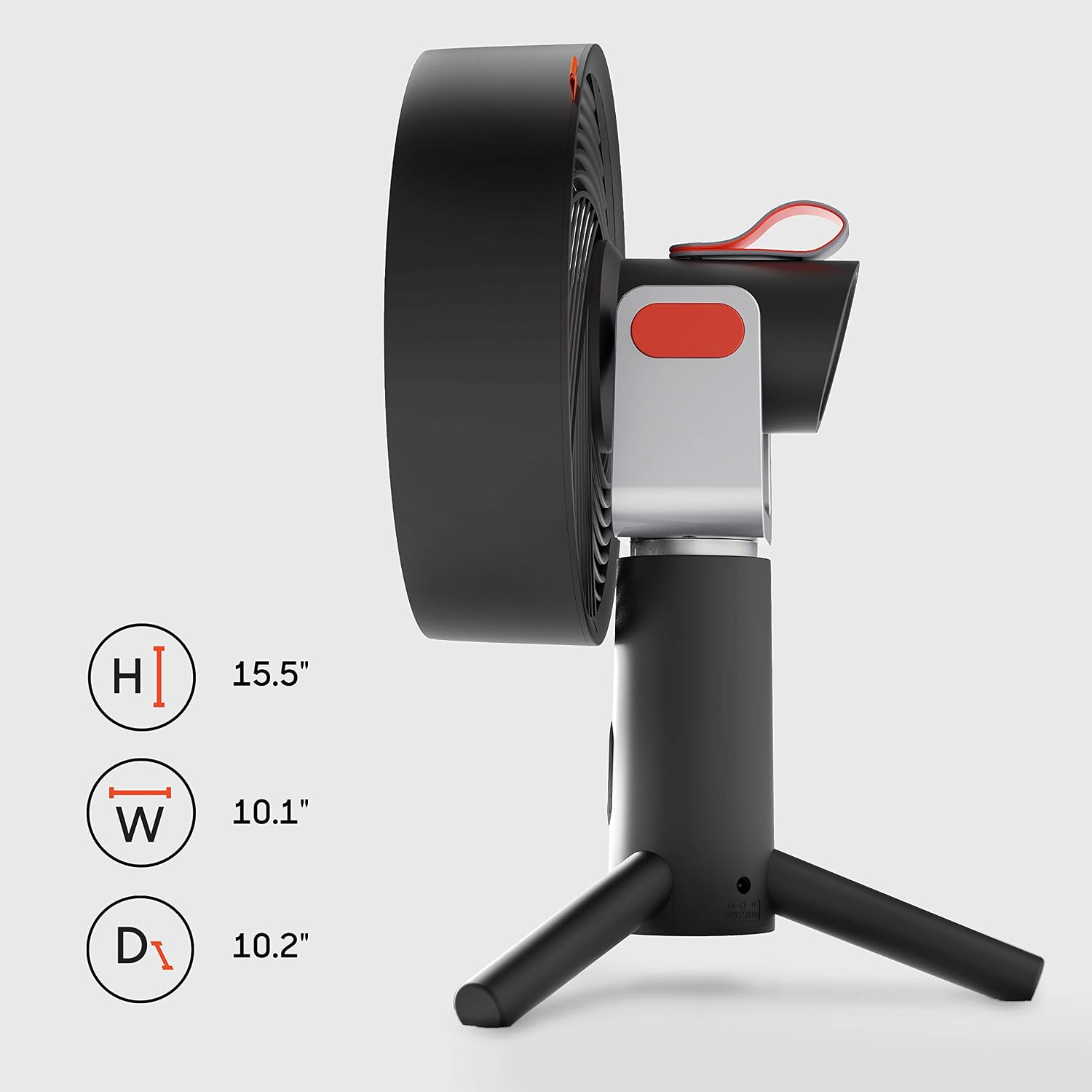
Image: Visual representation of the Sharper Image SPIN 10 fan with its key dimensions (Height: 15.5", Width: 10.1", Depth: 10.2").
Warranty and Support
The Sharper Image SPIN 10 Oscillating Desktop Fan comes with a 2-year manufacturer's warranty.
For warranty claims, technical support, or any inquiries regarding your product, please contact Sharper Image customer support directly. Refer to the contact information provided in your product packaging or visit the official Sharper Image website.
Important International Disclaimer: This item is built to meet U.S. voltage requirements and may not function properly when used in conjunction with external devices that alter or convert voltage or frequency of electricity. Improper use or shipping the product outside the U.S. will void all warranties.
Related documentsSPIN 10


Ask a question about this manual
Ask about setup, troubleshooting, compatibility, parts, safety, or missing instructions. Manuals+ will review the question and use this page’s manual context to help answer it.