Introduction
This manual provides instructions for using your AgoDeo Premium Matte Printable Vinyl Sticker Paper. This product is designed for creating durable, custom stickers using an inkjet printer and is suitable for various applications.

Image: Packaging for AgoDeo Premium Matte Printable Vinyl Sticker Paper.
Product Features
- Waterproof Matte Finish: Designed for indoor and outdoor use. For enhanced water resistance, a UV-resistant sealer spray is recommended.
- Inkjet Printer Compatible: Works with standard inkjet printers. Not compatible with laser printers.
- Cutting Machine Compatible: Suitable for use with cutting machines like Cricut and Silhouette.
- Durable Adhesion: Features strong, long-lasting adhesion, yet allows for repositioning if misaligned during initial application.
- Tear and Scratch Resistant: Constructed for durability against tearing and scratching.
- Quick Drying & Smudge-Free: Engineered for superior ink absorption to prevent smudging and smearing, ensuring crisp prints.
- Easy Application: The unique backing layer facilitates easy peeling.
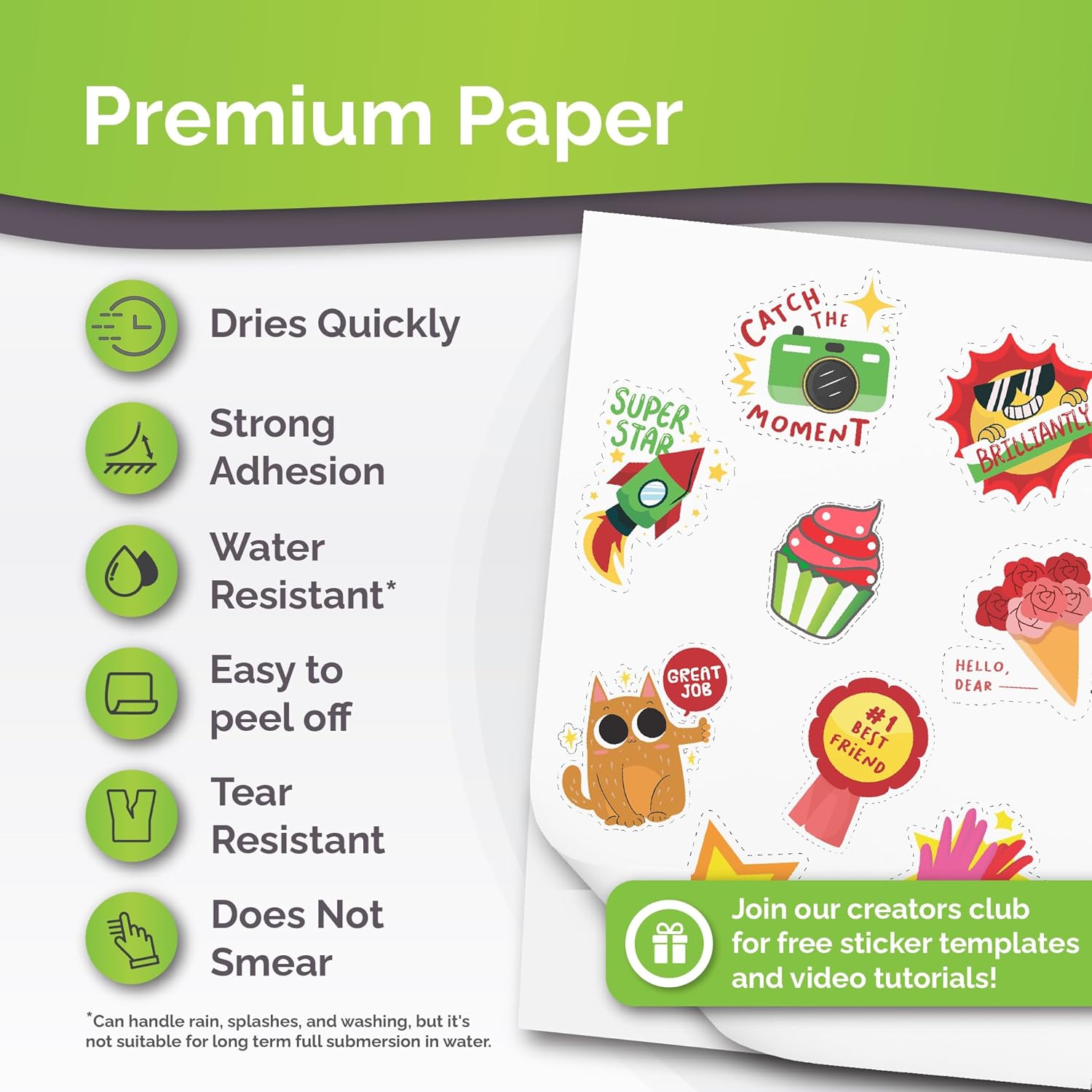
Image: Key features of the AgoDeo Printable Vinyl Sticker Paper, including quick drying, strong adhesion, water resistance, easy peeling, tear resistance, and smudge prevention.
Setup and Preparation
- Printer Compatibility: Ensure your printer is an inkjet model. This paper is not designed for laser printers.
- Loading the Paper: Identify the printable side, which has a matte, chalky texture. Load the paper into your printer tray with the printable side facing the correct direction for your printer's feeding mechanism.
- Printer Settings: For optimal print quality, select a "photo paper" or "glossy paper" setting in your printer's preferences. This often results in higher ink saturation and better color vibrancy.

Image: Illustration showing compatibility with inkjet printers (Canon, HP, Epson, Brother, Samsung) and cutting machines (Cricut, Silhouette, XTools).
Operating Instructions
1. Printing
- Design your sticker using your preferred software.
- Load the AgoDeo vinyl sticker paper into your inkjet printer, ensuring the matte side is correctly oriented for printing.
- Print your design. Allow the printed sheet to dry for a few minutes before handling to prevent smudging.

Image: A printer actively printing designs onto the sticker paper.
2. Cutting
- Once the ink is completely dry, cut out your stickers. This can be done manually with scissors or a craft knife, or using a compatible cutting machine (e.g., Cricut, Silhouette).
- If using a cutting machine, refer to your machine's specific instructions for cutting vinyl or sticker paper. Perform a test cut if unsure about settings.

Image: Hands cutting a sticker design with scissors.
3. Application
- Carefully peel the sticker from its backing. The unique backing is designed for easy removal.
- Apply the sticker to a clean, dry, and smooth surface. The adhesive allows for initial repositioning if needed.
- Press firmly from the center outwards to remove any air bubbles and ensure full adhesion.

Image: Hands peeling a sticker from its backing.

Image: A sticker applied to a notebook.

Image: Examples of stickers applied to different surfaces like metal, wood, glass, paper, and round objects.
Care and Durability
- Water Resistance: The sticker paper is water-resistant and can withstand splashes and washing. It is not recommended for long-term submersion in water.
- Enhanced Protection: For maximum durability and water resistance, especially for outdoor applications, consider applying a UV-resistant clear sealer spray over the printed and cut stickers.
- Scratch Resistance: The paper features a scratch-resistant finish to maintain the integrity of your designs.

Image: A hand wiping a mug with a sticker, illustrating water resistance.
Troubleshooting
- Issue: Ink Smudging or Smearing
- Solution: Ensure you are printing on the matte, chalky side of the paper. Allow sufficient drying time (several minutes) after printing before touching or cutting the stickers. Verify your printer settings are set to "photo paper" or a similar high-quality setting to optimize ink absorption.
- Issue: Paper Jamming in Printer
- Solution: Ensure the paper is loaded correctly and not bent or creased. Check your printer's paper tray for any obstructions. This paper is designed for smooth feeding, but printer-specific issues can occur.
- Issue: Stickers Not Adhering Well
- Solution: Ensure the surface where the sticker is applied is clean, dry, and smooth. Rough or dirty surfaces can impair adhesion. Press firmly on the sticker from the center outwards to ensure full contact.
- Issue: Colors Appear Dull or Washed Out
- Solution: Adjust your printer settings to a higher quality print mode, such as "photo paper" or "best quality." Ensure your printer's ink cartridges are not low and are functioning correctly.
Specifications
| Brand | AgoDeo |
| Model Number | AGODEOLLC-MATTE-56-2 |
| Item Weight | 13.7 ounces (0.39 Kilograms) |
| Product Dimensions | 11.69 x 8.27 x 0.04 inches |
| Color | White |
| Number of Sheets | 34 |
| Sheet Size | 8.5 x 11 Inches |
| Paper Finish | Matte |
Support
For further assistance or inquiries regarding your AgoDeo Premium Matte Printable Vinyl Sticker Paper, please visit the official AgoDeo store on Amazon or contact customer support through the retailer where the product was purchased.
Official AgoDeo Store: AgoDeo Amazon Store


