
1. Introduction
Thank you for choosing the OMOTON MK201 Mechanical Gaming Keyboard. This manual provides detailed instructions for setting up, operating, and maintaining your new keyboard. Please read this manual thoroughly to ensure optimal performance and longevity of your device.

Image: The OMOTON MK201 Mechanical Gaming Keyboard, showcasing its compact TKL design and vibrant RGB backlighting.
2. Key Features
- Customizable RGB Backlighting: Features 8 unique lighting effects and 6 preset configurations. Users can customize backlit areas to illuminate only essential keys for gaming. Brightness and speed of lighting are freely adjustable to suit any environment.
- Advanced Anti-Ghosting Technology: Equipped with N-Key rollover technology, ensuring all key presses are registered accurately, even during rapid or multiple key combinations, for fast response and improved gaming efficiency.
- Programmable Macro Keys: Offers programmable keys for recording keyboard shortcuts or macros (sequences of commands) to enhance efficiency and speed in various applications and games.
- Professional Blue Switches: Provides precise tactile feedback and a pleasant audible click, characteristic of mechanical keyboards, enhancing the overall typing and gaming experience.
- Wide Compatibility: Compatible with Windows 7/8/10/2000/XP/ME/Vista, Android, Linux, and Mac OS.
- Ergonomic Design: Engineered to maximize hand comfort for extended gaming sessions.
- Durable Construction: Features a metal plate and ABS construction for enhanced durability and a premium feel.

Image: Close-up view highlighting the keyboard's robust metal plate and ABS plastic construction.
3. Setup Guide
- Unpack the Keyboard: Carefully remove the keyboard from its packaging.
- Connect to Your Device: Plug the USB cable of the keyboard into an available USB port on your computer, gaming console (PS4/PS5), or compatible device.
- Driver Installation: The keyboard is plug-and-play and typically does not require additional drivers. Your operating system should automatically detect and install the necessary drivers.
- Placement: Position the keyboard comfortably on your desk. The adjustable feet on the underside can be used to change the typing angle for ergonomic comfort.

Image: The keyboard's ergonomic design, illustrating the comfortable hand position and the adjustable feet for tilt customization.
4. Operating Instructions
4.1. RGB Lighting Control
The OMOTON MK201 keyboard offers various RGB lighting modes and customization options:
- Change Lighting Modes: Press the Scroll Lock key (often labeled 'Arrêt défil') to cycle through 8 different preset lighting effects.
- Adjust Brightness: Press FN + Page Up to increase LED brightness. Press FN + Page Down to decrease LED brightness.
- Adjust Speed: Press FN + '+' to increase the lighting effect speed. Press FN + '-' to decrease the lighting effect speed.

Image: Visual guide to changing lighting modes, adjusting brightness, and controlling animation speed using key combinations.
4.2. Multimedia and Shortcut Keys
The keyboard features dedicated function keys (F1-F12) that, when combined with the FN key, provide quick access to multimedia controls and system shortcuts:
| Key Combination | Function |
|---|---|
| FN + F1 | Open My Computer |
| FN + F2 | Open Home Page |
| FN + F3 | Open Calculator |
| FN + F4 | Play Music |
| FN + F5 | Previous Track |
| FN + F6 | Next Track |
| FN + F7 | Play/Pause |
| FN + F8 | Stop |
| FN + F9 | Mute |
| FN + F10 | Volume Down |
| FN + F11 | Volume Up |
| ESC | Escape |

Image: A diagram illustrating the various multimedia and shortcut functions accessible via the FN key combinations.
4.3. N-Key Rollover
The keyboard supports full N-Key Rollover, meaning every key press is registered independently, preventing ghosting or missed inputs even when multiple keys are pressed simultaneously. This is crucial for fast-paced gaming.
- 6-Key Rollover: Press FN + INS for 6-key rollover mode (6 simultaneous key presses without conflict).
- Full N-Key Rollover: Press FN + DEL for full N-Key rollover mode (all simultaneous key presses without conflict).
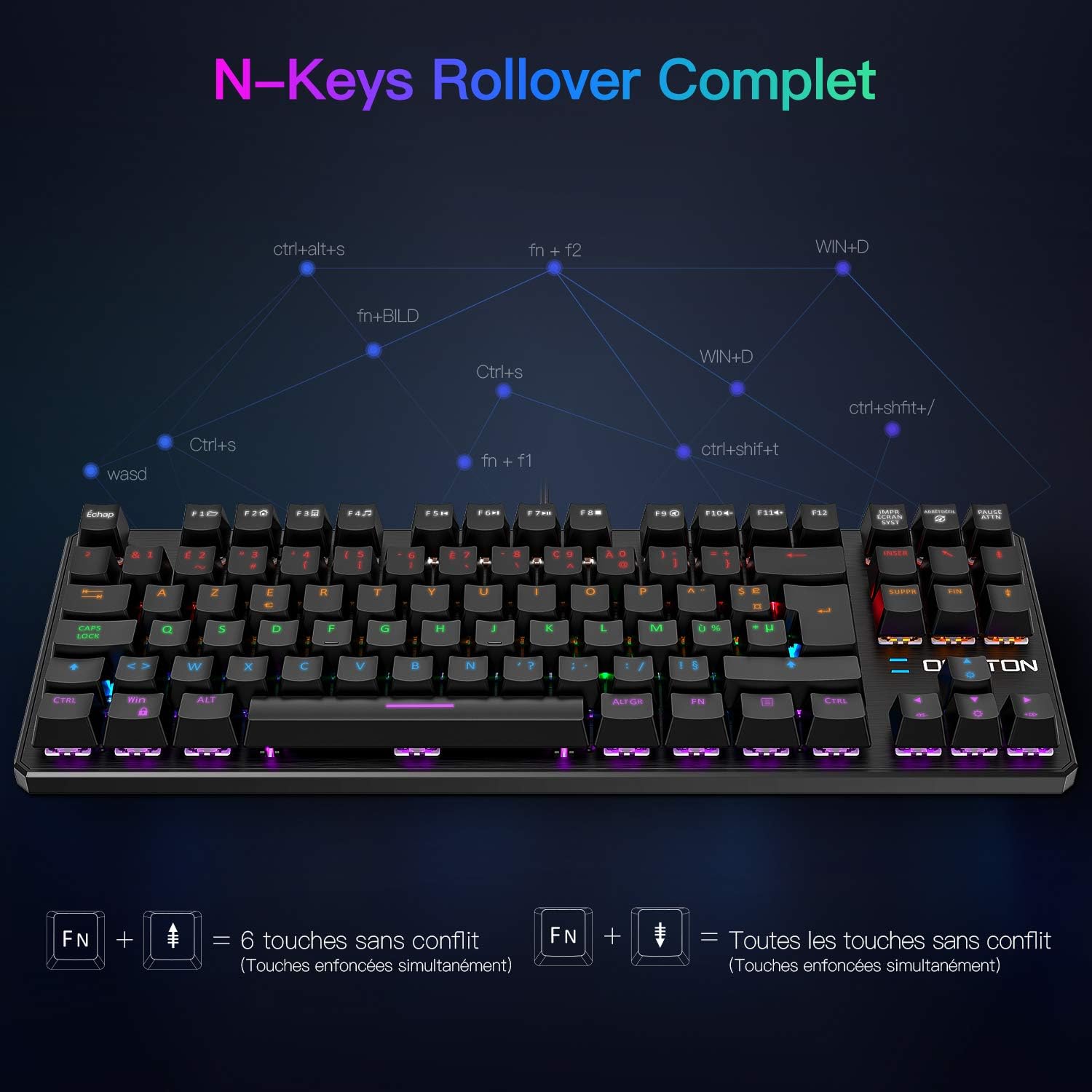
Image: A visual representation of N-Key Rollover technology, demonstrating how multiple simultaneous key presses are registered accurately.
5. Maintenance
To ensure the longevity and optimal performance of your OMOTON MK201 keyboard, follow these maintenance guidelines:
- Cleaning: Regularly clean the keyboard with a soft, dry cloth. For dust and debris between keys, use compressed air. For stubborn grime, lightly dampen a cloth with water or a mild cleaning solution (avoid harsh chemicals) and wipe the keycaps. Ensure the keyboard is unplugged before cleaning.
- Avoid Liquids: Do not spill liquids on the keyboard. If a spill occurs, immediately unplug the keyboard and allow it to dry completely before reconnecting.
- Storage: When not in use for extended periods, store the keyboard in a dry, dust-free environment.
- Handle with Care: Avoid dropping the keyboard or subjecting it to excessive force, which can damage the switches or internal components.
6. Troubleshooting
If you encounter issues with your OMOTON MK201 keyboard, please refer to the following common solutions:
- Keyboard Not Responding:
- Ensure the USB cable is securely plugged into both the keyboard and your device.
- Try plugging the keyboard into a different USB port.
- Test the keyboard on another computer or device to rule out a system-specific issue.
- Restart your computer.
- Keys Not Registering / Ghosting:
- Ensure the N-Key Rollover mode is set correctly (FN + DEL for full N-Key Rollover).
- Clean around the affected keys to remove any debris that might be obstructing the switch.
- Backlighting Not Working / Incorrect:
- Check if the brightness is turned down (FN + Page Down). Increase it with FN + Page Up.
- Cycle through lighting modes using the Scroll Lock key.
- Ensure no software conflicts are present if you are using third-party lighting control applications.
- Multimedia Keys Not Functioning:
- Ensure you are pressing the FN key simultaneously with the desired function key (F1-F12).
- Some operating systems or media players might require specific settings for multimedia keys to function correctly.
If these steps do not resolve your issue, please contact OMOTON customer support for further assistance.
7. Specifications
| Feature | Detail |
|---|---|
| Brand | OMOTON |
| Model Number | MK201 |
| Color | Black |
| Connectivity Technology | Wired (USB) |
| Keyboard Description | Mechanical, TKL (Tenkeyless) |
| Switch Type | Tactile (Blue Switches) |
| Number of Keys | 88 (TKL Layout) |
| Special Features | RGB Backlit, Multimedia Shortcuts, Anti-Ghosting (N-Key Rollover) |
| Compatible Devices | Computer (PC, PS4, PS5), Android, Linux, Mac OS |
| Operating System Compatibility | Windows 7/8/10/2000/XP/ME/Vista, Android, Linux, Mac OS |
| Key Switch Lifespan | 50 Million Clicks (approx.) |
| Actuation Force | 60gf ± 10gf |
| Pre-travel Distance | 2.0 ± 0.6mm |

Image: Technical drawing showing the dimensions of the OMOTON MK201 keyboard.
8. Warranty & Support
OMOTON provides extended after-sales service for this product. If you have any questions, concerns, or require technical assistance, please do not hesitate to contact our professional customer service team. They are available to resolve your issues promptly.
For warranty claims or support, please refer to the contact information provided with your purchase or visit the official OMOTON website.