
Introduction
Thank you for choosing the KLIM Pro Laptop Cooling Pad. This manual provides essential information for setting up, operating, maintaining, and troubleshooting your new cooling pad. Designed to protect your laptop from overheating, the KLIM Pro features powerful fans and an ergonomic design for enhanced performance and comfort.

The KLIM Pro Laptop Cooling Pad, showcasing its two large, illuminated fans and compact design, ready for connection via USB.
Setup Instructions
Unpack the Cooling Pad: Carefully remove the KLIM Pro cooling pad from its packaging. Ensure all components, including the USB power cable, are present.
Positioning Your Laptop: Place your laptop centrally on the cooling pad's metal mesh surface. The cooling pad is compatible with laptops up to 15.6 inches.
Adjusting the Stand: For improved ergonomics and airflow, extend the sturdy rear legs (kickstands) located on the underside of the cooling pad. The frontal stoppers will help secure your laptop in place.
Connect Power: Locate the USB power cable. Plug the smaller end into the USB port on the cooling pad. Plug the larger end into an available USB port on your laptop. The cooling pad features an extra USB port on the cable to ensure you don't lose a valuable port on your laptop.
Verify Operation: Once connected, the fans should begin spinning and illuminate with blue LED lights, indicating the cooling pad is active.

This image illustrates the ergonomic benefits of using the KLIM Pro, showing how its adjustable rear stands and frontal stoppers help maintain a comfortable and healthy posture while using your laptop.

A view of the cooling pad's underside, highlighting the convenient cable holder for tidy storage and the extra USB port, which allows you to power the pad without sacrificing a laptop port.
Operating Instructions
The KLIM Pro Laptop Cooling Pad is designed for simple, plug-and-play operation. It automatically activates when connected to a powered USB port.
Key Features:
- Powerful Cooling: Equipped with two large, quiet fans that spin at 1200 RPM, the KLIM Pro effectively dissipates heat from your laptop, preventing overheating and improving performance.
- Silent Operation: The fans operate at a minimal noise level, not exceeding 26 dB, ensuring a quiet working or gaming environment.
- Wide Compatibility: Designed to accommodate laptops ranging from 10 to 15.6 inches, providing versatile cooling for various models.
- Durable Construction: Made with a robust ABS structure and a metal grid surface for long-lasting durability.
Official product video demonstrating the features and benefits of the KLIM Pro Laptop Cooling Pad, including its powerful fans, silent operation, and ergonomic design.

This image visually represents the technical specifications of the cooling pad's fans, showing their 120mm diameter and 1200 RPM rotational speed for efficient cooling.
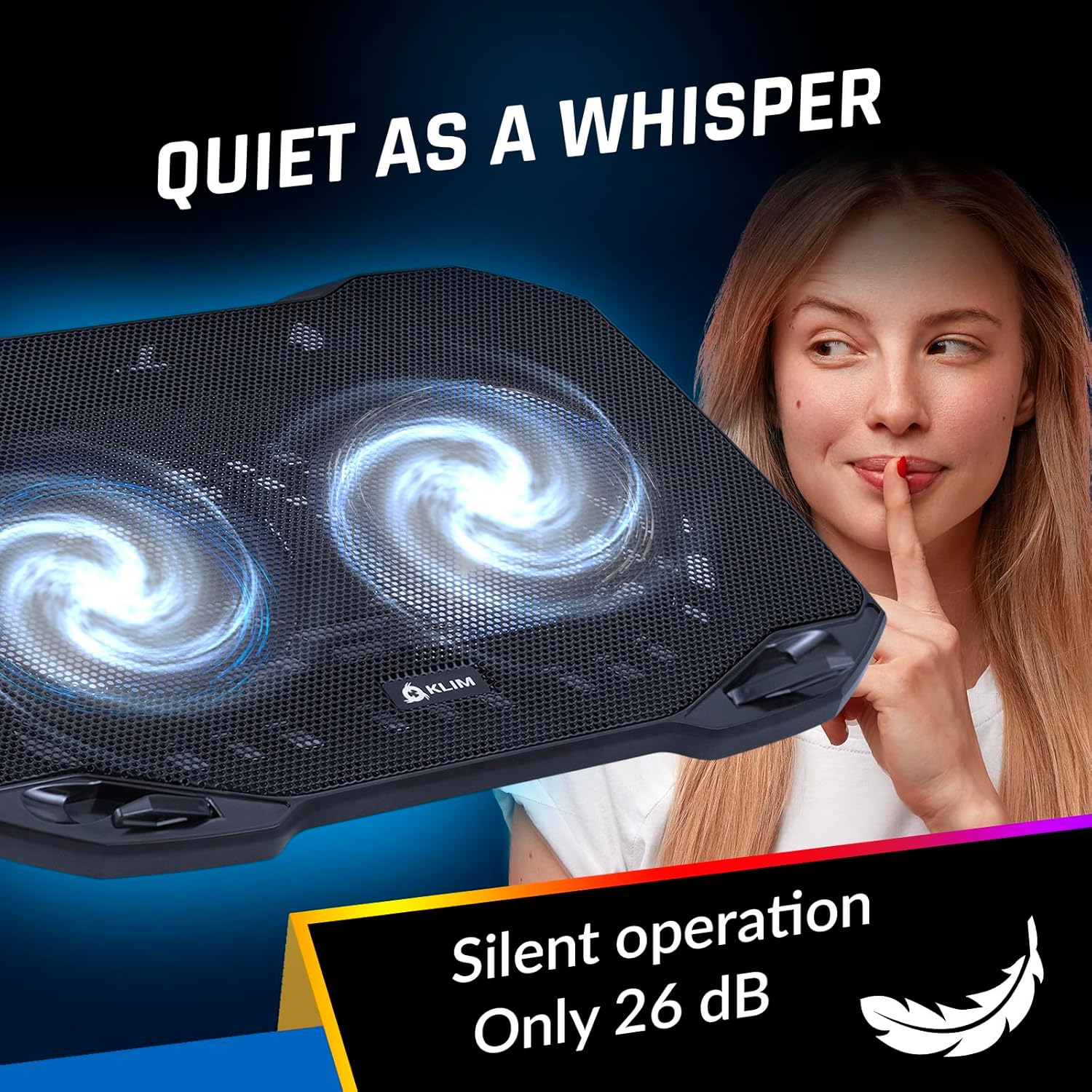
This image emphasizes the silent operation of the KLIM Pro, highlighting that its noise level is below 26 dB, ensuring a distraction-free environment.
Maintenance
To ensure the longevity and optimal performance of your KLIM Pro Laptop Cooling Pad, follow these simple maintenance guidelines:
- Regular Cleaning: Periodically clean the metal mesh surface and fan blades to prevent dust buildup, which can impede airflow. Use a soft, dry cloth or a can of compressed air.
- Avoid Liquid Contact: Do not expose the cooling pad to liquids. If accidental spills occur, disconnect power immediately and allow it to dry completely before re-use.
- Cable Care: Store the USB power cable neatly using the integrated cable holder when not in use to prevent damage.
- Proper Storage: When not in use for extended periods, store the cooling pad in a cool, dry place away from direct sunlight.
Troubleshooting
If you encounter any issues with your KLIM Pro Laptop Cooling Pad, please refer to the following common problems and solutions:
| Problem | Possible Cause | Solution |
|---|---|---|
| Fans are not spinning/LEDs are off. | No power supply; loose USB connection; faulty USB port. | Ensure the USB cable is securely plugged into both the cooling pad and a working USB port on your laptop. Try a different USB port. |
| Reduced cooling performance. | Dust buildup on fans/mesh; obstructed airflow; laptop vents blocked. | Clean the cooling pad's mesh and fans. Ensure laptop vents are clear. Adjust the cooling pad's position for optimal airflow. |
| Unusual noise from fans. | Dust/debris in fan blades; fan malfunction. | Disconnect power and carefully remove any visible debris from the fan blades. If the noise persists, contact customer support. |
Specifications
| Feature | Detail |
|---|---|
| Model Number | K81 |
| Dimensions (L x W x H) | 14.2" x 10.4" x 0.84" (36.07 cm x 26.42 cm x 2.13 cm) |
| Weight | 1.1 pounds (0.5 kg) |
| Fan Speed | 1200 RPM |
| Number of Fans | 2 |
| Noise Level | Less than 26 dB |
| Compatibility | Laptops 10-15.6 inches |
| Material | ABS structure, Metal grid |
| Connectivity | USB (with pass-through port) |
Warranty and Support
The KLIM Pro Laptop Cooling Pad comes with a 5-year warranty, reflecting our commitment to quality and durability. For any technical assistance, warranty claims, or general inquiries, please visit the official KLIM website or contact our customer support team. Our specialists are available to assist you.
For more information, visit: KLIM Techs Official Website


