
VUCATIMES N10
VUCATIMES N10 10-inch Android Tablet User Manual
Model: N10 | Brand: VUCATIMES
1. Introduction
Welcome to the user manual for your VUCATIMES N10 10-inch Android Tablet. This guide provides essential information on setting up, operating, maintaining, and troubleshooting your device. Please read this manual thoroughly to ensure optimal performance and longevity of your tablet.
2. Package Contents
Upon unboxing your VUCATIMES N10 tablet, please verify that all the following items are included:
- 1 x VUCATIMES N10 10-inch Android Tablet
- 1 x Charger
- 1 x USB Cable
- 1 x User Guide (this document)
- 1 x Service Card

Image: The VUCATIMES N10 Android Tablet displaying the Android 10.0 Go operating system logo on its screen.
3. Product Overview
Familiarize yourself with the physical components and ports of your VUCATIMES N10 tablet.

Image: Front and back views of the VUCATIMES N10 tablet, highlighting its sleek design and rear camera placement.
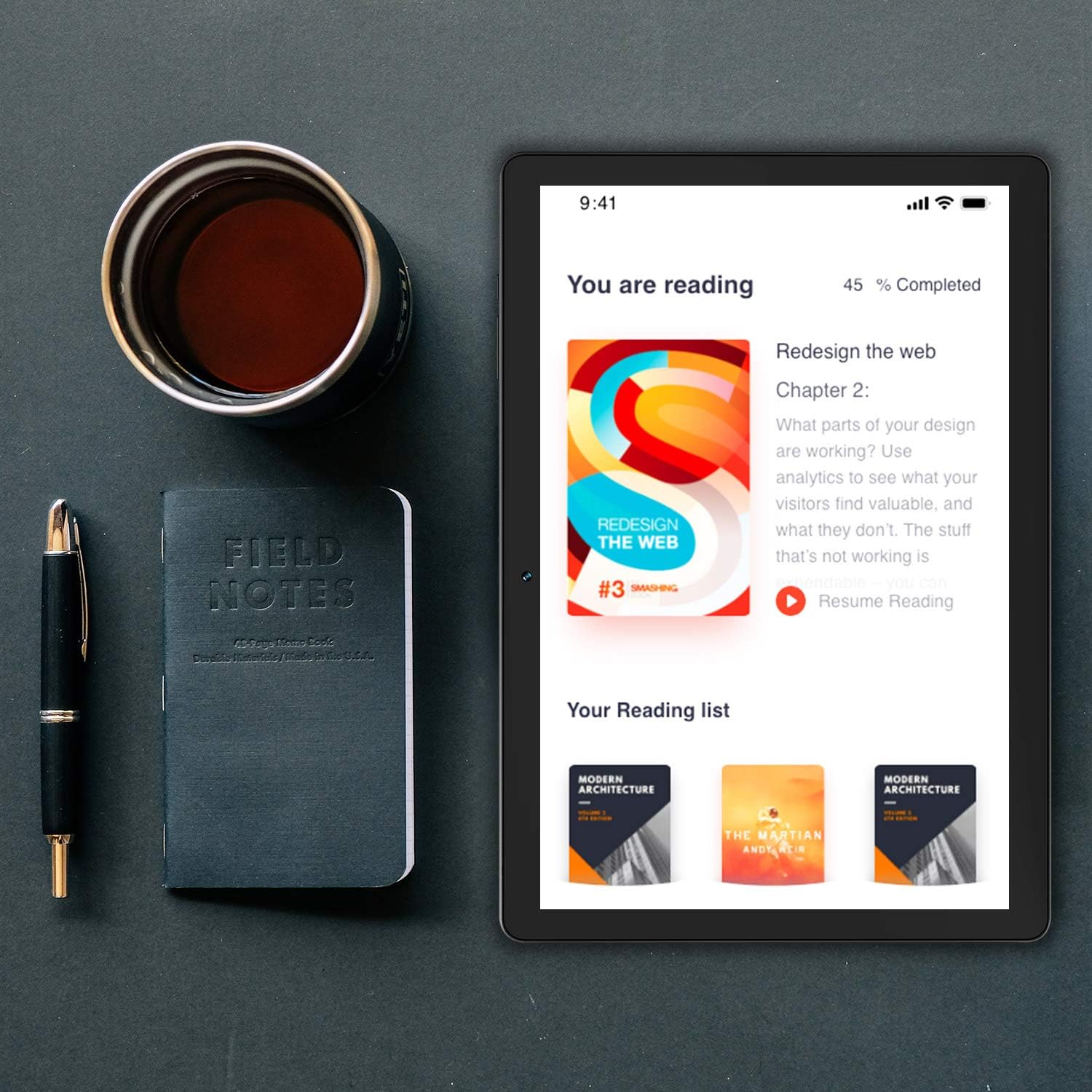
Image: The VUCATIMES N10 tablet shown with its dimensions: 24.3 cm length, 17.1 cm width, and 0.93 cm thickness.
Key Features:
- Display: 10-inch IPS screen (1280x800 pixels)
- Processor: Quad-core 64bit (Cortex-A53, 1.5-1.7GHz)
- Operating System: Android 10.0 Go
- Storage: 32GB internal, expandable via microSD (card not included)
- Connectivity: Wi-Fi (802.11b/g/n 2.4Ghz), Bluetooth 4.2
- Cameras: 0.3MP Front, 2.0MP Rear
4. Setup
4.1 Initial Charging
Before first use, fully charge your tablet. Connect the provided USB cable to the tablet's charging port and the charger to a power outlet. The battery indicator on the screen will show charging status. A full charge typically takes several hours.
4.2 Powering On/Off
- To Power On: Press and hold the Power button (usually located on the side or top edge) until the VUCATIMES logo appears on the screen.
- To Power Off: Press and hold the Power button until a menu appears. Select "Power off" and confirm.
- To Restart: From the same menu, select "Restart."
4.3 Initial Setup Wizard
The first time you power on your tablet, you will be guided through an initial setup process. This includes:
- Language Selection: Choose your preferred language.
- Wi-Fi Connection: Select your Wi-Fi network and enter the password to connect to the internet.
- Google Account: Sign in with your existing Google account or create a new one. This is necessary to access the Google Play Store and other Google services.
- Date & Time: Set the correct date and time, or allow the network to set it automatically.
5. Operating the Tablet
5.1 Basic Navigation
The VUCATIMES N10 tablet uses a touch-sensitive screen for navigation:
- Tap: Touch the screen once to open an app, select an item, or press a button.
- Tap & Hold: Touch and hold an item to access additional options or move it.
- Swipe: Drag your finger across the screen to scroll through pages, lists, or switch between home screens.
- Pinch: Use two fingers to zoom in or out on photos and web pages.
5.2 Wi-Fi Connectivity
To connect to a Wi-Fi network:
- Go to Settings > Network & internet > Wi-Fi.
- Toggle Wi-Fi On.
- Select your desired network from the list of available networks.
- Enter the network password if prompted, then tap Connect.
5.3 Bluetooth Pairing
To pair with a Bluetooth device (e.g., headphones, speakers):
- Go to Settings > Connected devices > Bluetooth.
- Toggle Bluetooth On.
- Ensure your Bluetooth device is in pairing mode.
- Tap Pair new device and select your device from the list.
- Follow any on-screen prompts to complete the pairing process.
5.4 Google Play Store
The VUCATIMES N10 comes with the Google Play Store pre-installed. You can download and install a wide variety of applications, games, movies, and books.
- Tap the Play Store icon on your home screen or app drawer.
- Browse or search for apps.
- Tap on an app to view its details, then tap Install to download and install it.
Note: The VUCATIMES N10 runs Android 10.0 Go Edition, which is optimized for entry-level devices. It is not recommended for demanding games or large applications due to its 1GB RAM. For more information on Android Go, please refer to the official Android website.

Image: A person using the VUCATIMES N10 tablet for reading, demonstrating its suitability for educational or leisure content.
6. Maintenance
6.1 Cleaning Your Tablet
To clean the screen and body of your tablet:
- Power off the tablet before cleaning.
- Use a soft, lint-free cloth, slightly dampened with water or a screen cleaner solution.
- Avoid using harsh chemicals, abrasive materials, or excessive moisture, as these can damage the screen or internal components.
6.2 Battery Care
The VUCATIMES N10 is equipped with a 6000mAh battery. To maximize battery life and performance:
- Avoid extreme temperatures. Do not expose the tablet to very hot or very cold environments.
- Do not allow the battery to fully discharge frequently. Charge it before it drops below 20%.
- Use only the provided charger and USB cable.
- If storing the tablet for an extended period, charge it to about 50% and power it off.
6.3 Storage Management
Your tablet has 32GB of internal storage. To manage storage effectively:
- Regularly delete unnecessary apps, photos, and videos.
- Move large files to a cloud storage service or an external microSD card (not included).
- Go to Settings > Storage to view storage usage and free up space.
7. Troubleshooting
If you encounter issues with your VUCATIMES N10 tablet, try the following solutions:
7.1 Device Not Powering On
- Ensure the tablet is sufficiently charged. Connect it to the charger for at least 30 minutes before attempting to power on again.
- Try a different charger and USB cable to rule out faulty accessories.
- Perform a forced restart by holding the Power button for 10-15 seconds.
7.2 Wi-Fi Connection Issues
- Ensure Wi-Fi is enabled in Settings.
- Restart your Wi-Fi router and the tablet.
- Forget the network in Settings > Network & internet > Wi-Fi, then reconnect.
- Verify the Wi-Fi password is correct.
7.3 Apps Crashing or Freezing
- Close and reopen the app.
- Clear the app's cache and data: Go to Settings > Apps & notifications > select the app > Storage & cache > Clear cache, then Clear storage (note: this will delete app data).
- Uninstall and reinstall the app.
- Ensure the tablet's software is up to date.
7.4 Slow Performance
- Close unused background apps.
- Free up storage space (refer to Section 6.3).
- Restart the tablet regularly.
- Consider a factory reset as a last resort (Settings > System > Reset options > Erase all data (factory reset)). Warning: This will delete all data on your tablet. Back up important files before proceeding.
8. Specifications
Detailed technical specifications for the VUCATIMES N10 Android Tablet:
| Feature | Specification |
|---|---|
| Brand | VUCATIMES |
| Model | N10 |
| Operating System | Android 10.0 Go |
| CPU | Allwinner A100 Quad-core Cortex-A53 (1.5GHz-1.7GHz) |
| GPU | GE8300 |
| RAM | 1GB |
| Internal Storage (ROM) | 32GB |
| Expandable Storage | Yes, via microSD card (not included) |
| Display Size | 10.1 inches |
| Display Type | IPS |
| Display Resolution | 1280 x 800 pixels |
| Front Camera | 0.3 Megapixels |
| Rear Camera | 2.0 Megapixels |
| Battery Capacity | 6000mAh @ 3.7V (Lithium Ion) |
| Wi-Fi | 802.11b/g/n 2.4Ghz |
| Bluetooth | BT 4.2 |
| Dimensions (L x W x H) | 24.3 cm x 17.1 cm x 0.93 cm |
| Unit Weight | 540 g |
| Special Features | USB Host |
9. Warranty and Support
VUCATIMES provides a 12-month warranty for your N10 Android Tablet, covering manufacturing defects from the date of purchase. Additionally, lifetime technical support is available to assist you with any questions or issues you may encounter.
For warranty claims, technical assistance, or any other inquiries, please refer to the service card included in your package or visit the official VUCATIMES support website. When contacting support, please have your model number (N10) and purchase details ready.
Ask a question about this manual
Ask about setup, troubleshooting, compatibility, parts, safety, or missing instructions. Manuals+ will review the question and use this page’s manual context to help answer it.