
Leopold FC 750R PD
Leopold FC 750R PD Mechanical Keyboard User Manual
Model: FC 750R PD
1. Introduction
Thank you for choosing the Leopold FC 750R PD Mechanical Keyboard. This high-quality 87-key tenkeyless keyboard is designed for durability and a superior typing experience, featuring CHERRY MX mechanical switches and PBT double-shot keycaps. This manual provides essential information for setting up, operating, maintaining, and troubleshooting your new keyboard.

Front view of the Leopold FC 750R PD mechanical keyboard, showcasing its compact 87-key tenkeyless layout and dark-colored PBT keycaps.
2. Package Contents
Please check the package for the following items:
- Leopold FC 750R PD Mechanical Keyboard
- USB Cable
- PS/2 Adapter
- Keycap Puller
- Additional Keycaps (e.g., Ctrl, Caps Lock)
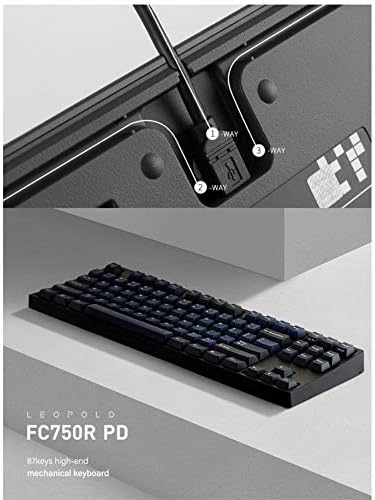
The underside of the keyboard, showing the three-way cable routing channels for organized desk setup. Also pictured are the included USB cable, PS/2 adapter, and keycap puller.
3. Setup Instructions
3.1 Connecting the Keyboard
- Locate the USB port on your computer.
- Connect the provided USB cable to the keyboard's USB port.
- Plug the other end of the USB cable into an available USB port on your computer.
- For PS/2 connection (if desired and supported by your computer), attach the PS/2 adapter to the USB cable before connecting to the computer's PS/2 port. Note that PS/2 connection may require a system reboot for proper detection.
The keyboard is plug-and-play and should be automatically recognized by your operating system (Windows 10/8/7/VISTA/XP).
3.2 Adjusting Keyboard Height
The keyboard features adjustable feet on the underside, allowing you to set your preferred typing angle. Gently flip out the feet to raise the keyboard. There are two stages of adjustment for ergonomic comfort.

Close-up images of the keyboard's adjustable feet, demonstrating the two-stage height adjustment and non-slip rubber pads for stable positioning.
4. Operating Instructions
4.1 Basic Key Functions
The FC 750R PD features a standard 87-key tenkeyless layout. All keys function as labeled. The keyboard utilizes CHERRY MX mechanical switches for a consistent and tactile typing experience.

Detailed view of the keyboard with some keycaps removed, showing the underlying CHERRY MX switch stems and the double-shot PBT keycap construction.
4.2 LED Indicators
The keyboard includes blue LED indicators for:
- Caps Lock: Illuminates when Caps Lock is active.
- Scroll Lock: Illuminates when Scroll Lock is active.

A close-up view of the blue LED indicators for Scroll Lock and Caps Lock, located above the numeric keypad area, providing visual feedback on keyboard status.
4.3 Cable Management
The underside of the keyboard features integrated cable routing channels. You can route the USB cable to exit from the left, center, or right side of the keyboard to maintain a tidy desk setup.
5. Maintenance
5.1 Cleaning the Keyboard
- Disconnect the keyboard from your computer before cleaning.
- Use a soft, lint-free cloth lightly dampened with water or a mild cleaning solution to wipe the keycaps and casing. Avoid excessive moisture.
- For dust and debris between keycaps, use compressed air or the included keycap puller to carefully remove keycaps and clean the switch area.
- Ensure the keyboard is completely dry before reconnecting it to your computer.
5.2 Keycap Removal and Replacement
Use the provided keycap puller to gently remove keycaps. Hook the puller onto opposite sides of the keycap and pull straight up. When replacing, align the keycap with the switch stem and press down gently until it clicks into place.
6. Troubleshooting
If you encounter issues with your Leopold FC 750R PD keyboard, please refer to the following common solutions:
- Keyboard not responding:
- Ensure the USB cable is securely connected to both the keyboard and the computer.
- Try connecting the keyboard to a different USB port on your computer.
- If using a USB hub, try connecting directly to the computer.
- Restart your computer.
- Specific keys not working:
- Check for any debris under the keycap. Carefully remove the keycap and clean the switch area.
- Ensure the keycap is properly seated on the switch stem.
- LED indicators not working:
- Verify that the corresponding function (Caps Lock, Scroll Lock) is active.
- Reconnect the keyboard or restart your computer.
If the problem persists after attempting these steps, please contact customer support.
7. Specifications
| Feature | Detail |
|---|---|
| Model | FC 750R PD |
| Type of Switch | CHERRY MX (Brown Switch variant) |
| Number of Keys | 87 Keys (Tenkeyless) |
| Keycaps | 1.5mm PBT Double Shot |
| Key Pitch | 19mm |
| PCB | FR-4 Dual Layer |
| Interface | USB & PS/2 |
| Weight | 1kg |
| Dimensions (L x W x H) | 362 x 140 x 33mm (14.25 x 5.51 x 1.3 inches) |
| Compatible OS | Windows 10/8/7/VISTA/XP |
| Material | Polybutylene Terephthalate (Keycaps) |
| Special Feature | Ergonomic design, Sound Dampening |

A visual representation of the key specifications for the FC 750R PD keyboard, including switch type, number of keys, key pitch, key stroke, PCB type, interface, weight, dimensions, and compatible operating systems.
8. Warranty and Support
Leopold products are manufactured to high-quality standards. For warranty information and technical support, please refer to the documentation included with your purchase or visit the official Leopold website. Keep your proof of purchase for warranty claims.
Related documentsFC 750R PD


Ask a question about this manual
Ask about setup, troubleshooting, compatibility, parts, safety, or missing instructions. Manuals+ will review the question and use this page’s manual context to help answer it.