
1. Introduction
The D-Link DGS-1100-05PDV2 is a 5-Port Gigabit Smart Managed PoE Powered Switch/Extender designed for small, medium, and enterprise network environments. This switch is unique as it receives its power via Power over Ethernet (PoE) from an upstream PoE switch or injector, eliminating the need for a local AC power source. It also features PoE Pass-through capabilities, allowing it to supply power to one or two downstream PoE-enabled devices. The DGS-1100-05PDV2 incorporates energy-saving technologies like IEEE 802.3az Energy Efficient Ethernet and D-Link Green, ensuring efficient operation. Management is facilitated through an intuitive web-based interface, providing comprehensive control over network settings and features.
2. Key Features
- PoE Powered Operation: Receives power from an upstream PoE Switch or PoE injector, eliminating the need for a dedicated AC power supply.
- PoE Pass-through: Provides PoE power to one or two downstream devices, extending network and power reach.
- 5 Gigabit Ports: Offers high-speed network connectivity for various devices.
- Smart Managed Capabilities: Features include 802.1Q VLAN support, Quality of Service (QoS), and Bandwidth Limiting for optimized network performance.
- Advanced Security Features: Includes Static MAC, Storm Control, and IGMP Snooping to enhance network security and stability.
- Energy Efficient: Compliant with IEEE 802.3az Energy Efficient Ethernet (EEE) and D-Link Green technology for reduced power consumption.
- Easy Management: Configurable via an intuitive web-based management interface for simplified network administration.
- Diagnostic Tools: Features Loopback Detection and Cable Diagnostics to assist in quickly identifying and resolving network issues.
- Fanless Design: Ensures silent operation and contributes to a longer product lifespan.
- Flexible Mounting: Supports both desktop and wall mount placement.
- Lifetime Warranty: Backed by a D-Link Lifetime Warranty for long-term reliability.
3. Package Contents
Verify that your package contains the following items:
- DGS-1100-05PDV2 Gigabit Switch
- Rubber feet
- Mounting screws
- Quick installation guide
- Warranty card
Note: A PoE injector or an upstream PoE switch is required to power the DGS-1100-05PDV2 and is not included in the package.
4. Setup Instructions
4.1 Physical Installation
The DGS-1100-05PDV2 switch is designed for flexible placement, supporting both desktop and wall mounting. Ensure the installation location provides adequate ventilation and is free from excessive heat or moisture.

Figure 4.1: Front view of the D-Link DGS-1100-05PDV2 switch, showing five Gigabit Ethernet ports and LED indicators.
4.2 Powering the Switch
This switch is PoE-powered. It receives power from an upstream PoE switch or a PoE injector. Connect an Ethernet cable from a PoE-enabled port on your upstream device to any of the five ports on the DGS-1100-05PDV2. The switch will draw power through this connection.
The switch also features a grounding screw for enhanced safety. If required by your installation environment, connect a grounding wire to the "SWITCH GND" terminal on the rear panel of the device.

Figure 4.2: Example network diagram illustrating PoE power input and connections to various devices.
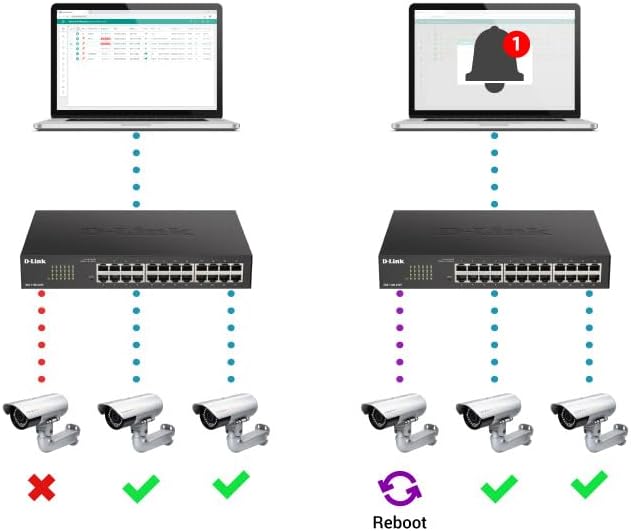
Figure 4.3: Rear panel of the switch, highlighting the "SWITCH GND" terminal for grounding.
4.3 Initial Configuration (Web-Based Management)
The DGS-1100-05PDV2 can be managed via a web-based interface. By default, the switch may have a static IP address (e.g., 10.90.90.90) or obtain one via DHCP. To access the web interface:
- Connect a computer directly to one of the switch's Ethernet ports.
- Configure your computer's IP address to be in the same subnet as the switch's default IP (e.g., if the switch is 10.90.90.90, set your computer to 10.90.90.x with a subnet mask of 255.255.255.0).
- Open a web browser and enter the switch's default IP address (e.g., http://10.90.90.90).
- Log in using the default credentials (typically username: admin, password: admin or blank). Refer to the Quick Installation Guide for specific default credentials.
- Once logged in, you can configure network settings, including changing the IP address to DHCP or a different static IP, and enable desired features. Remember to save your configuration changes to ensure they persist after a reboot.
5. Operating the Switch
The DGS-1100-05PDV2 is a Smart Managed switch, offering various functionalities to optimize your network. After initial setup, you can utilize the web-based management interface to configure and monitor the switch.
5.1 PoE Pass-through Functionality
The switch supports PoE Pass-through on ports 1 and 2. This means that if the switch itself is powered by PoE (e.g., from an 802.3at source), it can then provide power to up to two downstream PoE-enabled devices connected to ports 1 and 2. The maximum PoE budget available for downstream devices depends on the input power received by the switch.
5.2 Network Management Features
Through the web interface, you can configure advanced Layer 2 features:
- VLANs (Virtual Local Area Networks): Segment your network for improved security and performance (e.g., 802.1Q VLAN support, Voice VLAN, Surveillance VLAN).
- Quality of Service (QoS): Prioritize network traffic for critical applications like VoIP and video streaming.
- Bandwidth Control: Manage bandwidth allocation per port to prevent network congestion.
- Static MAC: Manually assign MAC addresses to ports for enhanced security.
- Storm Control: Prevent network disruptions caused by broadcast, multicast, or unknown unicast storms.
- IGMP Snooping: Optimize multicast traffic delivery, useful for IPTV and other multicast applications.
- Port Mirroring: Monitor network traffic by sending a copy of packets from one port to another.
- Spanning Tree Protocol (STP/RSTP): Prevent network loops in complex topologies.
6. Maintenance
The DGS-1100-05PDV2 is designed for minimal maintenance due to its fanless operation, which reduces moving parts and potential points of failure. However, regular checks and best practices are recommended:
- Firmware Updates: Periodically check the D-Link support website for firmware updates to ensure optimal performance, security, and access to new features.
- Physical Inspection: Ensure the switch is placed in a well-ventilated area, free from dust and obstructions that could impede airflow. Keep the device clean using a soft, dry cloth.
- Cable Management: Ensure all Ethernet cables are securely connected and properly routed to prevent accidental disconnections or damage.
- Configuration Backup: Regularly back up your switch configuration settings through the web interface. This allows for quick restoration in case of accidental changes or device replacement.
7. Troubleshooting
This section provides solutions to common issues you might encounter with your DGS-1100-05PDV2 switch.
7.1 No Power / Switch Not Turning On
- Verify that the switch is connected to a functioning PoE source (e.g., a PoE switch or PoE injector).
- Ensure the PoE source is active and providing sufficient power (e.g., 802.3at for full functionality, or 802.3af for basic operation).
- Check the Ethernet cable connecting the switch to the PoE source for damage or improper connection.
7.2 Cannot Access Web Management Interface
- IP Address Mismatch: Ensure your computer's IP address is in the same subnet as the switch's IP address. If the switch is at its default static IP (10.90.90.90), configure your computer with a static IP like 10.90.90.x (where x is not 90) and a subnet mask of 255.255.255.0.
- DHCP Issue: If the switch is configured for DHCP, use an IP scanner tool or check your router's DHCP client list to find the IP address assigned to the switch.
- Incorrect Credentials: Double-check the username and password. Default credentials are often admin for both.
- Browser Compatibility: Try accessing the interface with a different web browser.
- Reset to Factory Defaults: If all else fails, perform a factory reset. Locate the 'Reset' button on the front panel (often recessed, requiring a paperclip to press) and hold it for approximately 5-10 seconds until the LEDs indicate a reset. Warning: This will erase all custom configurations.
7.3 Network Connectivity Issues
- Cable Diagnostics: Utilize the built-in Cable Diagnostics feature via the web interface to test the integrity of connected Ethernet cables.
- Loopback Detection: If enabled, this feature can detect and prevent network loops. Check the switch logs for loopback events.
- LED Indicators: Observe the Link/Act LEDs on the switch ports. A solid green or amber light indicates a valid link, while a blinking light indicates activity. No light suggests a cable issue or a problem with the connected device.
- VLAN Configuration: Ensure devices are assigned to the correct VLANs if VLANs are configured on the switch.
8. Technical Specifications
| Attribute | Detail |
|---|---|
| Model Number | DGS-1100-05PDV2 |
| Number of Ports | 5 Gigabit Ethernet Ports |
| PoE Support | PoE Powered (Input), PoE Pass-through on ports 1 & 2 (Output) |
| Data Transfer Rate | 10/100/1000 Mbps (Gigabit) |
| Interface Type | RJ45 |
| Case Material | Metal |
| Product Dimensions (LxWxH) | 10.16" x 8.26" x 2.79" (25.8 cm x 21 cm x 7.1 cm) |
| Item Weight | 0.5 Pounds (approx. 227 grams) |
| Operating Temperature | 32°F to 104°F (0°C to 40°C) |
| Energy Efficiency | IEEE 802.3az Energy Efficient Ethernet (EEE) |
| Management | Web-based GUI, D-Link Network Assistant |
| VLAN Support | 802.1Q VLAN, Voice VLAN, Surveillance VLAN |
| Warranty | Lifetime Warranty |

Figure 8.1: Dimensions of the DGS-1100-05PDV2 switch.
9. Warranty and Technical Support
9.1 Lifetime Warranty
The D-Link DGS-1100-05PDV2 is backed by a Lifetime Warranty, which includes Next Business Day (NBD) hardware replacement. This warranty provides long-term confidence in the product's reliability. Please refer to the included warranty card or the D-Link official website for full terms and conditions.
9.2 Technical Support
For technical assistance, product documentation, and firmware updates, please visit the official D-Link support website:
- USA Support: http://support.dlink.com
- Canada Support: http://support.dlink.ca
D-Link Systems, Inc. is located at 14420 Myford Road, Suite 100, Irvine, CA 92606, USA.


