1. Introduction
The SONOFF SNZB-02 is a ZigBee-based temperature and humidity sensor designed for indoor use. It provides real-time monitoring of your environment's climate, allowing you to track temperature and humidity levels within your home. This device integrates seamlessly with various ZigBee 3.0 compatible hubs, including Amazon Alexa and Google Home ecosystems, enabling smart scene automation and voice control for a more comfortable living space.

Image: The SONOFF SNZB-02 sensor shown alongside its product packaging, highlighting its compact design.
2. Features
- Real-time Monitoring: Accurately measures and reports indoor temperature and humidity.
- ZigBee 3.0 Protocol: Ensures wide compatibility with various ZigBee hubs and gateways.
- Ultra-low Energy Consumption: Designed for extended battery life.
- Smart Scene Automation: Create automated routines based on temperature and humidity thresholds (e.g., turn on fan, activate humidifier).
- Voice Control: Compatible with Amazon Alexa and Google Home for checking temperature (Alexa) and integrating into smart home routines.
- Easy Installation: Mounts quickly and securely using 3M adhesive.
- Low Battery Alert: Notifies you when the battery needs replacement.

Image: An illustrative diagram detailing the core functionalities of the SNZB-02 sensor, such as environmental monitoring and smart home integration.
3. Setup
3.1 What You Need
- SONOFF SNZB-02 Sensor
- CR2450 Battery (not included)
- A compatible ZigBee 3.0 Hub (e.g., SONOFF ZigBee Bridge, Amazon Echo (4th Gen), Echo Studio, SmartThings Hub)
- eWeLink App (for SONOFF Bridge users) or respective smart home app (Alexa, SmartThings)
3.2 Battery Installation
The SNZB-02 sensor requires a CR2450 battery for operation. Ensure the battery is inserted with the correct polarity.
- Gently open the back cover of the sensor.
- Insert the CR2450 battery, observing the positive (+) and negative (-) markings.
- Close the back cover securely.
3.3 Pairing with a ZigBee Hub
The SNZB-02 sensor must be paired with a ZigBee 3.0 compatible hub to function within your smart home system. The pairing process may vary slightly depending on your specific hub.
- Ensure your ZigBee hub is powered on and in pairing mode. Refer to your hub's manual for specific instructions on enabling pairing mode.
- On the SNZB-02 sensor, press and hold the reset button (usually a small pinhole button) for approximately 5 seconds until the LED indicator flashes rapidly. This indicates the sensor is in pairing mode.
- Within your hub's application (e.g., eWeLink, Alexa app, SmartThings app), initiate the device discovery process.
- Once discovered, the sensor will appear in your device list. You may need to assign it to a room or rename it for easier identification.
- Verify successful pairing by checking the sensor's status in your app.

Image: An illustration of different ZigBee 3.0 compatible hubs that can be used with the SNZB-02 sensor, such as the SONOFF Bridge, Amazon Echo, and SmartThings Hub.
3.4 Mounting the Sensor
The SNZB-02 sensor can be easily mounted on any flat surface using the included 3M adhesive.
- Choose a suitable indoor location away from direct sunlight, heat sources, or drafts, which could affect readings.
- Clean the surface where you intend to mount the sensor to ensure good adhesion.
- Peel off the protective film from the 3M adhesive on the back of the sensor.
- Press the sensor firmly onto the desired surface for a few seconds.

Image: A visual guide demonstrating the simple installation process of the SNZB-02 sensor using its integrated 3M adhesive backing.
4. Operation
4.1 Monitoring Temperature and Humidity
Once paired, the SNZB-02 sensor will automatically begin monitoring the ambient temperature and humidity. You can view these readings through your connected ZigBee hub's application.
- Open your smart home app (e.g., eWeLink, Alexa, SmartThings).
- Navigate to the device list or the specific room where the SNZB-02 is located.
- The current temperature and humidity readings will be displayed.

Image: A smartphone screen showing the real-time temperature and humidity data provided by the SNZB-02 sensor within the eWeLink application.
4.2 Voice Control Integration
If your ZigBee hub is integrated with voice assistants like Amazon Alexa or Google Home, you can use voice commands to inquire about the temperature.
- For Alexa: Say, "Alexa, what's the temperature of [sensor name/room name]?" Note: Alexa currently supports temperature readings only, not humidity, for this device.
- For Google Home: Say, "Hey Google, what's the temperature in [sensor name/room name]?"

Image: A user demonstrating voice control with an Amazon Echo device to check the temperature reported by the SNZB-02 sensor.
4.3 Smart Scene Automation
Leverage the sensor's data to create automated smart scenes within your smart home ecosystem. This allows other smart devices to react to changes in temperature or humidity.
- Example 1 (Temperature): If the room temperature exceeds 28°C, automatically turn on a smart fan.
- Example 2 (Humidity): If the room humidity drops below 45% RH, automatically activate a smart humidifier.
Consult your smart home hub's application for detailed instructions on setting up automation rules and scenes.
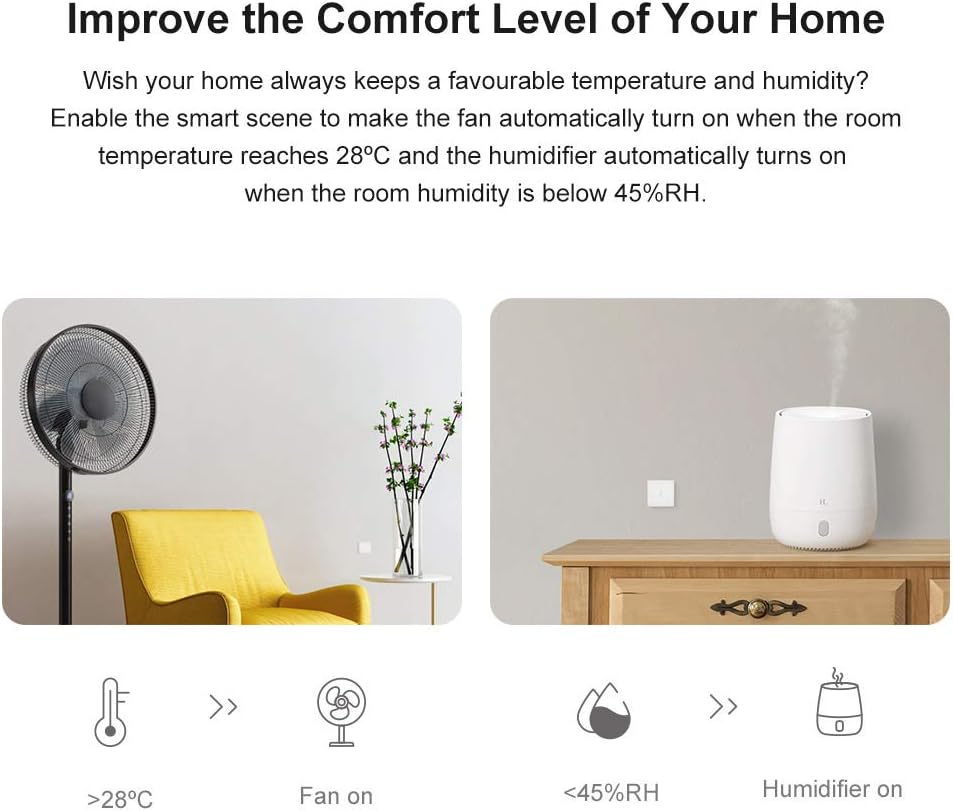
Image: Illustrations depicting practical smart scene applications, such as automated fan activation based on high temperature and humidifier activation based on low humidity.
5. Maintenance
5.1 Battery Replacement
The SNZB-02 sensor is designed for ultra-low energy consumption, providing long battery life. When the battery level is low, you will receive an alert in your smart home app.
- When a low battery alert is received, prepare a new CR2450 battery.
- Gently open the back cover of the sensor.
- Remove the old battery and insert the new CR2450 battery, ensuring correct polarity.
- Close the back cover securely.
- The sensor should automatically reconnect to your ZigBee hub. If not, briefly press the reset button to re-establish the connection.
5.2 Cleaning
To maintain optimal performance, keep the sensor clean and free from dust.
- Wipe the sensor's exterior with a soft, dry cloth.
- Do not use liquid cleaners or abrasive materials, as these can damage the device.
6. Troubleshooting
| Problem | Possible Cause | Solution |
|---|---|---|
| Sensor frequently disconnects or goes offline. |
|
|
| Inaccurate temperature/humidity readings. |
|
|
| Cannot pair the sensor with the hub. |
|
|
7. Specifications
| Attribute | Detail |
|---|---|
| Model | SNZB-02 |
| Wireless Protocol | ZigBee 3.0 |
| Power Supply | CR2450 Battery (3V) |
| Operating Temperature | -10°C to 40°C (14°F to 104°F) |
| Operating Humidity | 10% - 90% RH (non-condensing) |
| Material | PC (Plastic) |
| Dimensions | 43 x 43 x 14 mm (1.69 x 1.69 x 0.55 inches) |
| Weight | 18g (0.634 ounces) |
| Installation Method | 3M Adhesive (Wall Mount) |
| Indoor/Outdoor Usage | Indoor Only |
8. Warranty and Support
SONOFF products are designed and manufactured to the highest quality standards. For specific warranty information, please refer to the warranty card included with your product or visit the official SONOFF website.
For technical support, troubleshooting assistance, or further inquiries, please contact SONOFF customer service through their official website or the support channels provided in your product packaging. Keep your purchase receipt for warranty claims.
- Official Website: www.sonoff.com
- Support Email: Refer to product packaging or website.


