
Introduction
Thank you for choosing the BoxWave ClearTouch Anti-Glare Screen Protector for your myGEKOgear Orbit 930. This screen protector is designed to reduce glare, prevent fingerprints, and protect your device's screen from scratches and smudges. This manual provides essential information for proper installation, usage, and maintenance to ensure optimal performance and longevity of your screen protector.
Package Contents
Your BoxWave ClearTouch Anti-Glare Screen Protector package includes the following items:
- Two (2) ClearTouch Anti-Glare Screen Protectors
- One (1) Applicator Card
- One (1) Microfiber Cleaning Cloth
- One (1) Dust Removing Sticker
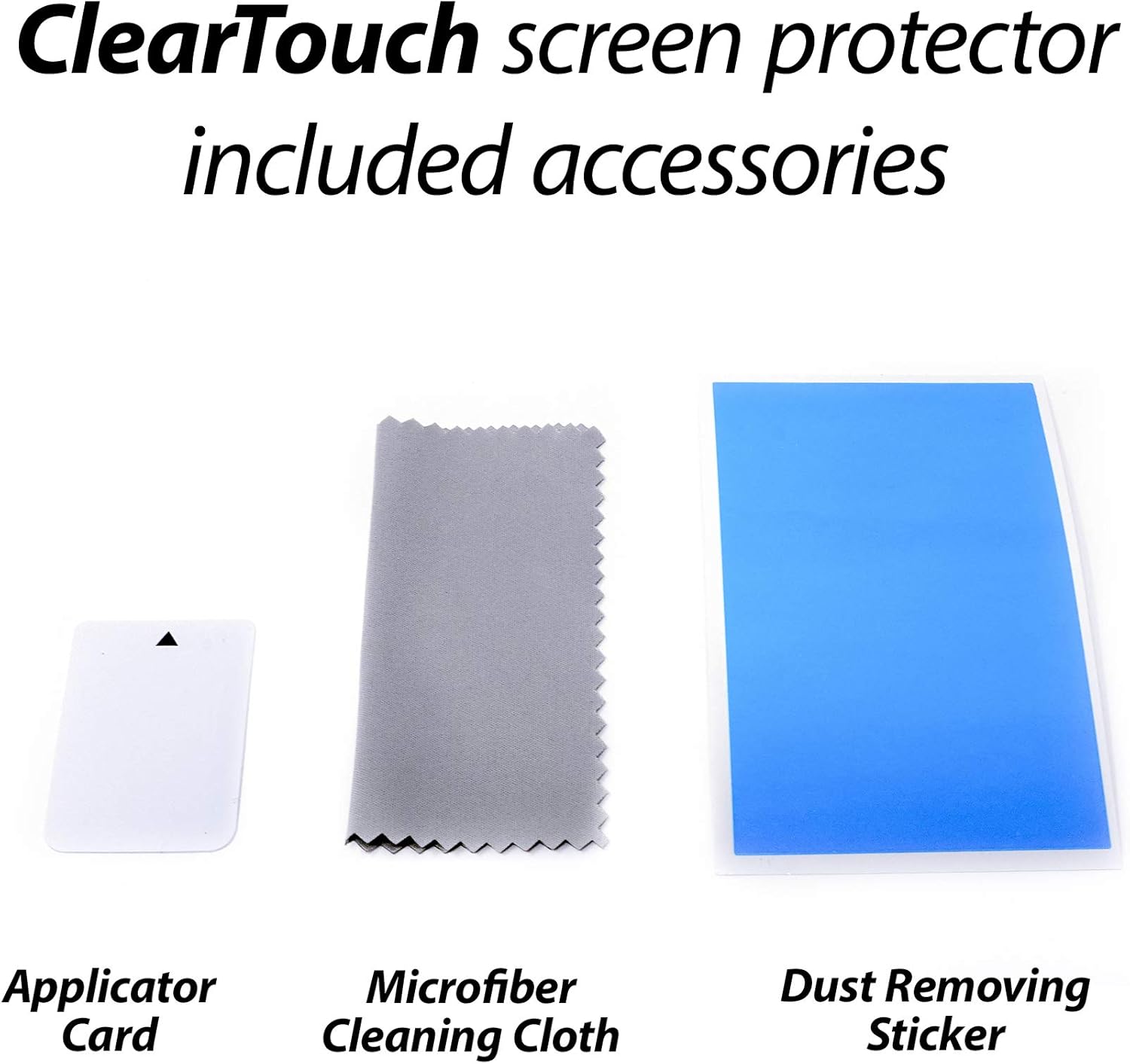
Image: The package contents including two screen protectors, an applicator card, a microfiber cleaning cloth, and a dust removing sticker.

Image: Retail packaging displaying the BoxWave ClearTouch Anti-Glare Screen Protector, along with the two screen protectors and cleaning accessories.
Installation Instructions
Follow these steps carefully for a bubble-free installation:
- Clean Your Device Screen: Use the included microfiber cleaning cloth to thoroughly clean the screen of your myGEKOgear Orbit 930. Ensure there are no dust particles, smudges, or fingerprints. For stubborn marks, a screen cleaner (not included) can be used.
- Remove Dust: Use the dust removing sticker to lift any remaining dust particles from the screen. Lightly dab the sticker across the screen surface.
- Peel Back Layer 1: Carefully peel back a small portion of the protective film labeled 'Layer 1' from one corner of the screen protector. Avoid touching the adhesive side.
- Align the Protector: Align the exposed adhesive edge of the screen protector with the edge of your device's screen. Ensure precise alignment with all cutouts (e.g., camera, sensors) before proceeding.
- Apply Gradually: Slowly and steadily peel back 'Layer 1' further while simultaneously using the applicator card to smooth the screen protector onto the device screen. Apply gentle, even pressure to push out any air bubbles as you go. Work from one end to the other.
- Remove Bubbles: If bubbles appear, gently lift the nearest edge of the screen protector and reapply, using the applicator card to push the air out towards the edges. Small bubbles may disappear on their own within 24-48 hours.
- Remove Layer 2: Once the screen protector is fully applied and free of major bubbles, carefully peel off the top protective film labeled 'Layer 2'.
- Final Wipe: Give the newly installed screen protector a final wipe with the microfiber cloth to remove any smudges.
Usage and Features
The BoxWave ClearTouch Anti-Glare Screen Protector enhances your myGEKOgear Orbit 930 experience with several key features:
- Anti-Glare Protection: The matte surface disperses light, significantly reducing glare from sunlight or indoor lighting. This improves screen readability and reduces eye strain.
- Anti-Fingerprint Surface: The specialized matte finish repels oil and smudges, keeping your screen cleaner and clearer for longer.
- Paper-like Feel: Enjoy a unique tactile experience that mimics the feel of writing or drawing on paper, enhancing precision and comfort when using a stylus.
- Scratch Resistance: Provides a durable layer of protection against daily scratches and abrasions.

Image: A tablet screen showing a drawing application with a stylus, illustrating the paper-like feel provided by the screen protector for writing and drawing.

Image: A visual comparison demonstrating the anti-smudge surface of the BoxWave screen protector on the left, contrasted with a screen covered in fingerprints on the right.
Maintenance
To maintain the clarity and effectiveness of your screen protector:
- Regularly wipe the screen protector with the included microfiber cleaning cloth to remove dust and light smudges.
- For more persistent marks, lightly dampen the microfiber cloth with water or a screen-safe cleaning solution. Avoid harsh chemicals or abrasive materials.
- Do not use excessive force when cleaning, as this may damage the screen protector or your device.
Troubleshooting
If you encounter issues during or after installation, consider the following:
- Bubbles: Most small bubbles will dissipate within 24-48 hours. For larger bubbles, gently lift the nearest edge of the screen protector and reapply, using the applicator card to push the air out. Ensure the screen is free of dust.
- Dust Particles: If dust is trapped under the protector, carefully lift the nearest edge and use the dust removing sticker to gently lift the particle. Reapply the protector.
- Misalignment: If the screen protector is significantly misaligned, carefully peel it off, clean the screen again, and attempt reapplication. The glueless adhesive allows for reuse.
- Reduced Touch Sensitivity: Ensure the screen protector is applied smoothly without air gaps. If issues persist, verify your device's touch settings.
Specifications
| Brand | BoxWave |
| Model Compatibility | myGEKOgear Orbit 930 |
| Material | Polyethylene Terephthalate |
| Screen Surface Description | Matte, Anti-Glare, Anti-Fingerprint |
| Package Quantity | 2 Screen Protectors |
| Item Weight | 0.7 ounces |
Warranty and Support
Specific warranty information for this product is not provided in this manual. For details regarding warranty coverage, returns, or technical support, please refer to the BoxWave official website or contact BoxWave customer service directly. Contact information can typically be found on the product packaging or the manufacturer's website.