
1. Introduction
This manual provides detailed instructions for the FamBrow 8.1-inch Digital Photo Frame, Model P800. This device is designed to display your cherished memories through photos, play music, and videos, offering a versatile way to enjoy your digital media. Please read this manual thoroughly before using the product to ensure proper operation and to maximize its features.

Image 1.1: The FamBrow 8.1-inch Digital Photo Frame with its remote control.
2. What's in the Box
Please check the package contents upon unboxing:
- 1 x FamBrow 8.1-inch Digital Photo Frame
- 1 x Wireless Remote Control
- 1 x Digital Photo Frame Stand
- 1 x 5V/2A Power Adapter/Charger
- 1 x Instruction Manual
3. Product Features
The FamBrow Digital Photo Frame offers a range of features for an enhanced user experience:
- High-Resolution Display: An 8.1-inch IPS screen with 1980 x 1080 HD resolution provides rich, vibrant colors and a 178° wide viewing angle.
- Multi-Functionality: Supports playback of photos, music, and videos. Includes calendar, clock, alarm, and file management functions.
- Easy Plug and Play: Simply insert an SD card or USB drive (up to 32GB, not included) to instantly display media without additional software.
- User-Friendly Control: Equipped with an infrared wireless remote control for convenient operation.
- Automatic On/Off: Schedule the frame to power on and off automatically to save energy.
- Adjustable Brightness: Customize screen brightness to suit your viewing environment.
- Auto-Rotate Screen: Automatically adjusts display orientation for portrait or landscape images.
- Breakpoint Play: Resumes photo, music, or video playback from where it left off when the frame is powered on again.
- Multiple Display Modes: Offers various slideshow effects and multi-window display options (single, double, triple, quadruple windows).
- Integrated Audio: Built-in stereo speaker and 3.5mm headphone jack for audio playback.
- Durable Design: Constructed from high-quality ABS material, resistant to heat, strong, stable, and shock-resistant.
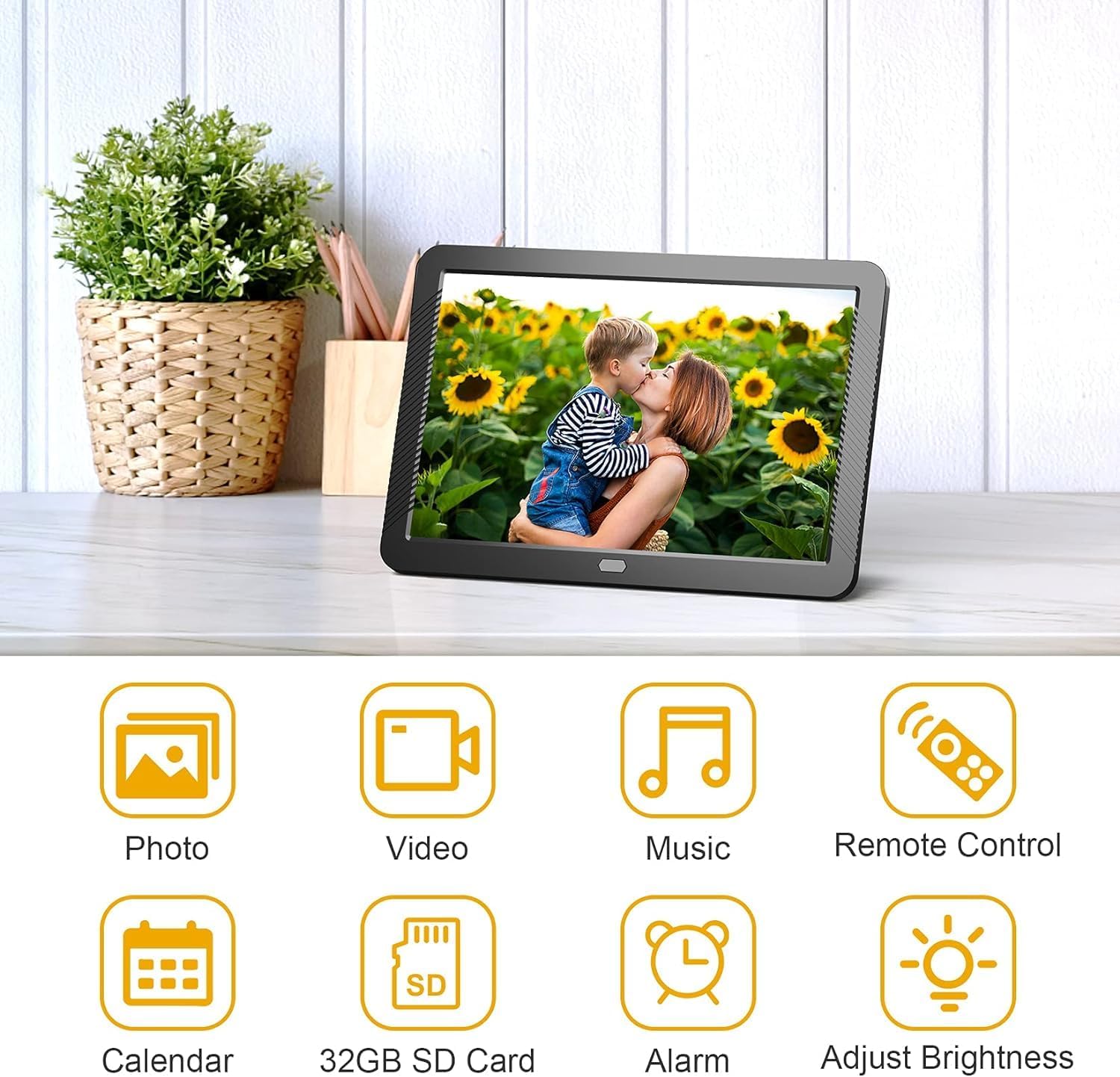
Image 3.1: Overview of the digital photo frame's multi-functional capabilities.

Image 3.2: The auto-rotate screen feature automatically adjusts the display orientation.

Image 3.3: The multi-window display feature allows for various photo arrangements.
4. Setup
Follow these steps to set up your FamBrow Digital Photo Frame:
- Attach the Stand: Locate the support bar hole on the back of the frame. Insert the included stand firmly into the hole to allow the frame to stand upright on a flat surface.
- Power Connection: Connect the 5V/2A power adapter to the DC input interface on the back of the frame. Plug the adapter into a standard electrical outlet. The frame should power on automatically or can be turned on using the power button.
- Insert Storage Device: Insert an SD/MMC card into the SD/MMC card slot or a USB flash drive into the USB output interface. Ensure the storage device is formatted correctly and contains compatible media files. The frame supports up to 32GB storage.
- Wall Mounting (Optional): If you wish to wall-mount the frame, use the designated holes for wall hanging on the back panel. Ensure appropriate wall anchors and screws are used (not included) to securely mount the frame.

Image 4.1: Rear view of the digital photo frame, highlighting ports and controls.
5. Operating Instructions
Operating your FamBrow Digital Photo Frame is straightforward using the remote control or the buttons on the back of the frame.
5.1 Basic Navigation
- Power Button: Turns the frame on or off.
- Menu Button: Accesses the main menu or returns to the previous screen.
- Up/Down/Left/Right Buttons: Navigate through menu options and media files.
- Play/Pause Button: Starts or pauses media playback.
- OK/Enter Button: Confirms selections.
5.2 Media Playback
- Accessing Media: From the main menu, select the desired media type (Photo, Music, Video).
- Browsing Files: Use the navigation buttons to browse through your files on the inserted SD card or USB drive.
- Playing Media: Select a file and press the OK/Enter button to start playback. For photos, a slideshow will typically begin.
- Slideshow Settings: In photo mode, access the settings menu to adjust slideshow intervals, transition effects (7 options available), and playback order (random or sequential).
- Breakpoint Play: If the frame powers off during media playback, it will resume from the last played point when turned on again.

Image 5.1: Illustration of the breakpoint play functionality.
5.3 System Settings
Access the system settings menu to configure various options:
- Brightness Adjustment: Navigate to display settings to adjust the screen brightness.
- Time and Date: Set the current time and date for the calendar and alarm functions.
- Alarm: Configure alarms as needed.
- Auto On/Off: Set specific times for the frame to automatically power on and off.
- Language: Select your preferred language for the user interface.

Image 5.2: Adjusting the screen brightness to your preference.
6. Maintenance
Proper maintenance ensures the longevity and optimal performance of your digital photo frame:
- Cleaning the Screen: Use a soft, dry, lint-free cloth to gently wipe the screen. For stubborn smudges, slightly dampen the cloth with water or a screen-cleaning solution specifically designed for electronics. Avoid harsh chemicals or abrasive materials.
- Cleaning the Frame: Wipe the frame's exterior with a soft, dry cloth.
- Storage: When not in use for extended periods, store the frame in a cool, dry place, away from direct sunlight and extreme temperatures.
- Power Off: Always power off the device and unplug it from the power source before cleaning or when not in use.
7. Troubleshooting
If you encounter issues with your FamBrow Digital Photo Frame, refer to the following common problems and solutions:
| Problem | Possible Cause | Solution |
|---|---|---|
| Frame does not power on. | No power, faulty adapter, or loose connection. | Ensure the power adapter is securely connected to the frame and a working power outlet. Try a different outlet. |
| No image/video displayed. | No SD card/USB drive inserted, incompatible file format, or corrupted files. | Insert a compatible SD card or USB drive. Ensure media files are in supported formats (JPEG, BMP, GIF, PNG for images; MKV, MOV, AVI, MP4, etc. for video). Check if files are corrupted. |
| Remote control not working. | Dead batteries, obstruction, or out of range. | Replace batteries in the remote. Ensure there is no obstruction between the remote and the frame's IR receiver. Operate within the effective range. |
| No sound from videos/music. | Volume too low, muted, or incompatible audio format. | Increase volume using the remote. Check if the device is muted. Ensure audio files are in supported formats (MP3, WMA, OGG, APE, FLAC, AC3, ATRA, AAC, DTS). |
| Screen is dim. | Brightness setting is low. | Adjust the brightness setting in the system menu. |
8. Specifications
| Feature | Detail |
|---|---|
| Brand | FamBrow |
| Model Number | P800 |
| Screen Size | 8.1 Inches |
| Resolution | 1980 x 1080 (Full HD) |
| Display Technology | IPS |
| Aspect Ratio | 16:9 |
| Color | Black |
| Connectivity Technology | Infrared (for remote), USB |
| Human Interface Input | Buttons, Remote Control |
| Power Source | Corded Electric (5V/2A adapter) |
| Memory Storage Capacity | Supports up to 32GB (SD/USB) |
| Supported Image Formats | JPEG, BMP, GIF, PNG, TIFF |
| Supported Audio Formats | MP3, WMA, OGG, APE, FLAC, AC3, ATRA, AAC, DTS |
| Supported Video Formats | MKV, MOV, AVI, RMVB, MP4, TS, ASF, FLV, PMP, MPG, VOB, WMV (720p and 1080p) |
9. Warranty and Support
For warranty information and customer support, please refer to the documentation included with your purchase or contact FamBrow customer service through their official channels. Keep your purchase receipt as proof of purchase for warranty claims.