
1. Introduction
The Garmin Fusion Apollo MS-ERX400 is a marine wired remote designed to provide intuitive and integrated audio control for your boat's audio system. It connects to your Apollo Series stereo network via Ethernet, offering full control of your onboard audio, including PartyBus-Network capabilities. This remote features a bright 2.7-inch optically bonded color LCD with album art display, ensuring clear visibility in various marine conditions. Its compact design and ultra-shallow mounting depth offer versatile installation options.

Image 1.1: The Garmin Fusion Apollo MS-ERX400 Marine Wired Remote. This image displays the remote's front face, featuring a color LCD screen, a rotary knob on the left, and several control buttons below the screen. The screen shows music playback information including artist, song title, and album art.
2. What's in the Box
Verify that all components are present before beginning installation.
- Apollo™ ERX400 marine wired remote
- Mounting gasket
- Four 8-gauge, self-tapping screws
- Two screw covers
- Dust cover
- Network/power cable
- Documentation (Installation Instructions, Warranty Information)
3. Setup and Installation
The MS-ERX400 remote is designed for flexible installation on your vessel. It offers multiple mounting options and features an ultra-shallow mounting depth for increased versatility.
3.1 Mounting Options
- Flush Mount: For a seamless integration into your dashboard or panel.
- Flat Mount: Similar to flush mount, providing a low-profile appearance.
- Surface Mount: Requires an optional accessory spacer (sold separately) for mounting directly onto a surface.
The remote features an ultra-shallow mounting depth of just 1.93 inches (49 mm), which simplifies installation in confined spaces.
3.2 Electrical Connection
Connect the Apollo ERX400 to your Apollo Series stereo network via the provided Ethernet cable. This connection facilitates both power and data communication for audio control and PartyBus-Network capabilities. Refer to the detailed documentation included in the box for specific wiring diagrams and connection procedures.
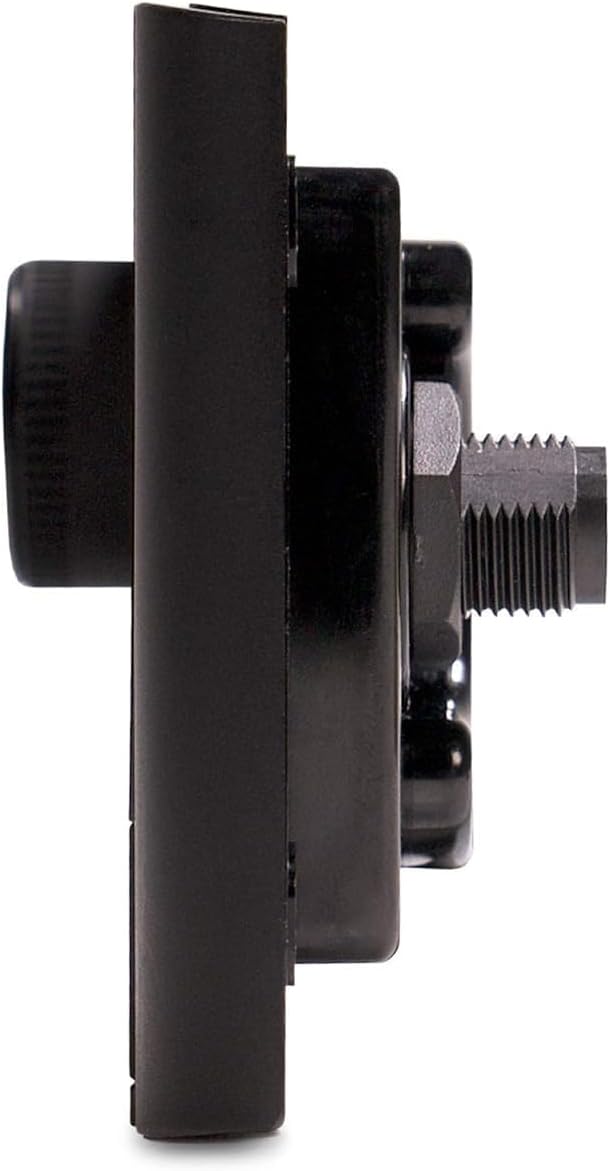
Image 3.1: Side profile of the MS-ERX400 remote. This view highlights the compact design and the shallow mounting depth, illustrating how the unit can be integrated into a panel. The threaded shaft for securing the unit is visible.
4. Operating Instructions
The MS-ERX400 provides an intuitive user experience for controlling your marine audio system.
4.1 Basic Controls
- Power Button: Located on the bottom left, press to turn the unit on or off.
- Rotary Knob: On the left side, use to adjust volume, navigate menus, and make selections. Press the knob to confirm selections.
- Menu Button: Access various settings and options for the audio system.
- Back Button: Return to the previous screen or menu.
- Playback Controls: Dedicated buttons for Play/Pause, Skip Forward, and Skip Backward for media control.
4.2 Display and Navigation
The 2.7-inch optically bonded color LCD displays current audio source, track information, album art, and system status. Use the rotary knob and menu buttons to navigate through sources, zones, and settings.
4.3 PartyBus-Network Control
When connected to an Apollo Series stereo network, the ERX400 allows you to control audio in any zone on board your boat, including PartyBus-Network capabilities for synchronized audio across multiple zones.
4.4 Software Updates
The device supports over-the-air software updates. These updates can be performed from the Fusion-Link app on your compatible smartphone or device when connected to an external wireless network router (sold separately) or an Apollo Series stereo with Wi-Fi connectivity.

Image 4.1: Angled view of the MS-ERX400 remote. This image provides a clear perspective of the display and the arrangement of the control buttons, including the power, menu, back, and media playback buttons.
5. Maintenance
The Fusion Apollo MS-ERX400 is built with Fusion True-Marine™ design, rated IPX6 and IPX7 water-resistant, ensuring durability in the harsh marine environment.
- Cleaning: Regularly wipe the unit with a soft, damp cloth to remove salt residue, dirt, and grime. Avoid using harsh chemicals or abrasive cleaners, as these can damage the screen or casing.
- Screen Care: The optically bonded screen is designed for clarity. To maintain its performance, avoid scratching the screen. If necessary, use a screen-specific cleaner and a microfiber cloth.
- Connections: Periodically inspect all cable connections to ensure they are secure and free from corrosion.
6. Troubleshooting
If you encounter issues with your MS-ERX400 remote, consider the following basic troubleshooting steps:
- No Power: Ensure the network/power cable is securely connected to both the remote and the Apollo Series stereo network. Check the power supply to the main stereo unit.
- No Audio Control: Verify that the Ethernet connection is active and that the remote is properly recognized by the main Apollo Series stereo. Ensure the main stereo unit is powered on and functioning correctly.
- Display Issues: If the screen is unresponsive or displaying incorrectly, try restarting the main stereo unit and the remote. Check for any physical damage to the screen.
- Software Glitches: Ensure your device has the latest software updates installed via the Fusion-Link app.
For more complex issues, refer to the comprehensive troubleshooting section in the main Apollo Series stereo manual or contact Garmin customer support.
7. Specifications
| Feature | Specification |
|---|---|
| Brand | Garmin |
| Model Name | MS-ERX400 |
| Model Number | 010-02244-00 |
| Color | Black |
| Special Feature | Anti Glare Screen |
| Connectivity Technology | Proprietary Ethernet |
| Compatible Devices | Smartphone, Tablet (via Fusion-Link app) |
| Item Weight | 120 Grams |
| Item Dimensions (L x W x H) | 2.8"L x 4.32"W x 2.75"H |
| Mounting Depth | 1.93" (49 mm) |
| Water Resistance Rating | IPX6 and IPX7 |
| UPC | 753759225919 |
8. Warranty and Support
8.1 Warranty Information
The Garmin Fusion Apollo MS-ERX400 Marine Wired Remote comes with a 3-year limited consumer warranty, reflecting its Fusion True-Marine™ design and robust construction. Please refer to the documentation included in the box for full warranty terms and conditions.
8.2 Customer Support
For technical assistance, product registration, or to find authorized service centers, please visit the official Garmin website or contact Garmin customer support directly. Contact information can be found in the product documentation or on the Garmin website.


