
XIAOMI MDZ-24-AA
Xiaomi Mi TV Stick User Manual
Model: MDZ-24-AA
Product Overview
The Xiaomi Mi TV Stick is a compact and portable streaming media player that transforms any TV with an HDMI port into a smart TV. Powered by Android TV 9.0, it provides access to a vast library of content from streaming services and apps via the Google Play Store. Its integrated Google Assistant allows for voice control, and built-in Chromecast enables seamless casting from mobile devices. The device supports 1080P HD playback with HDR, and offers immersive audio with DTS and Dolby support.

Image: The Xiaomi Mi TV Stick and its accompanying Bluetooth remote control.
What's Included
- Mi TV Stick Body
- Bluetooth Remote Control with Google Assistant
- Power Adapter
- HDMI Extension Cable (may vary by region)
Initial Setup
Setting up your Mi TV Stick is a straightforward process. Follow these steps to get started:
- Plug into TV: Insert the Mi TV Stick directly into an available HDMI port on your television. If space is limited, use the provided HDMI extension cable.
- Connect to Power: Connect the power adapter to the Mi TV Stick's micro USB port and then plug the adapter into a power outlet.
- Select HDMI Input: Turn on your TV and use your TV remote to select the correct HDMI input source where the Mi TV Stick is connected.
- Pair Remote: Follow the on-screen instructions to pair the Bluetooth remote control. Typically, this involves holding down specific buttons (e.g., Home and Back buttons) until the pairing indicator appears.
- Connect to Wi-Fi: Once the remote is paired, select your Wi-Fi network from the list and enter the password to connect the Mi TV Stick to the internet.
- Sign in with Google Account: Sign in with your Google account to access the Google Play Store and personalize your Android TV experience.
- Start Exploring: After setup is complete, you can begin downloading your favorite streaming apps and exploring content.
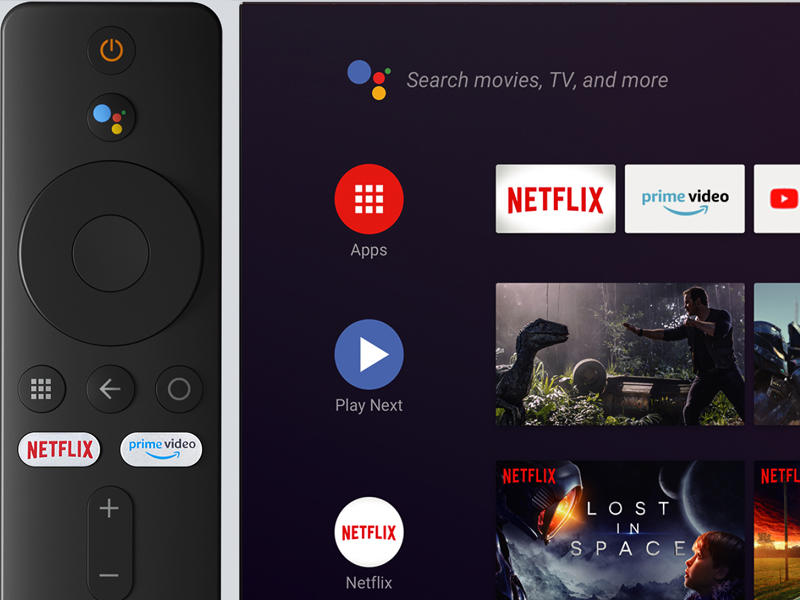
Image: The Mi TV Stick remote control positioned beside a television screen showing the Android TV home interface, ready for user interaction.
Operating Instructions
Remote Control Functions
The Mi TV Stick comes with a Bluetooth remote control designed for ease of use. It features dedicated buttons for quick access to popular streaming services and Google Assistant.
- Power Button: Turns the Mi TV Stick on or off.
- Google Assistant Button (Mic): Press and hold to activate voice search and commands.
- Navigation Ring: Use to navigate through menus and select items.
- Back Button: Returns to the previous screen.
- Home Button: Returns to the Android TV home screen.
- Netflix Button: Direct access to the Netflix application.
- Prime Video Button: Direct access to the Amazon Prime Video application.
- Volume Buttons (+/-): Adjusts the volume.

Image: A detailed view of the Mi TV Stick's Bluetooth remote control, highlighting the Google Assistant button and dedicated Netflix and Prime Video buttons.
Smart Features and Content
The Mi TV Stick provides a comprehensive smart TV experience:
- Android TV 9.0: Enjoy a user-friendly interface with access to thousands of apps and games from the Google Play Store.
- Google Assistant: Use voice commands to search for content, control smart home devices, get answers, and more.
- Chromecast Built-in: Easily cast movies, TV shows, music, and other content from your smartphone, tablet, or laptop directly to your TV screen.
- Pre-installed Apps: Quick access to popular services like Netflix and Prime Video.
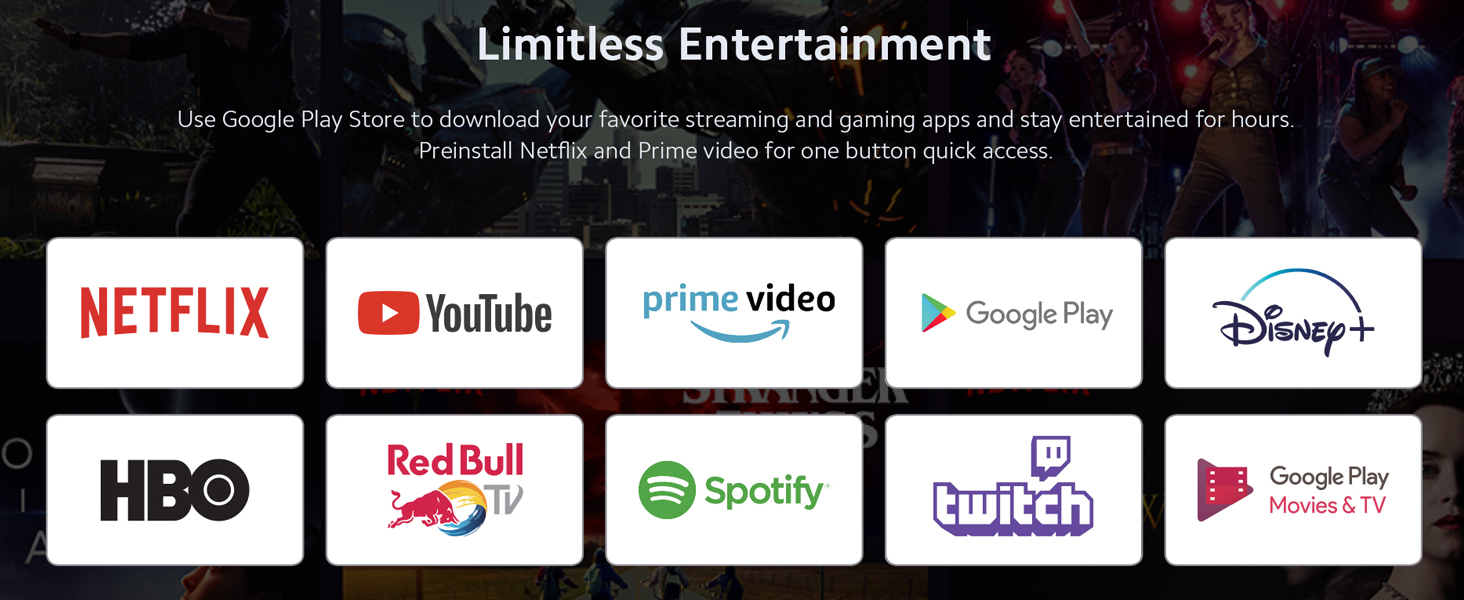
Image: A television screen showcasing a wide array of streaming application logos, illustrating the limitless entertainment options available on the Mi TV Stick.
Audio and Video Quality
The Mi TV Stick is designed to deliver a high-quality viewing and listening experience:
- Full HD 1080P Playback: Supports video resolution up to 1920x1080 pixels for clear and detailed images.
- HDR Support: Provides enhanced contrast and color for a more vibrant picture (requires HDR-compatible TV and content).
- DTS and Dolby Audio: Supports multichannel HD audio encoding for smoother, dynamic, immersive, and realistic stereo surround sound.

Image: The Dolby Audio and DTS logos displayed above a graphic representing sound waves, indicating the premium surround sound capabilities of the device.
Technical Specifications
| Feature | Specification |
|---|---|
| Model Name | Mi TV Stick |
| Item Model Number | MDZ-24-AA |
| Product Dimensions | 0.46 x 0.31 x 1.39 inches (11.7 x 7.9 x 35.3 mm) |
| Item Weight | 1 ounces (28.35 grams) |
| Operating System | Android TV 9.0 |
| Resolution | 1080p (Full HD) |
| Connectivity Technology | Bluetooth, HDMI, Wi-Fi |
| Controller Type | Remote Control, Voice Control |
| Supported Internet Services | Netflix, YouTube, Prime Video, Google Play Store apps |
| Batteries | 1 CR2 battery required (for remote) |
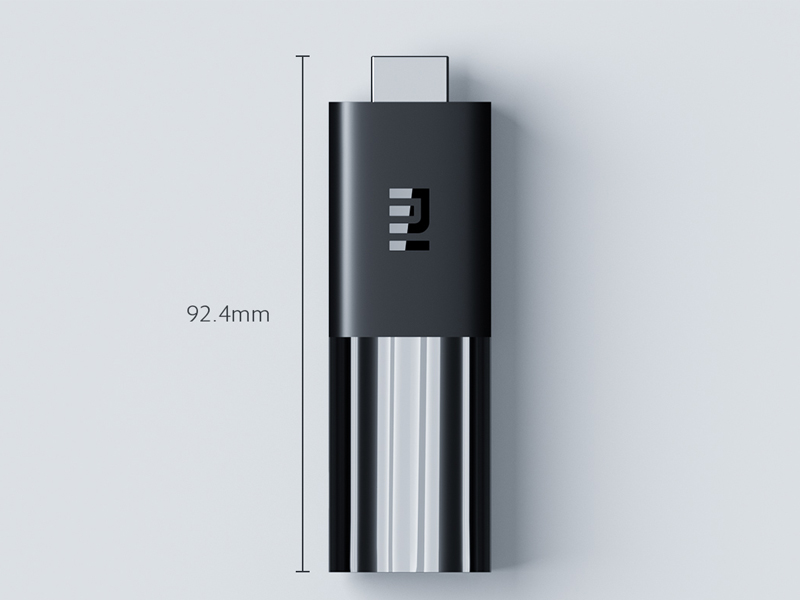
Image: A diagram illustrating the compact dimensions of the Mi TV Stick, showing its length of 92.4mm.
Troubleshooting
If you encounter issues with your Mi TV Stick, try the following solutions:
- No Power/No Display:
- Ensure the power adapter is securely connected to the Mi TV Stick and a working power outlet.
- Verify that the Mi TV Stick is fully inserted into the TV's HDMI port.
- Check that your TV is set to the correct HDMI input source.
- Try a different HDMI port on your TV.
- Remote Not Responding:
- Replace the CR2 battery in the remote control.
- Re-pair the remote control by following the initial setup instructions (hold Home and Back buttons).
- Ensure there are no obstructions between the remote and the Mi TV Stick.
- Wi-Fi Connection Issues:
- Restart your Wi-Fi router and the Mi TV Stick.
- Ensure you are entering the correct Wi-Fi password.
- Move the Mi TV Stick closer to your Wi-Fi router or use an HDMI extension cable to position it away from the TV's metal casing, which can interfere with Wi-Fi signals.
- App Crashing/Lagging:
- Close and reopen the problematic app.
- Clear the cache and data for the app in the Mi TV Stick's settings (Settings > Apps > [App Name] > Clear cache/Clear data).
- Ensure the Mi TV Stick's software is up to date (Settings > Device Preferences > About > System update).
- If performance issues persist, consider performing a factory reset (Settings > Device Preferences > About > Factory reset). Note: This will erase all data and settings.
Maintenance
To ensure the longevity and optimal performance of your Mi TV Stick:
- Keep the device in a well-ventilated area to prevent overheating.
- Clean the device and remote with a soft, dry cloth. Avoid using liquid cleaners.
- Regularly check for and install system updates to ensure you have the latest features and security patches.
- Avoid exposing the device to extreme temperatures, humidity, or direct sunlight.
Warranty and Support
The Xiaomi Mi TV Stick is covered by a limited manufacturer's warranty. Please refer to the warranty card included in your product packaging for specific terms and conditions, including the warranty period and coverage details.
For technical support, troubleshooting assistance, or warranty claims, please visit the official Xiaomi support website or contact their customer service. You can find more information and resources on the XIAOMI Store on Amazon.
Related documentsMDZ-24-AA


Ask a question about this manual
Ask about setup, troubleshooting, compatibility, parts, safety, or missing instructions. Manuals+ will review the question and use this page’s manual context to help answer it.